1.Product Overview
What Is Bitunix Super Alert?
Super Alert is Bitunix's all-in-one market and on-chain monitoring system for futures trading and chart analysis. From a single alert center, you can configure price alert, K-line alert, drawing alert, technical indicator alert, preset templates, and custom combinations based on your trading strategy. You can also integrate TradingView Webhooks and monitor on-chain wallet activity, using multi-channel notifications to stay informed without having to watch charts around the clock.
Price Alert: Set price or percentage-change conditions for a specific trading pair. When triggered, notifications are delivered through channels such as inbox messages and app push notifications. (Price Alert Setup Guide)
K-Line Alert: Detect signals based on single-candle patterns, double-candle patterns, and multi-candle formations. (K-Line Alert Setup Guide)
Drawing Alert: Configure trigger conditions for drawing tools such as trend lines and parallel channels, including crossing a line, breaking above or below it, and entering or leaving a channel. (Drawing Alert Setup Guide)
Indicator Alert: Set conditions based on popular technical indicators, including MACD, RSI, Bollinger Bands, Volume, and Moving Averages (MA). (Indicator Alert Setup Guide)
Template Alert: Apply preset combinations for trend-following, reversal, range-bound, breakout, and risk management scenarios with a single click. (Template Alert Setup Guide)
Combo Alert: Combine price conditions, technical indicators, and K-line patterns, with up to five conditions per alert. Choose whether all conditions must be met or any one condition is sufficient. (Combo Alert Setup Guide)
TradingView Signal Alert: Receive TradingView alerts through a dedicated Webhook URL and message body. (TradingView Integration Guide)
On-Chain Alert: Monitor on-chain transactions associated with wallet addresses and filter activity by asset, direction, transaction amount, and other conditions. (On-Chain Alert Guide)
Which Alert Type Should You Use?
What You Want to Monitor | Recommended Alert |
A specific price level or percentage change | Price Alert |
Candlestick patterns such as hammers, engulfing patterns, or morning stars | K-Line Alert |
Key levels defined by trend lines or channels rather than fixed prices | Drawing Alert |
Specific rules such as a MACD golden cross, RSI oversold conditions, or a volume spike | Indicator Alert |
Multiple conditions must be met to reduce false signals from a single indicator | Combo Alert |
A preset combination of conditions that you can quickly apply and customize | Template Alert |
Conditions that are easier to define using TradingView or Pine Script | TradingView Signal Alert |
On-chain activity from large holders or smart-money wallets that may not be visible on price charts | On-Chain Alert |
2. The Eight Types of Super Alert: When Should You Use Each?
1. Price Alert
Open the candlestick chart page for your target trading pair to configure a Price Alert.
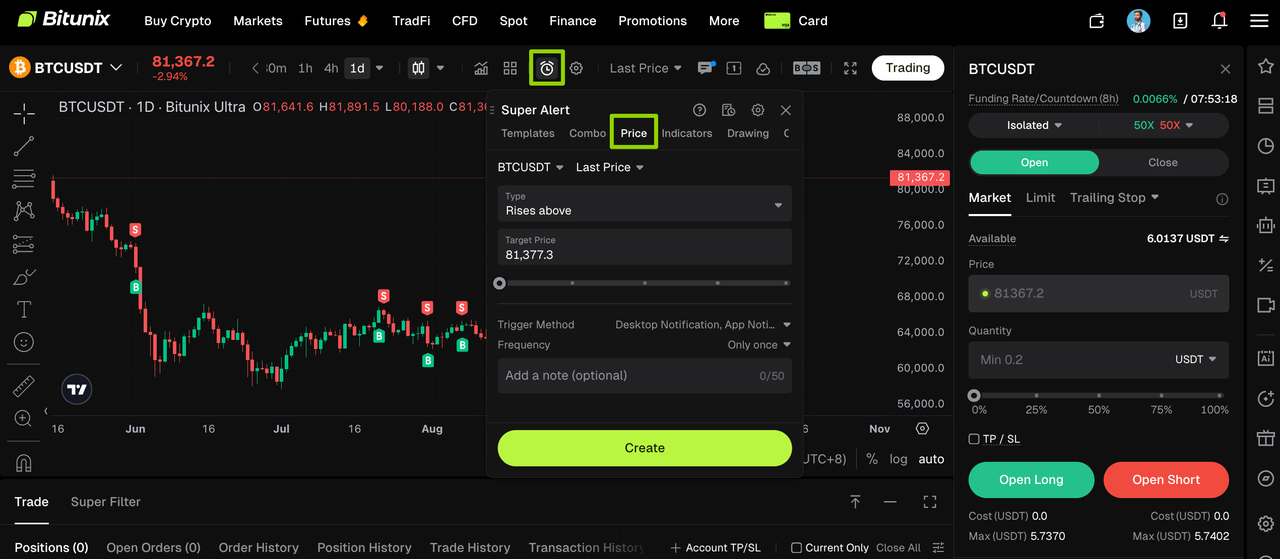
What it does: Set an absolute price or percentage-change condition for a specific trading pair. When the condition is met, you can receive notifications through channels such as inbox messages and app push notifications.
When to use it:
You have a specific price target in mind, such as a support or resistance level, take-profit or stop-loss level, or breakout price.
You want to be notified when the price reaches a certain level without constantly watching the chart.
Risk management: Monitor stop-loss levels and unusual price swings, including sharp percentage gains or losses.
Reference: Price Alert Setup Guide (App)
When not to rely on it alone: In range-bound markets, price may repeatedly cross the same level and generate unwanted notifications. Consider using a single-trigger alert, if supported, or upgrading to a Combo Alert with additional conditions.
2. K-Line Alert (Automatic Pattern Recognition)
Open the candlestick chart page for your target trading pair to configure a K-Line Alert.
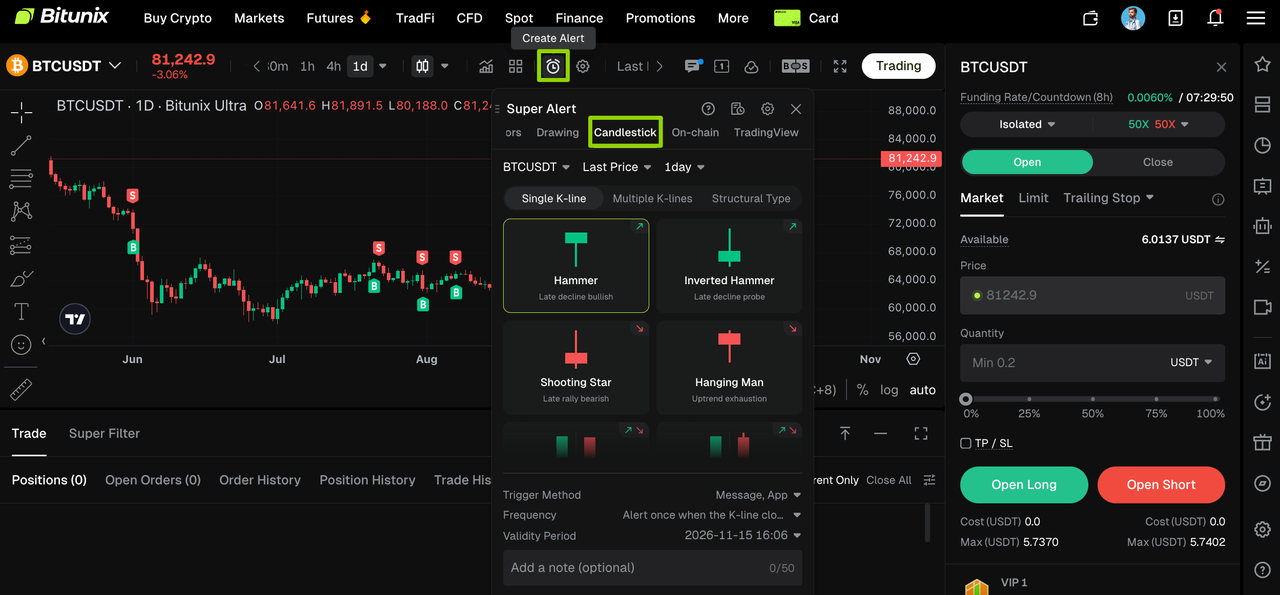
What it does: Sends an alert when a predefined single-candle, double-candle, or multi-candle pattern appears on the selected timeframe.
When to use it:
Your entry or exit strategy relies primarily on candlestick patterns, including reversal and continuation signals or potential market tops and bottoms.
You want to be notified when a candle closes or a pattern is completed, rather than scanning charts manually.
Quick Reference: Candlestick Patterns
Category | Patterns | Common Interpretation (Consider Trend and Price Context) |
Single-Candle Patterns | Hammer, Inverted Hammer, Shooting Star, Hanging Man, Marubozu, Doji patterns, Spinning Top | Potential rebounds at lows, pullbacks from highs, continuation of directional moves, or market indecision before the next move |
Double-Candle Patterns | Engulfing, Piercing Line, Dark Cloud Cover, Harami, Harami Cross | Potential shifts in buying and selling pressure, weakening trends, or possible reversals |
Multi-Candle Patterns | Morning Star, Evening Star, Three White Soldiers, Three Black Crows | Potential turning points or continuation of bullish or bearish momentum |
Reference: K-Line Alert Setup Guide
Practical Tip: Candlestick patterns are generally more meaningful near key price levels. Consider combining K-Line Alerts with Price Alert, Drawing Alert, or Indicator Alert to filter out noise from patterns that form in less relevant price areas.
3. Drawing Alert (Turn Your Chart Lines into Trading Rules)
Open the candlestick chart page for your target trading pair to configure a Drawing Alert.
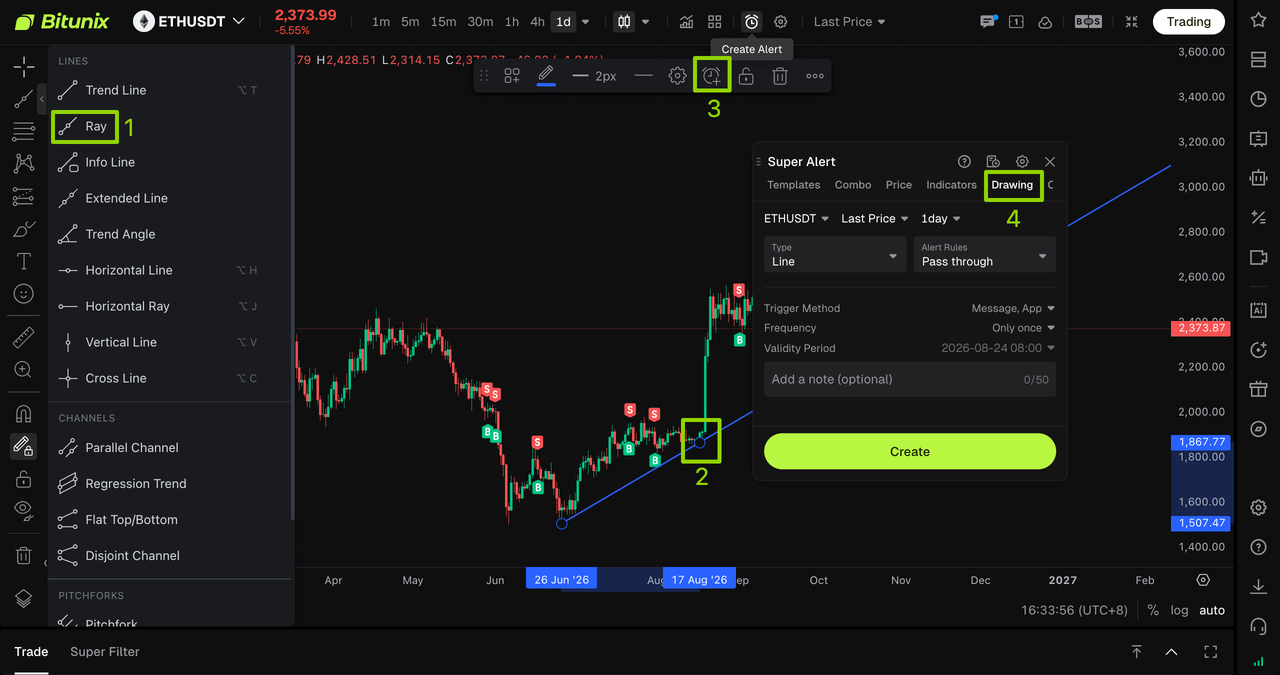
What it does: Set trigger conditions for drawing tools such as trend lines, rays, extended lines, and parallel channels. Conditions can include crossing a line, breaking above or below it, entering or leaving a channel, and touching its upper, middle, or lower boundary.
When to use it:
Diagonal support and resistance: Your key levels follow a trend line or channel rather than a fixed price.
Trend following: Monitor trend-line breakouts or pullbacks to the lower boundary of a channel.
Range trading: Track when price enters or exits a channel or touches its upper or lower boundary.
Risk management: Get notified when price breaks out of a channel or moves beyond a predefined range.
Common Use Cases
Drawing Tool | Trigger Conditions | Trading Strategy |
Trend Line / Ray / Extended Line | Crosses, breaks above, or breaks below the line | Trend breakouts and potential reversals |
Parallel Channel | Enters or exits the channel; touches the upper, middle, or lower boundary | Swing trading, range trading, and breakout monitoring |
Reference: Drawing Alert Setup Guide
4. Indicator Alert (Rule-Based and Repeatable)
Open the candlestick chart page for your target trading pair to configure an Indicator Alert.
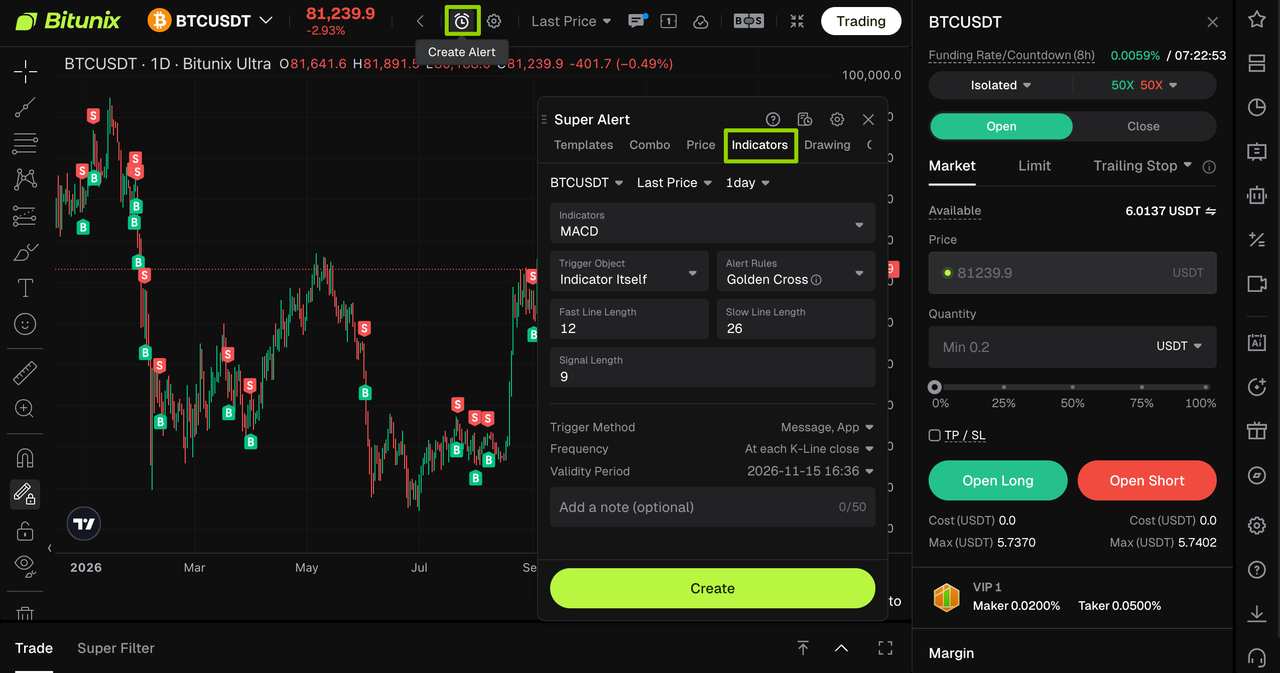
What it does: Sends an alert when indicators such as MACD, RSI, Bollinger Bands, Volume, or Moving Averages (MA) meet specified conditions.
When to use it:
Indicator | Example Conditions | Typical Use Cases |
MACD | Golden cross, death cross, DEA crossing zero, divergence | Trend reversals and swing trading |
RSI | Crossing above or below a threshold; overbought or oversold conditions | Potential reversals and identifying overextended price moves |
Bollinger Bands | Overbought or oversold conditions, middle-band crosses, band expansion or contraction | Breakout monitoring and range-bound markets |
Volume | Exceeds a specified threshold | Volume-backed breakouts and unusual market activity |
MA | Crosses above or below a moving average; price or another line moves above or below it | Trend analysis and moving-average strategies |
Reference: Indicator Alert Setup Guide
Important: Alerts are tied to the timeframe of the chart on which they are configured. For example, a MACD death-cross alert set on the daily chart does not automatically apply to the 30-minute chart. For multi-timeframe strategies, create a separate alert for each timeframe or use a Combo Alert to express multi-timeframe conditions, if supported by the platform.
Suggested alert frequency:
5. Combo Alert: A Key Tool for Filtering False Signals
Open the candlestick chart page for your target trading pair to configure a Combo Alert.
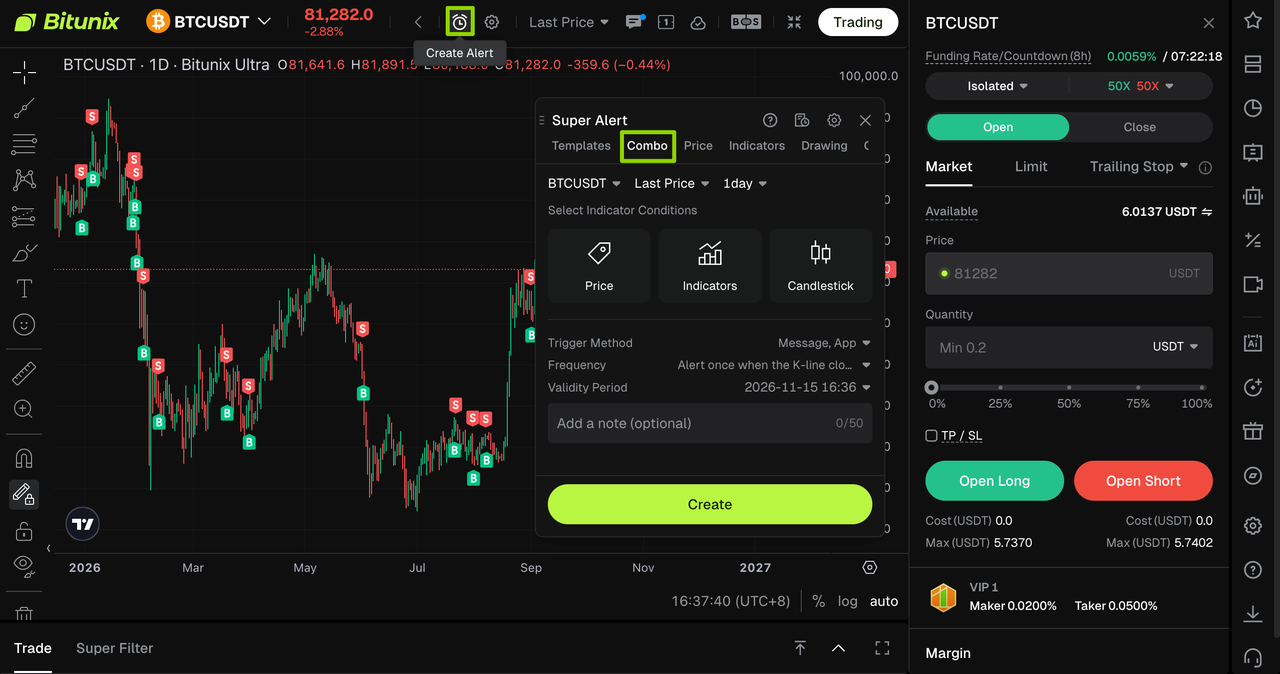
What it does: Combine Price, Indicators, and Candlestick in a single alert, with up to five conditions per alert. Choose between AND (all conditions must be met) and OR (any one condition can trigger the alert).
When to use it:
A single indicator or candlestick pattern generates too many false signals.
You want to automate your complete entry checklist instead of monitoring each condition manually.
You need multiple signals to align before acting. For example, RSI enters oversold territory AND a hammer pattern forms AND the price stays within a specified range.
Reference: Combo Alert Setup Guide
6. Template Alert: Combo Alerts in One Click
Open the candlestick chart page for your target trading pair to configure a Template Alert.
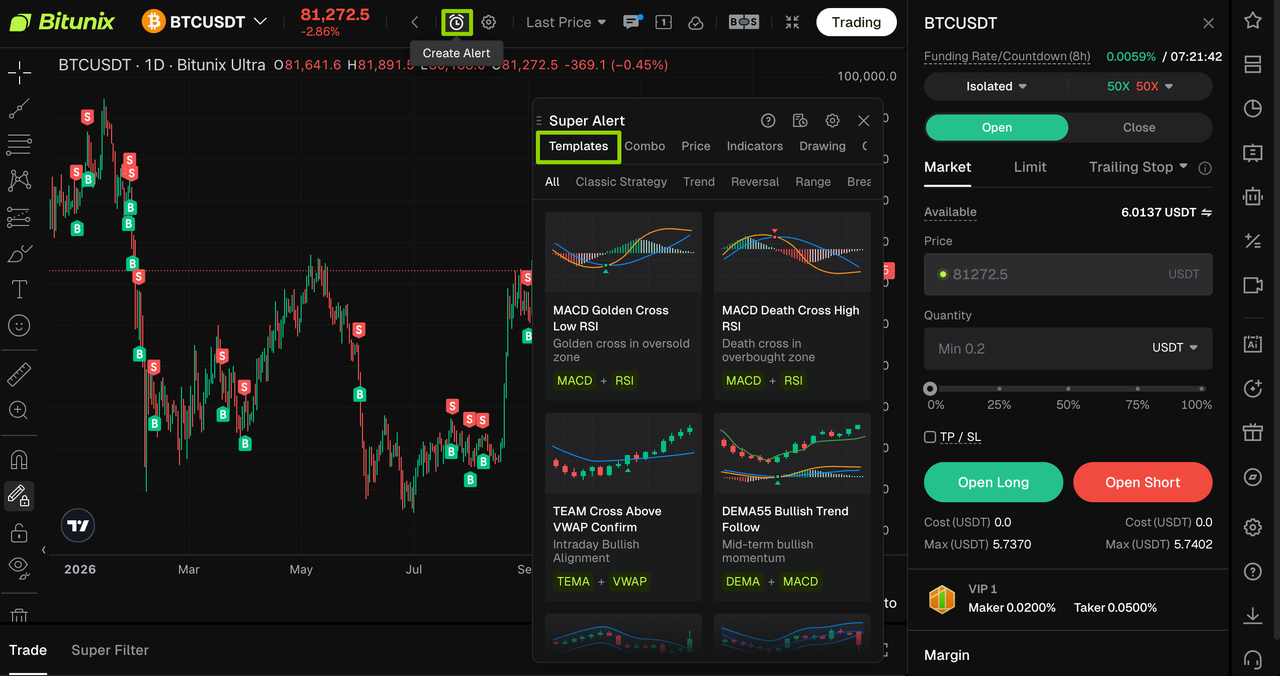
What it does: Provides preset multi-condition strategies, such as a MACD golden cross combined with a volume spike or an RSI oversold signal combined with a bullish engulfing pattern. Select a template to automatically populate the conditions in Combo, then adjust the settings as needed.
When to use it:
Beginners: Learn how different conditions can be combined into a trading setup.
Traders with established strategies: Generate a ready-made framework in seconds, then customize the parameters or timeframe.
Tip: Check the template's component labels first, such as indicator + volume or indicator + K-line pattern. Then consider whether current market conditions are trending or range-bound before choosing a template.
Reference: Template Alert Setup Guide
7. TradingView Signal Integration: Use TradingView Tools and Custom Scripts
Open the candlestick chart page for your target trading pair to access the integration settings.
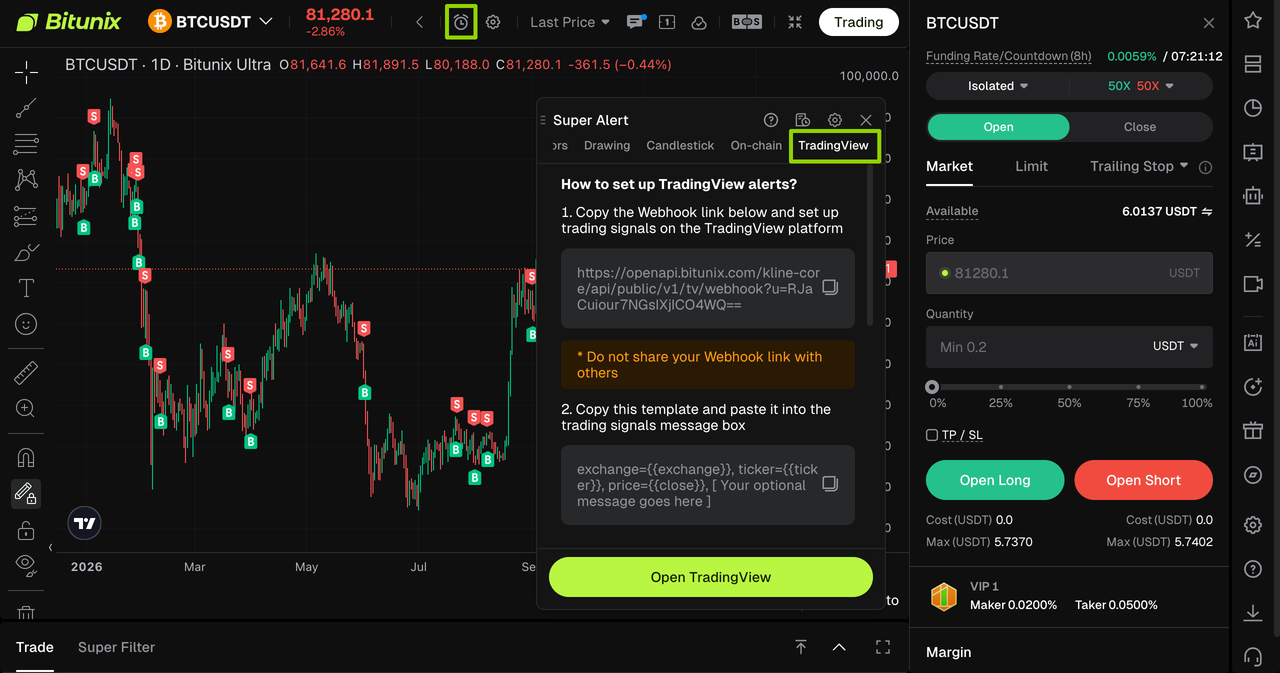
What it does: In the TradingView tab of Bitunix Super Alert, obtain your dedicated Webhook URL and message template. Enable Webhook in your TradingView alert settings. When a TradingView alert is triggered, Bitunix delivers the notification through web pop-ups, inbox messages, and app push notifications.
When to use it:
Your alert conditions are easier to implement in TradingView, using Pine Script, custom indicators, or complex multi-chart logic.
You already manage numerous TradingView alerts and want to centralize notifications in Bitunix.
Important:
Keep your Webhook URL private. You define the trigger conditions in TradingView; Bitunix only receives and delivers the resulting alerts.
TradingView alerts with Webhook functionality may require an Essential plan or higher. Check the official TradingView website for current plan requirements.
Reference: TradingView Signal Alert Setup Guide
8. On-Chain Alert: Monitor Market Activity Beyond Price Charts
Open the candlestick chart page for your target trading pair to access the relevant alert settings.
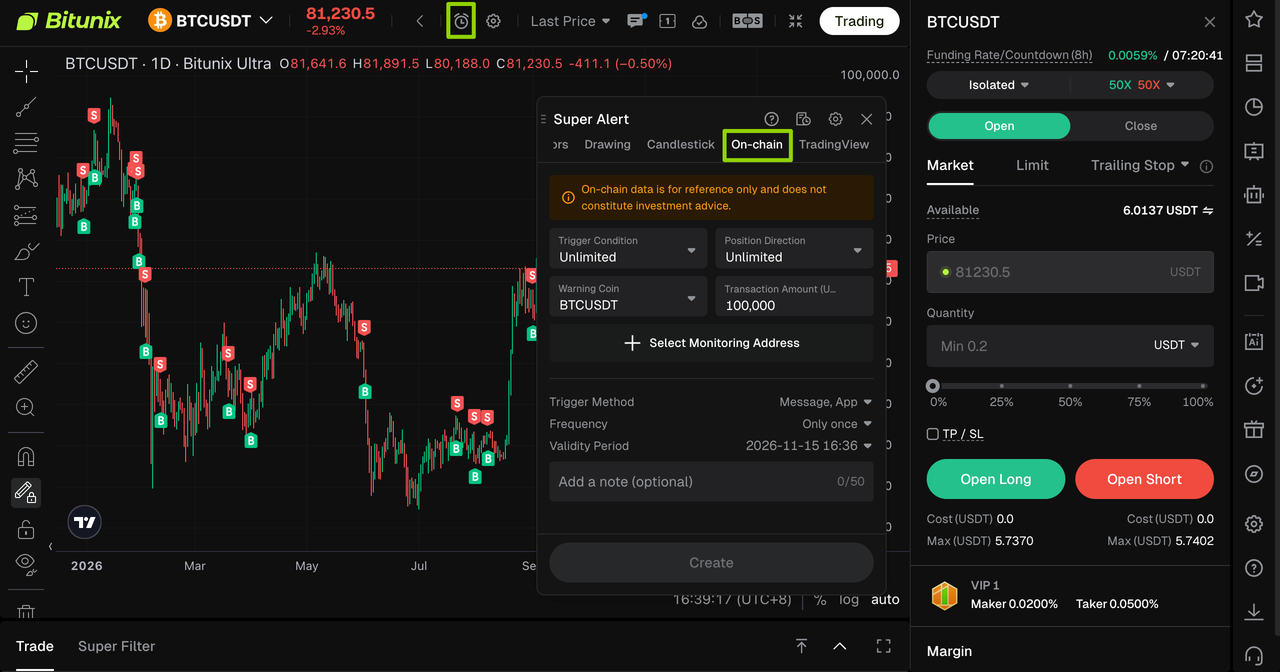
What it does: Monitor one or more wallet addresses and receive alerts on on-chain activity based on trigger conditions, position direction, assets, and a transaction amount threshold (currently greater than 100,000). The monitored address list also displays 24h PnL and Trend data.
When to use it:
Track smart-money wallets, large holders, or specific addresses you want to monitor.
Check whether large on-chain movements align with technical signals before entering a futures trade.
Monitor event-driven activity, such as large transfers or transactions that may indicate directional positioning.
Recommendations: Keep the number of monitored addresses manageable, increase the transaction amount threshold to reduce noise, and document the source of each address for easier reference. On-chain data may be delayed, so use these alerts as one input in your analysis, not the sole basis for trading decisions.
Reference: On-Chain Alert User Guide
3. Risk Management and Important Considerations
Security and Compliance
Alerts are not trading recommendations. Make your own trading decisions and manage risk according to your financial circumstances.
Keep your Bitunix TradingView Webhook URL private. Do not share it with others.
On-chain data may be delayed or vary by data provider and calculation methodology.
Comply with local laws and regulations governing digital asset trading in your jurisdiction.
Strategy and Usage Checklist
Match the timeframe: An alert is tied to the chart timeframe on which it was created.
Avoid repeated triggers in ranging markets: Use Only Once or a Combo Alert to reduce unnecessary notifications.
Filter unreliable single signals: In sideways markets, single-candlestick patterns and isolated MACD golden crosses can generate false signals. Consider using a Combo Alert or Template Alert to combine conditions.
Prevent missed notifications: For important alerts, enable both app push notifications and inbox messages. Check that system notification permissions are enabled.
Review alert validity: Update the Validity setting when your monitoring period ends to prevent expired strategies from continuing to generate unwanted notifications.
Verify on-chain settings: Double-check wallet addresses, keep the number of monitored addresses manageable, and set an appropriate transaction amount threshold.
Understand the TradingView integration: Alert conditions are defined in TradingView; Bitunix only receives and delivers the resulting notifications.
Troubleshooting: Alerts Not Triggering or Behaving Unexpectedly
Check the following settings if an alert does not trigger as expected:
Selection and configuration: Confirm that the relevant candlestick pattern or indicator is still selected and that its settings are correct.
Trigger conditions: Verify the chart timeframe, threshold, trigger direction, and notification channels.
Drawing Alert: Check whether the current price actually meets the configured condition relative to the drawing. Conditions such as holding above a level may require a Combo Alert to express the intended logic.