

Key Takeaways
What Is Bitunix Ultra Replay Trading ?
In a nutshell: Replay Trading lets you select a segment of completed historical candlestick data on the Bitunix Ultra futures chart, replay price movements at different speeds, and practice opening and closing positions using simulated USDT. When the session ends, you can save the results and review them under My Replays. No live trades are placed, and no real funds are used.
What the feature does:Replay Trading combines historical candlestick playback, simulated trading with virtual funds, and post-session performance review. It is a practice environment, not live trading.
Where to find it: Replay Trading is available from the Replay option above the chart on the Bitunix Ultrafutures page. It is not available in the app or on the spot trading page.
What you can practice: For USDT-margined futures, you can practice in hedge mode with cross margin and place market or limit orders. The chart displays buy/sell markers, position lines, and order lines. The Replay Trading panel at the bottom shows positions, open orders, closed positions, account equity, and margin ratio. For USDC-margined and coin-margined futures, you can replay candlestick data for reference, but simulated order placement is not supported.
How Replay Works: Select a candlestick or use the time selector to set the starting point. The selected time aligns with the opening time of a candle on the current chart timeframe. Clicking a candlestick allows you to select the earliest available candle for the trading pair, while the time selector covers approximately the past two years. The currently forming candle cannot be selected as the starting point.
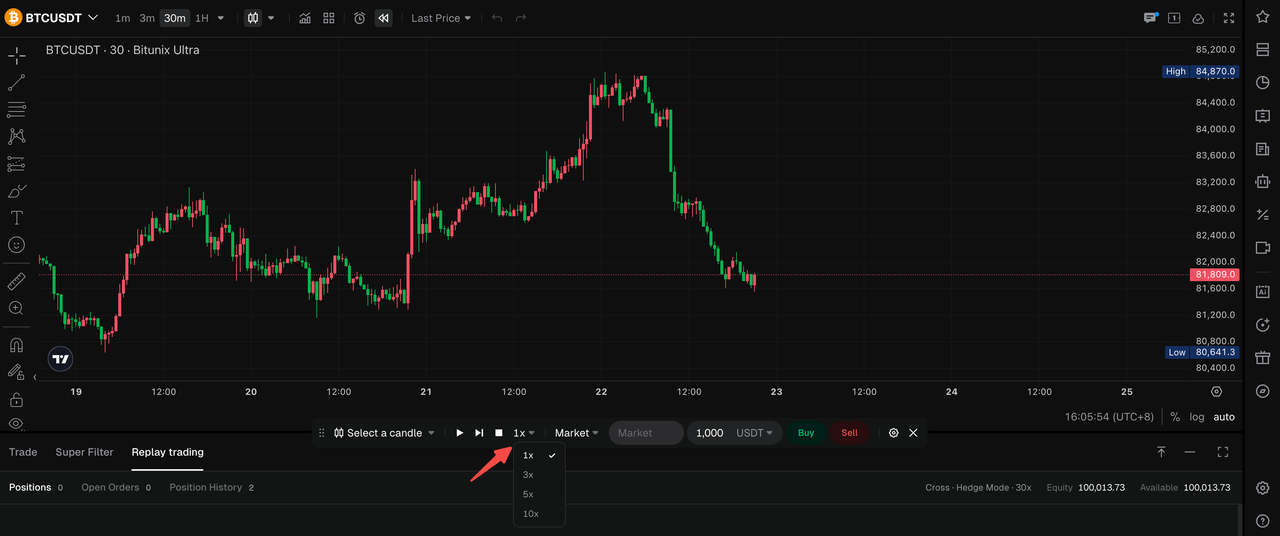
Use Play, Pause, or Step Forward to control playback. Available playback speeds are 1x, 3x, 5x, and 10x. At 1x speed, the chart advances by approximately one candle every 0.8 seconds. The replay ends at the last completed candle available when the starting point is selected and does not include new candles as they form in real time.
Virtual funds and leverage: In Settings, you can adjust the initial virtual balance (10,000 USDT by default, with a range of 1,000–100,000 USDT) and leverage (1x–1,000x). These settings are stored locally. The initial balance cannot be changed once you have open positions, pending orders, or executed trades. Changes to leverage apply only to new orders placed afterward.
Fees: The simulated environment applies trading fees, funding fees, and other applicable charges according to its rules to reflect the trading process. No real money is credited or paid out; the settlement page shows simulated trading results.
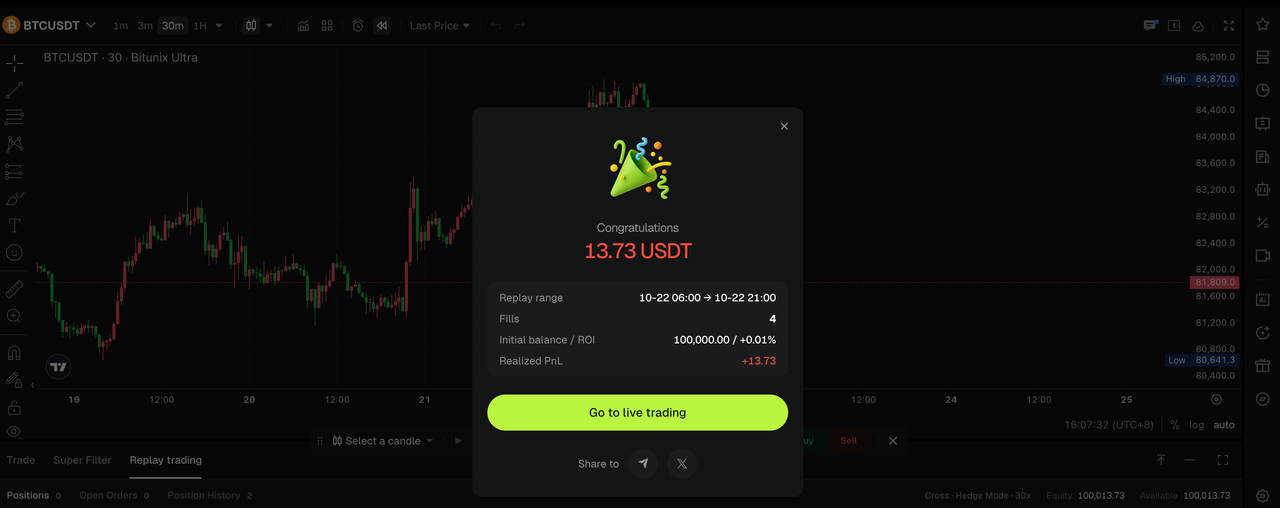
When a session is settled: A replay session is settled when you click Stop, reach the end of the available replay after placing at least one trade, are liquidated, or exit Replay after trading. A session can be settled even if playback has not reached the end. The system automatically closes positions and cancels orders before displaying the Training Settlement page, where you can choose options such as replaying the session, going to the trading page, or sharing the results.
1. What Is Replay Trading ?
Replay Trading withVirtual Funds is a practice tool built into the Bitunix Ultra chart. It combines historical candlestick playback with simulated order placement in one interface, allowing you to revisit past market movements and practice entry and exit decisions using virtual funds, without risking real money or placing live trades.
What Can You Learn from Replay Trading ?
For Beginners
- Build order-entry skills: Practice the full workflow in Bitunix Ultra, from starting a replay and configuring virtual funds to opening long or short positions, closing positions, and canceling orders. Repeated practice can help reduce operational errors when trading live.
- Develop a better sense of timing: Candlesticks appear one at a time, and playback speed can be adjusted. This lets you practice making decisions as price action unfolds, rather than simply looking back at a completed chart and identifying hypothetical entry points.
- Understand leverage and liquidation risk: Experience scenarios such as limit orders that fail to execute, positions approaching liquidation, and declining margin levels in a simulated environment. This can help you better understand how leverage affects positions and why margin management matters.
- Review performance with measurable results: Each completed session can be saved under My Replays, where you can review your results and track your practice history. This provides a more structured way to assess your progress than relying on memory or subjective impressions alone.
For Experienced Traders
- Test execution rules against historical price action: Start a replay during a trend, a range-bound market, or a potential false breakout. Apply the same order-entry workflow available in Bitunix Ultra to see how your rules perform under simulated order execution, limit-order fills, and liquidation mechanics. This can help identify strategies that appear promising on a chart but may be difficult to execute in practice.
- Work through more market scenarios in less time: Faster playback allows you to review multiple candles and practice responding to different price movements in a shorter period. You can run several practice sessions over a weekend instead of waiting for similar market conditions to occur in real time.
- Compare results across strategy changes: Use the performance metrics available in My Replays, such as win rate, largest single-trade loss, and liquidation count, to compare outcomes before and after adjusting your trading rules. This provides a more objective basis for evaluating changes than relying on intuition alone.
2. Step-by-Step Guide
1. Open Replay Trading
- Log in to Bitunix and open the Ultra Futures page.
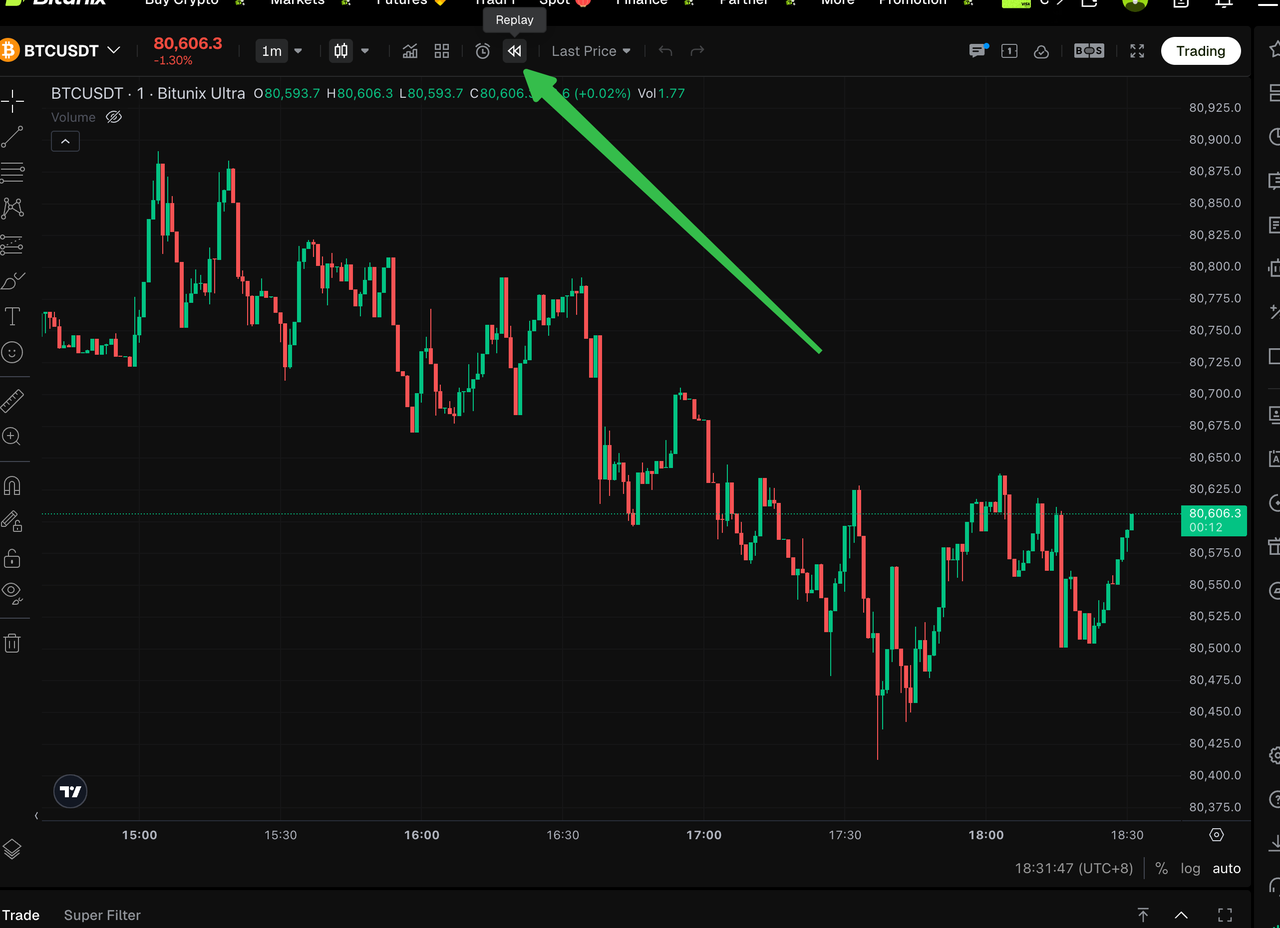
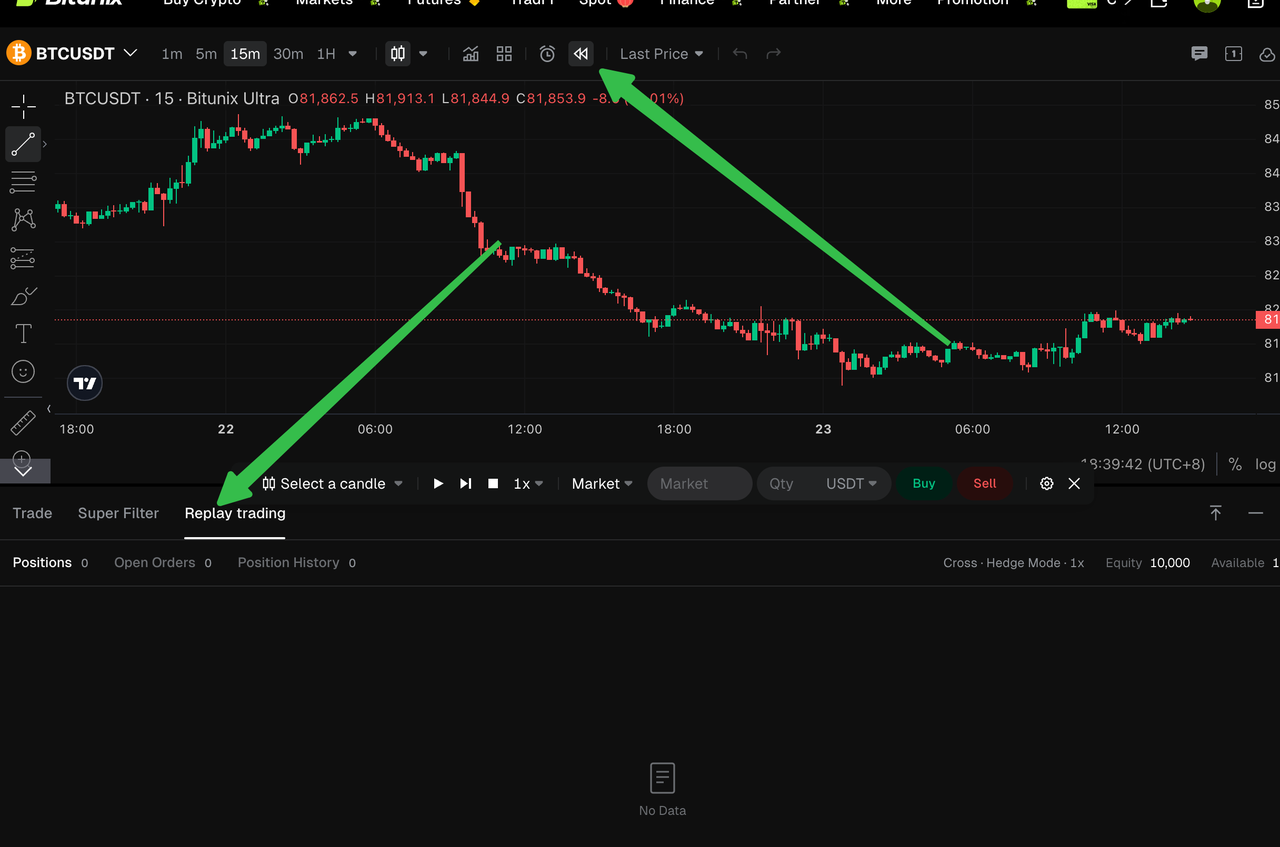
- Click Replay above the chart. If you are not logged in, follow the prompts to log in or register.
- Replay will be highlighted, and the panel at the bottom will switch to Replay Trading.
2. Select a Replay Starting Point
- Select a candle: Click a historical candlestick on the chart. Only data from the past two years is available for selection.
- Select a time: Use the time selector to choose a starting point. The selected time aligns with the opening time of a candle on the current chart timeframe.
Select a starting point by clicking a candlestick.
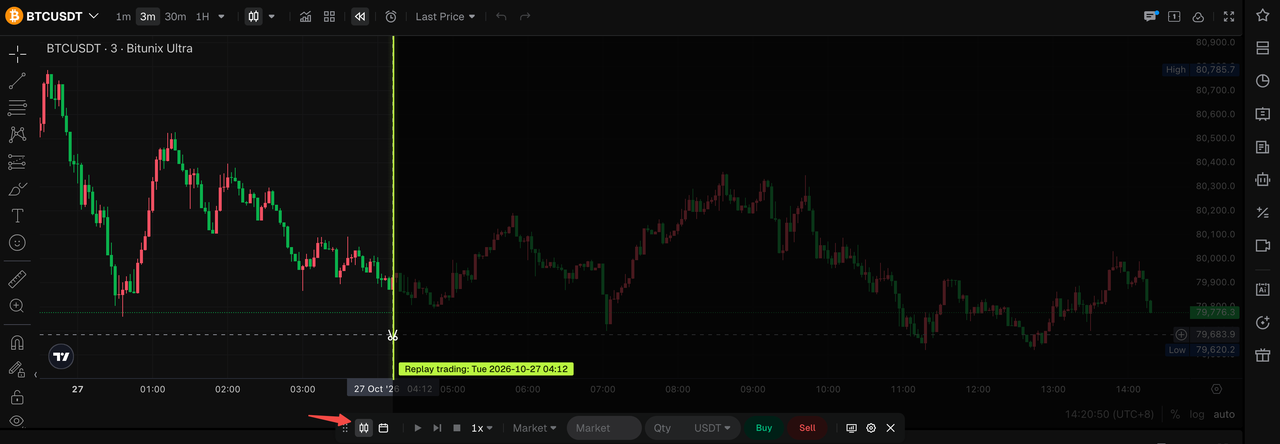
Select a starting point using the time selector.
The currently forming candle cannot be selected. If there is no replayable data after the selected candle, the system displays a message indicating that no replay data is available after that candle.
To change the starting point: Select another candlestick or adjust the time selector. If the current session contains simulated positions, pending orders, or executed trades, you must confirm that you want to clear the current session before proceeding.
3. Configure Virtual Funds and Leverage
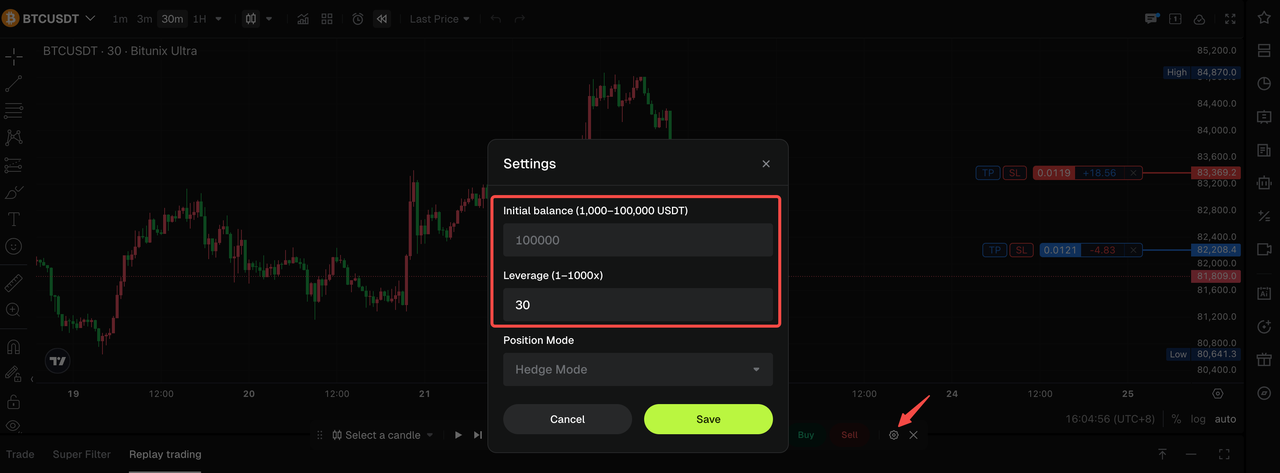
In the Replay toolbar, click Settings to adjust your initial USDT balance and leverage.
- Do not change the initial virtual balance once you have open positions, pending orders, or executed trades. Changes to leverage apply only to new orders.
- The default initial balance is 10,000 USDT, with a configurable range of 1,000–100,000 USDT. Leverage ranges from 1x to 1,000x.
4. Play Back Historical Market Data
Click Play to advance through the historical candlesticks one at a time. You can Pause, Step Forward by one candle, or switch between playback speeds of 1x, 3x, 5x, and 10x.
Each candle appears as a complete candlestick. The replay does not simulate price movements within an individual candle.
You can change the chart timeframe during playback. Your positions, pending orders, and realized PnL remain unchanged.
5. Place Simulated Orders with Virtual Funds (USDT-Margined futures)
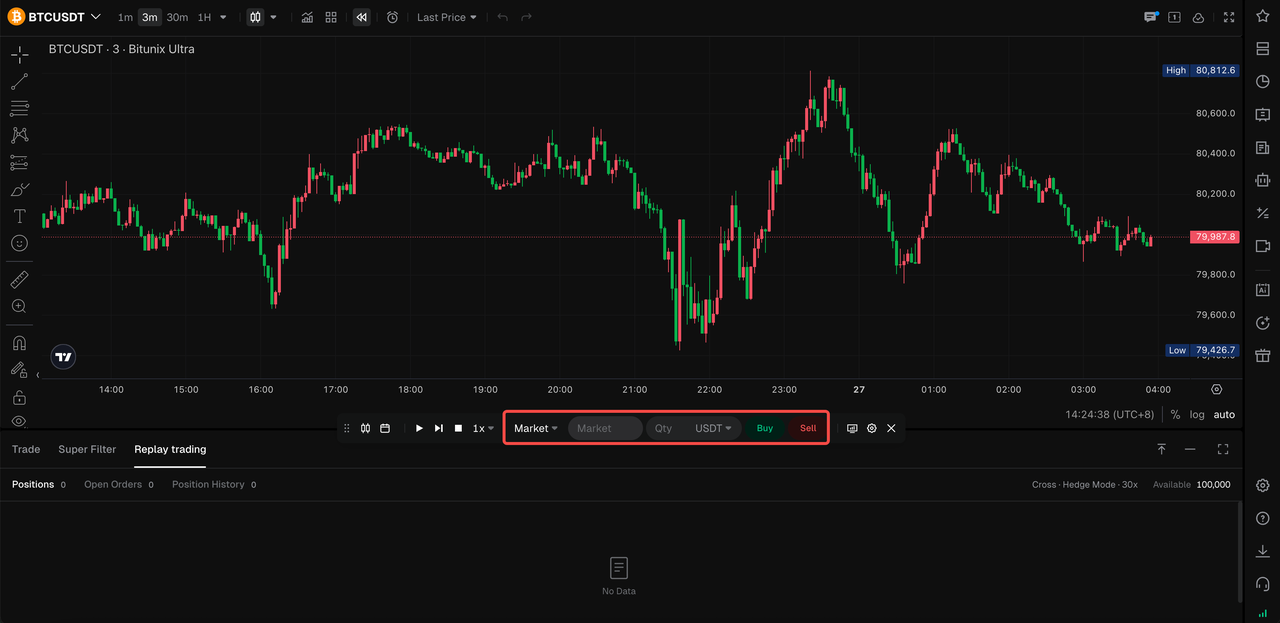
Use the Replay toolbar to place Market or Limit orders to open long or short positions.
- Market orders: Executed at the closing price of the current candle.
- Limit orders: If a limit order is not filled immediately, it appears under Current Orders. On subsequent candles, the system checks whether the candle's high or low reaches the limit price to determine whether the order can be filled.
Each replay session supports a maximum of 10 position-opening batches and 10 limit orders.
Order placement method 1
Order placement method 2
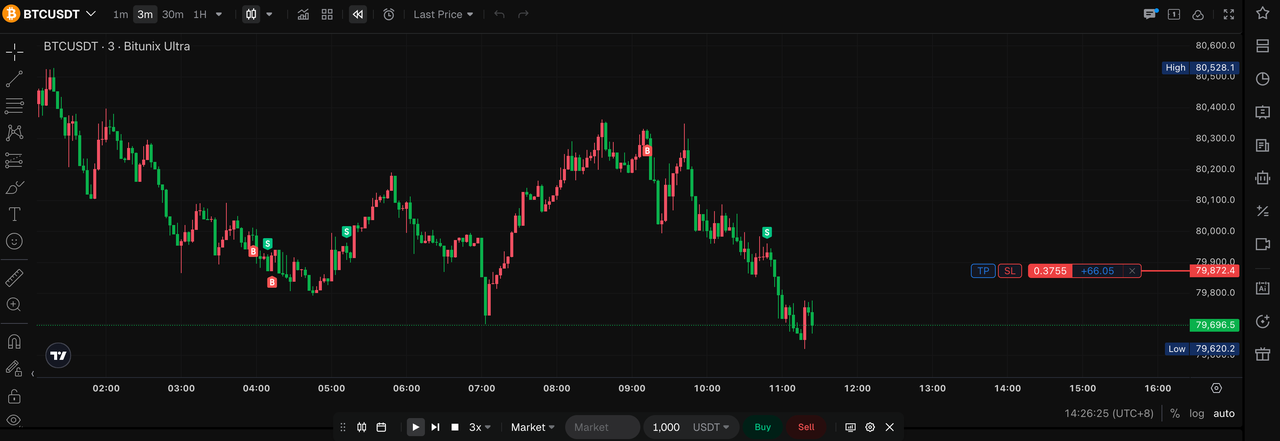
6. Manage Positions and Orders
Use the Replay Trading panel at the bottom to review your positions, open orders, and order history.
Available actions include Close All at Market and canceling limit orders.
For each new candle, the system first matches eligible limit orders and then checks for liquidation based on the candle's closing price. If liquidation occurs, the session proceeds to settlement.
7. End the Replay and Review Settlement
The session proceeds to the Training Settlement page when any of the following occurs:
- You click Stop.
- Playback reaches the end of the available data and you have placed at least one trade.
- Your position is liquidated.
- You exit Replay after placing at least one trade, even if playback has not reached the end.
The settlement page displays your simulated trading results and provides options such as Replay Again, Go to Live Trading, and Share.
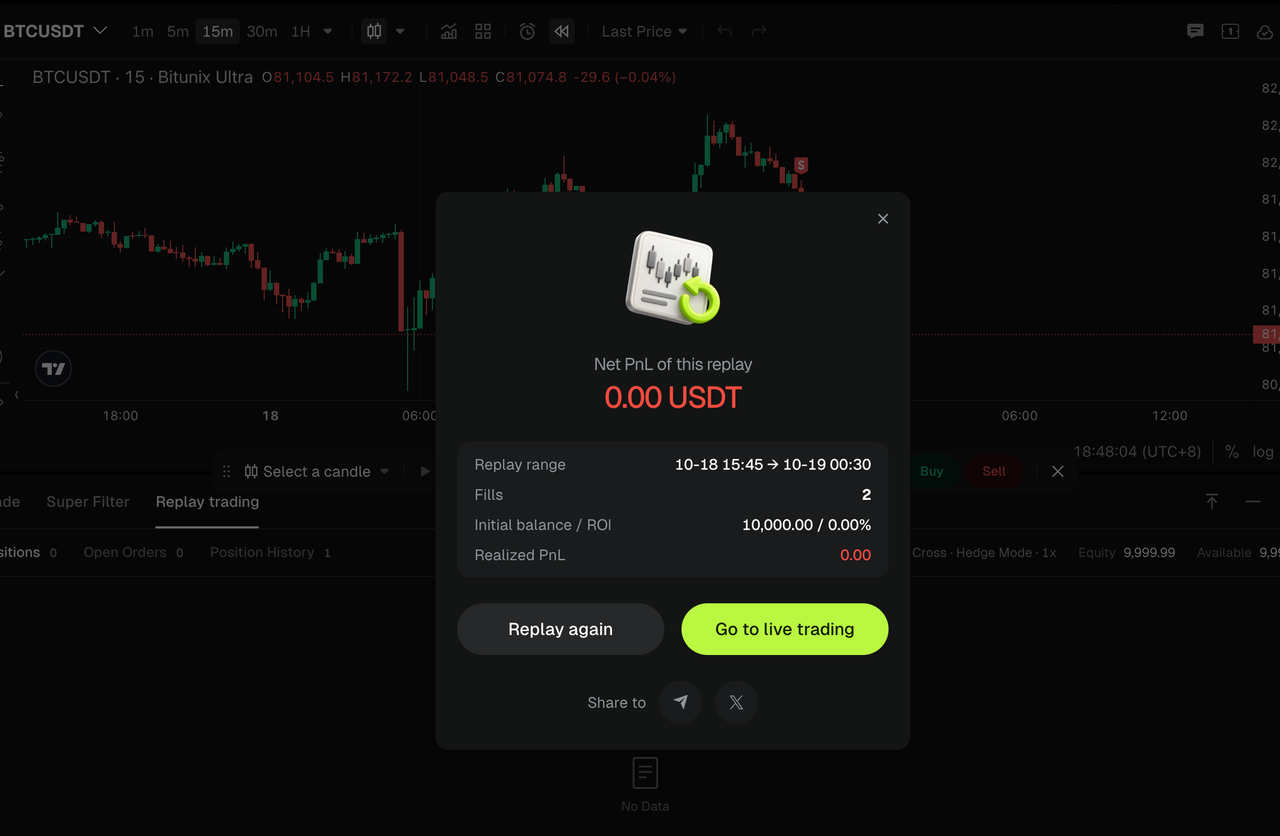
8. Review Your Saved Sessions
Click My Replays in the Replay toolbar to view your performance summary and your 30 most recent sessions.
Select a session to review its historical details in read-only mode. You cannot place orders or generate a new session record while reviewing a saved replay.
9. Exit Replay
Click Exit or click Replay again to leave the replay interface.
Important: If the session has not been settled, refreshing the page or closing it will cause your progress to be lost.
Risk Warnings and Important Notes:
- Replay results may differ from live trading: Market depth, slippage, and extreme market conditions may differ between the simulated environment and live markets. Simulated PnL does not guarantee future profits.
- Unsettled sessions are not saved: Refreshing the page, closing the tab, or losing your login session may cause your in-progress replay to be lost.
- Switching trading pairs clears the session: Changing the trading pair clears the current replay session without settling it or saving it to My Replays.
- Starting points and available history: The selectable starting points and historical data range depend on the interface. The range available through chart selection may differ from that available through the time selector.
- 10-session limit: Replay is subject to a limit of 10 sessions and is not available for unlimited practice.
- Saved replays are read-only: Historical candlestick data may be revised. As a result, the chart displayed during a later review may differ slightly from the data shown when the session was originally settled.
- Compliance notice: This article is for informational purposes only and does not constitute investment advice. Live futures trading involves leverage and carries a risk of liquidation and loss.
FAQ:
Q1: Can I use Replay Trading in the Bitunix mobile app?
No. Replay Trading is only available on the Bitunix Ultra futures page, accessed through a browser with the Ultra chart interface.
Q2: Why can't I select the latest candlestick as the starting point?
The currently forming candlestick cannot be selectedas a replay starting point because it has not yet closed. Select an earlier, completed candlestick or use the time selector to choose an eligible starting point.
Q3: Will my progress be saved if I close the page midway through a replay?
A replay session is saved to My Replays only after you click Stop and complete settlement. If you refresh the page, close the tab, or lose your login session before settlement, your in-progress session will not be saved. To keep a record, click Stop, complete settlement, and then leave the page.
Q4: What does "Replay Trading Limit Reached" mean?
Each replay session has separate limits: you can open new positions up to 10 times and place new limit orders up to 10 times. These are two separate limits, not a combined limit of 10 actions. Once either limit is reached, you cannot open additional positions or place additional limit orders of that type. Stop the current session and select a new starting point to begin another replay.
Q5: Why do the results in My Replays differ from those on the original settlement page?
Read-only replay review reconstructs the session using current candlestick data and the operation log saved during the original session.
Q6: How can I place a live trade after completing a replay?
On the settlement page, click Go to Live Trading, or exit Replay and visit Bitunix Futures to trade with real funds. PnL from simulated trading does not carry over to live trading. Live futures trading involves leverage and liquidation risk, so assess the risks carefully before placing an order.
Disclaimer
This material does not provide:
(i) investment advice or investment recommendations;
(ii) an offer or solicitation to buy, sell, or hold digital assets;
(iii) financial, accounting, legal, or tax advice.
Digital assets, including stablecoins and NFTs, involve high risk and can fluctuate significantly. Consider whether trading or holding digital assets is appropriate for you based on your financial situation. Please consult your legal, tax, or investment professional for advice tailored to your circumstances. You are responsible for understanding and complying with all applicable local laws and regulations.