Thinking about how to livestream crypto trading properly? Forget buying a fancy mic or cluttering the screen with slick overlays. What you actually need is a cleaner layout: make the chart huge, hide the order panel until you're executing, and keep your branding out of the way of the price action. Get those three things right and the stream becomes readable on a phone, your analysis is easier to follow, and you spend less time fighting windows while you are live.
This guide walks through the layout logic first, then the exact setup steps using Bitunix's PC Ultra layout, which was built with live trading streamers in mind.
What Is Live Trading and Why Screen Layout Matters for Streamers
Before touching any settings, it helps to be clear about what live trading actually is as a content format and why the screen itself is the product.
Defining Live Trading Streamers in the Modern Crypto Market
Live trading means analysing and executing trades in real time while an audience watches, usually on YouTube, X, Twitch, Kick, or a regional platform such as Bigo or TikTok Live. The streamer's screen is captured and broadcast, often with a webcam feed in one corner.
Live trading streamers fall into a few groups: educators who walk through setups on a demo or small account, signal-oriented KOLs who trade a real account with their community, and exchange-partnered hosts who run scheduled market sessions. What they share is that the chart is the main visual for the entire session. Unlike a gaming stream, there is no separate "game window"; the trading terminal is the whole show.
Why Traditional Cluttered Interfaces Ruin Audience Engagement
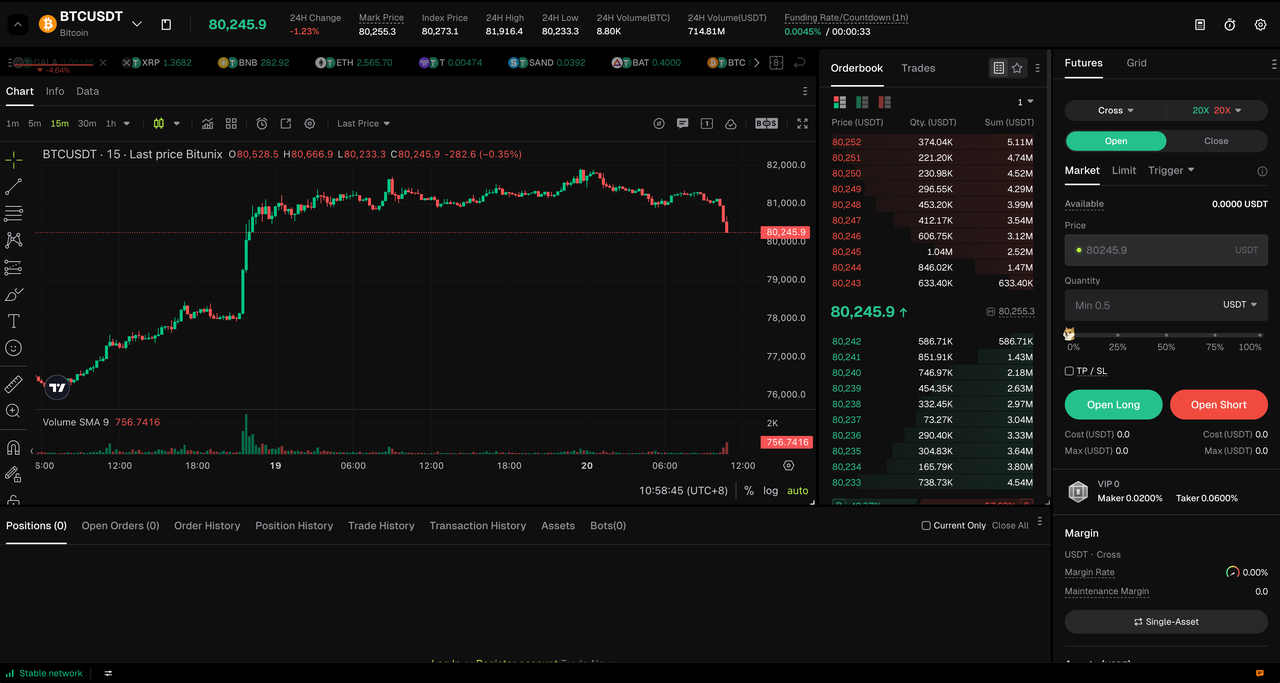
A standard futures trading page is designed for a single trader sitting close to a large monitor. It shows the order book, market depth, recent trades, position list, ticker bar, announcements, and order form all at once. That density works when you are trading alone. It fails on stream for two reasons.
First, most viewers are watching on a small phone screen, missing all that high-res detail. Second, they don't look at what you look at—their eyes naturally follow movement and bright colors, which usually means they're staring at your order book or ticker bar instead of the candle you're explaining. Attention gets split, and the analysis lands worse.
The "Focus First" Principle: Prioritizing Chart Visibility for Stream Viewers
The design principle behind a good streaming layout is simple: at any moment, the screen should show one primary thing. During analysis that is the chart. During execution it is the chart plus the order panel. Everything else is on demand.
This is also good trading discipline. A screen that hides non-essential information while you decide reduces the chance that a flashing liquidation feed or a funding countdown nudges you into an impulsive entry on air.
Common Challenges Streamers Face with Traditional Crypto Trading Interfaces
Most streamers arrive at the same three problems after their first few sessions, regardless of which exchange they use. Naming them makes the fix obvious.
Aspect Ratio Compression and Squished K-Line Charts
Capturing an entire exchange interface in OBS leaves your chart taking up less than half the frame. By the time platform compression hits and a viewer tunes in on a phone, those subtle candles and wicks turn into an unreadable, pixelated blur. Volume bars and indicator sub-panes are usually unreadable.
The workaround many streamers use is to crop the capture to just the chart region, which then hides the order form and forces them to alt-tab to trade. That leads to the second problem.
Juggling External OBS Overlays, Webcam Windows, and Trading Portals
Think about what a standard setup looks like: OBS running in the background, TradingView in one window, your exchange in another tab, your webcam floating in the corner, plus a QR code and banner pinned to the screen. That's five moving parts waiting to break live on stream. One accidental tweak and your banner covers the price axis, your camera shifts, or your exchange tab auto-refreshes and logs you out mid-trade.
Streamers who are traders first and video producers second often spend more time managing this stack than analysing the market.
Excessive On-Screen Noise Distracting Viewers During Live Analysis
Even when the layout is technically correct, a standard interface keeps feeding information nobody asked for: announcement banners, campaign pop-ups, a scrolling trade tape, and a large watchlist with dozens of pairs. On stream, every one of these pulls a viewer's eye away from the level you are drawing. The result is a stream that feels busy even when the market is quiet.

The same chart occupies roughly twice the frame width in a chart-first layout, which is what makes candles readable on a phone.
Key Elements of an Effective Crypto Trading Livestream Layout
The following table summarises the three zones a streaming layout needs and what belongs in each:
Zone | What it contains | Default state on stream |
Primary decision zone | Full-width K-line chart, indicators, drawings, position lines | Always visible |
Execution zone | Order form, position list, TP/SL controls | Hidden until needed |
Branding zone | Webcam feed, QR code, promo or subscribe card | Pinned to the side, never over the chart |
Each zone answers a different question for the viewer, so it helps to look at them one at a time.
The Primary Decision Zone: Unobstructed High-Resolution Charts
The chart should fill the main decision area with no overlays sitting on the price axis or the most recent candles. If your layout allows it, keep position lines, pending orders, and TP/SL levels drawn directly on the chart so viewers can see risk management without you opening a separate panel.
On-Demand Execution: Hidden-by-Default Order Panels
The order form only matters at the moment of entry or adjustment. Keeping it visible the rest of the time wastes screen width and invites the audience to stare at your size and leverage instead of the setup. A layout that lets you summon and dismiss the panel with a key press is the practical solution.
Personal Branding Area: Integrating Host Avatars, QR Codes, and Promo Banners
Your face, your community QR code, and your current campaign card are what convert a viewer into a follower. They belong in a dedicated column beside the chart, sized so they are visible on mobile but not competing with the candles. Placing them inside the trading interface rather than as an OBS overlay means they never accidentally cover the price scale.
Step-by-Step Setup: Building a Pro Streaming Screen with Bitunix PC Ultra
PC Ultra is Bitunix's chart-first layout for the web trading terminal. It keeps the full futures trading functionality but re-arranges it around the K-line chart, which maps directly onto the three-zone model above. Here is how to set it up from a standard trading page.
Standard Trading Layout

PC Ultra Layout
PC Ultra centers the trading interface around the chart while retaining order entry and position management capabilities. Additional tools can be expanded from the right-side toolbar when needed and collapsed when no longer in use.
Activating PC Ultra Layout: Transitioning to Visualization Trading 2.0

PC Ultra Layout Setup
Open a USDT, USDC, or USD futures pair on the Bitunix web terminal.
Click Configs, go to Layout settings, and select the Ultra layout.
The page reloads with the chart occupying the main decision area, the order panel fixed on the right, and the order book and depth moved to secondary panels you can open on demand.
Switching layouts only changes the interface. Your open positions, pending orders, margin mode, and risk parameters are unaffected, and you can switch back to the standard page at any time. Note that PC Ultra is the web layout; the app equivalent is K-Line Ultra, and the two are configured separately.
Organizing the Right Collapsible Drawer (Favorites List, Data, and Alerts)
The right-hand toolbar collects the functions that used to be scattered across the page: favorites, layout, timeframe, the custom panel, data, alerts, grid trading, and settings. It is collapsed by default and shows only icons. Clicking an icon opens that function as a drawer; closing it returns the full chart width.
For streaming, two panels are worth setting up before you go live:
Favorites list: Add the pairs you plan to cover in the session. Clicking a pair in the drawer switches the main chart without leaving the page, so you can move from BTC to ETH to a smaller altcoin in one click while still talking. Note that this favorites list is linked with Super Filter favorites and is separate from the regular watchlist on the standard trading page.
Data panel: Lets you show liquidation and market data next to the chart when the narrative calls for it, then collapse it again. Previously this meant leaving the chart page entirely.
Customizing Drag-and-Drop Panels for Individual Streaming Workflows
Every region in PC Ultra can be dragged to the size you want. Two adjustments come up often for streamers:
Order area on top: Some hosts prefer the position list above the chart so they can reference an open trade while pointing at the price action below it. Click the up-arrow button in the position list to pin it above the chart; click again to return it to the bottom.
Order area height: Drag the divider to set how much vertical space the order and position list takes. The layout remembers that height, which matters for the Up key behaviour described later.
If you want the entire screen to be chart, PC Ultra also has a full-screen mode that hides the top icons completely. Chart split view works in this mode, so you can display two pairs side by side on a wide monitor.
Configuring the Custom Panel: Webcam, QR Codes, and Promo Cards
This is the part of PC Ultra built specifically for live trading streamers, and it replaces the overlay stack most people build in OBS.

Click the Custom Panel icon on the right-side toolbar of Bitunix Ultra to access live streaming configurations.
Setting Up Built-in Live Camera Feeds Without OBS Plugins
Click the custom panel icon in the right toolbar.
Add a live stream region and start the camera feed. Your webcam picture appears inside the panel.
Drag the panel to the position that fits your stream framing and rename it; the panel title can be your channel or community name.
Because the camera feed lives inside the trading interface, the whole page, including your face, is captured as a single window. You no longer need a separate webcam source in your streaming software, and the feed cannot drift onto the chart.
Adding QR Codes and Video Cards (Understanding the 1 Live Feed + 2 Image Limit)
The following table lists what the custom panel supports and where it appears:
Setting | Detail |
Supported content | Live camera feed, image cards, video cards |
Region limit | 1 live feed + 2 image cards per panel |
Save scope | Per account |
Display position | Beside the main chart, never over the K-line area |
The two image cards typically hold a community QR code and a current campaign poster or a short "subscribe" clip. Uploading a video card is also supported, and a short animated brand clip generally holds attention better than a static image. Once saved, the configuration follows your account, so the setup is the same next time you log in from a different machine.
Pinning Custom Panels Side-by-Side Without Overlapping the K-Line Area
Click the pin icon to fix the custom panel to the far right of the interface. On a wide monitor this gives you three columns at once: chart and execution in the centre, data or favorites in a drawer, and your branding panel on the edge. None of them overlap the candles.
When you want to go back to pure analysis with Immersive Chart Mode, press Esc and the panels collapse. Your branding comes back the moment you reopen the drawer.

In PC Ultra the webcam, QR code, and promo card sit in a pinned panel beside the chart, so the K-line area stays unobstructed.
Mastering Livestreaming Efficiency with Immersive Hotkeys
Streaming is a performance, and the audience notices every second you spend hunting for a button. PC Ultra reduces layout changes to four keys, summarised in the table below:
Key | Action |
Esc | Collapse all panels and enter immersive chart mode |
Space | Open or close the right-hand trading panel |
↓ | Collapse the bottom order area |
↑ | Restore the order area to its last dragged height; press again for full-screen orders |
The keys are simple on their own; what matters is how they combine during a session.
The ESC Key: Entering Pure Immersive Chart Mode Instantly
Press Esc and the screen reduces to a single large chart. This is the state you want during analysis: drawing levels, explaining structure, walking through an indicator. Nothing on screen competes with the candle you are talking about.
The Spacebar: Toggling the Right Trading Execution Panel on Demand
When a setup triggers, press Space. The trading panel slides in, you place or adjust the order, and Space again hides it. Order preview still works: type a quantity and a grey preview appears on the chart before you choose direction, and dragging the take-profit line above price tells the system you intend to go long. Market, limit, and trigger orders all support preview, and the chart's right-click and plus menus remain available if you prefer to execute directly on the chart.
For the audience, the whole sequence reads as "analysis, decision, execution, back to chart" without any window shuffling.

Bitunix PC Ultra - Immersive Chart Mode
Up/Down Arrow Keys: Managing Order Area Heights and Top-Pinned Layouts
Press ↑ to bring the order and position list back at the height you previously dragged it to; press ↑ again and it fills the screen, which is useful when reviewing several open positions with viewers. ↓ collapses it.
If you have pinned the order area above the chart, the directions invert: ↑ collapses and ↓ expands. Either way, you can flip between the two arrangements without touching the mouse.
Finding Live Trade Setups On-Screen with Bitunix Super Filter
A common weak spot in live trading streams is the pause while the host scrolls through a coin list looking for something to talk about. Super Filter, which opens from the bottom of the PC Ultra chart page, turns that dead time into part of the content.
Filtering Whole Futures Markets by Candlestick Patterns and Indicators
Super Filter screens the entire Bitunix futures market by conditions you combine in one group: contract type, moving averages (EMA and MA across 5 to 200 periods), RSI, MACD, ADX, DMI, TRIX, candlestick patterns such as hammer, engulfing, doji, or three white soldiers, funding rate sign, listing age, 24-hour change bands, and rank by gainers, losers, or volume.
On stream, this lets you say "let's find everything with a MACD golden cross in the top 30 percent of volume" and show the result within seconds. Results are a snapshot at the time you run the filter, so re-run it as the market moves.
Multi-Chart Screening Modes: Comparing List, K-Line Grid, and Heatmap Views
Results can be shown as a list with 24-hour change, volume, and the matching pattern; as a K-line grid that displays several pairs' charts side by side on one screen; or as a heat zone view ranked by volume or turnover. The grid is the most stream-friendly because viewers can see the candidates and the trend at a glance while you narrate which one you prefer and why.
One-Click Chart Linkage and Syncing Screening Results to Watchlists
Clicking any result switches the main chart to that pair without leaving the page, and clicking a result never places an order; execution is always a separate, deliberate step. Pairs you want to keep tracking can be added to favorites, which then appear in the right-hand favorites drawer for the rest of the session. Condition groups can be saved and named, so a "pattern scan" and an "indicator scan" are one click apart on the next stream.

Super Filter's K-line grid shows filtered pairs side by side; clicking one switches the main chart without placing an order.
Bitunix PC Ultra vs Paid Tools: Enterprise Streaming Features for $0
Many streamers assume a professional-looking setup requires a paid charting subscription plus a streaming software stack. It is worth being precise about where the costs actually sit.
TradingView Paid Tier Restrictions vs. Bitunix Free Multi-Chart & Filter
On TradingView, multi-chart layouts, higher indicator counts, and advanced screening sit behind paid tiers, with some features reserved for the higher plans. On Bitunix, the multi-chart grid inside Super Filter, the full indicator screener, split chart view, and Super Alert are available to every account at no cost. For a streamer, that removes the recurring subscription that usually gets justified as "a cost of doing content."
Native Live Stream Integration vs. Expensive Third-Party SaaS Overlays
The other cost is software and time: overlay templates, alert widgets, and hours spent aligning sources in OBS. The custom panel covers the webcam, QR, and promo card use case natively, so the streaming software only needs to capture one window. We won't get bogged down in a full cost breakdown here, but the bottom line is simple: this setup is completely subscription-free.
Best Practices for Live Trading Streamers: Security and Visual Clarity
A clean layout solves the visual problem. Two further problems, security and mobile readability, need deliberate habits.
Protecting Sensitive Account Data and API Information On-Air
Streaming your trading screen means streaming your account. Before every session:
Mask account balances and equity where the interface allows it, or size the order area so balance fields are off-screen.
Never open the API management, security settings, withdrawal, or 2FA pages while live. If you need to, switch to a "be right back" scene first.
Keep email, messaging apps, and password managers on a monitor that is not captured.
Use a dedicated browser profile for streaming so autofill and notifications from other accounts cannot appear.
Treat any viewer asking for your UID, email, or "help logging in" as a phishing attempt, and remind your audience that Bitunix support will never ask for passwords or 2FA codes.
Optimizing Dark Mode and Font Sizes for Mobile Livestream Viewers
Most of your audience is on a phone. Dark mode reduces glare and makes the brand green and red candle colours read clearly after compression. Increase chart font size for the price axis and indicator values, keep to two or three indicators on screen, and avoid stacking more than one sub-pane. A candle that is legible on your 27-inch monitor at default settings is often invisible on a 1080p phone stream.
Maintaining Seamless Audience Interaction While Executing Live Orders
Reading chat while placing a leveraged order is how mistakes happen. A workable rhythm is: analysis with chat open, then a short "placing the order" moment where you press Space, confirm size and stop-loss, execute, and press Space again, then return to chat. Say the plan before the entry so viewers understand the logic, and state the invalidation level rather than a profit target.
Two reminders belong in every live session. First, what you show is your process, not a signal; viewers should not copy trades. Second, leverage and perpetual futures carry liquidation risk, and a stream audience does not change that. Trading involves risk.
Conclusion
Setting up a screen to livestream crypto trading comes down to one decision repeated everywhere: the chart is the content, and everything else earns its screen space only when it is needed. With a chart-first layout, an order panel on a hotkey, and your branding pinned beside the candles rather than over them, the stream becomes easier to watch and easier to trade on. PC Ultra gives you that structure without a subscription, so the remaining work is the part only you can do: the analysis.