Bitunix vs TradingView comes down to one structural difference:
TradingView is where you analyze. Bitunix PC Ultra is where you analyze and hit the bid on the same screen. That is the entire architectural dividing line.
It sounds minor. In live trading, it changes everything.
Want four charts open at once? On TradingView, multi-pane grids sit behind a recurring monthly paywall. PC Ultra includes multi-chart workspaces natively inside the futures terminal for free. Caught a breakout on an external scanner? On a split setup, acting on that alert means toggling tabs, searching the ticker, and manually filling an order ticket—five clicks while the spread widens. On a native terminal, clicking the scanner hit instantly aligns the chart and primes the order ticket. One click. Done.
Then there is routing latency. TradingView runs on North American cloud servers, relying on third-party API keys to fire orders into overseas exchange engines thousands of miles away. Every added network hop costs milliseconds. PC Ultra connects directly inside the matching venue, stripping out the intermediate cloud relays entirely.
This breakdown skips generic feature checklists. It is written for traders facing an operational decision: keep paying the TradingView subscription, migrate completely, or run both in tandem? From layout caps and screening workflows to cross-border execution lag and multi-window streaming footprints, here is how both setups perform under live market pressure.
For the broader survey of free multi-chart tools, see TradingView alternatives for crypto; for a step-by-step screen setup, see the livestream screen guide.
Platform Architecture: Standalone Charting Portal vs Native Execution in Modern TradingView Alternatives
The two platforms are built for fundamentally different jobs. Every practical friction stems from that single fact.
TradingView is a cross-asset analytics SaaS. It floats above global equities, forex, and crypto, charging a subscription to map multi-market price action. It is built as an observer's lens, not an order routing engine.
Bitunix PC Ultra is an exchange-native terminal. Its charting layer was re-engineered from scratch around one specific objective: direct execution.
One sells charts. The other routes orders. Once you recognize that difference in DNA, the contrast in layout paywalls, cross-border API lag, and execution clicks makes complete sense.
TradingView: The Industry-Standard SaaS Analysis Hub
TradingView is the default lens for the trading industry. It hooks into hundreds of feeds, pulling US equities, futures, forex, and crypto order books onto a single canvas.
The chart engine is spotless. But the real lock-in is Pine Script. Millions of traders rely on its community script library, backed by server-side alerts running inside North American data centers so your home desk can power down overnight.
It handles execution, too. The bottom panel links to more than 50 brokers and a handful of crypto venues.
Yet it remains remote control. Orders travel through external API relays, adding cloud hops and cross-border latency that active day traders feel immediately. Then you hit the paywall. The free tier locks you to a single chart and two indicators—barely enough to test the waters. Want a multi-chart grid or serious alert capacity? You have to climb through four paid tiers, turning software into a permanent monthly tax.
Bitunix PC Ultra: Chart Trading 2.0 with Integrated Futures Execution
Bitunix PC Ultra is simply the chart-first view of the platform's futures terminal. Hit Ultra at the top-left corner of any USDT, USDC, or USD perpetual contract, and the layout flips. Candlesticks take the center screen. The order panel docks on the right. Heavy clutter—the order book, market depth, data feeds, and alerts—slides into a slim right-hand drawer. Your positions, pending orders, and leverage limits stay exactly as they were.
Because the chart is native to the exchange, it is not rendering a delayed third-party feed. Entry lines, open limits, and TP/SL triggers sit directly on the price bars. When volatility spikes, you don't scramble to retype numbers into a ticket. Drag the stop line on the chart and let go. The change hits the matching engine on the spot—no external API keys to expire, and no overseas cloud routing adding milliseconds to your fills.
Everything runs on that same canvas. Super Filter pulls up from the bottom of the screen. Pair it with Super Alert, multi-chart grids, and a custom live panel, and you can scan, chart, and stream without touching another browser tab.
The economics are equally blunt. Nothing sits behind a paywall. Bitunix earns on maker and taker trading fees, not monthly software licenses. You get multi-chart grids without paying a recurring SaaS subscription.
The Execution Gap: Analysis-Only Software vs Unified Action Workspaces
The following table summarises the architectural difference:
Dimension | TradingView | Bitunix PC Ultra |
Core function | Charting and analysis portal | Exchange terminal with chart-first layout |
Markets
| Stocks, futures, forex, crypto, indices | Bitunix crypto perpetuals (plus TradFi contracts on the platform) |
Where funds sit | At a connected broker | On the Bitunix account |
Order path | Trading panel (integrated brokers) or webhook to a third party | Order panel on the chart, same page |
Positions on chart | Yes, for connected brokers | Yes, native |
Business model | Subscription tiers | Trading fees |
The gap this creates is operational. On TradingView, a Bitunix trader analyses on one site and executes on another, and every trade crosses that boundary. On PC Ultra the boundary does not exist. The rest of this comparison is about what that gap costs, and what TradingView offers in return.
Bitunix Ultra vs TradingView: Head-to-Head Feature Comparison Matrix
The matrix below compares the features a day trader or streamer actually uses. TradingView figures are list prices and plan limits as of October 2026 and should be verified on tradingview.com/pricing; Bitunix figures come from the Help Center and the chart-trading product page.
Side-by-Side Comparison: Chart Tiers, Order Routing Speed, Memory Drain, and Live Panels
The following table sets the two platforms side by side:
Feature | TradingView | Bitunix PC Ultra |
Charts per layout | 1 (Basic) / 2 (Essential) / 4 (Plus) / 8 (Premium) / 16 (Ultimate) | 2–16 windows, 35 layout presets, all accounts |
Indicators per chart | 2 / 5 / 10 / 25 / 50 by tier | 106 indicators, no per-chart cap |
Drawing tools | Full set on all tiers | 103 drawing tools, drawing templates |
Market screener | Crypto screener on all tiers, 44 candlestick patterns | Super Filter: 17 indicator conditions, 19 patterns, funding, listing age, turnover rank |
Screener to chart | Opens symbol in chart | One click loads pair into main chart, same page |
Order entry | Trading panel for integrated brokers only; webhook otherwise | Native order panel with on-chart preview |
Position / TP/SL on chart | Connected brokers only | Native, drag-to-adjust |
Alerts | 3 price alerts free; technical alerts and webhooks paid | Super Alert: price, indicator, drawing, candlestick, combo, on-chain; Telegram and Discord delivery |
Hotkey immersive mode | Chart shortcuts; no execution-panel toggle | Esc / Space / ↑ ↓ for chart, order panel and position list |
Built-in webcam and brand panel | None | 1 live feed + 2 image or video cards, pinned beside chart |
Ads | Yes on Basic | None |
Pine Script / custom code | Yes | No |
Bar replay | Paid tiers | No |
Asset coverage | Multi-asset, hundreds of venues | Bitunix markets only |
Price | $$0 to$$239.95 per month | $0; standard trading fees |
Put the two side by side, and the trade-off is immediate: TradingView wins on breadth (assets, scripting, community), while PC Ultra wins wherever the chart needs to connect to a position.
Browser Resource Consumption and WebGL Rendering Under Market Volatility
Watch your machine's system memory when the tape goes wild.
Running TradingView in one tab and an exchange terminal in another means two separate WebSocket connections pulling live order-book updates at the same time. If you stream, toss in OBS, chat widgets, and browser overlays. Chrome spins up an isolated process for every tab, and the lag never hits during slow consolidation. It hits right during a liquidation cascade—when candles are violently whipping across the screen and your click needs to land instantly.
PC Ultra packs the chart, scanner, order ticket, and live view into one canvas, relying on a single data pipeline. For broadcasters, that cuts OBS down to a single window capture—no stitching together fragmented browser layers across dual monitors.
Take this as an architectural point, not a lab benchmark. Actual RAM draw depends entirely on your GPU, how many chart splits you run, and which indicator scripts are calculating in the background. Stress-test it on your own machine before trading live.
Charting and Market Screening: Technical Indicator Limits vs Native Super Filter
Both platforms chart well. The differences are in how many tools you can stack before a paywall, how the screener connects to the chart, and whether the analysis setup follows you across devices.
Indicator Stacking: SaaS Tier Caps vs Full Indicator Access
TradingView counts indicators per chart down to the penny.
The Basic tier gives you 2. Essential moves it to 5, Plus hits 10, and only Premium reaches 25. For an active day trader, that cap breaks immediately. Slap on an EMA ribbon, add VWAP, and drop volume and an RSI underneath. That is four indicators—double what the free account allows before you have even marked a key level.
Bitunix removes the per-chart ceiling. The terminal packages 106 standard indicators with zero stacking limits, along with 16 chart types and 23 timeframes. Save an indicator template in your browser, and it pushes to your phone in roughly three seconds.
Where TradingView stays untouchable is custom code. Pine Script lets you code proprietary indicators or pull from an open-source library that took over a decade to build. No exchange matches that depth. If your entry trigger leans on an unlisted community script or a custom-coded strategy, you can't abandon TradingView. You keep paying the subscription, leave the tab open, and run it right next to the execution terminal.
Technical Screening: TradingView Screener 2.0 vs Bitunix Native Super Filter
TradingView's screener is a capable tool and available on the free plan; its 2026 update shows candlestick patterns as visual miniatures and filters across 44 patterns. The limitation for a crypto day trader is not the screener itself but what happens after a hit: the symbol opens in the chart, and the trade still has to happen somewhere else.
Super Filter is narrower in pattern count (19) but built into the execution page. The following table compares the two screeners on the dimensions that matter for crypto:
Dimension | TradingView Screener | Bitunix Super Filter |
Scope | Multi-asset, multi-exchange | Bitunix perpetual futures market |
Indicator conditions | Broad library | EMA/MA 5–200, RSI, MACD, ADX, DMI, TRIX |
Candlestick patterns | 44 | 19 |
Crypto-specific filters | Limited | Funding-rate sign, days listed (4 bands), 24h turnover rank |
Result views | Table | List, K-line grid, heatmap |
Hit to chart | Opens chart | Switches main chart in place; never places an order |
Saved scans | Yes | Yes, named condition groups |
Favorites loop | Watchlist | Favorites appear in the Ultra toolbar |
Cost | Free | Free |
For cross-market discovery, TradingView's screener covers more ground. For the loop of scan, confirm, monitor and execute on one exchange, Super Filter removes the hand-off.
Custom Drawing Tools, Multi-Timeframe Analysis, and Workspace Presets
Drawing tools are a wash. Bitunix packs 103 markers alongside saved templates.
The real friction is multi-chart sync.
TradingView ties split-screen layouts directly to monthly pricing tiers. Bitunix drops that paywall, giving every account 2 to 16 chart grids out of the box. Symbol, timeframe, date range, and crosshair sync run natively across all active panels. Hover over a sweep on the 4-hour chart, and the 5-minute pane instantly locks onto the exact same timestamp.
Layout retention is just as practical. Chart splits, templates, and the Ultra workspace save to your account rather than local browser storage. Build your setup on a primary trading desktop, log in from a laptop or a dedicated streaming rig, and the entire workspace loads immediately. You don't waste time rebuilding window grids before a session starts.
Execution Latency: API Webhook Delays vs Native On-Chart Order Preview
"Latency" here means the time and the number of steps between deciding to trade and having a live order with a stop attached. Matching-engine speed is similar across major venues; the delay that costs money is the one introduced by the workflow.
The Operational Drag of Third-Party Webhooks and Browser Tab-Switching
Executing Bitunix fills from TradingView alerts exposes the friction of running a split-stack workflow.
Manual execution incurs immediate physical latency. Hearing an alert, switching browser tabs, searching the ticker, and populating an order ticket consumes several critical seconds—often enough to turn a precise breakout entry into slippage.
Automating the pipeline with webhooks eliminates keyboard delay, but introduces systemic maintenance overhead. TradingView paywalls webhook payloads behind its Essential tier, and alerts on lower paid plans automatically lapse after sixty days, creating silent failure points for forgotten strategies. Furthermore, routing payloads through third-party automation middleware introduces an additional network hop. In periods of extreme volatility, a minor API timeout or server desync along that bridge easily results in dropped fills.
The Bitunix TradingView integration is deliberately an alert bridge, not an execution bridge: a TradingView alert posts to your Super Alert webhook URL and appears as a pop-up, an inbox message and an app push on Bitunix. The decision to place the order stays with you, on the Bitunix chart.
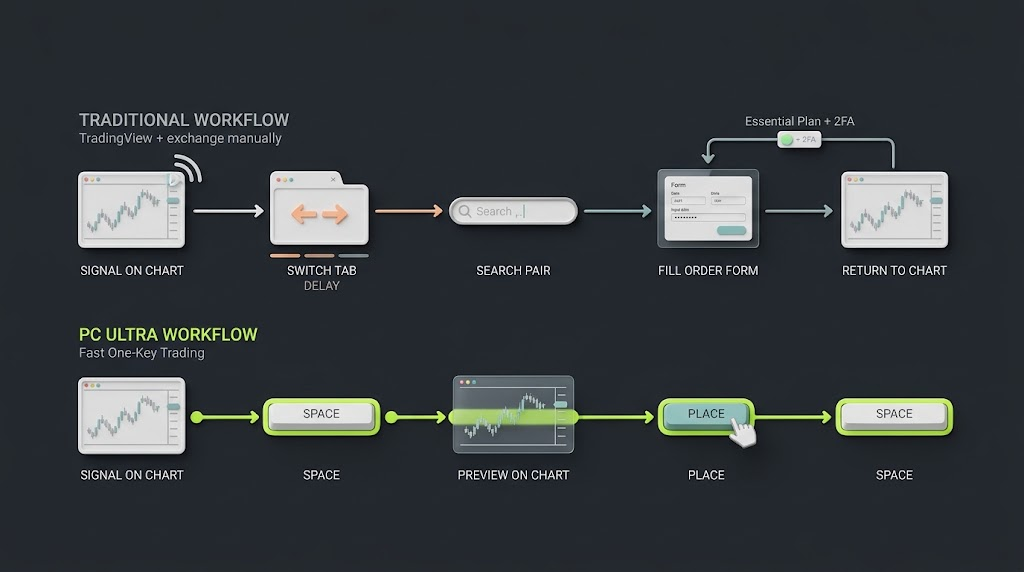
Steps between a signal and a live order on a split TradingView-plus-exchange workflow versus a single Bitunix PC Ultra page.
Visual Risk Management: Drag-and-Drop On-Chart Take-Profit and Stop-Loss Levels
PC Ultra physically fuses the execution ticket to the canvas.
Punch in an order quantity, and a grey ghost line drops onto the candles. Drag the target level above current price, and the terminal reads the intent as long. Market, limit, and trigger orders all generate interactive on-chart previews. Once an order fills, the position line and your TP/SL markers remain active on the price ladder. Moving a stop is just a click-and-drag on the chart itself, bypassing the bottom-dock order table entirely.
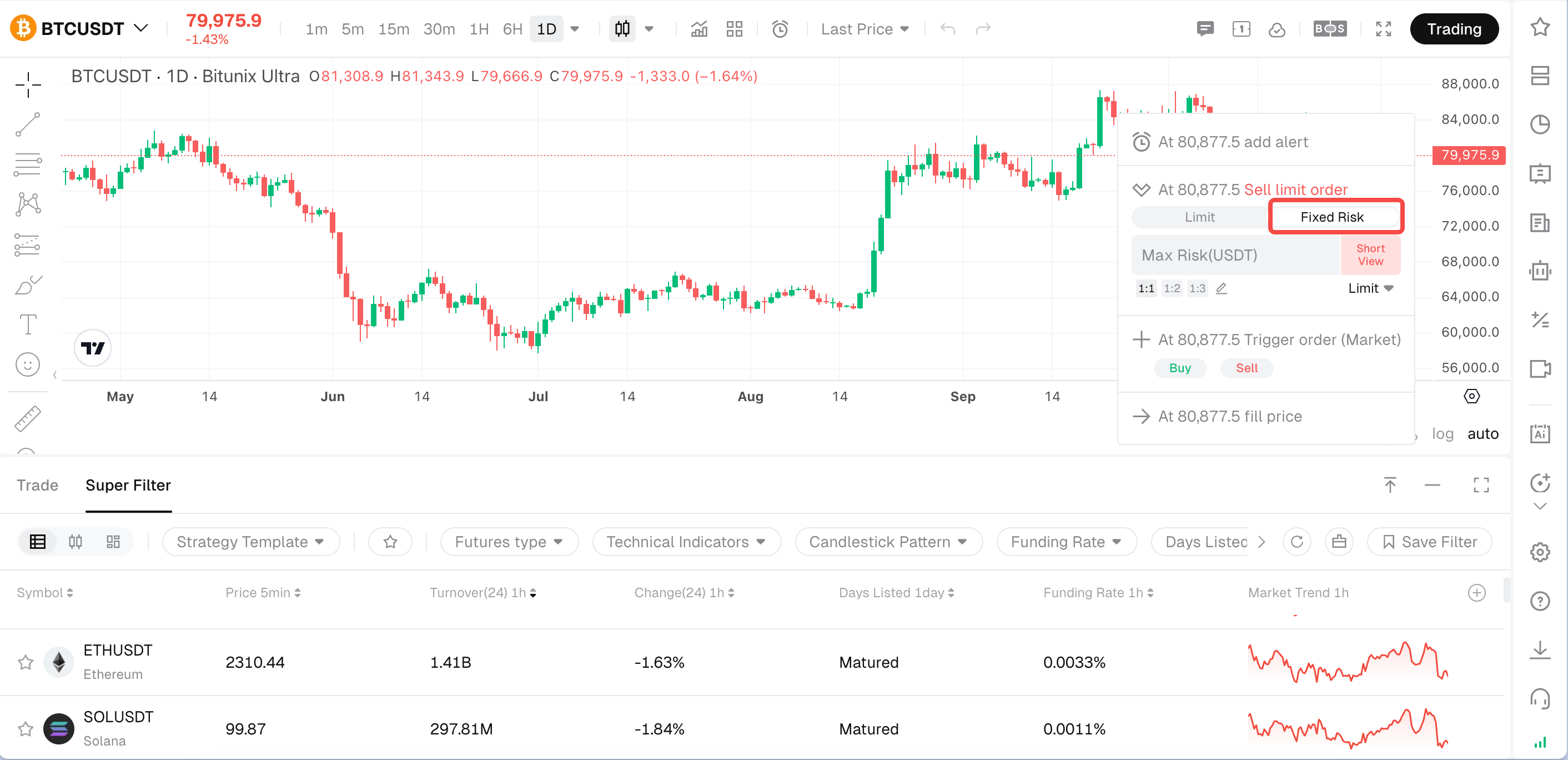
Using Fixed Risk mode on Bitunix PC Ultra to calculate position size automatically based on predefined USDT risk.
The standout feature here is Fixed Risk mode. Instead of forcing you to compute sizing from nominal contract value, it calculates backwards from a defined cash risk. Specify that you're willing to lose $100: pull a tight stop, and the terminal sizes up the contracts; drag your stop below a macro swing, and the position scales down automatically. When the friction between charting and execution is this low, sizing strictly by dollar loss is the only sensible default.
TradingView offers comparable drag-to-trade mechanics, but strictly through its small roster of directly integrated brokers. You cannot plug a Bitunix account into TradingView's trading panel, making PC Ultra the only native way to run this visual workflow on Bitunix pairs.
Fast-Paced Hotkey Navigation (Esc, Space, Arrow Keys) for Zero-Lag Fills
When price starts moving fast, the last thing you want to do is hunt around your screen dragging window borders.
PC Ultra pins your layout controls to four physical keys:
Key | What it does | When to use it |
Esc | Clears off all side panels, leaving only the chart | Clean macro charting without distractions |
Space | Pops the order panel in or out on the right | Setting up an entry without moving your mouse off price |
↓ | Drops the bottom position bar down to the bottom edge | Gives the candles more vertical room on your monitor |
↑ | Restores the position bar; press twice for full screen | Checking fills, slippage, and fees once a trade is done |
The logic is simple: your left hand controls the screen while your right hand stays on the chart. Your cursor never leaves the price action.
If you stream your trading, this keeps your broadcast looking sharp. You don't have to fiddle with window sliders in front of an audience. Trading on your own, it kills that split-second panic where a candle is taking off and you can't find the buy button in time.
Still, faster shortcuts don't make you a better trader. High leverage will blow up an account just as fast if you're on the wrong side. Take an afternoon to practice these keys on a demo account first so you don't fat-finger an entry when real money is on the line.
Workspace Ergonomics: Eliminating Interface Noise During a Day Trading Livestream
A day trading livestream is all about managing audience attention. Whatever flashes on screen steals the viewer's focus, and visual clutter around a candle ruins an otherwise sharp setup. Both platforms can be stripped down to a clean canvas—the difference lies in how much setup it takes, and whether going clean forces you to sacrifice instant order execution.
Cognitive Load in Live Markets: Stripping Out Ads, Popups, and Redundant Sidebars
TradingView's free tier constantly interrupts you with upgrade banners and ads; buying a subscription is largely paying a fee just to get a clean chart back.
Standard crypto exchange interfaces are noisy in their own way: marketing popups on login, promotional banners pinned up top, a rapid-fire trade tape, and a static order book permanently eating up a third of your screen.
PC Ultra starts from the opposite default. The chart fills the main decision area, the order book and depth are secondary panels, and everything else is an icon on the right toolbar until opened. There is no ad layer at any tier because there are no tiers.
Ultra Immersive Mode: Maximizing Candlestick Real Estate for Live Audiences
Pressing Esc immediately expands the workspace into a single edge-to-edge chart.
During a trading stream, this is the optimal layout for technical breakdown—drawing key levels, configuring indicators, or walking through price structure. Because the candles fill the entire frame rather than half the window, mobile viewers can track candle bodies and wicks clearly without squinting.
Full-screen mode hides the top navigation icons to eliminate interface noise, but keeps multi-chart splits active. On an ultrawide monitor, two trading pairs can sit side by side across the full display width for clean comparative analysis. The moment price enters your execution zone, pressing any operational key restores the order ticket and toolbars instantly.
Non-Intrusive Drawer Architecture: Accessing Positions and Watchlists Without Covering Charts
Along the right edge, a slim icon rail groups your core workspace tools—favorites, layouts, alerts, grid bots, and settings. Clicking any icon slides that panel out like a side drawer beside the candles; close it, and the chart immediately stretches back to fill the entire screen width.
For livestream setups, the active position table can be pinned directly above the chart. This lets hosts keep trade entries and PnL visible at the top of the frame while using their cursor to point out price action directly beneath it. The horizontal divider separating the chart and the bottom order area is also freely draggable—PC Ultra caches your dragged height, allowing you to restore that exact view at any point using the ↑ key.
The practical result is that nothing ever overlays the price axis or the most recent candles. On TradingView, a similar level of focus is possible on a paid plan, but the position and watchlist panels relate to whichever broker is connected, and for a Bitunix trader that is none.
Livestream Setup Ergonomics: Dual-Window Capture vs All-in-One Trading Page
This is the section where the two platforms stop being comparable, because TradingView has no streaming features and PC Ultra was built with live trading streamers in mind. The question is how much the difference matters in practice.
The Traditional Broadcaster Dilemma: Window-Cropping and Multi-Window Alignment
Setting up a standard trading stream is usually a delicate juggling act of disconnected windows: TradingView for analysis, an exchange tab on standby, OBS encoding in the background, with a webcam feed and promo banners pinned along the borders.
Every extra component introduces another point of failure during a live broadcast. Anyone who has streamed knows the drill: an overlay banner shifts and blocks the price scale, the camera feed pops out of alignment when a window is resized, or the exchange tab quietly times out right before an entry setup triggers. Capturing the entire exchange page is just as messy, shrinking the candlestick chart down to less than half the screen.
Many streamers try to fix this by cropping their OBS capture down to just the chart area. While this cleans up the visual feed, it cuts out the order ticket entirely, forcing the host to alt-tab away from the stream view every time they need to execute a trade.
Native Custom Live Panel: Pinning Webcam and Brand Cards Beside the K-Line
Inside PC Ultra's custom panel, setting up your stream overlay takes only a few clicks: add a video window to connect your webcam feed, drop a community QR code and a promo banner (or looping short clip) into the two card slots, label the panel with your channel name, and pin it to the far right rail.
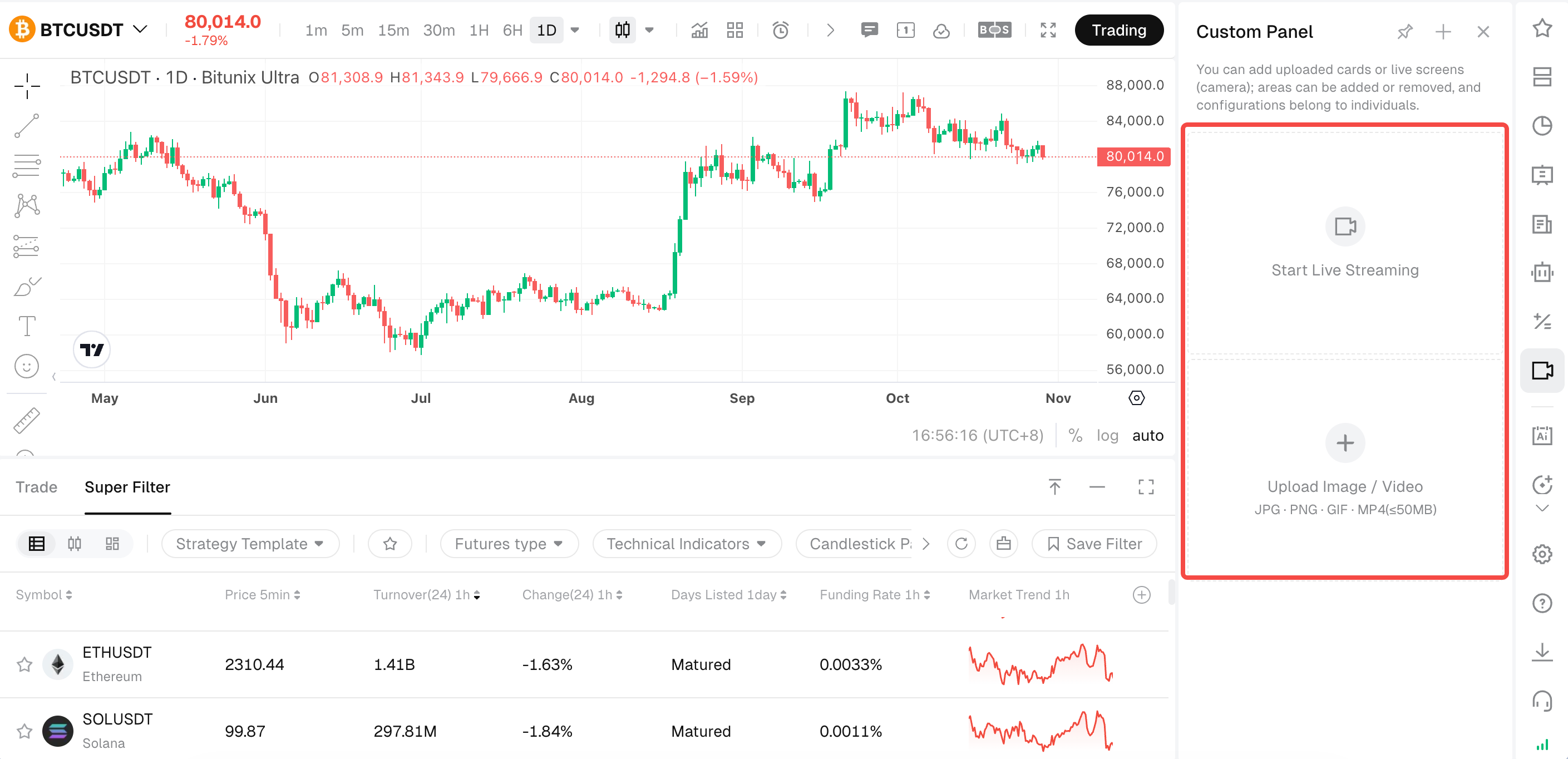
Setting up a livestream overlay in the Bitunix PC Ultra Custom Panel with camera feed and media upload cards.
The entire layout is saved to your account automatically, so switching to a new machine won't reset your screen. Here is a breakdown of what the panel supports:
Setting | Detail |
Supported content | Live camera feed, image cards, video cards |
Region limit | 1 live feed + 2 image or video cards per panel |
Save scope | Per account |
Display position | Beside the main chart, never over the K-line area |
Cost | Included for all accounts |
Because the camera and branding live inside the trading page, OBS needs one window capture. No separate webcam source, no overlay plugin, nothing that can drift onto the candles.
Preserving Price Action Clarity Across High-Resolution Streaming Feeds
Mobile screens dominate live streaming. Because heavy compression rapidly smears delicate chart details, every pixel counts. A full-canvas chart stays razor-sharp, but cramming candles into a third of the frame quickly turns into visual noise. The rules are straightforward. Run dark mode, enlarge axis text, cap your indicators at two or three, and stick strictly to a single sub-pane.
The difference is that PC Ultra reaches that state with Esc, and the branding comes back on the next key press, while a TradingView-based stream reaches it by cropping and loses the order panel in the process.
Cost and Accessibility: Premium SaaS Licensing vs Zero-Cost Futures Terminals
Cost makes the decision simple. When monthly subscriptions quietly eat into realized PnL, the math speaks for itself. Here is where list prices stand as of October 2026. Seasonal sales fluctuate, but these standard rates reveal what you actually pay to play.
The Tiered Subscription Barrier of Conventional Charting Suites
The following table shows TradingView's non-professional plans and what a streamer typically adds on top:
Item | Monthly billing | Annual billing (per year) | What it unlocks |
TradingView Basic | $0 | $0 | 1 chart, 2 indicators, ads, no webhooks |
TradingView Essential | $14.95
| $155.40 | 2 charts, 5 indicators, 20 alerts (expire after 2 months), webhooks |
TradingView Plus | $34.95 | $359.40 | 4 charts, 10 indicators, 100 alerts |
TradingView Premium | $69.95 | $719.40 | 8 charts, 25 indicators, 400 non-expiring alerts |
Streamlabs Ultra (overlay suite) | $27 | $189 | Themes, widgets, multistreaming |
A typical active streamer on Plus plus Streamlabs Ultra pays about 548 a year on annual billing or 743 on monthly billing; on Premium the range is roughly 908 to 1,163. The streamer tech-stack article walks through that arithmetic in full.
Democratizing Pro Features: Professional Visualization Included with Every Account
On Bitunix, that subscription cost is zero. PC Ultra, multi-window layouts, Super Filter, custom streaming panels, and hotkeys are unlocked for every verified user. Paired with open-source OBS, your entire setup runs without monthly overhead. You pay regular trading fees—subject to regional limits—and nothing more.
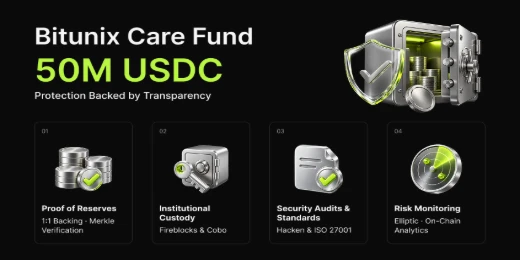
Make no mistake about what "free" changes and what it leaves untouched. It removes the software bill creators pay before making a cent. It never removes risk. Saving on tools is no reason to size up. But because your analysis tool is also where your capital sits, platform safety matters. Bitunix delivers that assurance through audited Proof of Reserves and a $50 million Care Fund.
The Final Verdict: Which Platform Fits Your Live Trading Stream Workflow?
Neither platform is the better choice for everyone, and many traders will end up with both. The deciding question is what the chart needs to be connected to.
When TradingView Remains Optimal for Multi-Asset Portfolio Research
Keep TradingView, and probably a paid tier, if any of the following describe you:
You chart stocks, forex, commodities or indices alongside crypto and want one interface for all of them.
Your edge depends on Pine Script indicators or strategies, your own or from the community library.
You use bar replay for backtesting, or you rely on the idea-sharing community.
You execute through a broker that is already integrated into TradingView's trading panel.
In those cases TradingView is doing work an exchange terminal cannot, and the subscription is buying something real.
Why Fast-Moving Scalpers and Broadcasters Are Upgrading to Bitunix Ultra
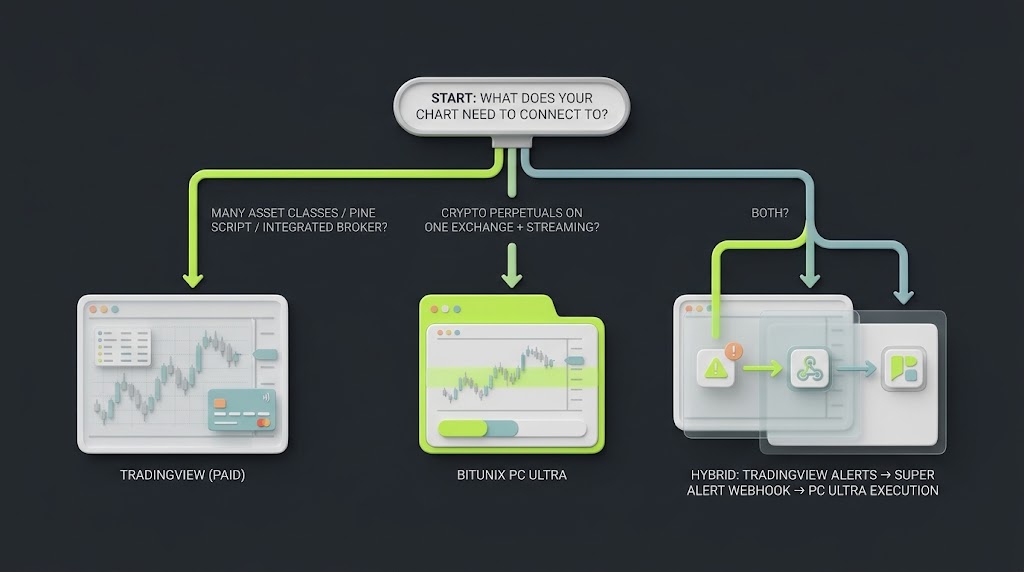
Choosing between TradingView, Bitunix PC Ultra or a hybrid depends on what the chart has to connect to.
Choose PC Ultra as the primary workspace if:
You trade crypto perpetuals on Bitunix and want the chart, the screener and the order panel on one page.
You run a live trading stream and want the webcam and branding inside the capture rather than layered over it.
You paid for Plus or Premium for three basic reasons: more split charts, higher indicator limits, and zero ads.
You need an uncompromising workflow: quick scan-to-order execution, instant hotkeys, clear on-chart controls, and alerts routed straight to Telegram or Discord for unattended pairs.
Many active traders run a clean hybrid. Use TradingView where it excels—macro perspective and custom script analysis—and push its alerts into Bitunix through the Super Alert webhook. Then, run your live tape inside PC Ultra. What you shouldn't do is pay a recurring SaaS subscription for basic visual headroom that your exchange terminal already provides at zero cost.