

Feature Descriptions
This feature provides a guided self-service process for users whose security verification methods have become unavailable due to force majeure or other unforeseen circumstances. Users can initiate the reset directly from the login verification page and update multiple security items simultaneously (e.g., resetting both email and Google Authenticator). By submitting identity verification documents and proof of funds, users can complete the required risk-control review online, significantly reducing the review time.
Feature Highlights
- Full Self-Service, No Waiting RequiredA completely self-service process that eliminates the need to queue for manual support.
- Multi-Item Reset SupportSupports combined resets for email, phone number, and Google Authenticator, providing a one-stop solution for scenarios where multiple security items are lost and users would otherwise be stuck in a verification “deadlock”.
- Enhanced Interaction DesignIntroduces dynamic reminders for verification code delivery and clear step-by-step progress navigation, allowing users to easily track the process and understand the expected review timeline.
Google Verification - Failure Reset Guide
If you encounter any problems during the operation, please contact official customer service for assistance.
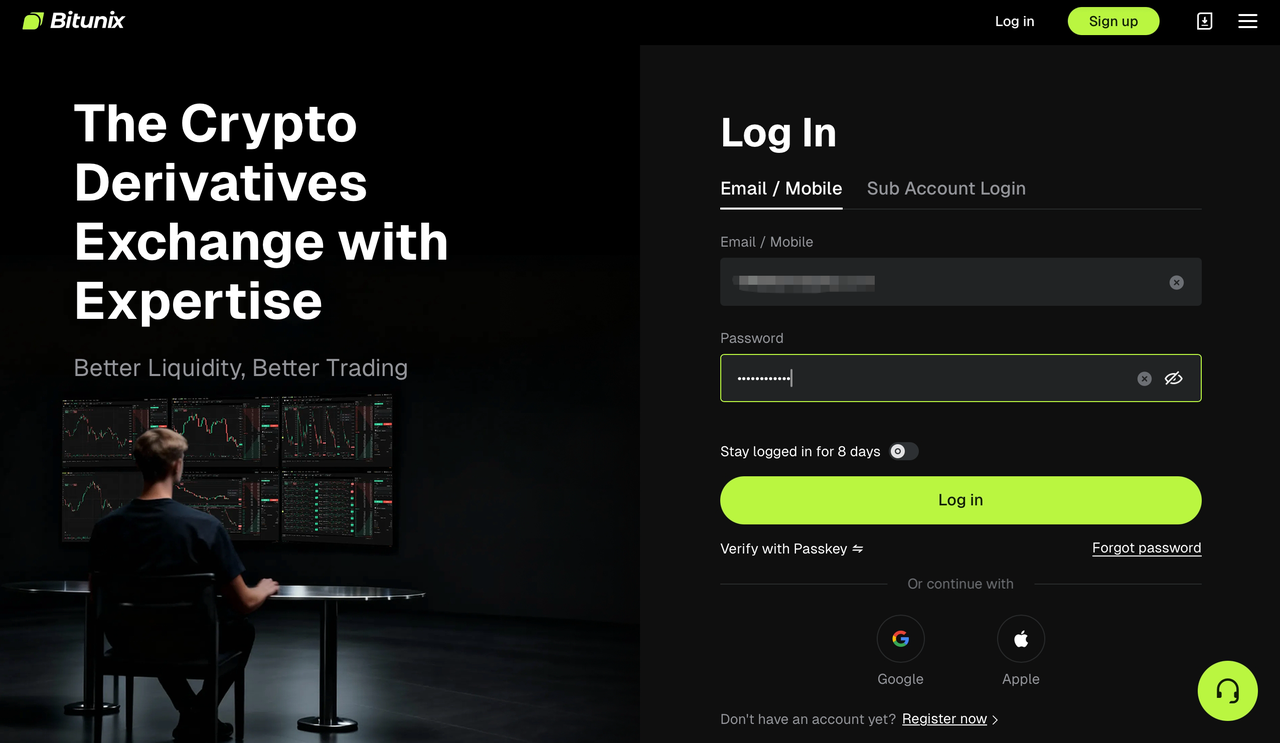
Step 1: Open Bitunix.com and log in to your account.
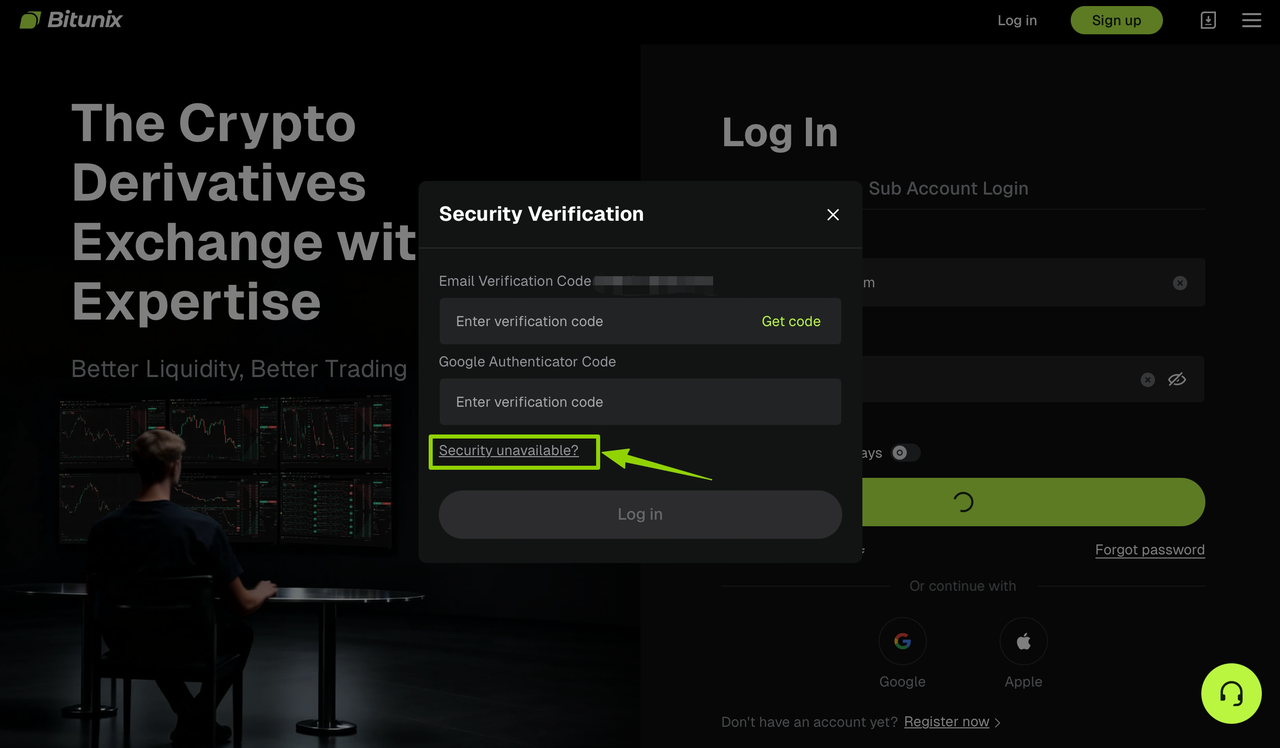
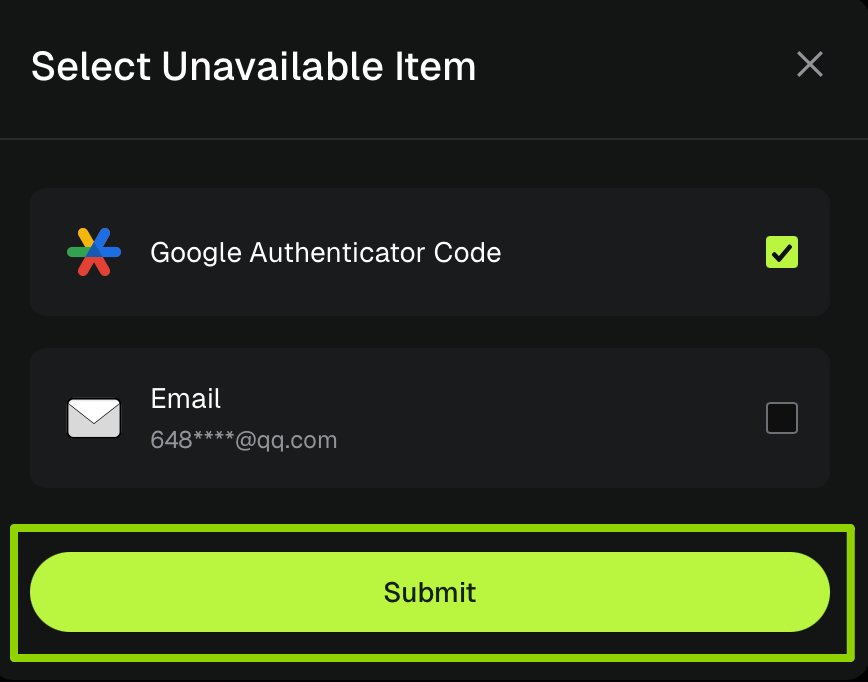
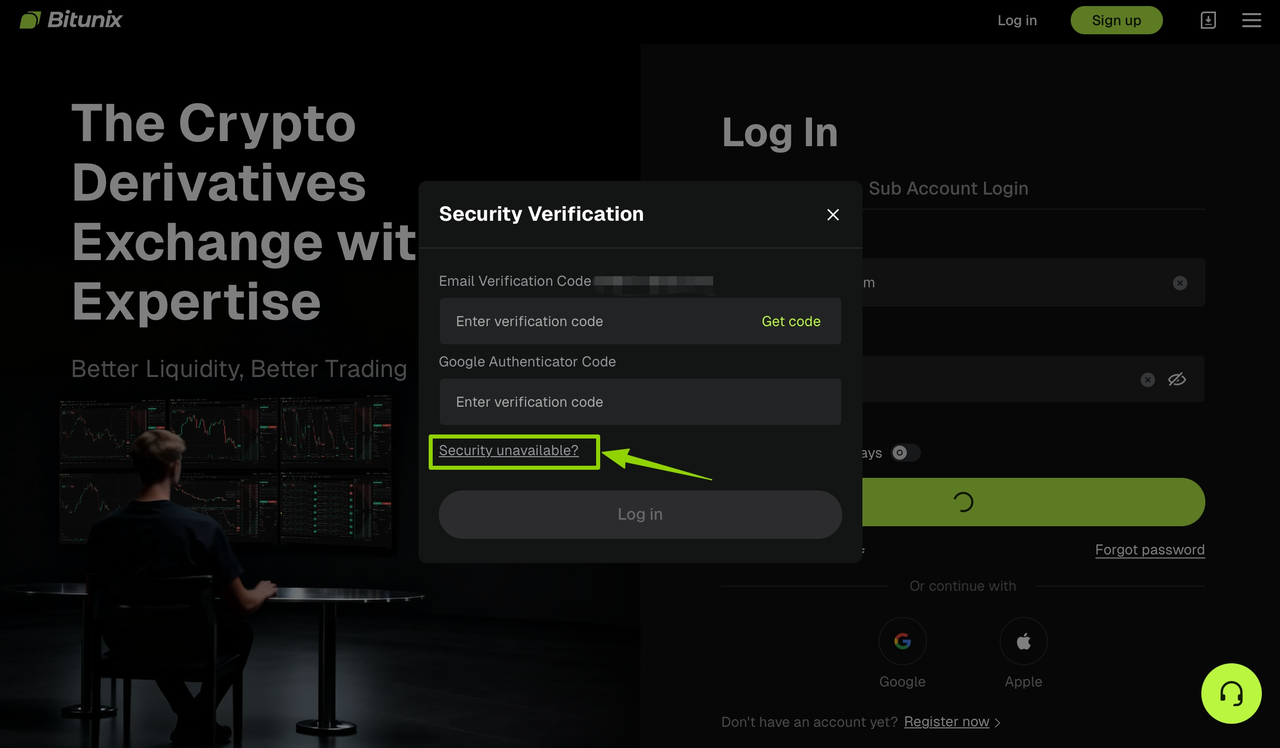
Step 2: Click on [Security unavailable], which will take you to the corresponding page. Check the fail-safe option to enter the processing page. We will use Google verification reset as an example to demonstrate:
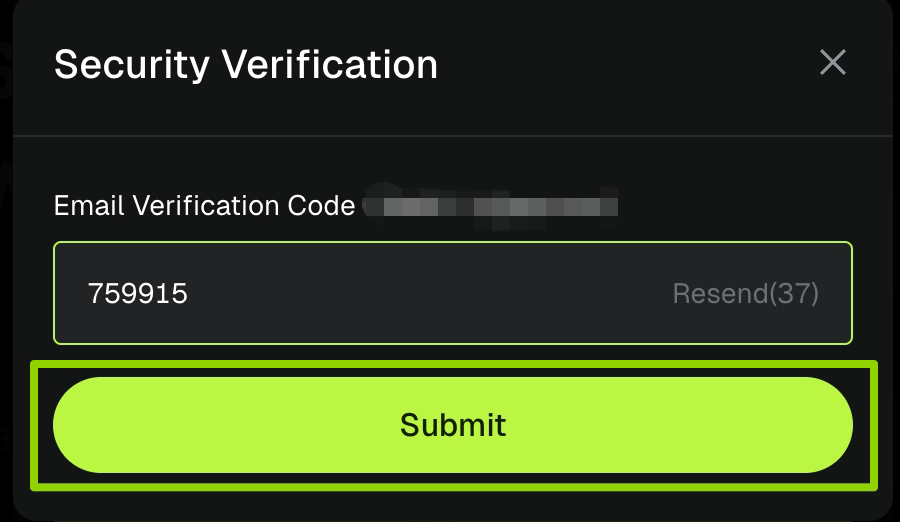
Step 3: The system will automatically switch to the email verification channel and send the [verification code] to your email. Enter the code in the input field after receiving it, then click [Submit] to complete the verification.
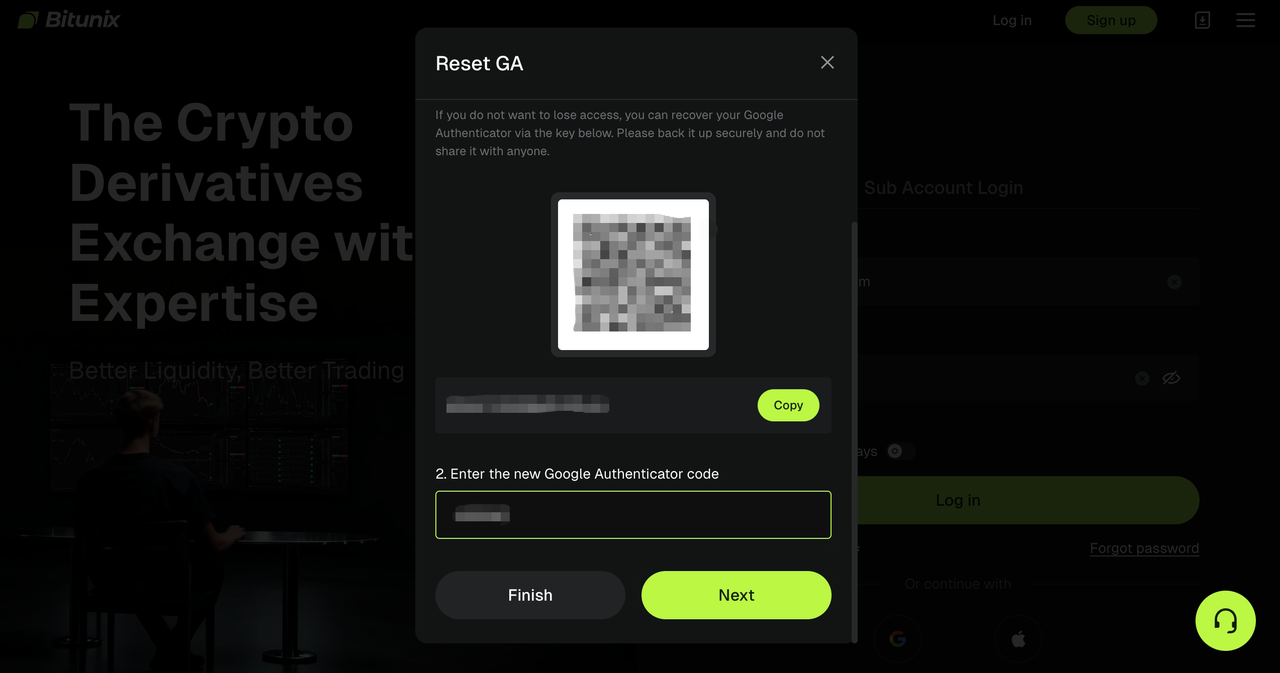
Step 4: Open the Google Authenticator app and scan the code to complete the verification key addition. Click [Next] after completion.
For the safety of your funds, withdrawals are not allowed within 24 hours after modifying the security item.
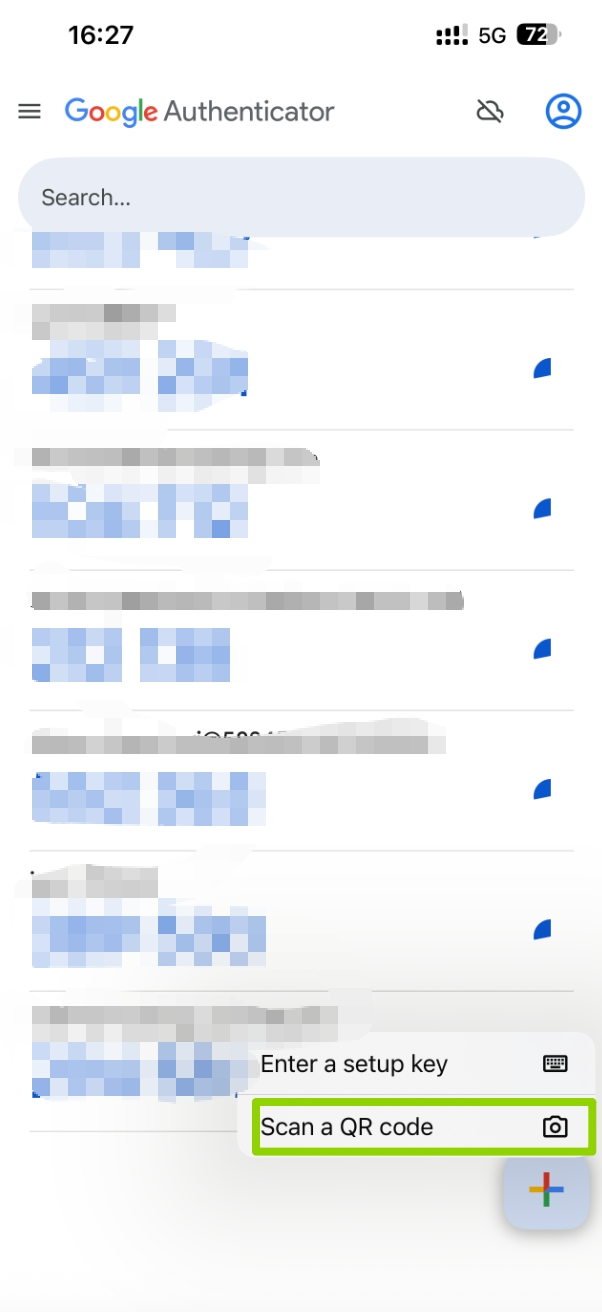
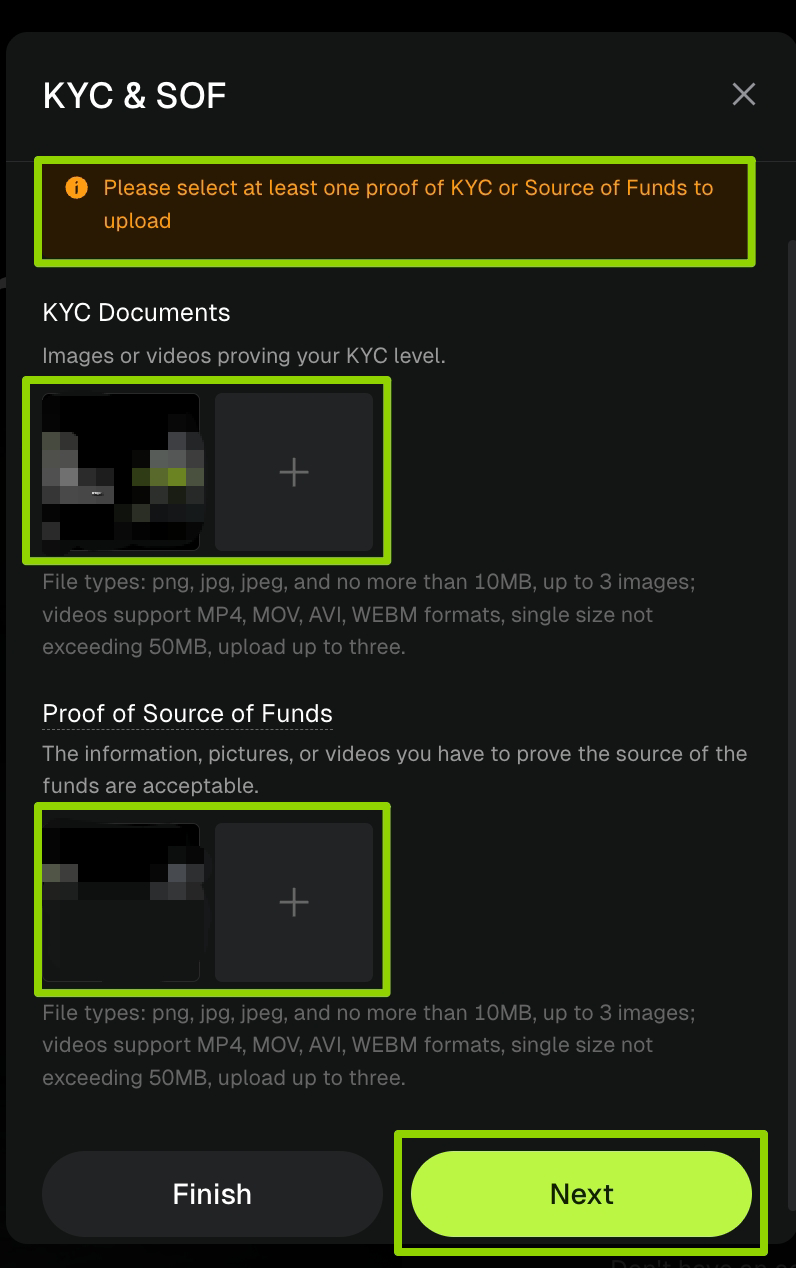
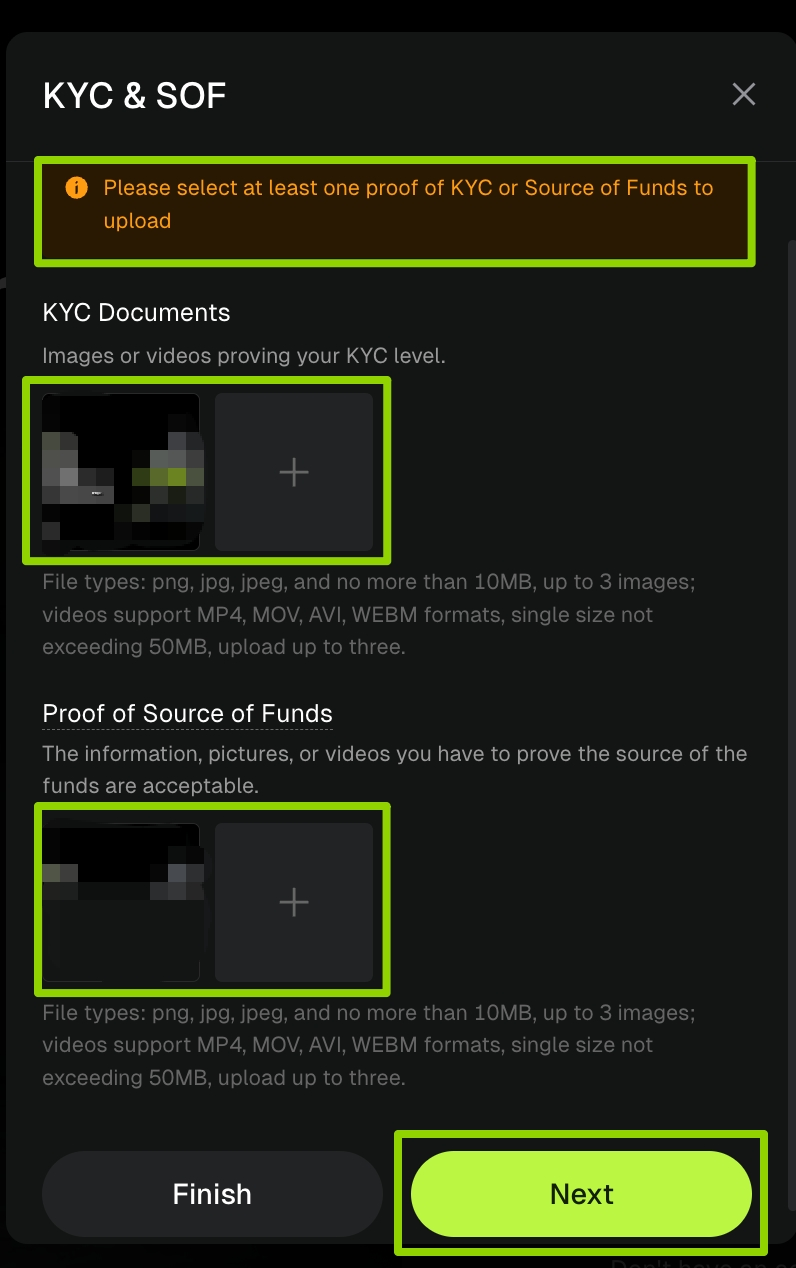
Step 5: Upload your KYC qualification and funding source certificate. Choose at least one to submit. The platform supports picture and video formats. Once the upload is complete, click [Next] to submit. After successful submission, the platform staff will complete the review within 3-5 working days and notify you of the final verification results.
Email Verification - Failure Reset Guide
If you encounter any problems during the operation, please contact official customer service for assistance.
Step 1: Open Bitunix.com and log in to your account.
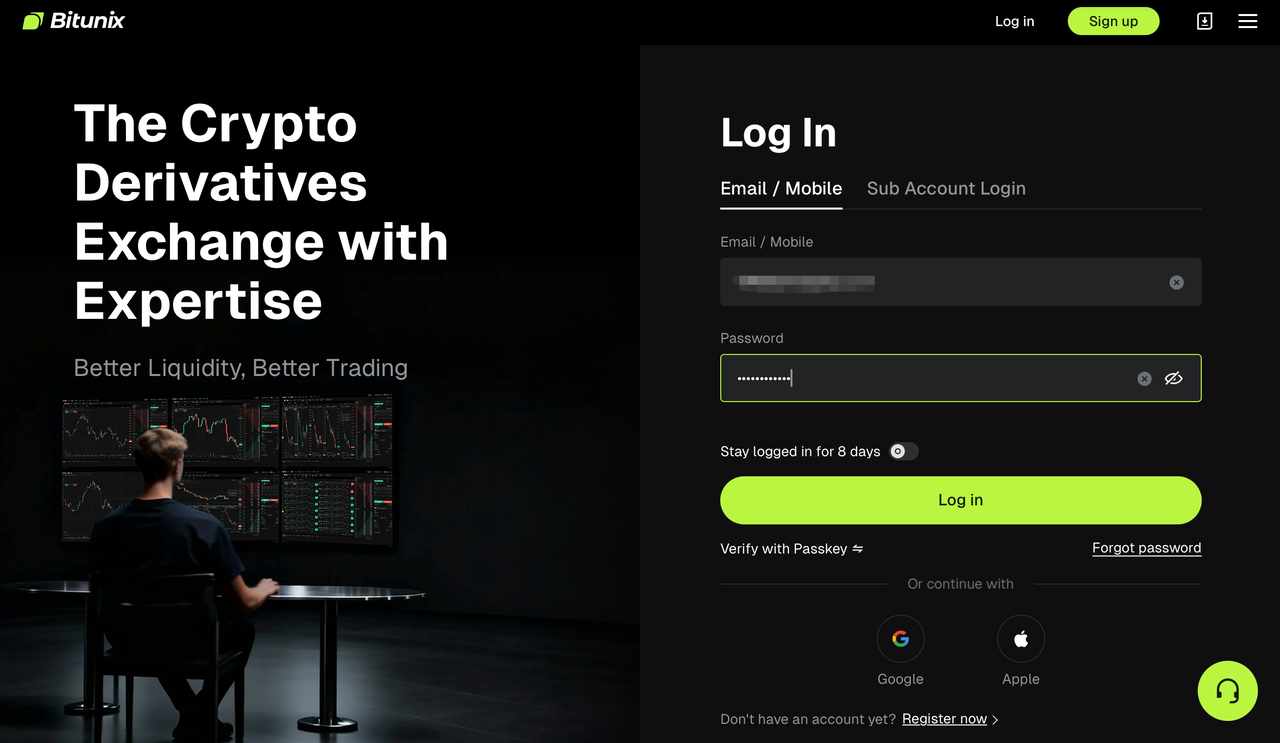
Step 2: Click on [Security unavailable], which will take you to the corresponding page. Check the fail-safe option to enter the processing page. We will use email verification reset as an example to demonstrate:
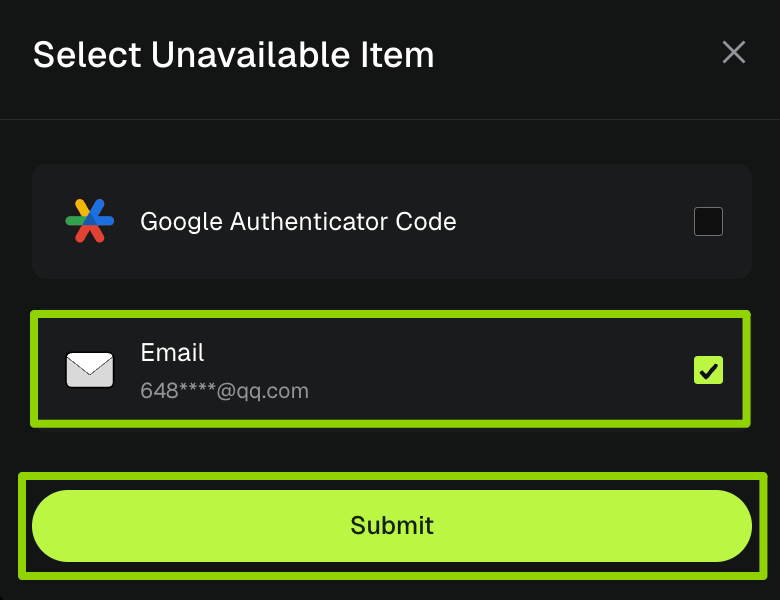
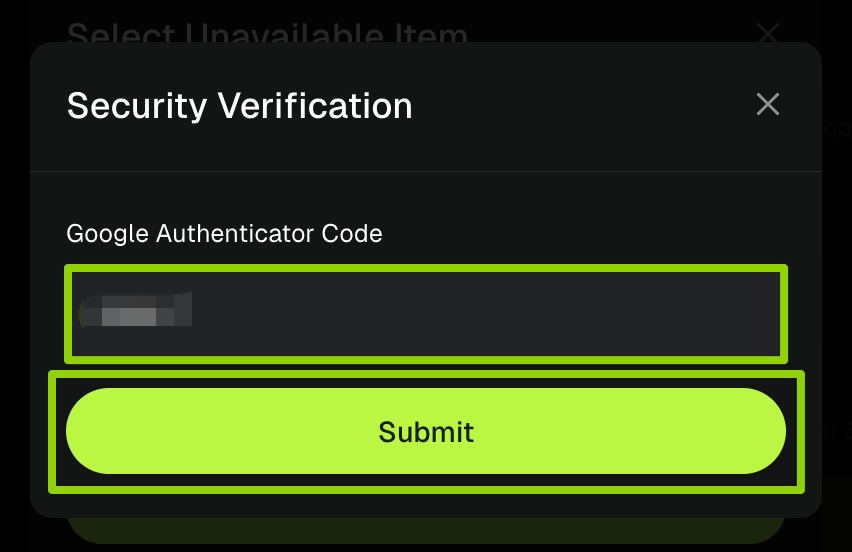
Step 3: Enter the [verification code] from your original bound Google Authenticator, then click [Submit] to complete the verification.
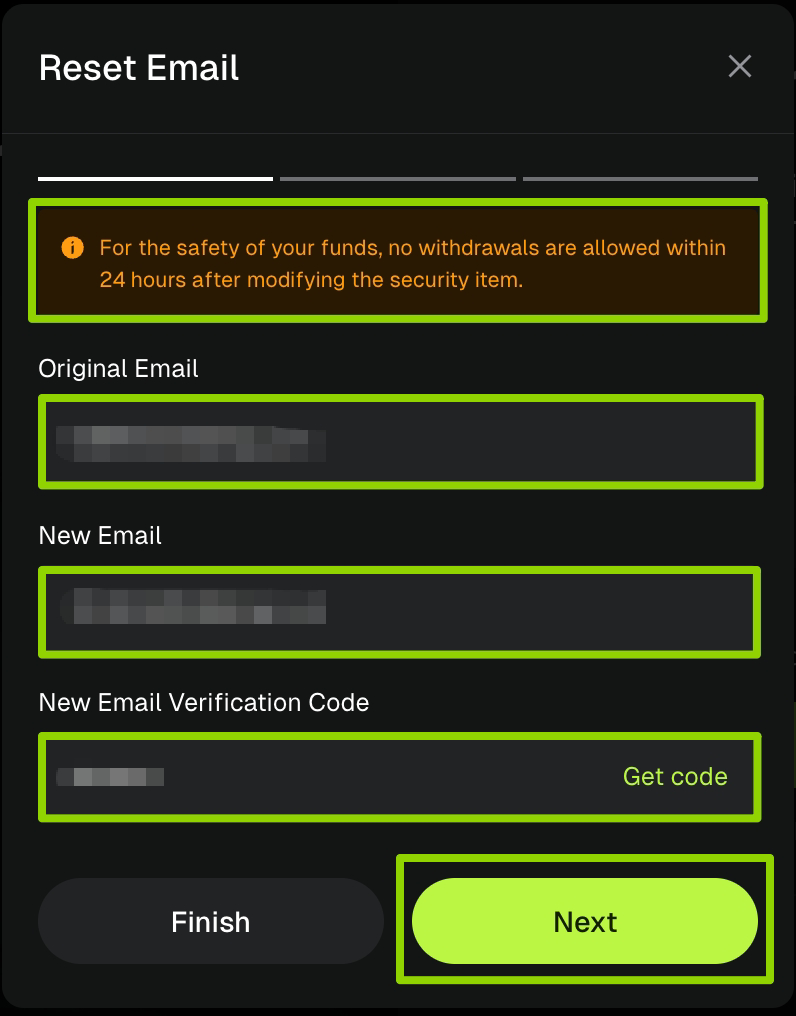
Step 4: Fill in the [original email] address and the [new email] address, then click send to receive the [new email verification code]. Enter the code in the corresponding text box. After confirming the information is correct, click [Submit] to submit the application.For the safety of your funds, withdrawals are not allowed within 24 hours after modifying the security item.
Step 5: Upload the KYC qualification and funding source certificate, choose one to submit , support image and video formats, click [Next] after uploading, the platform staff will complete the review in 3-5 working days, and inform the final verification result synchronously.
Special reminder!!!
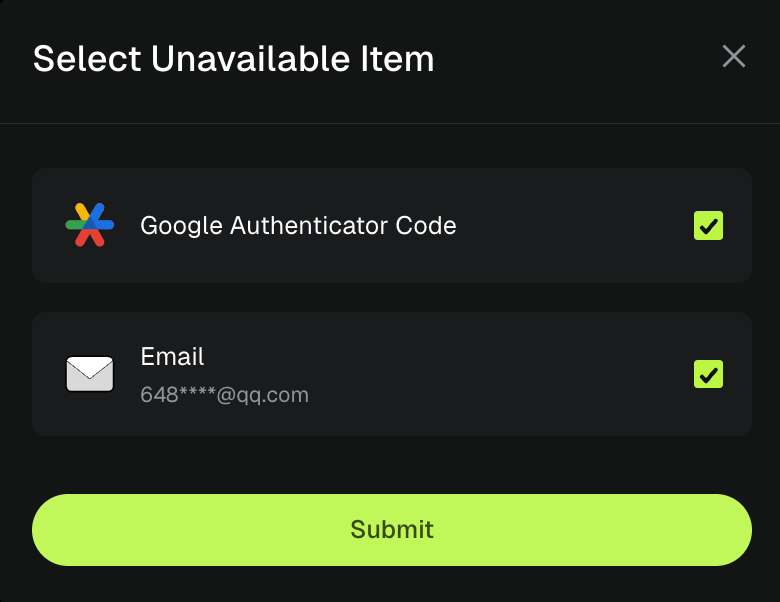
If the security verification of your original binding for both Google verification and email verification cannot be used, you can select both items at the same time to reset them. The system will verify the email verification first, followed by Google verification. Please refer to the "Email Verification Failure Reset Guide" and "Google Verification Failure Reset Guide" to complete the corresponding operation.
Disclaimer
This article is not intended to provide
(I) investment advice or investment recommendations;
(Ii) an offer or solicitation to buy, sell or hold digital assets;
(Iii) Financial, accounting, legal or tax advice. Digital assets held (including stablecoins and NFTs) involve a high level of risk and may fluctuate significantly. You should carefully consider whether trading or holding digital assets is appropriate for you based on your financial situation. Please consult your legal/tax/investment professional for your specific situation. Please be responsible for understanding and complying with relevant local applicable laws and regulations.