

Bitunix Scaled Order is designed for large-volume traders and strategy-focused users who need to open or close positions in batches. It solves the inefficiency and fragmented operations of manual order placement. Built around embedded visual interaction on charts and following the What You See Is What You Get and Chart-First principles, this feature enables one-click completion of range splitting, volume allocation and bulk order placement. It perfectly caters to technical analysts, large-volume traders and users who prefer visual operations, streamlining core trading scenarios including bottom-fishing position opening and large order splitting while balancing strategy accuracy and ease of use.
New Feature Overview
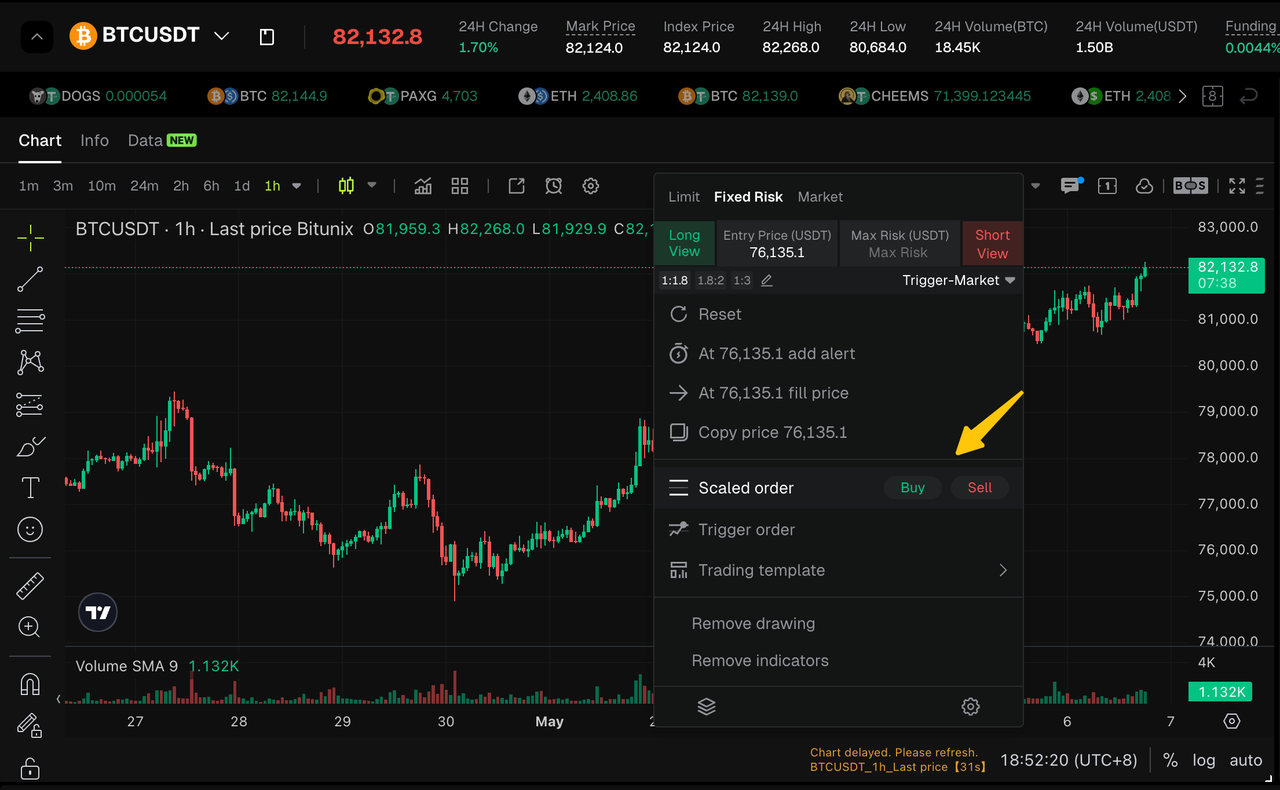
1. Entry: Activated by right-clicking on the K-line chart. Hover over Buy/Sell to select the trading direction; a direct click defaults to a buy order for quick operation.
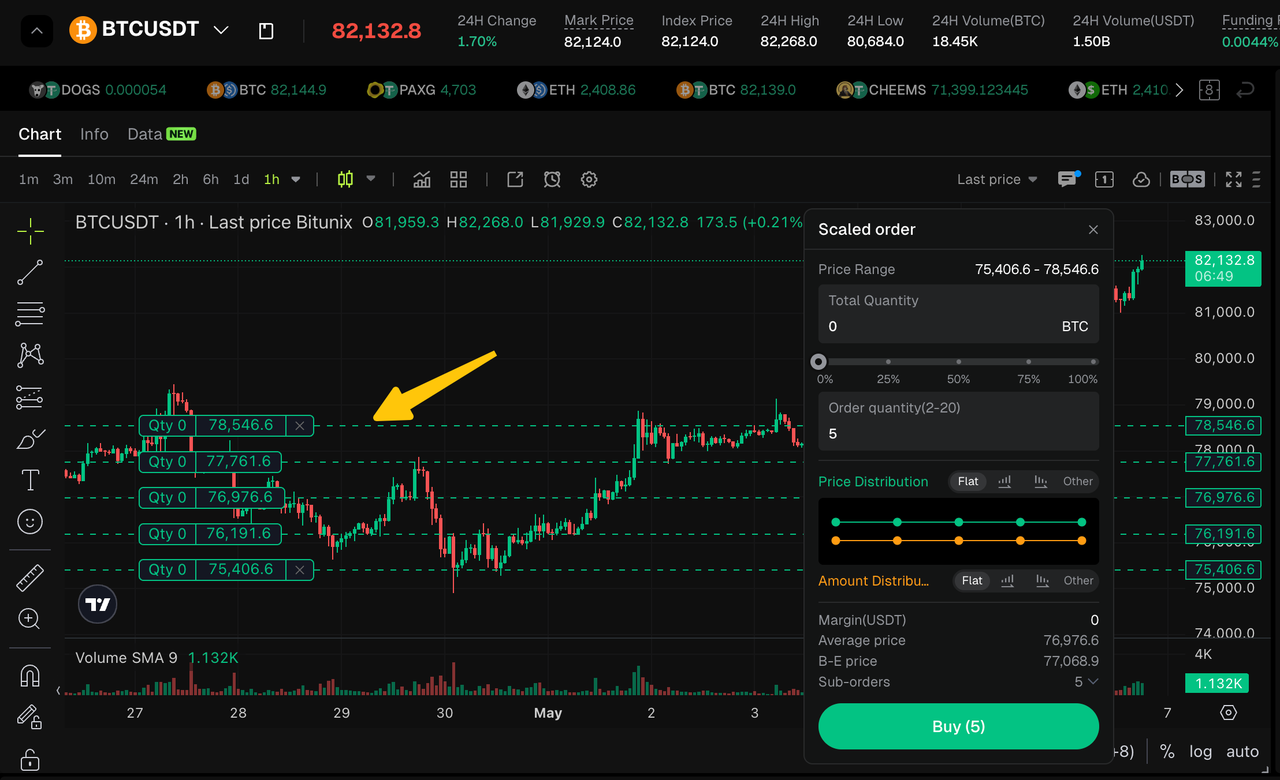
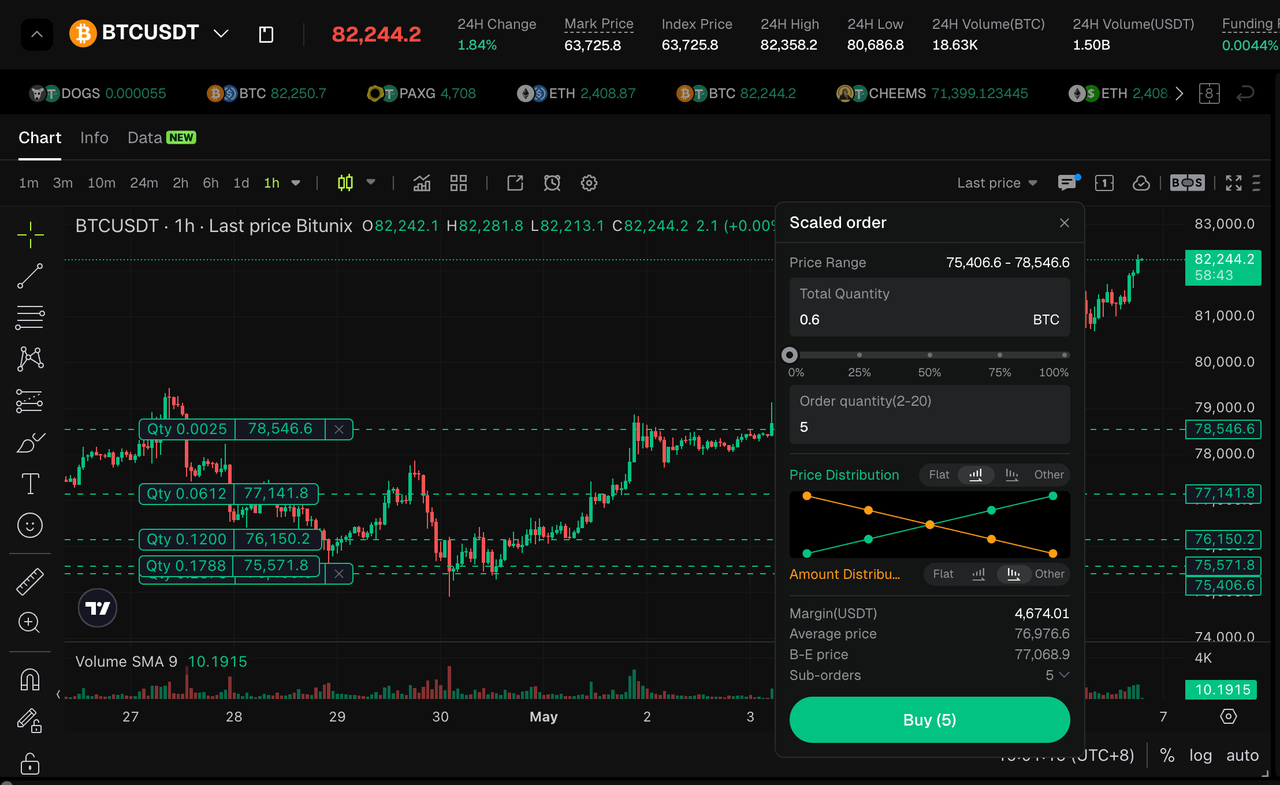
2. Visual Chart Elements: After activation, boundary lines and range fills will be displayed to show full order details intuitively with WYSIWYG experience.
3. Floating Configuration Panel: Titled Scaled Order, the panel is draggable and integrates core settings such as price range and total order volume for smooth interaction.
4. Price Distribution Modes: Four modes are available: Flat, Ascending, Descending and Other, adapting to diverse trading strategies and market conditions.
5. Volume Allocation Modes: Six modes including equal distribution, arithmetic progression, geometric progression and random distribution are supported, fully meeting various demands for batch position opening and closing.
Operation Guide
1. Activate Scaled Order
Right-click the blank area on the K-line chart and select Scaled Order. Hover over Buy/Sell to choose the trading direction. Once activated, the cursor will turn into a crosshair to prompt you to set the order range.
2. Select the Price Range
Click twice to frame the price range. You can drag the boundary lines to adjust the range after confirmation. The system will automatically generate boundary lines, color fills, sub-order distribution and the floating configuration panel.
3. Set Total Volume
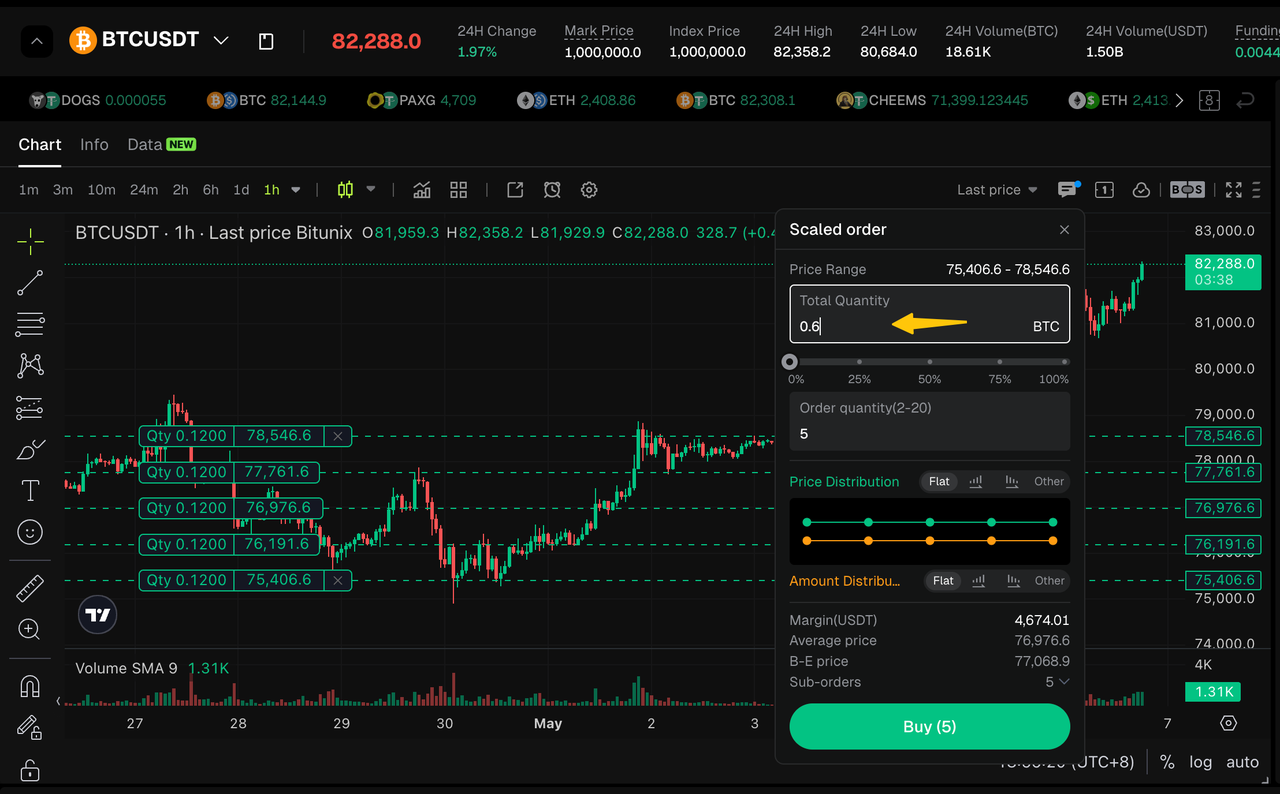
Enter the total order volume in the floating panel, or use the percentage slider to quickly set the volume based on your available balance.
4. Set Number of Sub-Orders
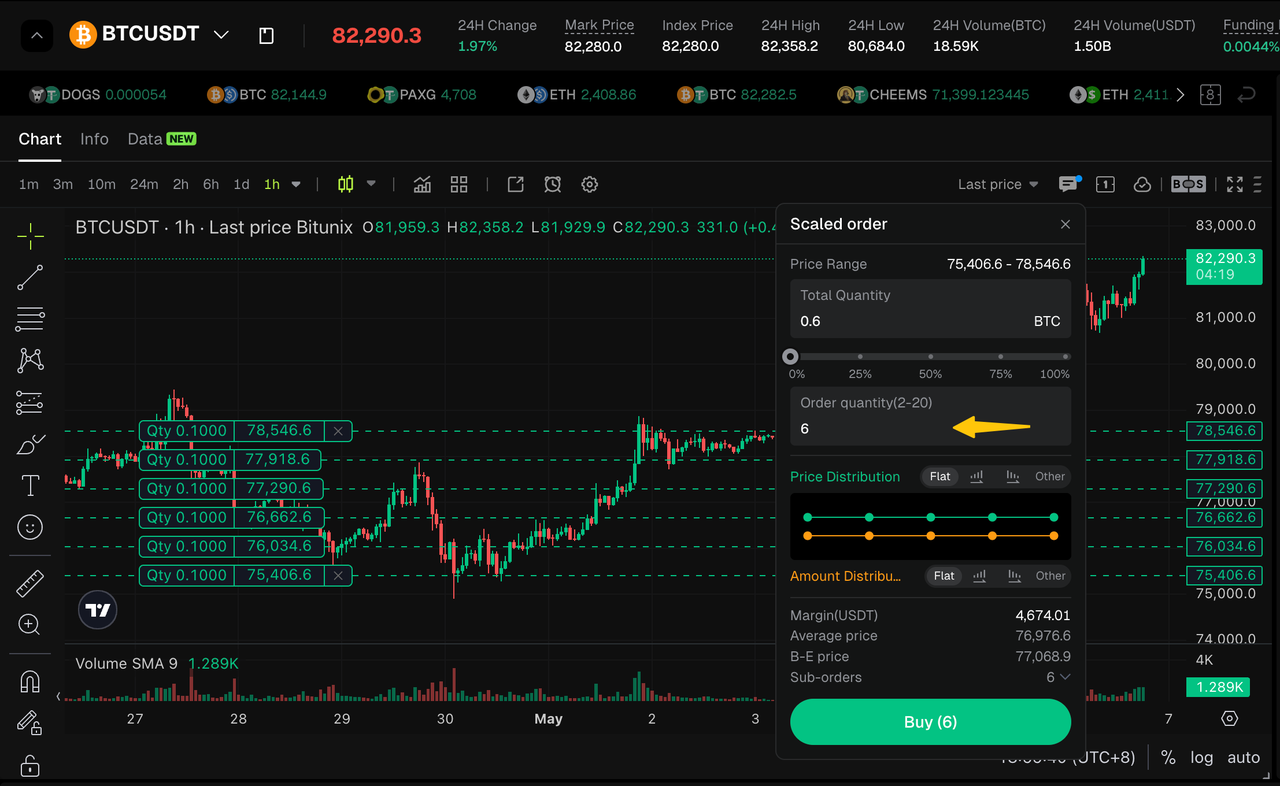
Enter 2 to 20 sub-orders in the Order quantity field (values outside the range will be adjusted automatically). A larger number of sub-orders means more precise placement but also higher margin occupation.
5. Select Price Distribution Mode
Click the button to switch between four modes: Flat, Ascending, Descending and Other. If you drag nodes under any mode, it will automatically switch to Other mode, with changes displayed on the chart in real time.
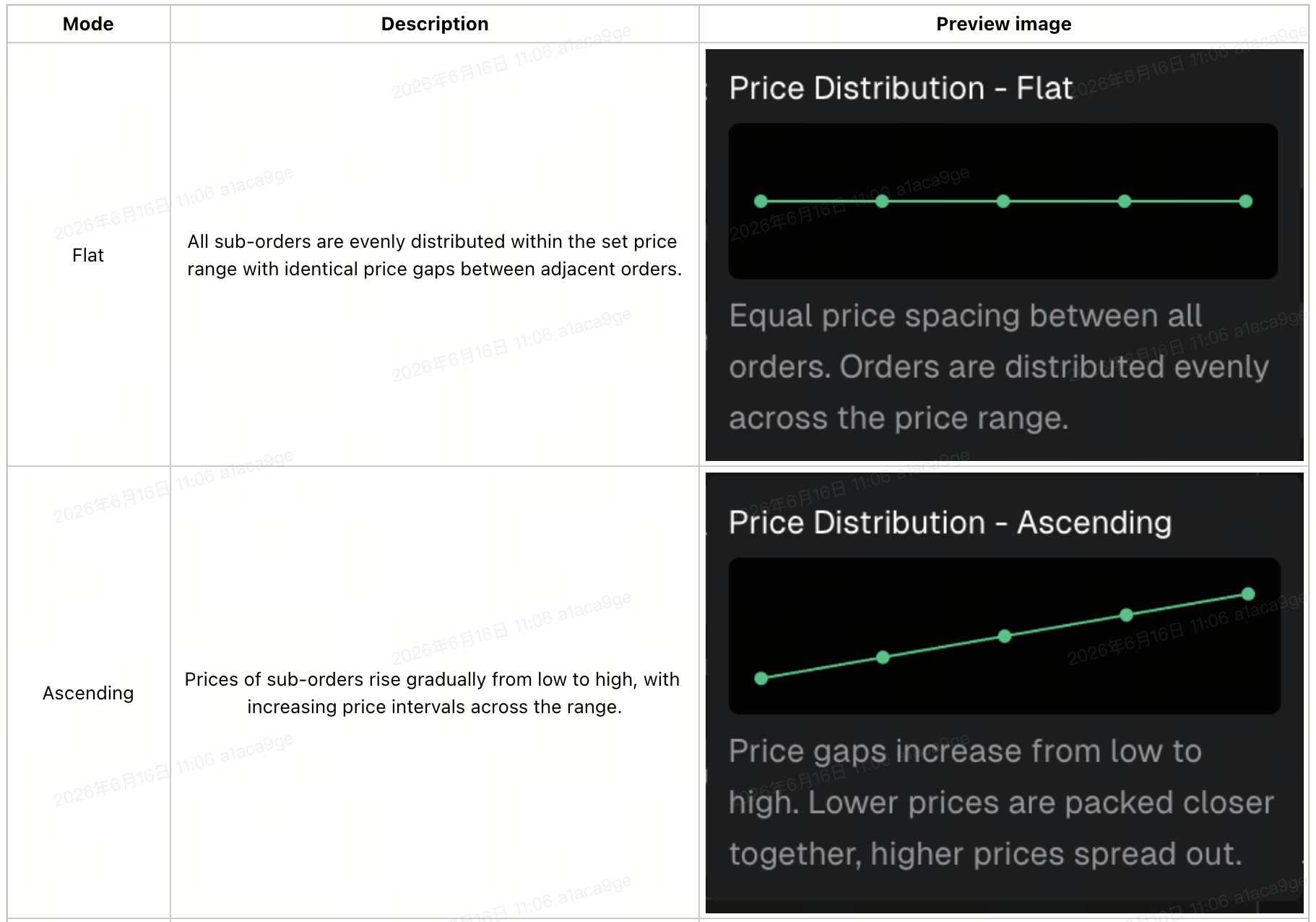
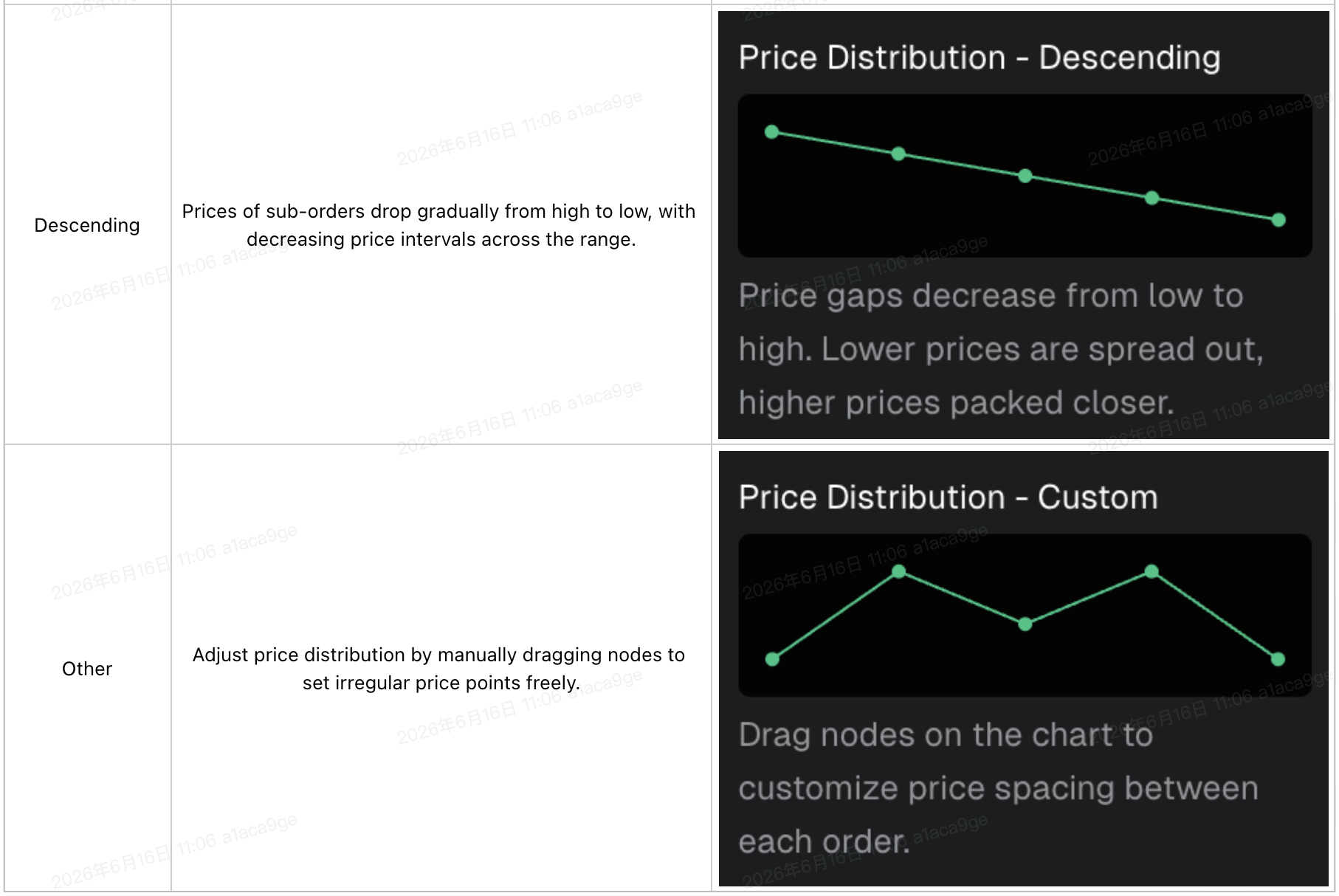
6. Select Volume
Allocation Mode Click the button to switch between four volume allocation modes: Flat, Ascending, Descending and Other. Dragging nodes in any mode will automatically switch to the Other mode, with updates synced to the chart in real time.
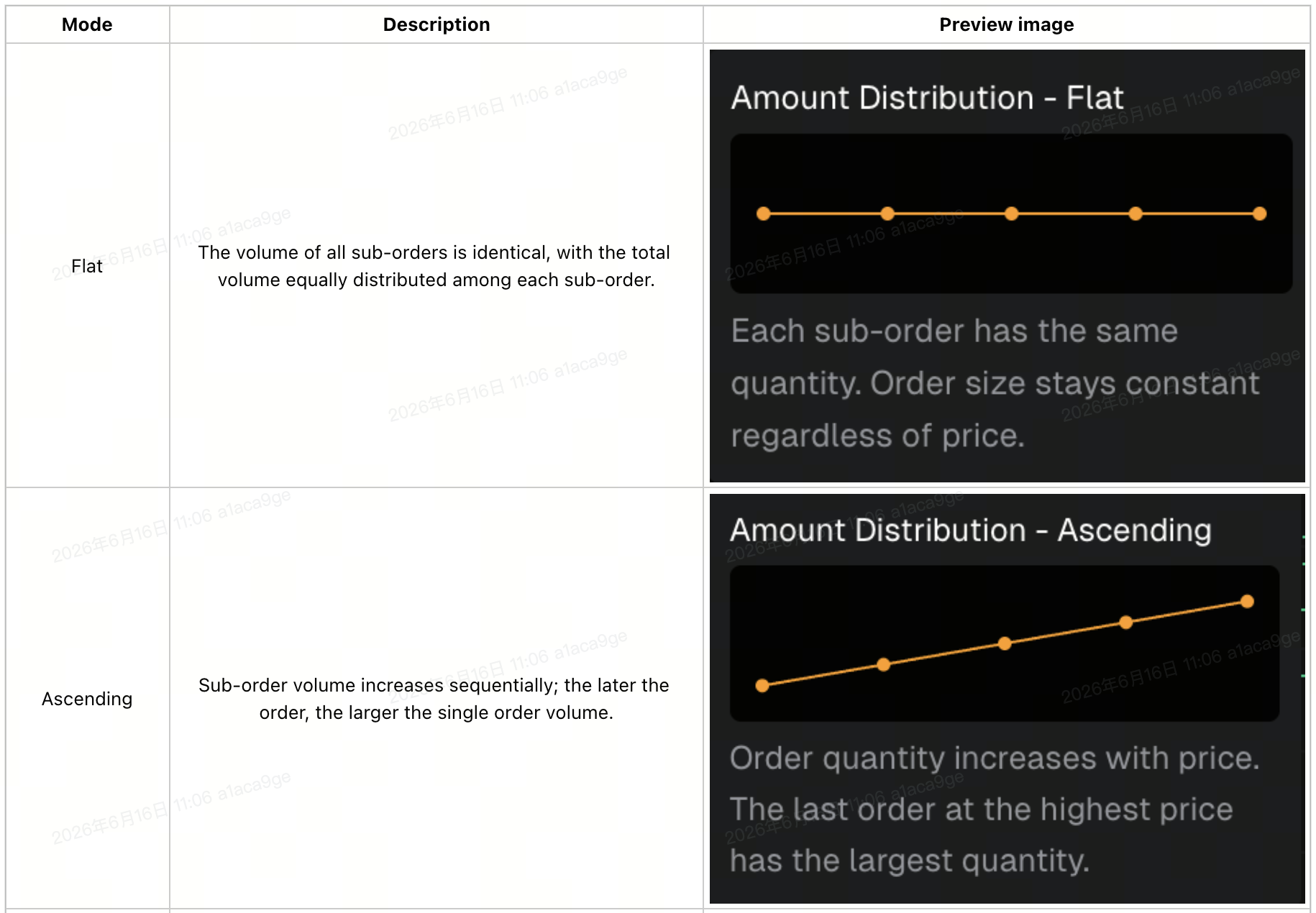
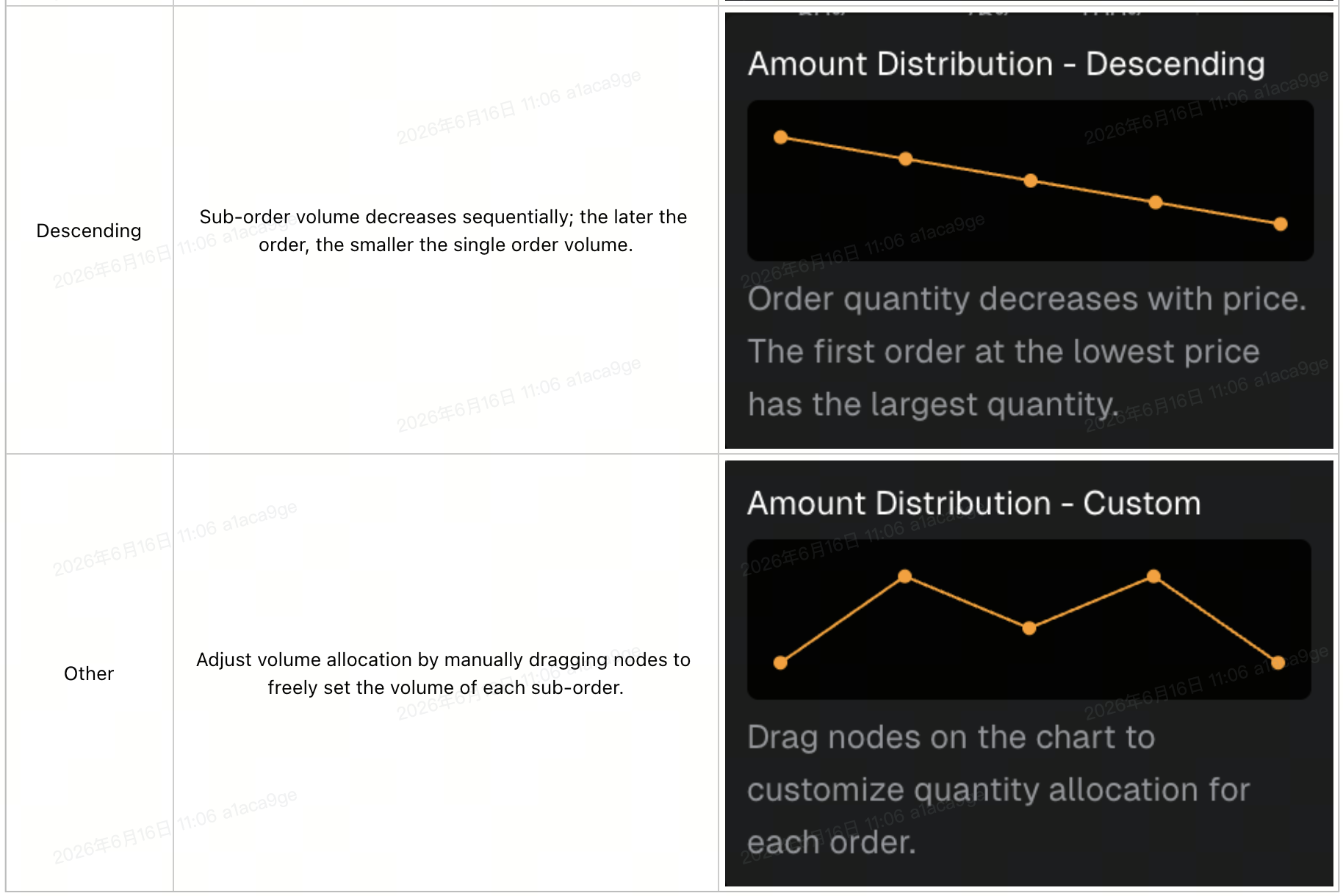
7. Verify Summary Information
Before submission, check the estimated margin, weighted average price, break-even price and sub-order details to ensure all settings are correct.
8. One-Click Submission
After confirmation, click Buy or Sell to place orders. Position orders will be triggered once the market price reaches the preset trigger price.
Important Notes
1. Volume Allocation Recommendations: For buy orders, the descending allocation is recommended to effectively lower the average holding cost. For sell orders, the ascending allocation helps raise the average selling price. The random allocation mode improves order stealth and prevents the orders from being identified as algorithmic orders by the market.
2. Mode Switch Rules: If you drag nodes on the canvas to customize weights under any price distribution or volume allocation mode, the system will automatically switch to Other mode, and the original mode settings will not be retained.
3. Sub-order Quantity Limit: The number of sub-orders must be between 2 and 20. The system will automatically adjust out-of-range values to the nearest limit. More sub-orders will occupy higher margin, so please reserve sufficient margin in advance.
4. Order Submission Instructions: All limit sub-orders take effect immediately after submission and cannot be edited in batches. To make changes, cancel all unfilled sub-orders first, then re-enable the Scaled Order mode for reconfiguration.
5. Visual Sync Reminder: Any adjustments to price and volume distribution will be synced to the K-line chart in real time. Please double-check elements such as boundary lines and sub-order distribution on the chart to ensure consistency with your settings before submission.
Video Demonstration
Disclaimer
This material is provided for general information only. It is not intended to provide:
- Investment advice or investment recommendations.
- An offer or a solicitation to buy, sell, or hold digital assets.
- Financial, accounting, legal, or tax advice.
Digital assets, including stablecoins and NFTs, carry a high level of risk and can fluctuate significantly in value. Consider carefully whether trading or holding digital assets is suitable for your financial situation. Consult your legal, tax, or investment professional for guidance tailored to your circumstances. You are responsible for understanding and complying with all applicable laws and regulations in your location.