

Setting Up Google Authenticator on the Mobile App
For enhanced account security, we recommend linking Google Authenticator (GA) to your Bitunix account to strengthen asset protection. Google Authenticator adds two-factor authentication (2FA): besides your password, you enter a 6-digit code that changes every 30 seconds, which helps keep your crypto exchange account safe from unauthorized access.
This guide shows you how to link it in the Bitunix app in five steps.
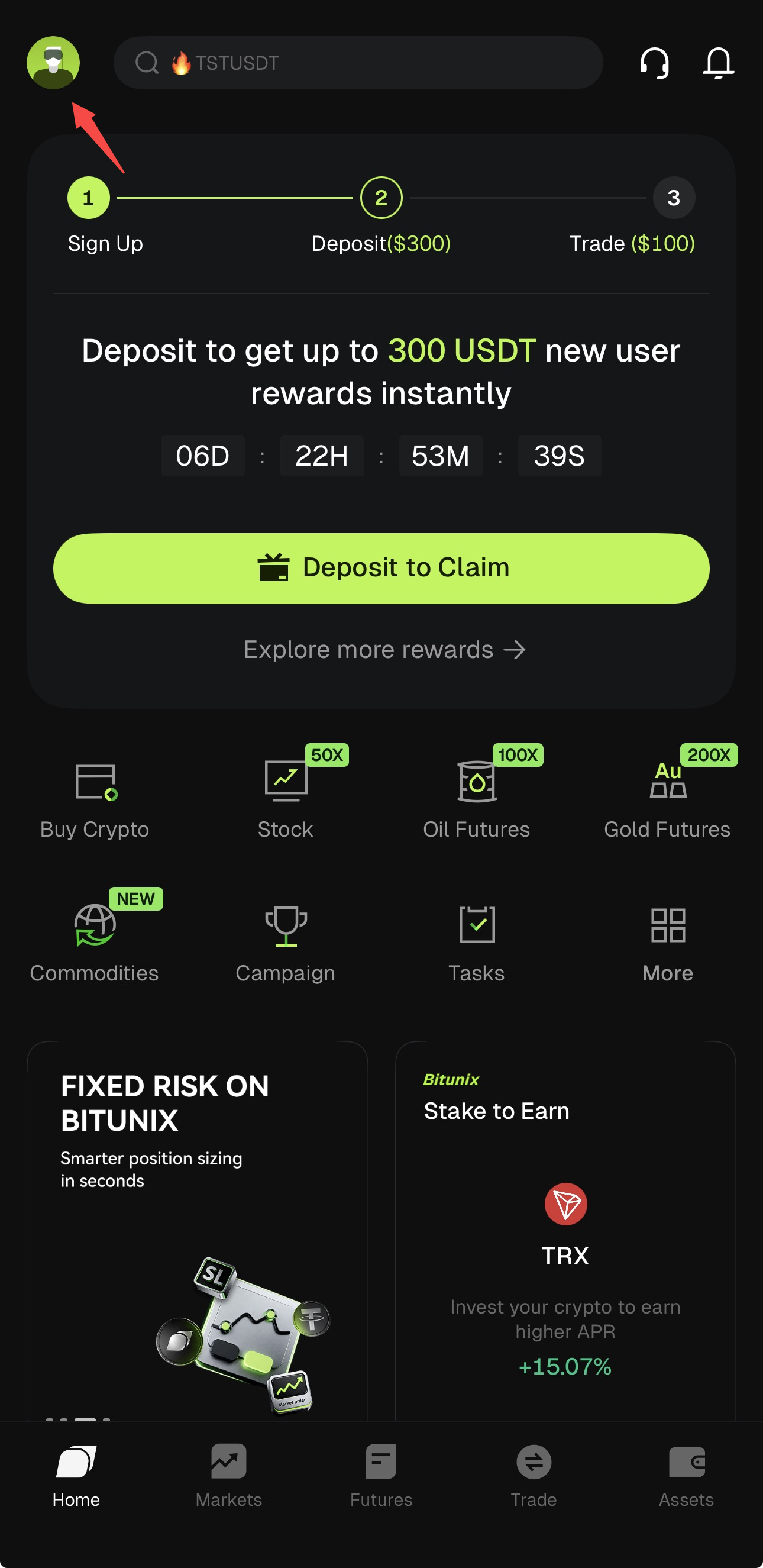
Step 1: Navigate to Security Settings
a. Open the Bitunix app
b. Tap the profile icon in the top-left corner
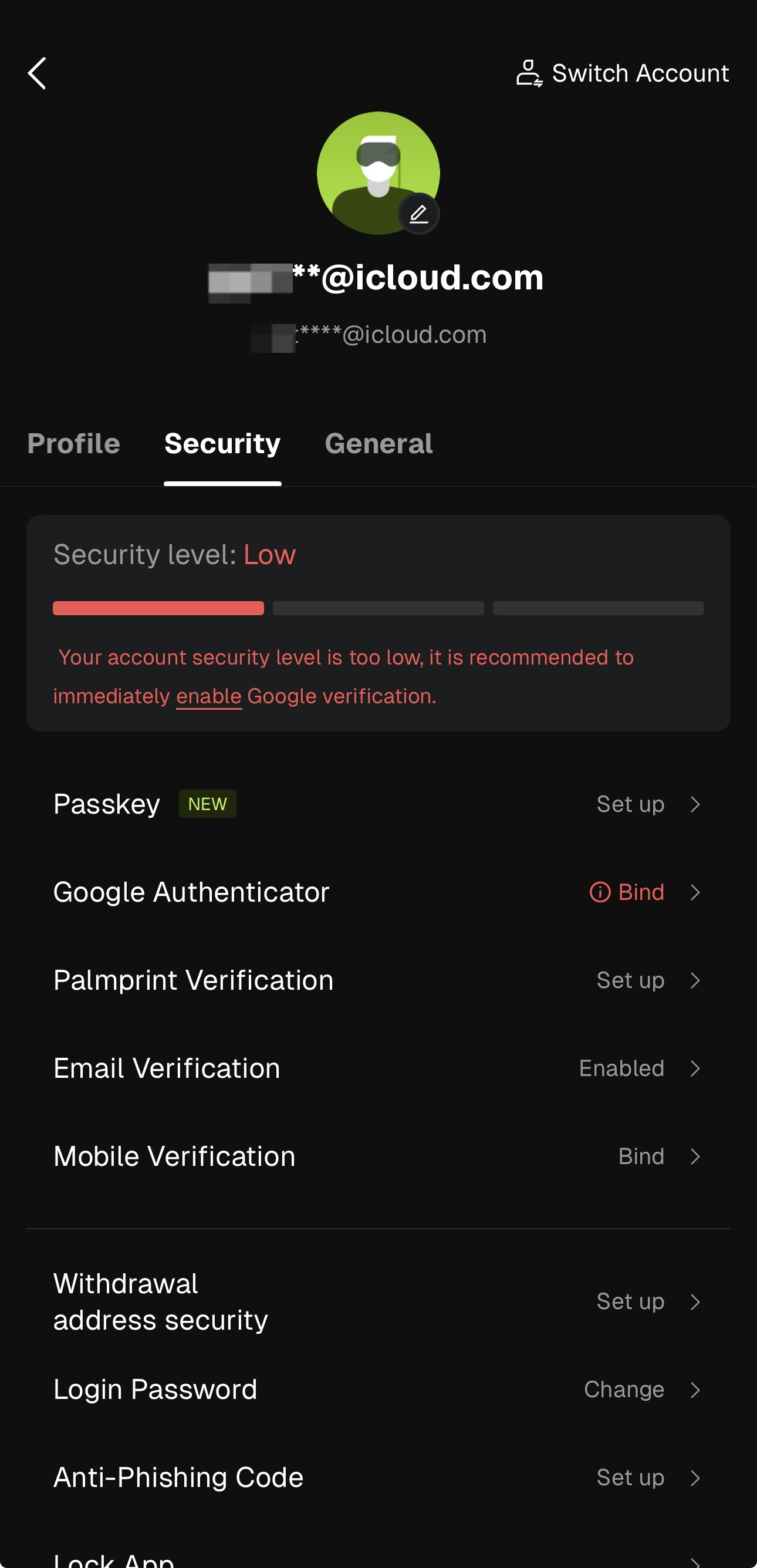
c. Select [Security]
Step 2: Enable Google Authenticator
a. On the Security page
b. Tap [Link] next to Google Authenticator
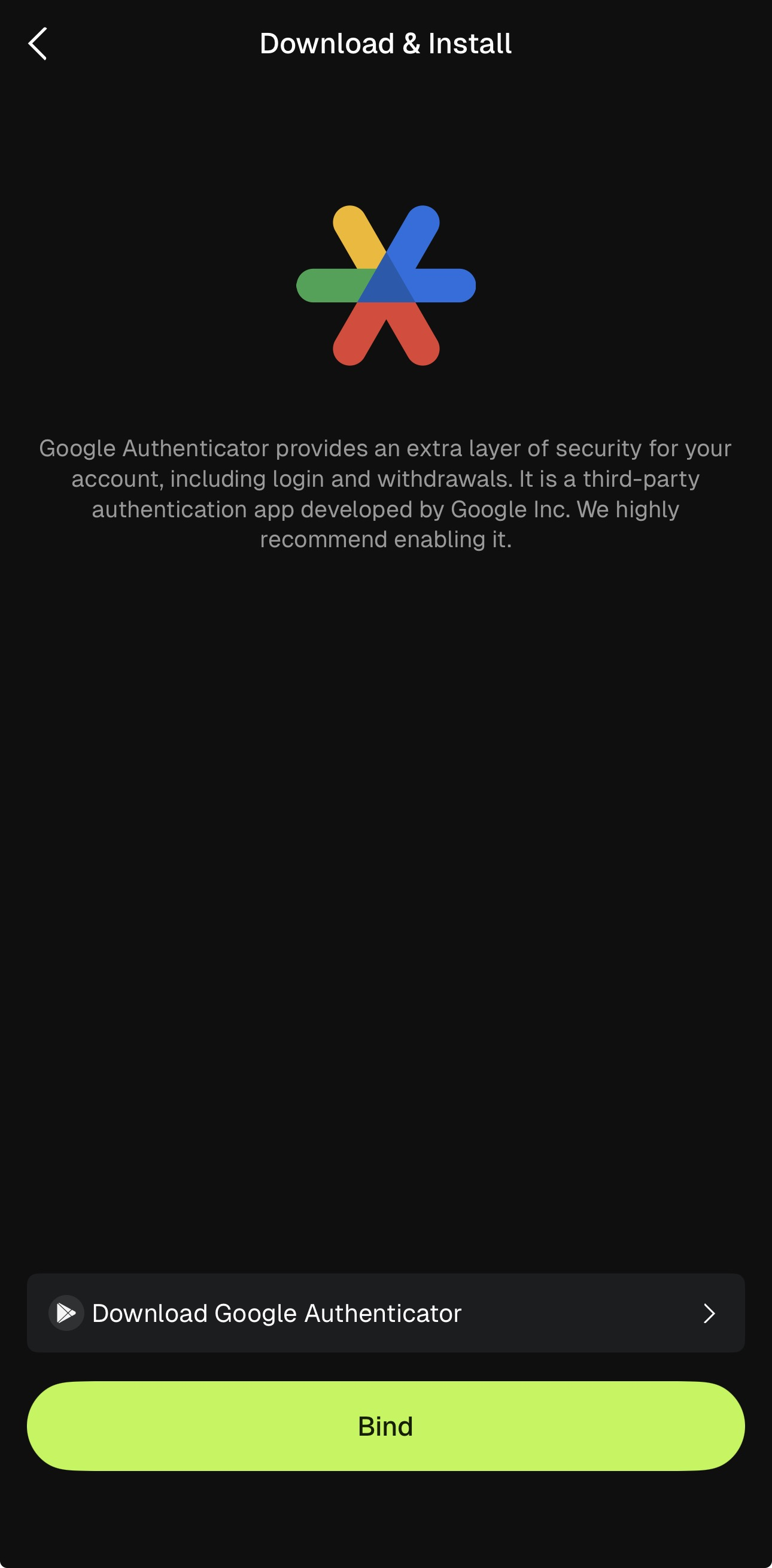
Step 3: Download and Install Google Authenticator
Download and install the Google Authenticator app from the App Store or Google Play on your mobile device. Check that the publisher is Google LLC before you install.
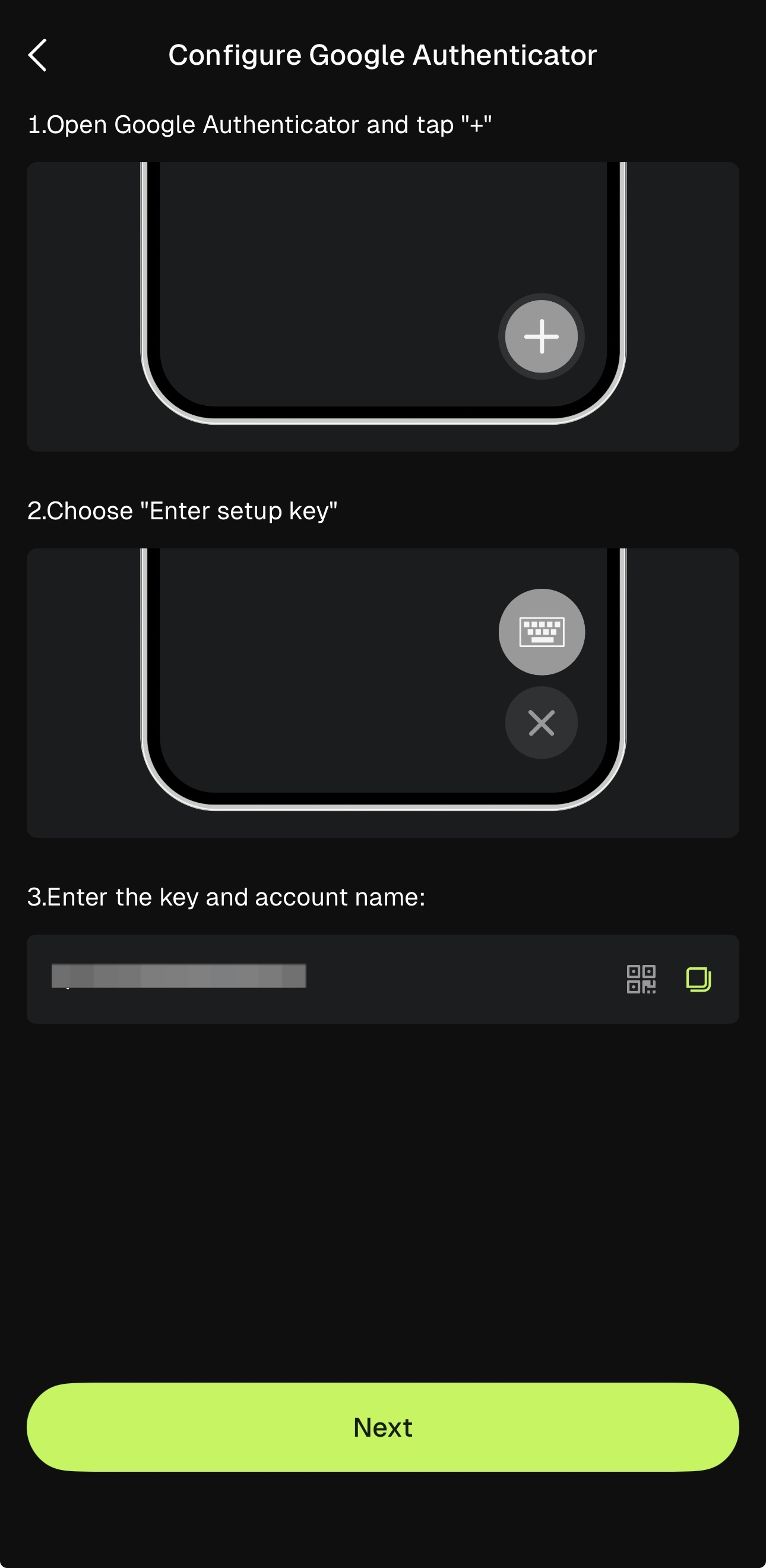
In Google Authenticator, tap the + button, then choose to scan the QR code or enter the setup key. If a code is rejected, wait for the next one and type it before the 30 seconds run out.
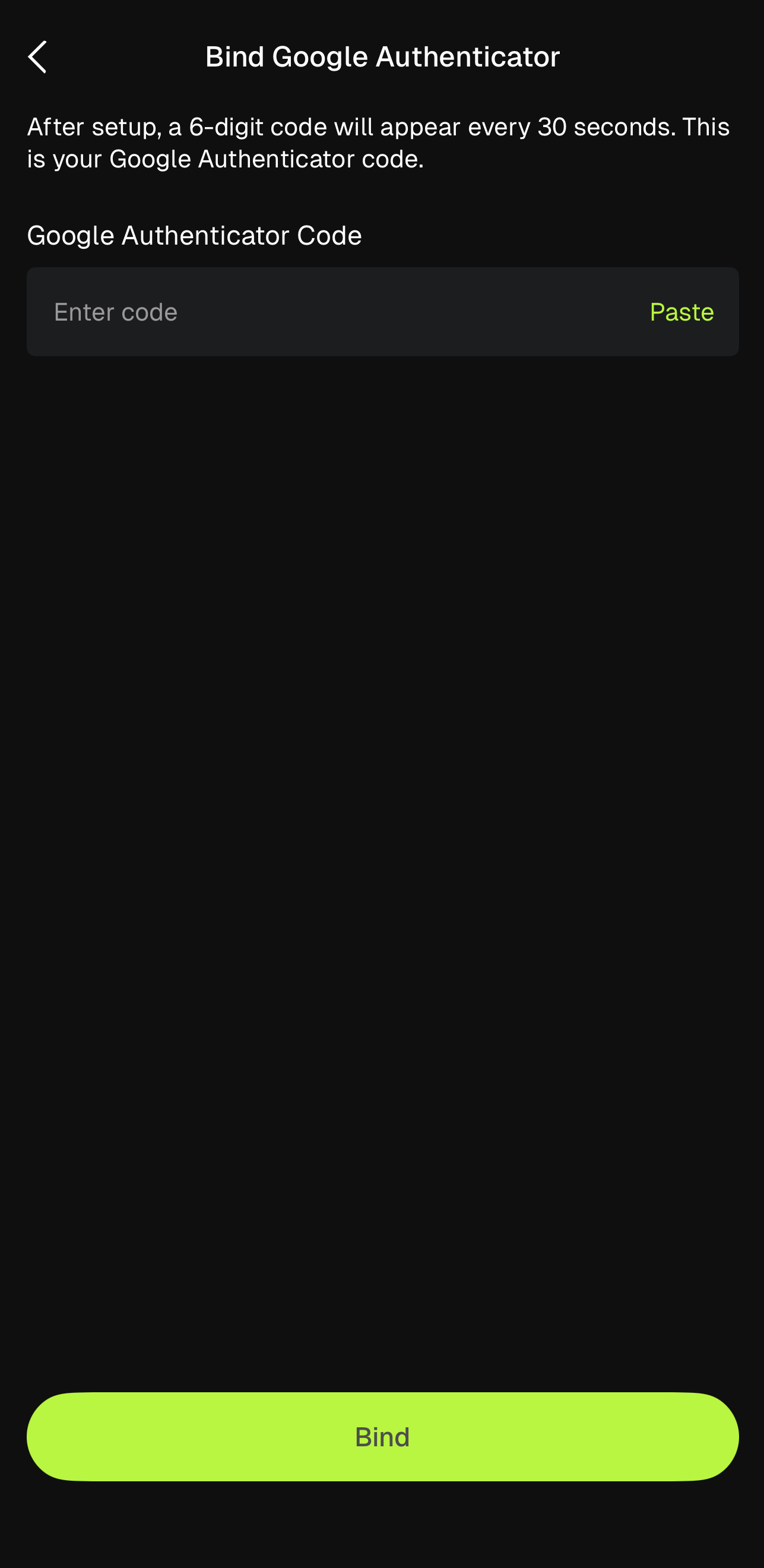
Step 4: Link Your Google Authenticator
On the Google Authenticator setup page:
a. Link your account by either scanning the QR code displayed on screen, or by manually entering the 16-character secret key
b. Enter the 6-digit TOTP code generated by the Google Authenticator app to confirm the link (each code expires after 30 seconds)
Step 5: Complete Verification
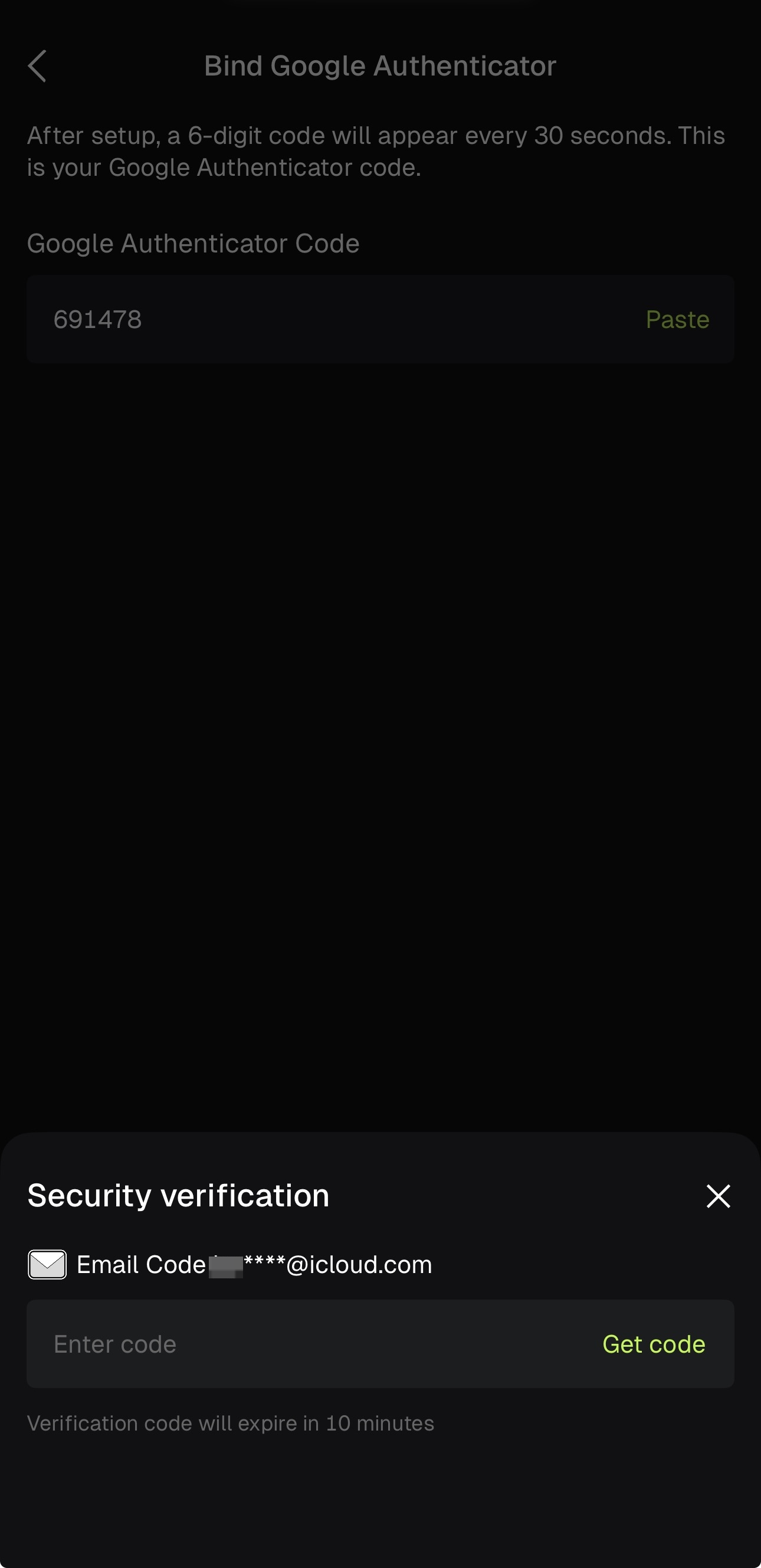
Complete any additional identity verification steps if prompted (such as SMS and/or email confirmation), then tap [Submit].
Once submitted, Google Authenticator will be successfully linked to your account.
Important Notes
- Store your backup key and secret key securely and never share them with anyone
- If you ever lose access to your Google Authenticator app, your backup key will be required to recover 2FA access to your account
- Do not share screenshots of the QR code or secret key, and never enter your 6-digit code on a page you opened from a link in a message or email.
Troubleshooting Google Authenticator on Bitunix
- Code not accepted: make sure your phone's date and time are set automatically, because 6-digit TOTP codes depend on accurate time.
- New phone or app no longer works: use your backup key to recover 2FA access, or see How to change or disable Google Authenticator (App) and the Security Authentication Failure Reset Guide.
- Using Google Account sync for your codes? Read How to disable Google Authentication Cloud Sync.
Related Guides
- Operation Guide for Binding Google Authenticator (GA) — Web
- How to change or disable Google Authenticator (App)
- How to Set Up Anti-Phishing Code (APP)
- How to bind a mobile phone number (APP)
- How to Contact Bitunix Customer Service
Disclaimer
This article is not intended to provide:
(i) investment advice or investment recommendations;
(ii) an offer or solicitation to buy, sell, or hold digital assets; or
(iii) financial, accounting, legal, or tax advice.
Digital assets (including stablecoins and NFTs) involve high risk and may be highly volatile. You should carefully consider whether trading or holding digital assets is suitable for you based on your financial situation. For your specific circumstances, consult your legal, tax, or investment professionals. You are responsible for understanding and complying with all applicable local laws and regulations.