

Major upgrade for the Professional App Version! Chart-based partial TP/SL for positions is now available. Centered on flexible profit taking and precise loss control, you can switch between E (Entire Position) and P (Partial Exit) modes with one click on the chart. Mode E fully retains the original operations, while Mode P lets you set prices and select partial position sizes by dragging. Manage profits and losses effortlessly with a streamlined workflow.
- Mode E (Entire)
Take-profit and stop-loss for full positions, fully compatible with existing operation logic.
- Mode P (Partial)
Partial take-profit and stop-loss. Set prices by dragging and select the volume for partial position closing.
I. New Feature Overview
- Switch between E (Entire) and P (Partial) modes with one click for smooth operations, fitting various trading scenarios flexibly.
- Mode E keeps the original drag operations unchanged, requiring no learning curve for existing users.
- In Mode P, customize partial TP/SL volumes by dragging them to set prices, ideal for ladder trading strategies.
- Full visual operations on charts: drag TP/SL lines to complete settings and confirm with one click, simple and efficient.
II. Application Scenarios
Entire Position TP/SL (Mode E)
Ideal for traders prioritizing simplicity, including beginners and short-term traders. Stick to familiar operations by switching to Mode E, and set position risk controls simply by dragging TP/SL lines.
Partial TP/SL (Mode P)
Designed for trend and swing traders. Set prices and select partial volumes to lock in profits and limit losses, supporting sophisticated trading strategies.
Flexible Mode Switching
Quickly toggle between Mode E and P as market conditions change. Use Mode P for partial profit taking in clear trends, and Mode E for full-position stop-loss amid volatility to adapt to dynamic markets efficiently.
III. Operation Guide
1. Switch and Activate Modes
- Open the chart trading interface in the Professional App Version, then select and highlight the target position card.
- Locate the E/P mode switch button in the operation area of the position card, and select your desired mode (E = Entire, P = Partial).
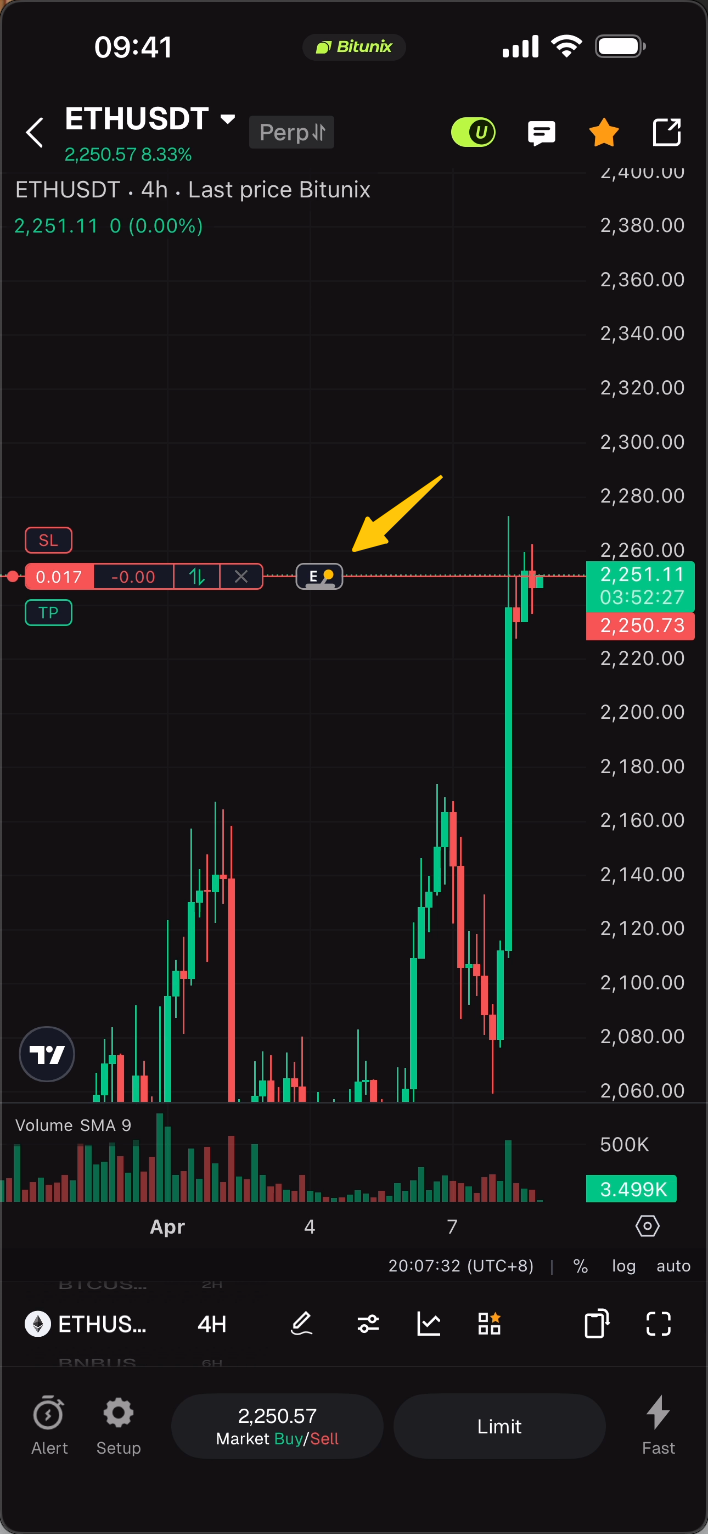
2. Operations in Mode E (Entire Position TP/SL)
- Ensure Mode E is enabled.
- Directly drag the TP (Take-Profit) or SL (Stop-Loss) line on the chart to the target price.
- Release your finger or mouse, and the system will automatically save the TP/SL settings for the position.
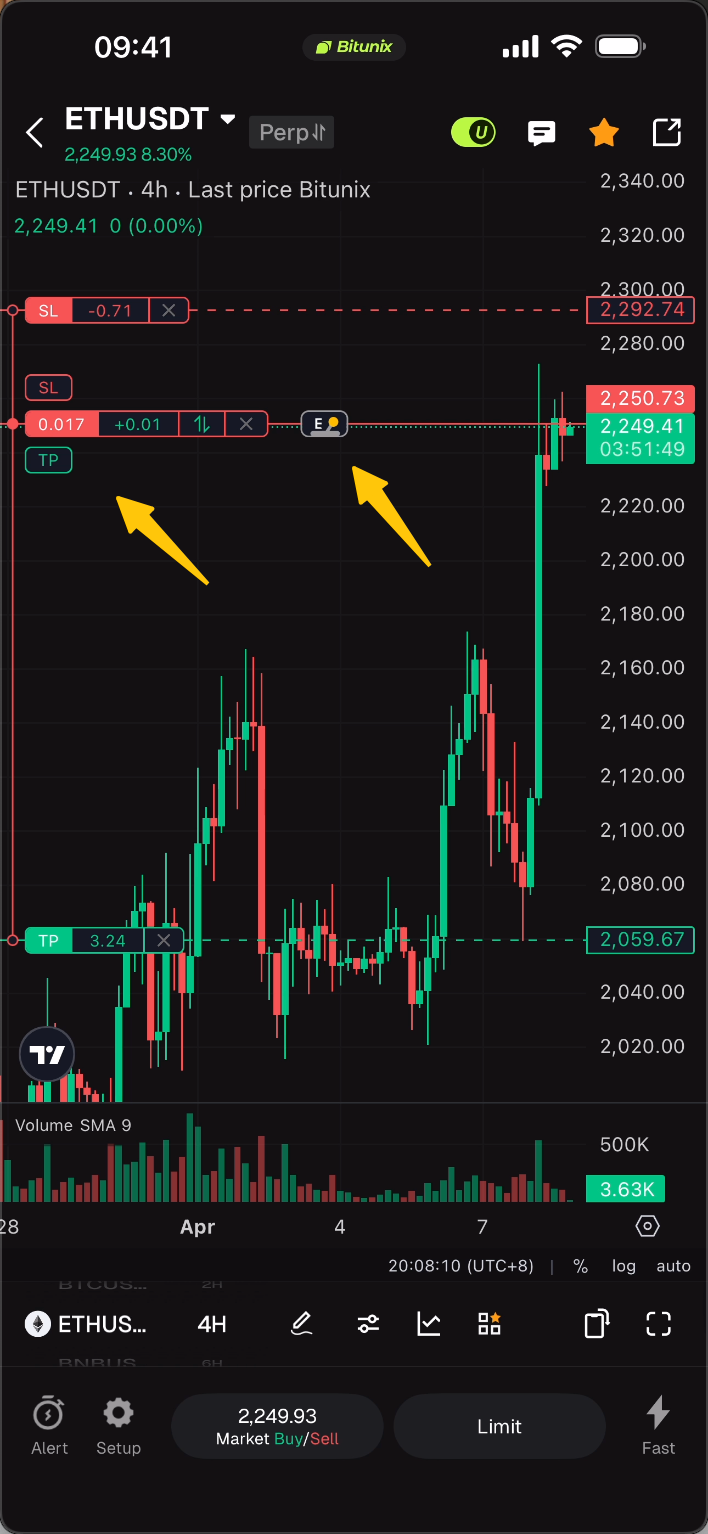
3. Operations in Mode P (Partial TP/SL)
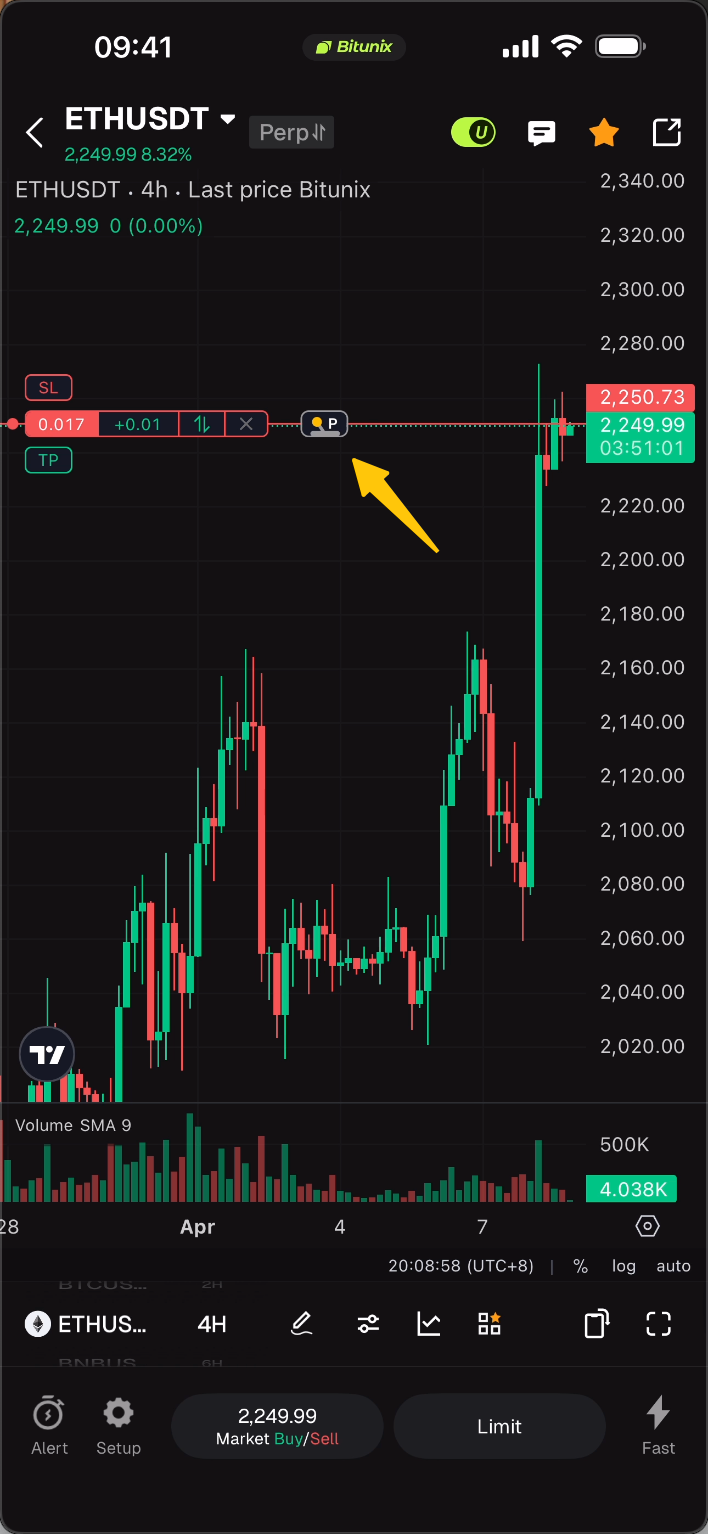
- Ensure Mode P is enabled.
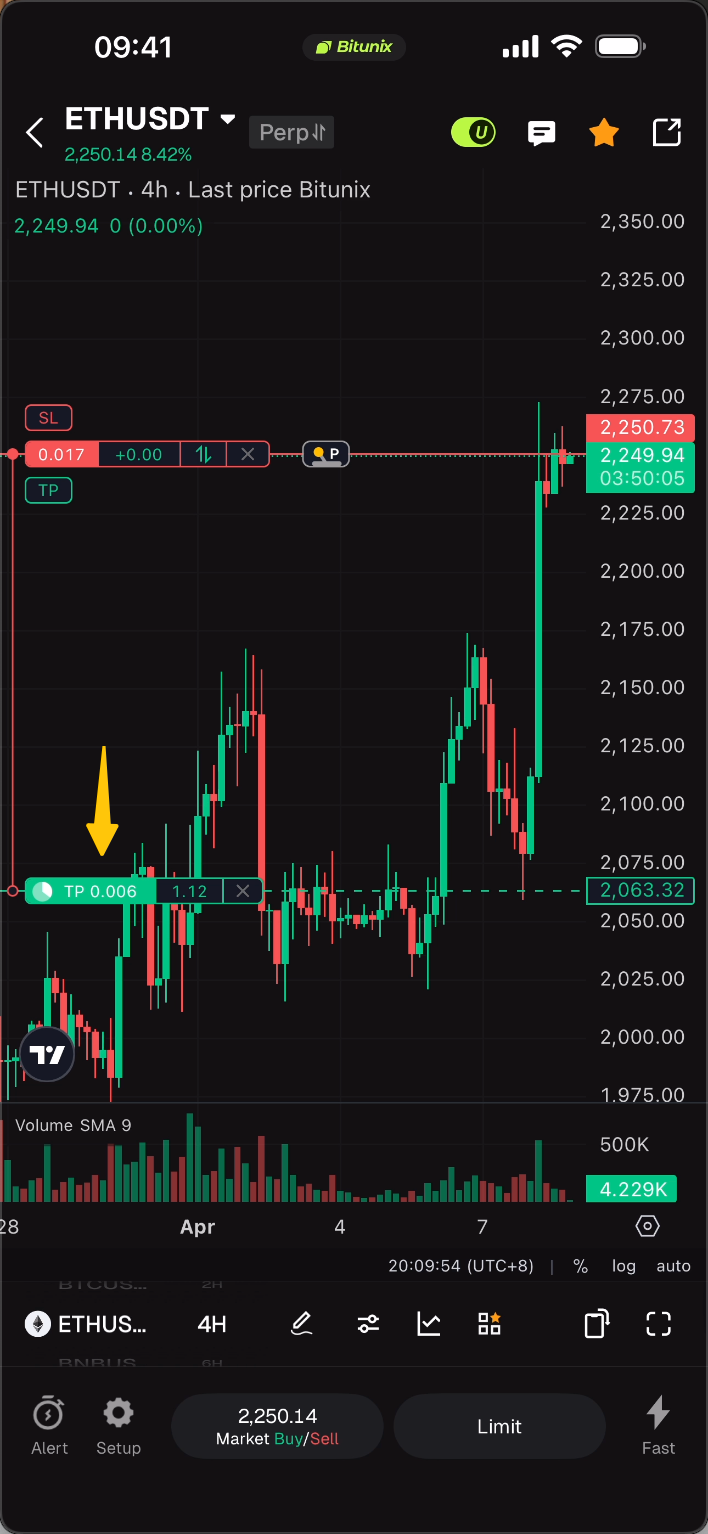
- Drag the TP/SL line on the chart to the target price.
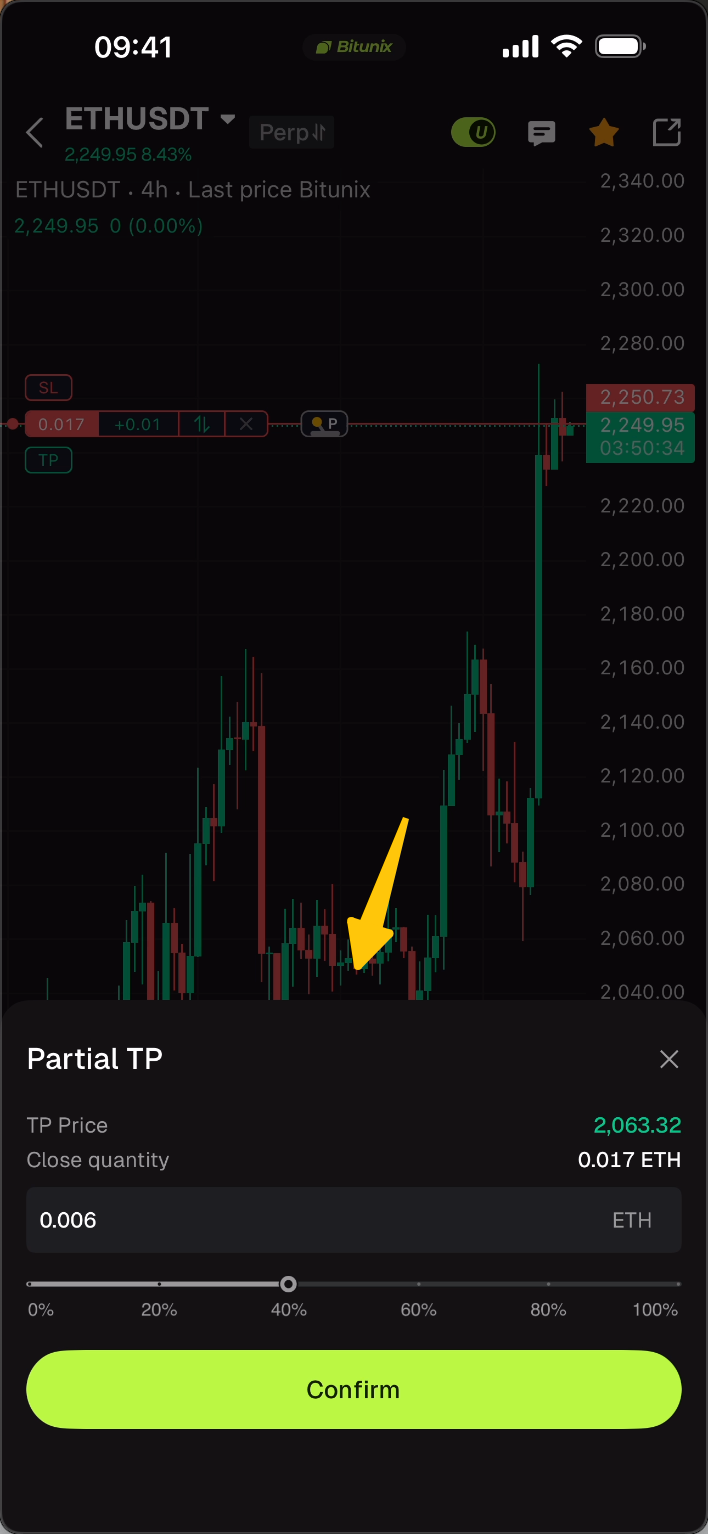
- A panel for partial volume settings will pop up. Select the partial volume (not exceeding your total holdings).
- Tap Confirm to finish partial TP/SL configuration. You can re-edit the partial volume later via the partial TP/SL card.
Important Notes
- The TP/SL rules will change accordingly after switching between E and P modes. Volume selection is mandatory to confirm settings in Mode P.
- The partial volume in Mode P cannot exceed your current total holdings, and invalid entries will be blocked by the system.
- Double-check the price when dragging TP/SL lines to avoid incorrect settings caused by accidental operations.
- Mode E works exactly the same as the traditional drag-style TP/SL, with no extra learning required.
IV. Full Video Demonstration
Disclaimer
This material is provided for general information only. It is not intended to provide:
- Investment advice or investment recommendations.
- An offer or a solicitation to buy, sell, or hold digital assets.
- Financial, accounting, legal, or tax advice.
Digital assets, including stablecoins and NFTs, carry a high level of risk and can fluctuate significantly in value. Consider carefully whether trading or holding digital assets is suitable for your financial situation. Consult your legal, tax, or investment professional for guidance tailored to your circumstances. You are responsible for understanding and complying with all applicable laws and regulations in your location.