

What Is a Drawing Template?
A drawing template is a built-in shortcut available on Bitunix charts. It saves all the style settings you customized when using a drawing tool for the first time.
The next time you use the same drawing tool, you can apply the saved template with one click instead of manually adjusting each setting again. This simplifies the charting process and improves the efficiency of your technical analysis.
I. How to Create a Drawing Template
Before creating a template, you must first add the drawing to the chart and configure its appearance. You can then save the customized style as a template.
Follow the steps below:
1. Draw the Basic Shape
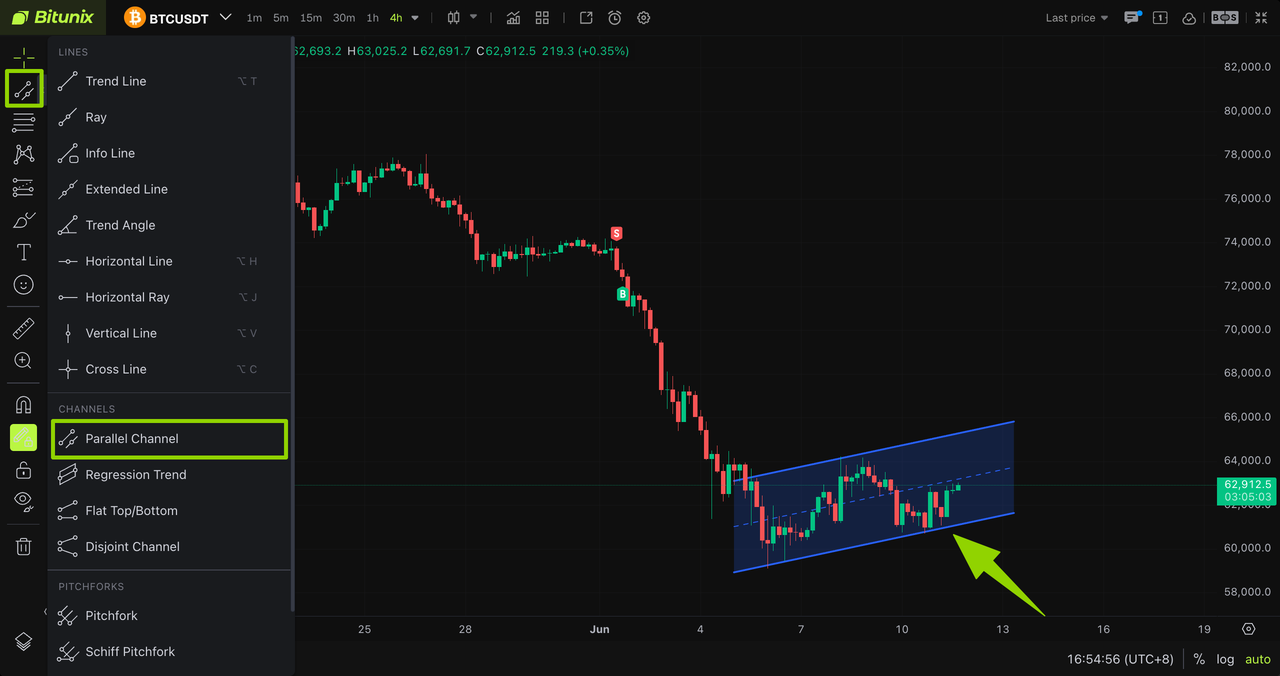
Using a parallel channel as an example, select the drawing tool and draw the desired channel on the chart.
2. Customize the Style Settings
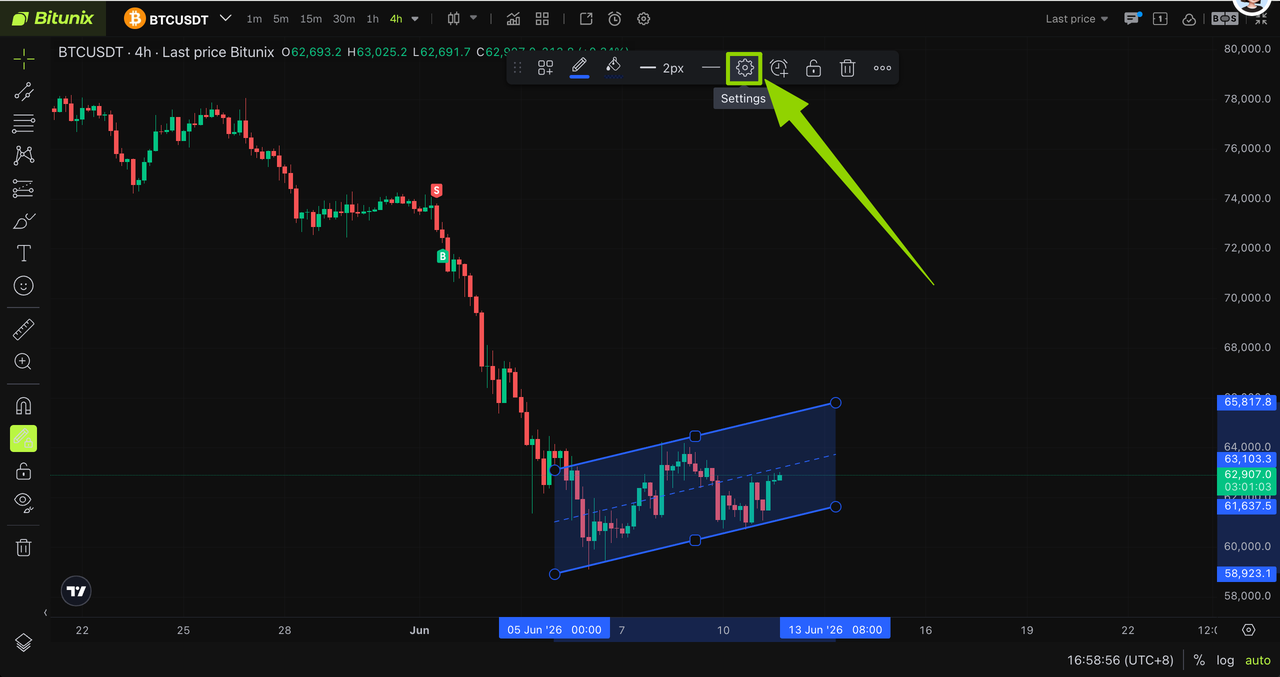
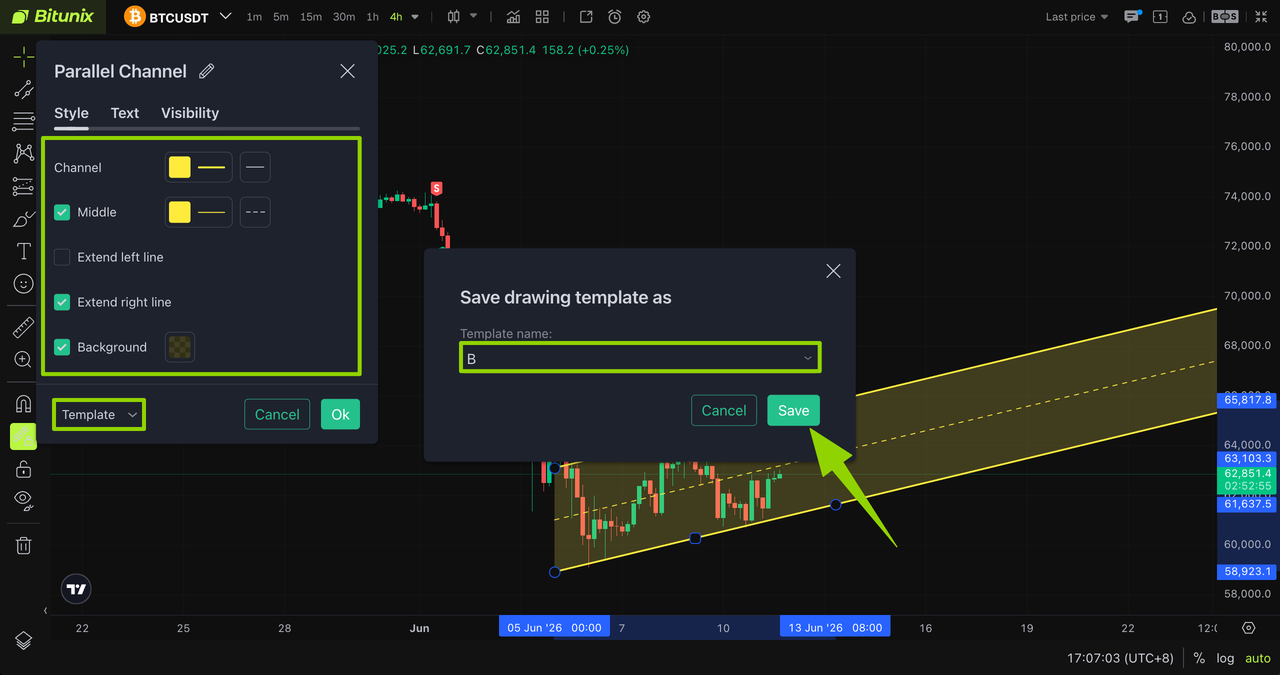
Select the completed drawing, using the parallel channel as an example, and click [Settings].
In the settings panel, customize the available style options, such as:
- Line colors
- Center line
- Extended boundaries
- Background fill
After configuring the style, click [Template], then select Save as Drawing Template.
Enter a custom name for the template in the pop-up window, then click [Save] to finish.
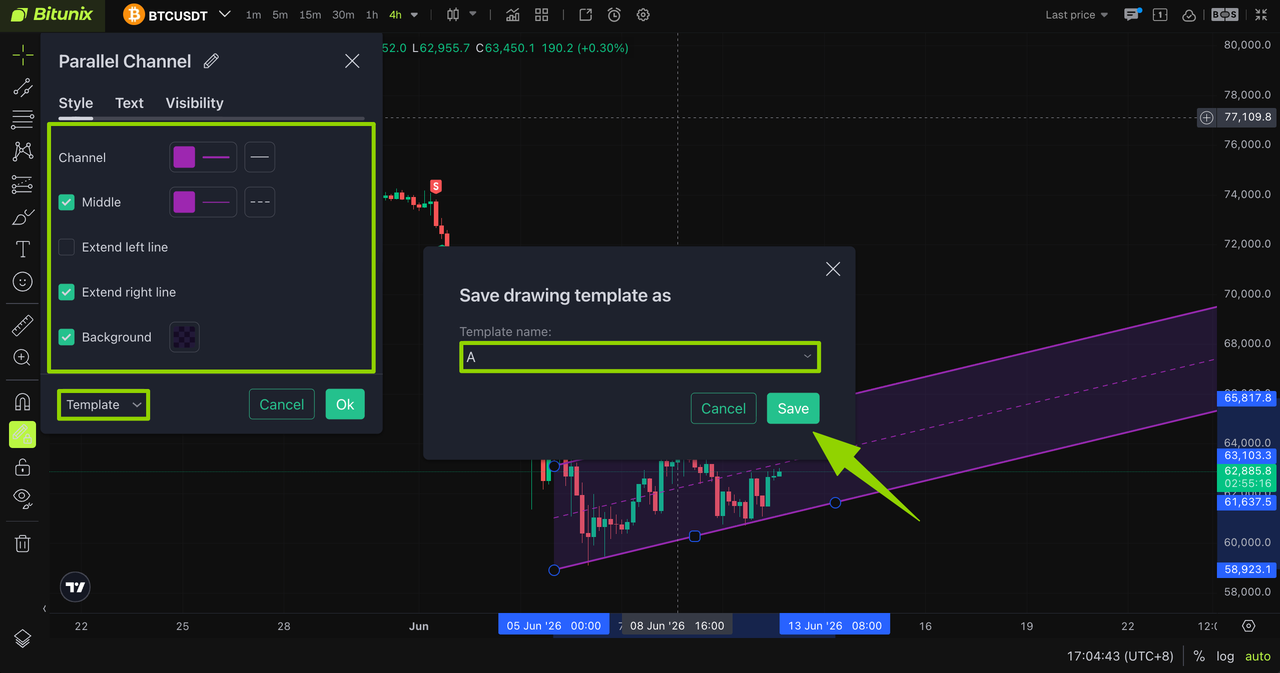
You can repeat these steps to create multiple templates with different style configurations for the same drawing tool.
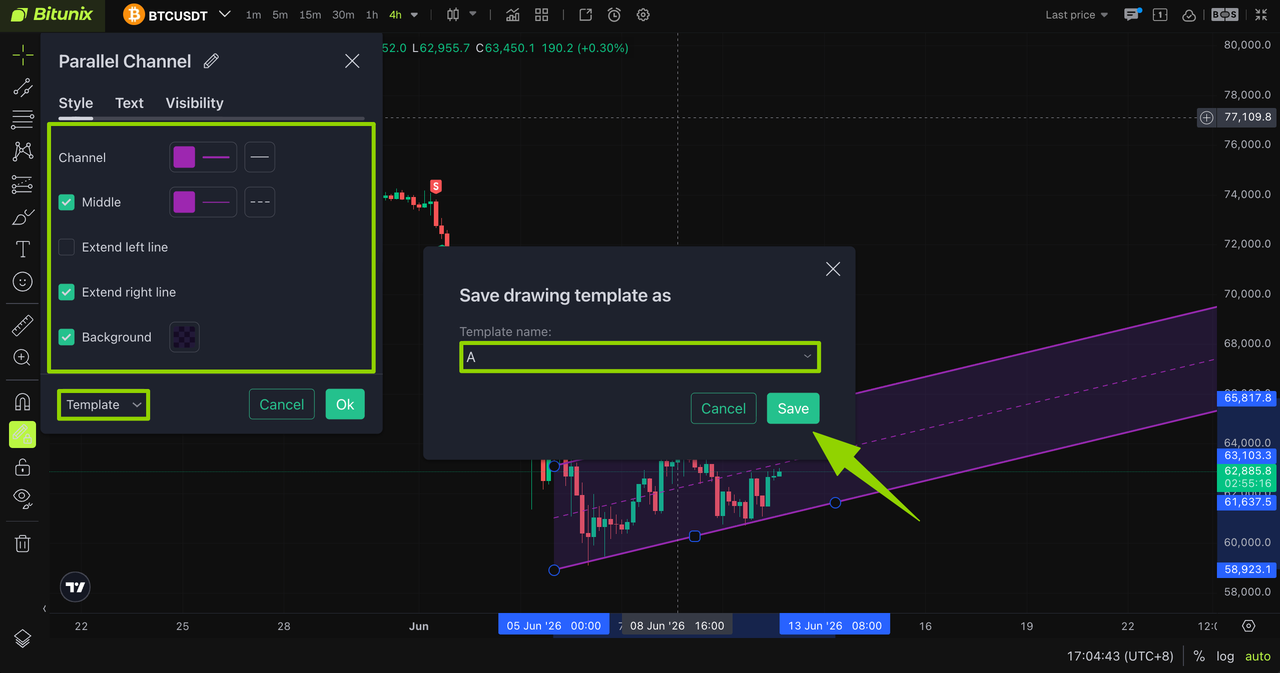
3. Switch Between Multiple Templates with One Click
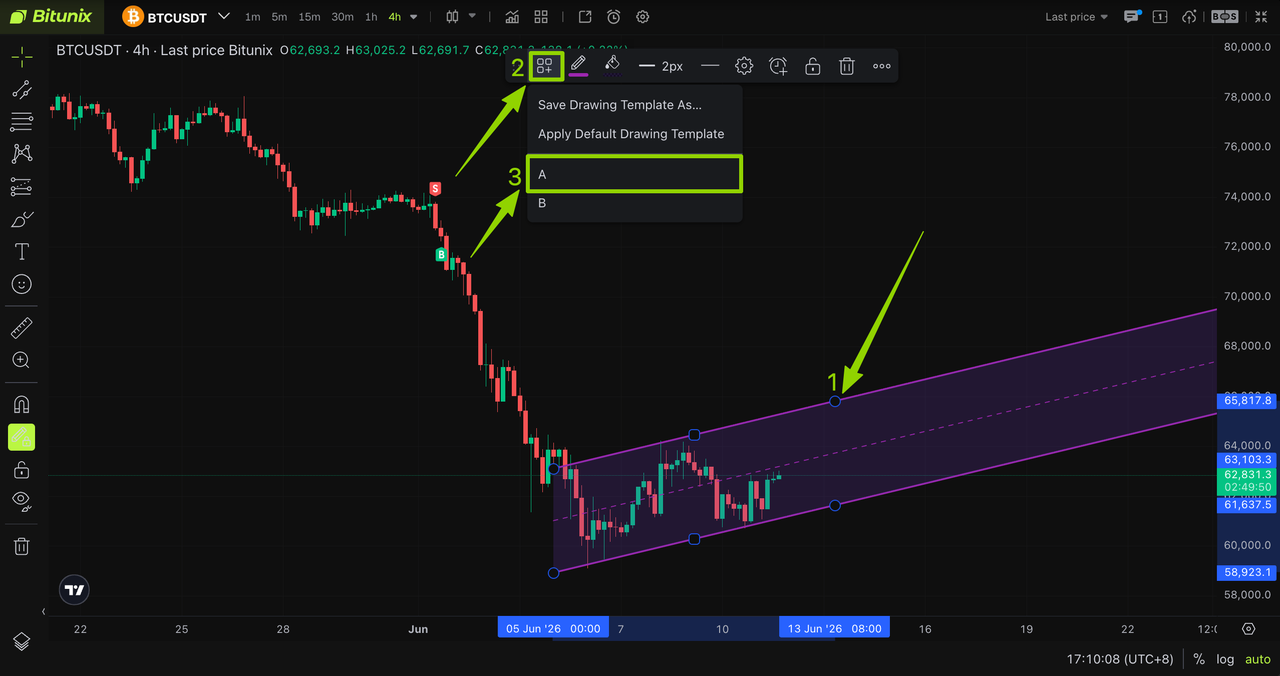
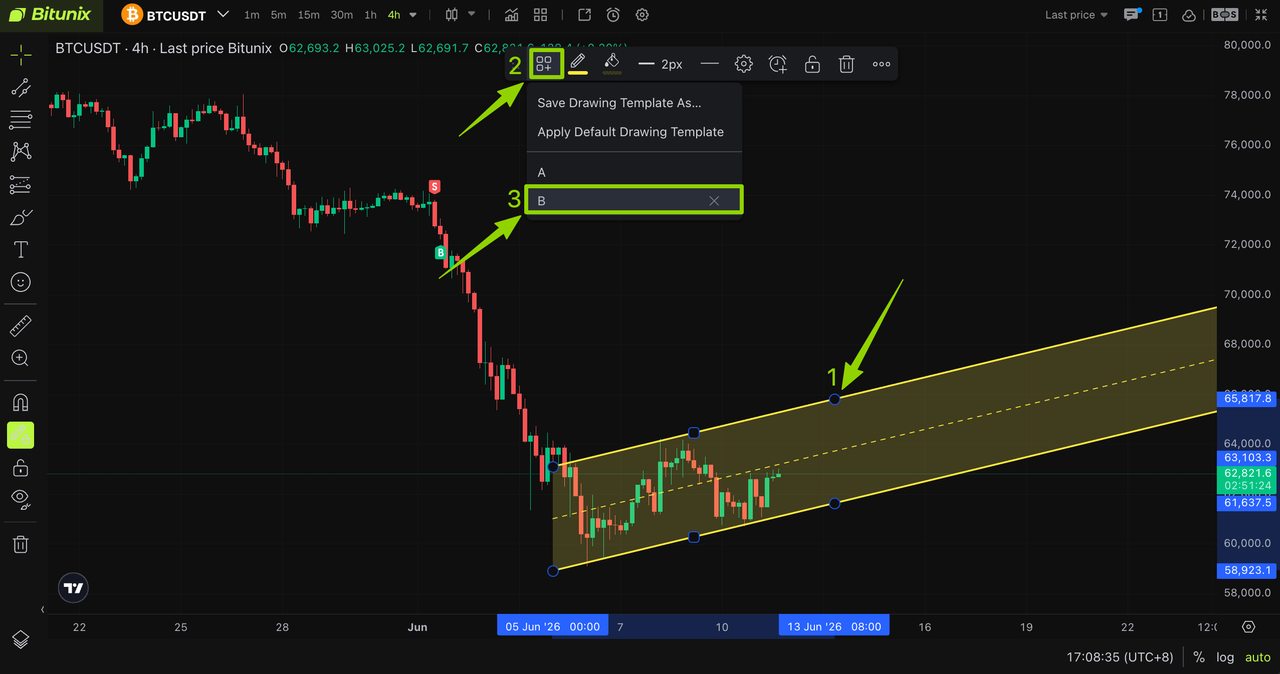
- Select the drawing on the chart, using the parallel channel as an example.
- Open the Template drop-down menu and select a saved template, such as Template A or Template B.
- The selected template will be applied instantly, allowing you to switch between different drawing styles with one click.
II. Frequently Asked Questions
Can templates saved for different drawing tools be used interchangeably?
No. Templates cannot be shared across different drawing tools. Each template is linked to the specific drawing tool used to create it and is stored separately.
For example, a template saved for the Trend Line tool cannot be accessed or applied when using the Ray tool.
Can I edit or rename a saved drawing template?
Yes. Saved drawing templates can be edited and renamed.
Locate the saved template and open the settings panel to adjust parameters such as line thickness, color, and other style settings. You can also change the template name. Once the template is updated, the new settings will take effect immediately.
Will deleting a drawing template affect drawings that already use the template?
No. A drawing template only stores a preset group of style settings.
Deleting the template removes only the saved preset. Any drawings on the chart that previously used the template will retain their existing styles and will not be affected.
Disclaimer
This article is not intended to provide
(I) investment advice or investment recommendations;
(Ii) an offer or solicitation to buy, sell or hold digital assets;
(Iii) Financial, accounting, legal or tax advice. Digital assets held (including stablecoins and NFTs) involve a high level of risk and may fluctuate significantly. You should carefully consider whether trading or holding digital assets is appropriate for you based on your financial situation. Please consult your legal/tax/investment professional for your specific situation. Please be responsible for understanding and complying with relevant local applicable laws and regulations.