

Bitunix Display Settings Core Functions: Used to customize the information display and operation process of the K-line chart interface, and improve transaction efficiency by switching on and off specific functions and their secondary confirmation pop-ups.
- Function switch: It can independently control the display of modules such as quick order panel (such as market order, limit order), order and transaction records (such as real-time pending order, historical transaction), etc., to keep the interface clean
- Pop-up management: Allows to enable or disable the secondary confirmation pop-up window (such as placing an order, before canceling an order). Skilled people can close it to pursue extreme operation speed, and beginners can open it to prevent misoperation.
- Efficiency improvement: Reasonable configuration can shorten the operation path, allowing you to focus more on market analysis and achieve efficient order placement and monitoring
- Simple advice: personalize your trading habits to find the best balance between operational safety and execution speed
Step 1: Open the display settings in the navigation bar, and display all the display settings functions below
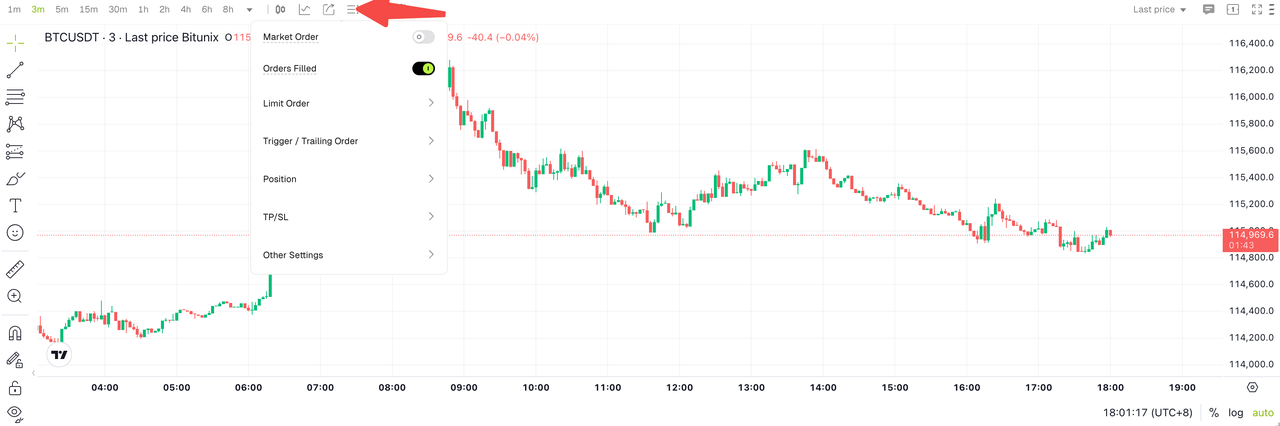
Step 2: Open the market price order button, and the operation bar for market price order will be displayed on the interface. Just enter the price in the text box, select Open More or Open Empty, and the order will be successfully placed.
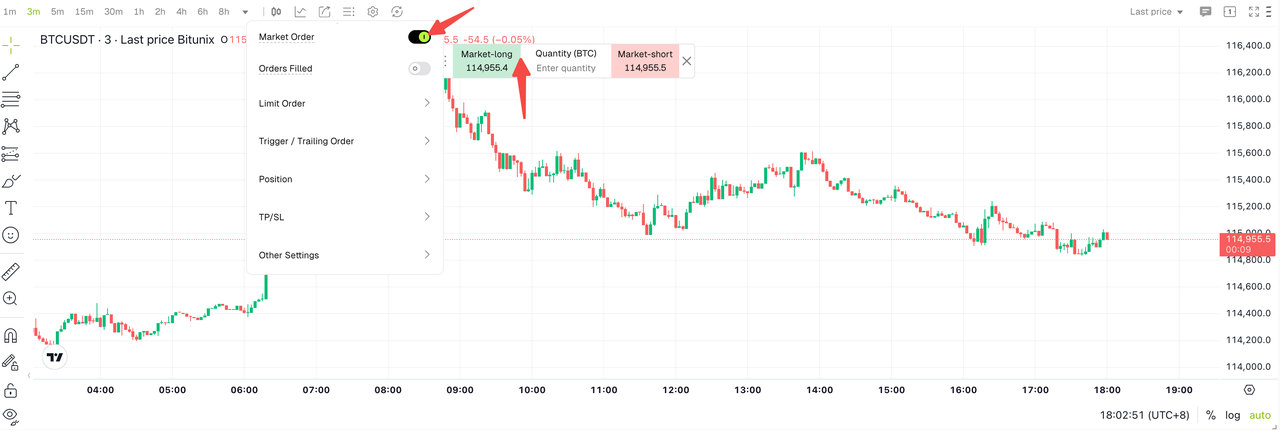
Step 3: Open the order transaction record button, and the interface will display the historical transaction records under your account or the transaction records of real-time orders. It shows that B is the open multiple record, and S is the open empty record.
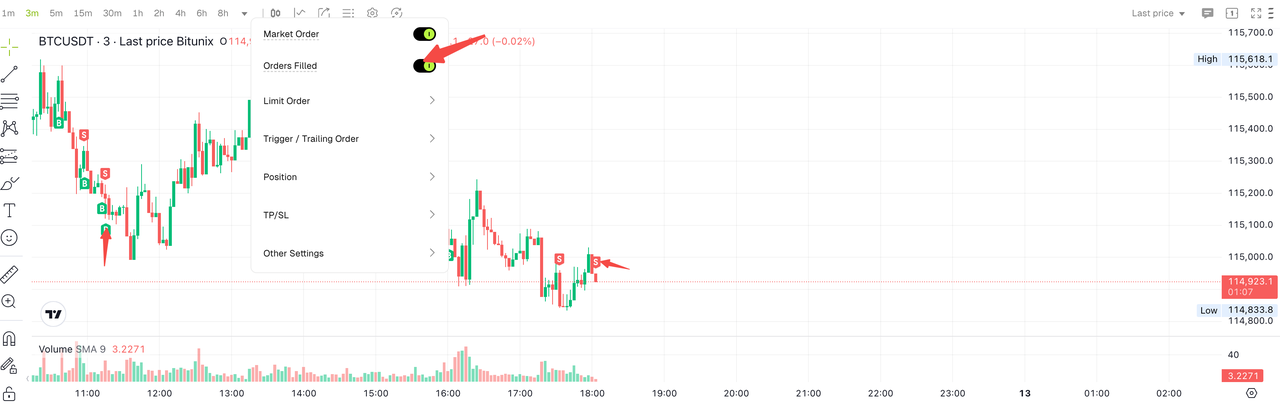
Step 4: Open the limit order menu, open the limit order line, and display the limit order of your account in the k-line view.
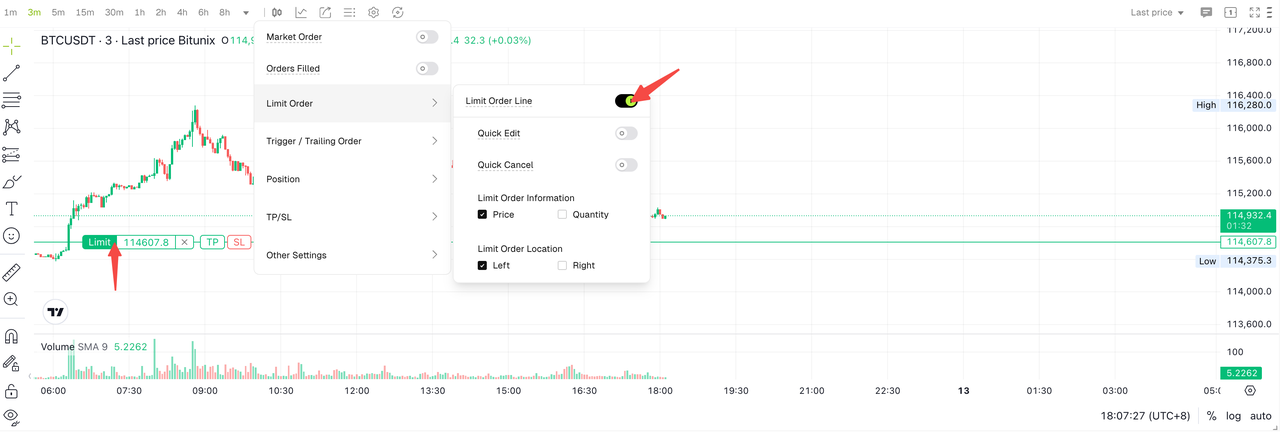
Step 5: Open the limit order menu, and open the shortcut price change and shortcut cancel buttons at the same time. On the k-line view, drag your limit order and cancel your limit order to not display the secondary reminder pop-up box.
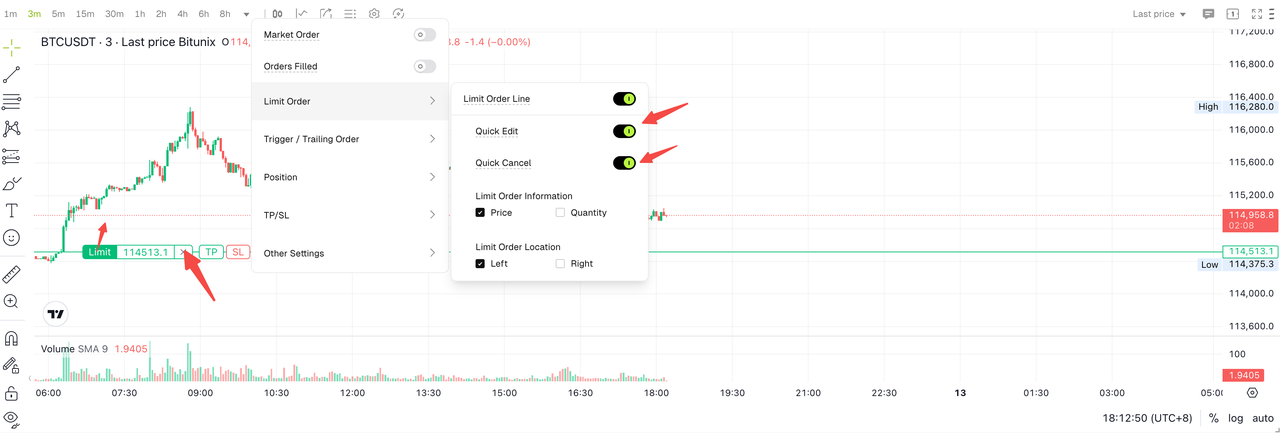
Step 6: Open the limit order menu, you can select the data displayed on the limit order, such as price or quantity, such as display left and right, and it will be displayed according to your selection after selection
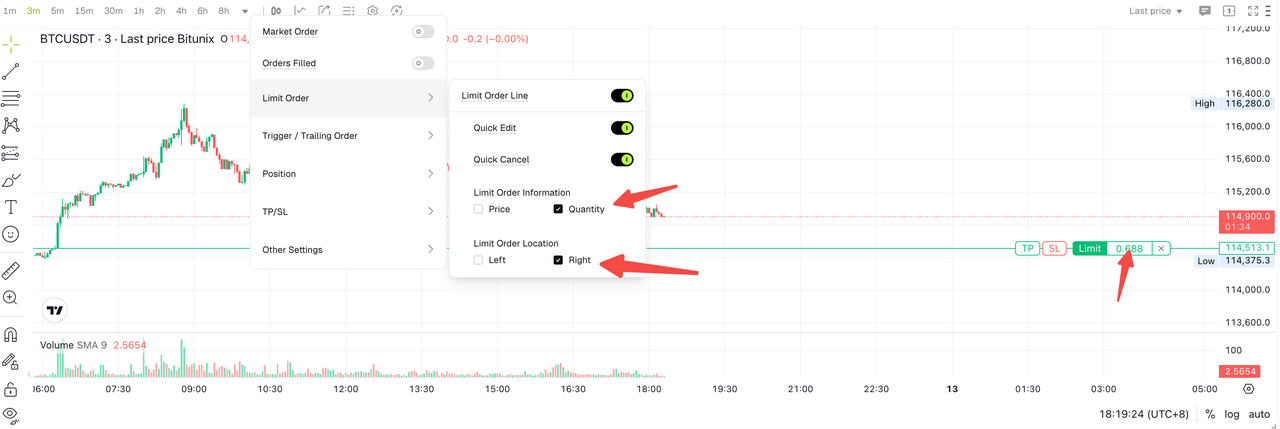
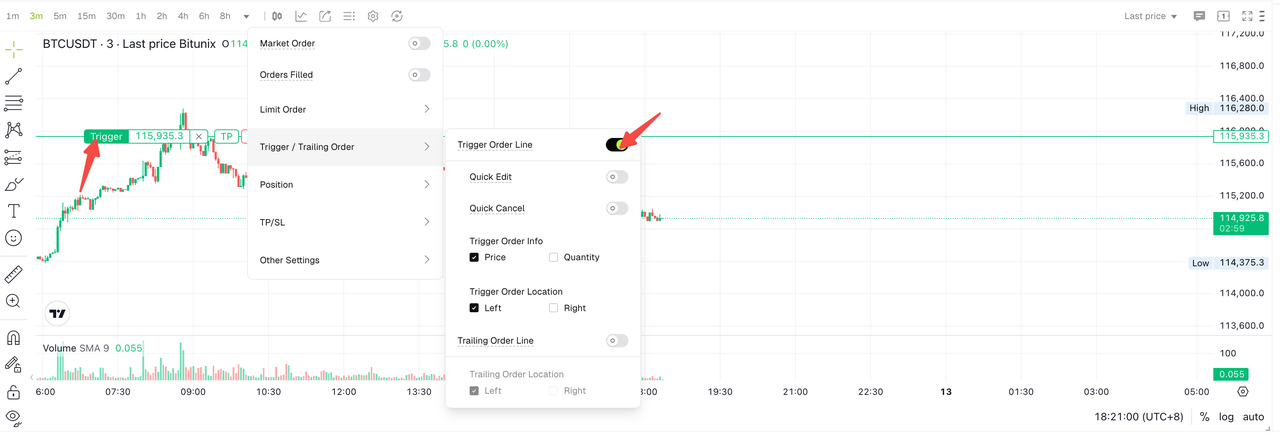
Step 7: Open the planning/tracking order, select whether to display the planning order, and then display the planning order.
Step 8: Open the shortcut price change and shortcut cancel buttons at the same time. On the k-line view, dragging your plan order and canceling your plan order will not display the secondary reminder pop-up box.
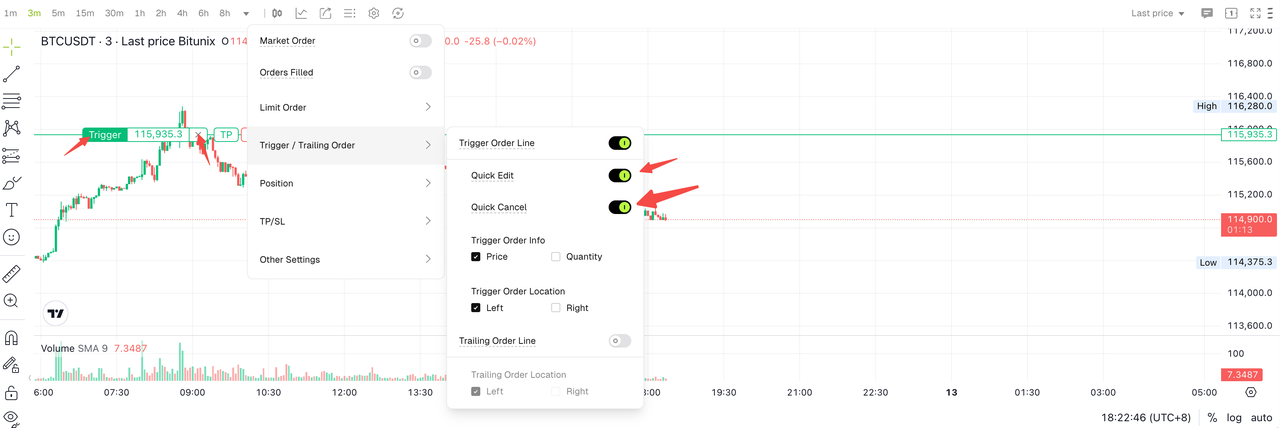
Step 9: Open the plan commission menu, you can select the data displayed on the plan commission, such as price or quantity, such as display left and right, and it will be displayed according to your selection after selection
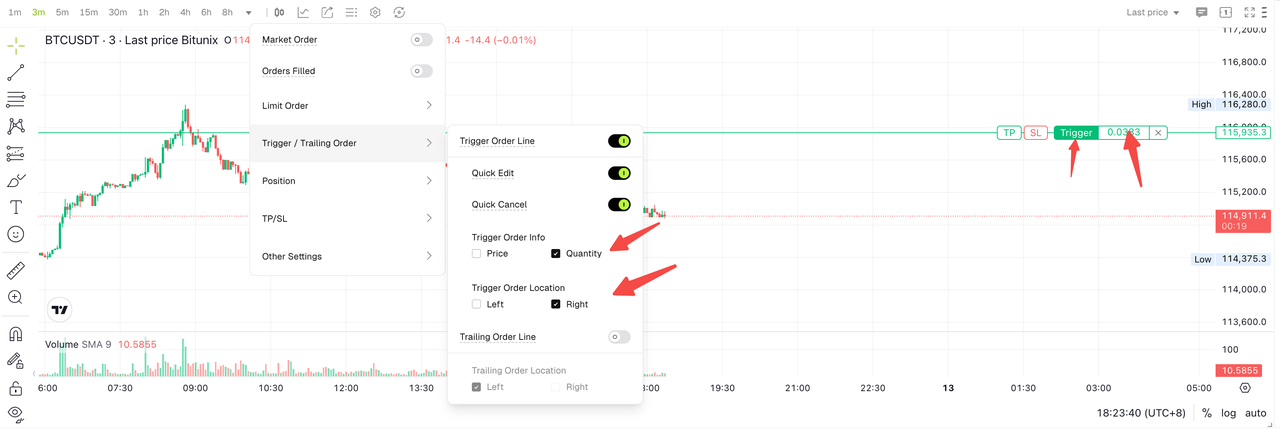
Step 10: Open the planning/tracking commission, select whether to display the tracking commission, and then display the tracking commission after selection, and open the display on the right, and the tracking commission is displayed on the right
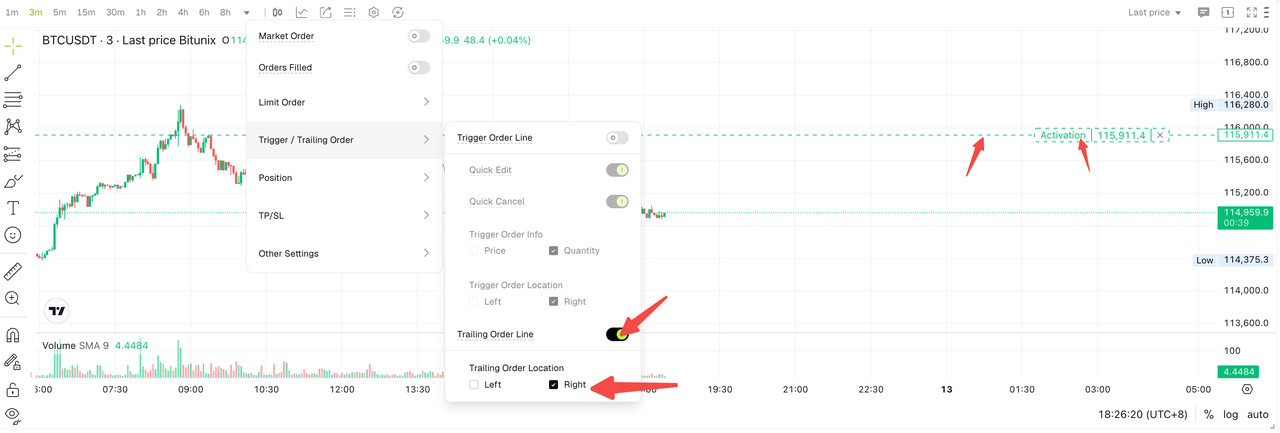
Step 11: Open the cost of the position, open the cost line of the position, and let the cost line of the position display on the right.
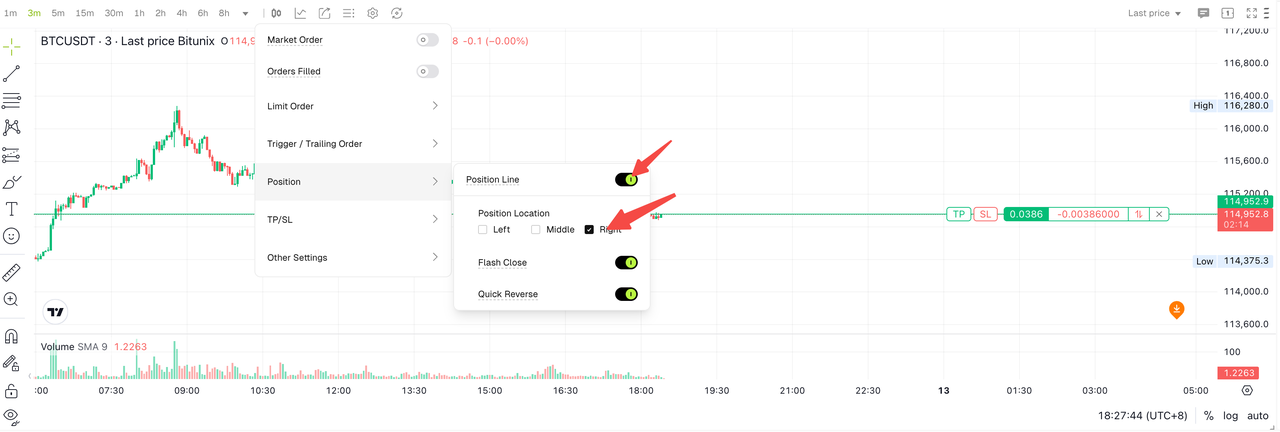
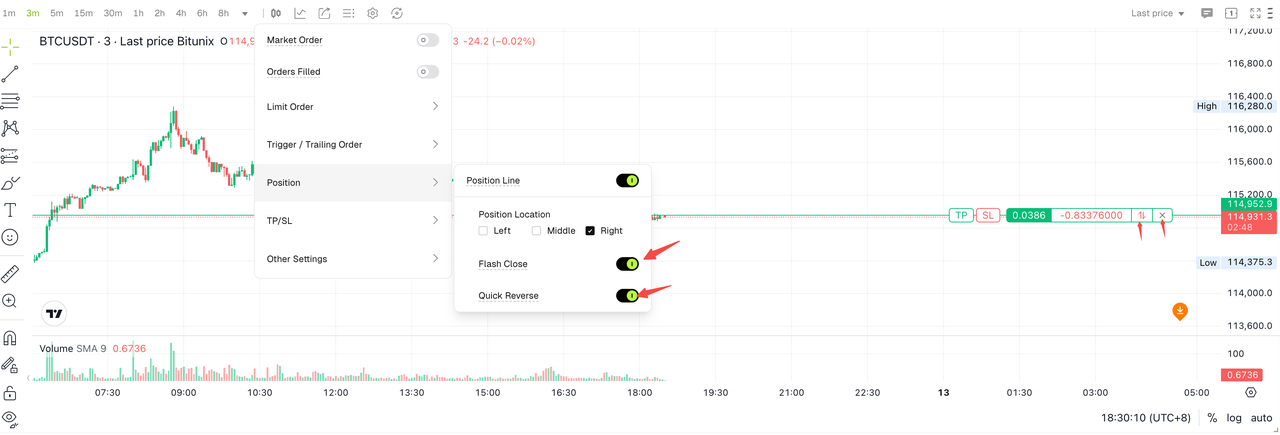
Step 12: Open the open position cost, and turn on the one-button backhand and one-button position squaring switches. After opening, the second reminder pop-up box will not pop up.
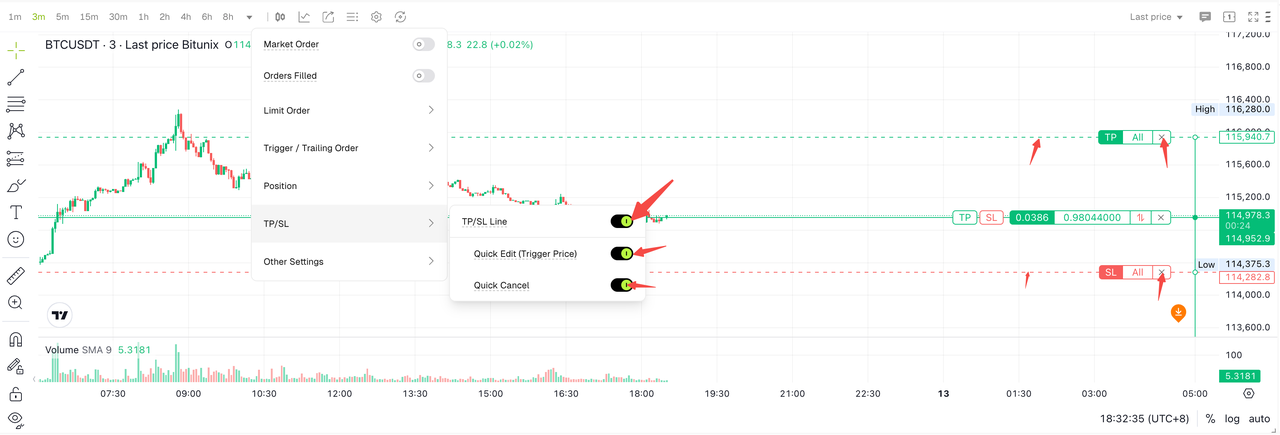
Step 13: Open tp/sl, and open quick price change and quick undo, tp and sl will be displayed in the k-line chart, and there will be no secondary reminders to modify the price and undo tp/sl
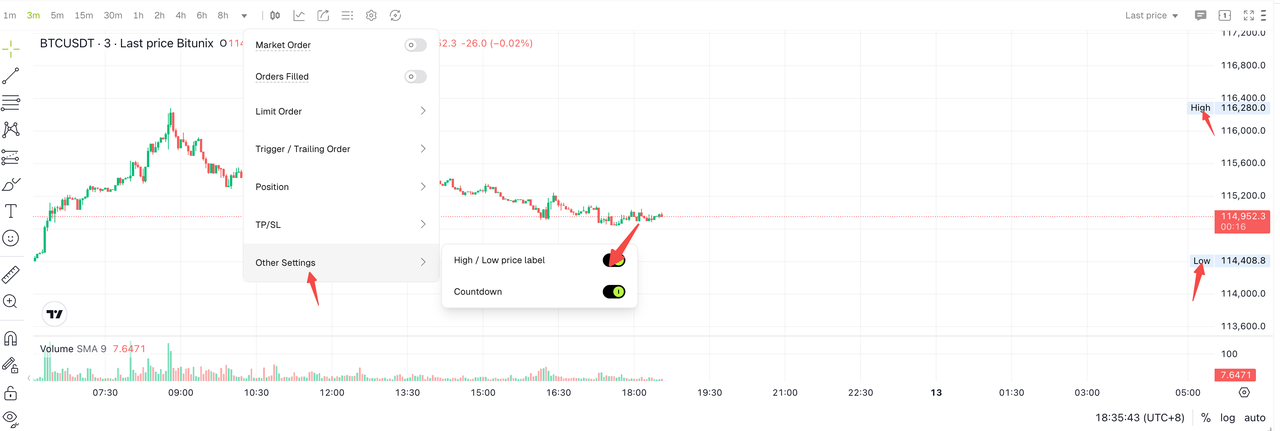
Step 14: Open other settings and open the High Low tab at the same time, which will display the highest and lowest prices on the k-line view
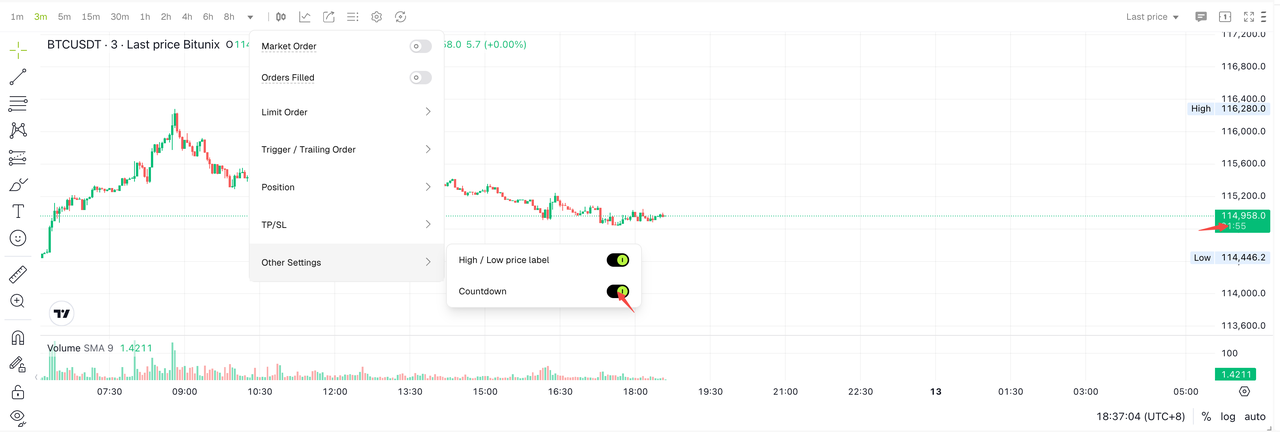
Step 15: Open other settings and turn on the countdown, which will display the updated candlestick of the current period below the latest price of the k-line to the candlestick of the next period of time
Disclaimer
This article is not intended to provide
(I) investment advice or investment recommendations;
(Ii) an offer or solicitation to buy, sell or hold digital assets;
(Iii) Financial, accounting, legal or tax advice. Digital assets held (including stablecoins and NFTs) involve a high level of risk and may fluctuate significantly. You should carefully consider whether trading or holding digital assets is appropriate for you based on your financial situation. Please consult your legal/tax/investment professional for your specific situation. Please be responsible for understanding and complying with relevant local applicable laws and regulations.