

1.What Is Bitunix Gift?
Bitunix Gift is a cryptocurrency gifting feature offered by Bitunix. Senders can use assets in their Spot Account to create crypto gifts and share them with friends via a sharing link, gift poster, or claim code. Once claimed, the funds are instantly credited to the recipient's Spot Account, where they can be used for trading, Earn products, or withdrawals.
| Key Details | Description |
|---|---|
| Supported Cryptocurrencies | USDT and USDC (more cryptocurrencies will be supported in the future) |
| Credited Account | Spot Account, with no additional lock-up period |
| Identity Verification | Both senders and recipients must complete KYC verification |
| Supported Account Types | Main accounts only; subaccounts are not supported |
Quick Access Guide
- App: Profile / Home screen → Bitunix Gift
- Web: Top navigation: Finance → Bitunix Gift
- First-Time Access: An introductory pop-up will appear the first time you open the feature. Click Agree and Continue to proceed. This confirmation is required only once.
2.Gift Types and Important Considerations
2.1 Comparing the Two Gift Types
| Type | English Name | Description |
|---|---|---|
| Lucky Split | Lucky Split | The system randomly distributes the total amount among recipients, so each person may receive a different amount. |
| Fixed Amount | Fixed Amount | Each recipient receives the same amount. When creating a gift, the sender sets the amount per gift and the total number of gifts. |
💡 Note: Recipients must complete KYC verification before they can claim a gift.
2.2Which Type Should You Choose?
- Lucky Split: Best suited for community engagement and user acquisition campaigns, encouraging participation and interaction.
- Fixed Amount: Ideal for targeted rewards and equal distribution, with a predictable amount for each recipient.
2.3 Important Considerations
1.KYC Verification: Recipients must complete KYC verification before claiming a gift. Otherwise, they will not be able to claim it.
2.Number of Gifts: You can create between 1 and 200 gifts per transaction. Only whole numbers are supported.
3.Claim Code (Optional):
- Enabled by default: The system generates a six-character alphanumeric claim code, which can be customized. Claim codes are case-sensitive. For example, Gx7Kp2 and gx7kp2 are treated as different codes.
- Disable the claim code: Recipients can claim gifts directly through the sharing link without entering a code. This makes claiming more convenient, especially when the link is shared across multiple channels. Consider the potential exposure of the gift before disabling this option.
4.Expiration Time: Choose an expiration period of 24, 48, or 72 hours when creating a gift. The default is 24 hours. Any unclaimed funds will be automatically returned to the sender after expiration.
5.Advanced Restrictions (Optional):
- New Users Only: Only users who registered within the past 7 days can claim the gift.
- Only Friends Invited by Me: Only users invited by the sender can claim the gift.
If both restrictions are enabled, recipients must meet both conditions to claim the gift. Senders can claim their own gifts, but if either restriction is enabled and the sender does not meet the applicable eligibility requirements, they will not be able to claim their own gift.
6.Irreversible Transactions: Once a gift is successfully created, the corresponding funds are deducted from the sender's account and reserved for distribution. A created gift cannot be canceled or recalled. Only the unclaimed portion will be returned automatically after the gift expires.
3.How to Send a Bitunix Gift
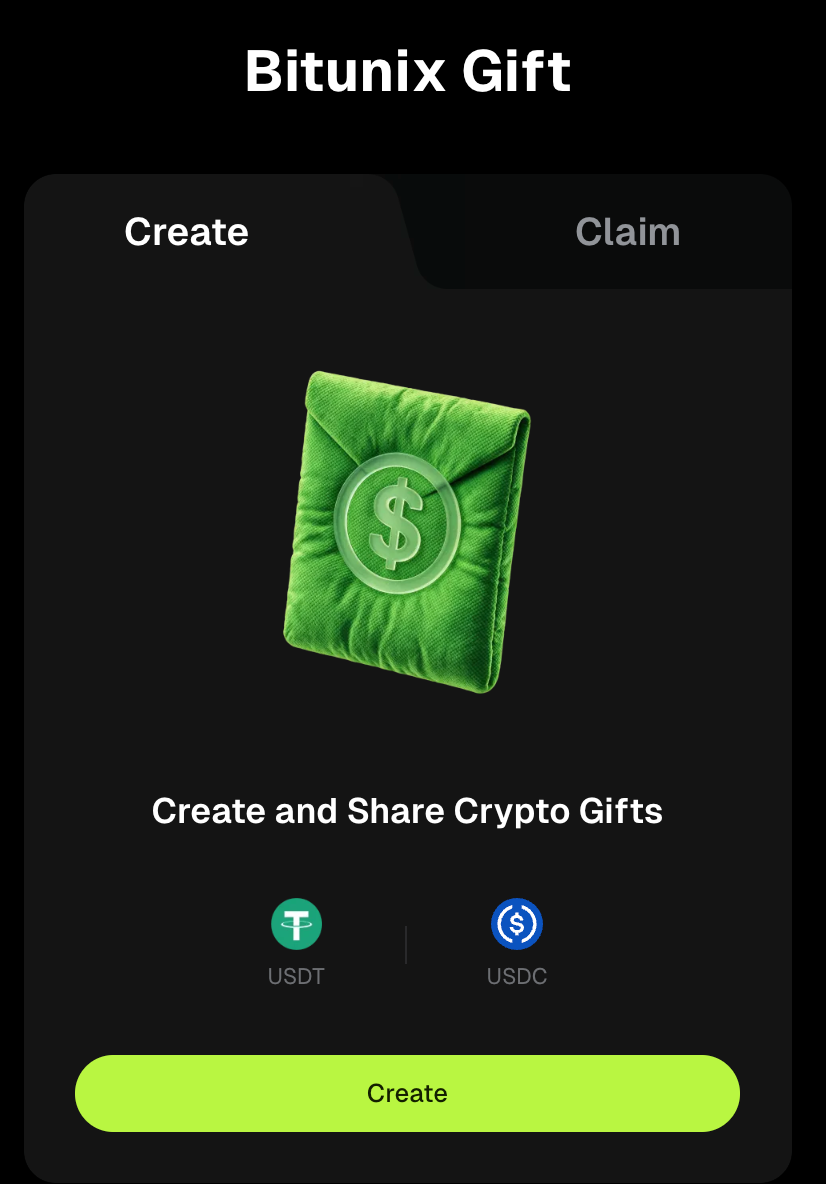
Step 1: Open the Gift Creation Page
Open Bitunix Gift on the App or website, then go to the Create tab.
Step 2: Select a Gift Type and Enter the Details
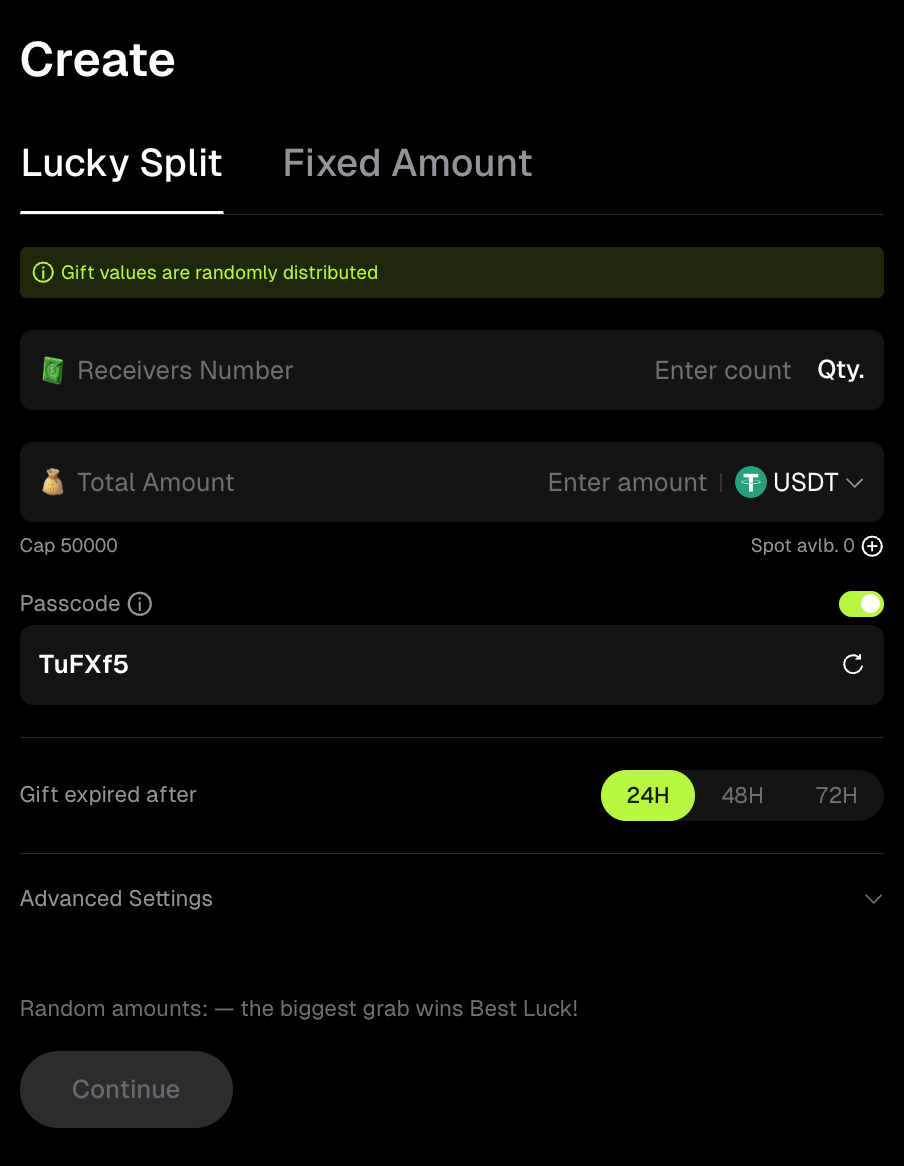
Choose either Lucky Split or Fixed Amount, then complete the following fields:
- Cryptocurrency: Select USDT or USDC.
- Total Amount: Your available balance will be displayed on the page. If your balance is insufficient, click Add to deposit funds.
- Number of Gifts: Enter a number between 1 and 200.
- Claim Code: Optional. You can enable or disable this setting. The code must contain six alphanumeric characters and is case-sensitive.
- Expiration Time: Choose 24, 48, or 72 hours.
Optional: Expand Advanced Settings to configure eligibility restrictions, such as limiting claims to new users or users invited by you.
Step 3: Confirm and Complete Security Verification
Click Create Bitunix Gift. Review the gift type, amount, number of gifts, claim code, and expiration time in the confirmation window, then complete the required security verification.
When Funds Are Deducted: Once the gift is successfully created, the corresponding amount is immediately deducted from your Spot Account and reserved for distribution. Any unclaimed funds will be returned to your Spot Account in the original cryptocurrency after the gift expires.
Step 4: Share Your Gift
On the gift details page, click Share Gift. You can share your gift through Telegram, WhatsApp, X, or Facebook, save the gift poster, or copy the sharing link or QR code.
Displaying the Claim Code on the Gift Poster
You can choose whether to display the claim code on the poster using the toggle in the sharing panel.
| Setting | When to Use It |
|---|---|
| Enabled | The claim code is displayed on the poster, making it suitable for sharing with groups and simplifying the claiming process. |
| Disabled | The claim code is hidden from the poster and must be shared separately. This is more suitable for targeted gifting or gifts involving larger amounts. |
Important: The sharing link does not contain the claim code. Only the gift poster can be configured to display or hide it.
4.How to Claim a Bitunix Gift
Method 1: Claim via a Sharing Link
- Click the gift link or poster shared by a friend in Telegram, a community group, or a messaging app.
- Open the gift landing page to view the remaining number of gifts, the remaining amount, and the countdown timer.
- Click the claim button. If you are not logged in, you will be prompted to log in or register first. After registration, you will be automatically redirected to the original gift page, so you can continue the claiming process without interruption.
- Enter the six-character claim code. If the code is already saved in your clipboard, it will be filled in automatically.
- Click Open Gift to reveal the amount you have received.
Method 2: Enter a Claim Code on the App or Website
If you have the claim code but not the sharing link, you can claim the gift directly:
- App: Go to Bitunix Gift → Claim → Enter the claim code, or scan the QR code on the gift poster.
- Web: Visit the Bitunix Gift page → Claim → Enter the claim code.
Claim Code Rules: Claim codes consist of six alphanumeric characters and are case-sensitive. For example, Gx7Kp2 and gx7kp2 are treated as different codes. Entering an incorrect code does not consume a gift slot, so you can correct the code and try again.
If you do not meet the sender's eligibility requirements, the page will indicate that you cannot claim the gift. If all gifts have already been claimed, the page will display Fully Claimed. Gifts are distributed on a first-come, first-served basis according to the order in which claims are received. The system will not distribute more gifts than the sender created.
5.Gift Rules and Limits
5.1 Sending Limits
| Item | Limit |
|---|---|
| Maximum Amount per Gift | ≤ 50,000 USDT (or the equivalent amount in USDC) |
| Supported Cryptocurrencies | USDT and USDC (more cryptocurrencies will be supported in the future) |
| Number of Gifts | 1–200 (whole numbers only) |
5.2 Gift Settings
| Item | Rules |
|---|---|
| Supported Cryptocurrencies | USDT and USDC |
| Number of Gifts | 1–200 (whole numbers only) |
| Expiration Time | 24, 48, or 72 hours. Select the expiration period when creating a gift. The default is 24 hours. |
| Claim Code | Six alphanumeric characters; case-sensitive. Setting a claim code is optional. Each claim code must be unique during the gift's validity period and becomes available for reuse once the gift expires or ends. |
5.3 Claiming Rules
| Item | Rules |
|---|---|
| Claim Limit per User | Each account can claim only one gift from the same gift distribution. |
| KYC Verification | Both the sender and recipient must complete KYC verification. |
| Sender Claiming Their Own Gift | Allowed. The sender's claim counts toward the total number of gifts distributed, the number of participants, and the Lucky Split winner ranking. However, if eligibility restrictions are enabled and the sender does not meet the requirements, they cannot claim their own gift. |
| Fund Crediting | Funds are credited instantly to the recipient's Spot Account. |
| Supported Account Types | Main accounts only. Subaccounts are not supported. |
5.4 Expiration and Refunds
- Once the gift reaches its expiration time, its status changes to Expired.
- Any unclaimed amount is fully returned to the sender's Spot Account in the original cryptocurrency, without conversion to another cryptocurrency.
- The original sharing link and claim code both become invalid, and the gift can no longer be claimed.
- The sender may receive a push notification and an in-app message confirming the refund. The refunded amount and refund time can also be viewed on the gift details page.
5.5 Risk Control Notice
If gift creation fails and the message "Operation temporarily restricted" appears, it means the transaction did not pass the risk control review. No funds will be deducted. Please try again later or contact Bitunix Online Support for assistance.
6.Security and Risk Warnings
- Protect Your Claim Code and Sharing Link: Anyone with access to the claim code or sharing link may be able to claim the gift. Only share them with people you trust. Avoid posting links publicly in group chats or sharing them through untrusted channels.
- Beware of Scams: Bitunix will never ask for your account password, verification codes, seed phrase, or private keys. Any request for this information under the pretext of helping you claim a gift is a scam.
- Verify the Official Website: Before claiming a gift, make sure you are visiting the official Bitunix website. Do not click suspicious links or links from unverified sources that may lead to phishing websites.
- Understand How Gift Funds Work: Bitunix Gift facilitates asset transfers between users on the platform. Funds are deducted from the sender's account and reserved for distribution as soon as a gift is created. Always verify the amount and number of gifts before confirming the transaction.
- Platform Rights and Enforcement: Bitunix reserves the right to modify or suspend Bitunix Gift rules and retains final interpretation rights. In cases of abnormal activity or violations, Bitunix may terminate the relevant gifts, return the funds, and impose restrictions on the accounts involved.
FAQs
Q: Do I need to complete KYC verification to send or claim a Bitunix Gift?
A: Yes. Both senders and recipients must complete KYC verification to use Bitunix Gift. Once KYC is completed, you can claim gifts. The monthly sending limit varies depending on your KYC status. Users who have completed KYC can send up to 2,000,000 USDT per month.
Q: Can I cancel or recall a gift after sending it?
A: No. Once a gift has been successfully created, it cannot be canceled or recalled. Any unclaimed amount will be automatically returned to your Spot Account in the original cryptocurrency after the gift expires.
Q: Will I get my money back if not all gifts are claimed?
A: Yes. Once the gift expires, the system automatically returns the full unclaimed amount in the original cryptocurrency to your Spot Account. You will also receive a push notification and an in-app message confirming the refund. You can view the refunded amount and refund time on the gift details page.
Q: Why does my claim code show as incorrect even when I enter it correctly?
A: Check whether the letter case matches the original claim code, as claim codes are case-sensitive. Also, make sure the gift has not expired or been fully claimed. Entering an incorrect code does not consume a gift slot, so you can correct it and try again.
Q: Why am I seeing a "Not Eligible to Claim" message?
A: This means the sender configured eligibility restrictions when creating the gift, such as New Users Only (users registered within the past 7 days) or Only Users Invited by Me. If both restrictions are enabled, you must meet both requirements to claim the gift. Contact the sender to confirm the eligibility conditions if necessary.
Q: Why does the page say "Fully Claimed"?
A: This means all gifts have already been claimed by other users. Gifts are distributed on a first-come, first-served basis. If multiple users attempt to claim the last available gift at the same time, the system determines the successful claim based on the order in which requests are received. No more gifts will be distributed than the sender originally created.
Q: Where can I find the funds I received? Can I use them immediately?
A: The funds are instantly credited to your Spot Account and can be used immediately for trading, Earn products, internal transfers, or withdrawals. There is no additional lock-up period.
Q: Which cryptocurrencies can I send as gifts?
A: Bitunix Gift currently supports USDT and USDC. More cryptocurrencies will be supported in the future. Please follow official announcements for updates.
Q: Do I have to set a claim code when creating a gift?
A: No. A claim code is enabled by default, but you can disable it when creating a gift. Once disabled, recipients can claim the gift directly through the sharing link without entering a code. This makes the claiming process faster, but anyone who obtains the shared link may be able to claim the gift. Consider the potential exposure before disabling this option.
Q: Can subaccounts use Bitunix Gift?
A: Currently, Bitunix Gift is available only to main accounts. Subaccounts are not supported for either sending or claiming gifts.
Q: Does the sharing link reveal my claim code?
A: No. The sharing link never contains the claim code. You can choose whether to display the claim code on the gift poster by enabling or disabling the corresponding setting in the sharing panel.
Q: What should I do if gift creation fails and displays "Operation Temporarily Restricted"?
A: This message indicates that the operation did not pass the risk control review. No funds will be deducted from your account. Please try again later. If the issue persists, contact Bitunix Online Support for assistance.
Disclaimer
This article is not intended to provide:
(i) investment advice or investment recommendations;
(ii) an offer or solicitation to buy, sell, or hold digital assets; or
(iii) financial, accounting, legal, or tax advice.
Digital assets you hold, including stablecoins and NFTs, involve significant risks and may experience substantial price volatility. You should carefully consider whether trading or holding digital assets is suitable for you based on your financial circumstances.
For advice specific to your situation, please consult your legal, tax, or investment professionals. You are solely responsible for understanding and complying with all applicable local laws and regulations.