

To help you trade more efficiently and with deeper professional experience, Bitunix Chart Trading This upgrade targets real pain points for advanced traders and delivers comprehensive improvements across order placement, automation, and position management.
In this article, we break down one of the key new features: Custom Trading Templates.
Custom Trading Templates Guide
1. Important: Set Your Leverage Before Trading
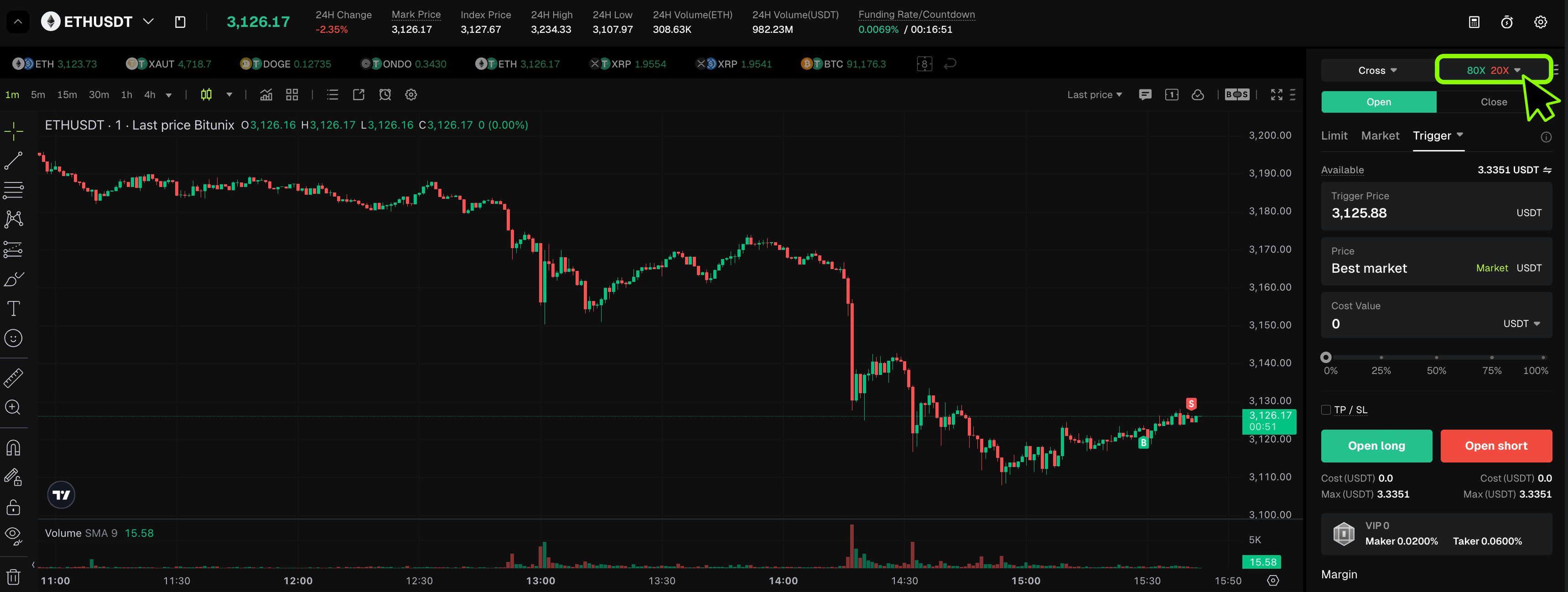
Before trading with the Quick Panel, make sure you set your leverage first. The leverage selector is located at the top right of the trading page (for example, 20x).
You can set leverage separately for Open Long (Long) and Open Short (Short) based on your risk preference. After confirming the leverage level, place your futures order to better control risk exposure.
2. Quick Access: Enable Your Personal Template
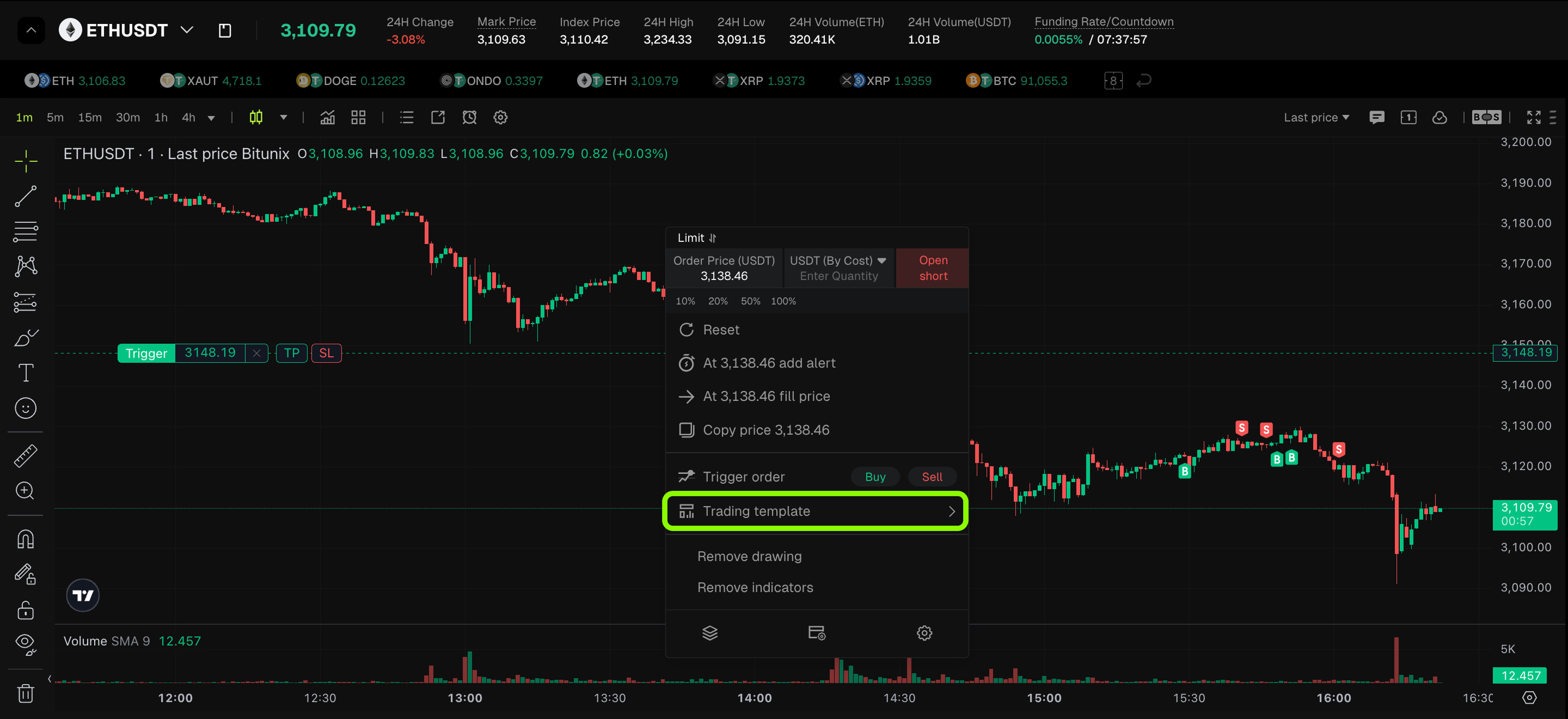
Right click any blank area on the candlestick chart to open the menu, then select Trading Template (the seventh option).
If you do not have any templates yet, click Add New to start creating a personalized setup and reserve dedicated strategies for different market conditions.
3. Precise Setup: Make Risk Control More Intuitive
- Precise Setup: Make Risk Control More Intuitive
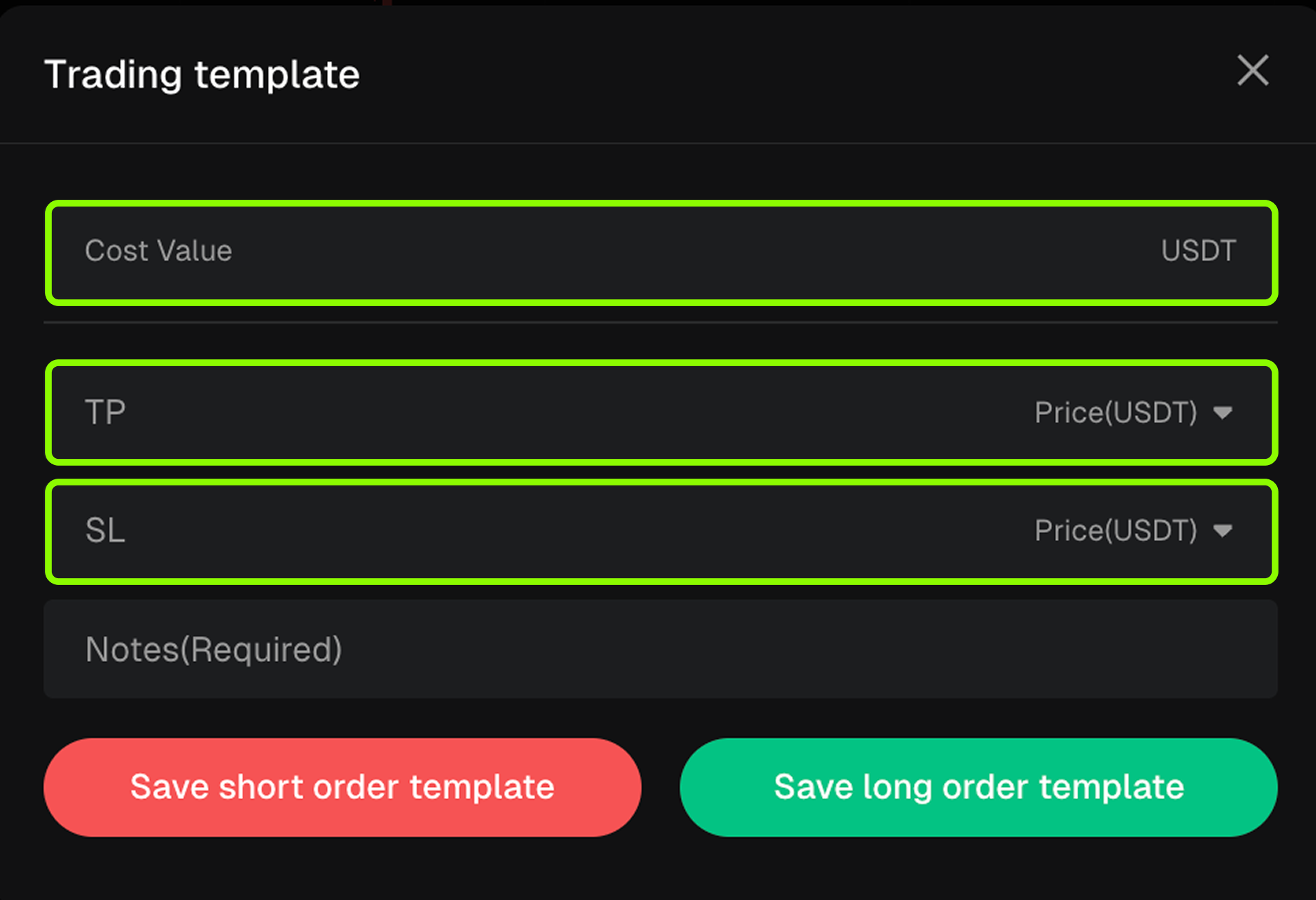
- On the configuration screen, you can enter parameters quickly based on your trading logic:
- Set Cost: Enter the contract cost value for the selected trading pair.
- Take Profit and Stop Loss: Pre set your Take Profit (TP) and Stop Loss (SL) prices, then name your template (for example, Conservative or Aggressive).
- Reminder
- Long Template: TP price > cost price, SL price < cost price.
- Short Template: TP price < cost price, SL price > cost price.
- The system will automatically validate the logic to help you confirm each step clearly.
4. Strategy Deployment: Activate With One Click
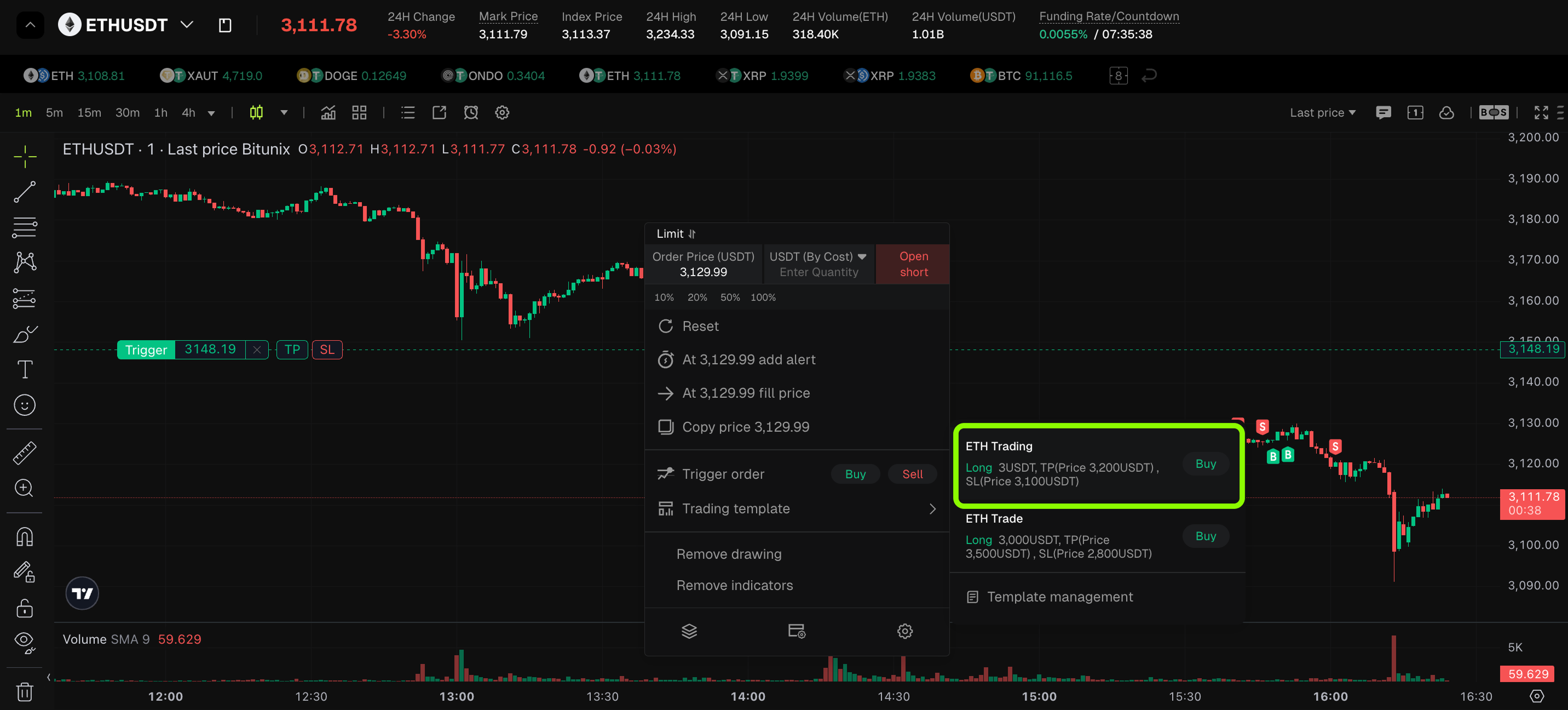
After saving the template, right click a blank area on the chart again and select Trading Template. Your saved strategies will appear in a clean list.
Simply click Buy or Sell to activate the entire strategy instantly, without repetitive manual input.
5. Visual Controls: Drag to Stay in Full Control
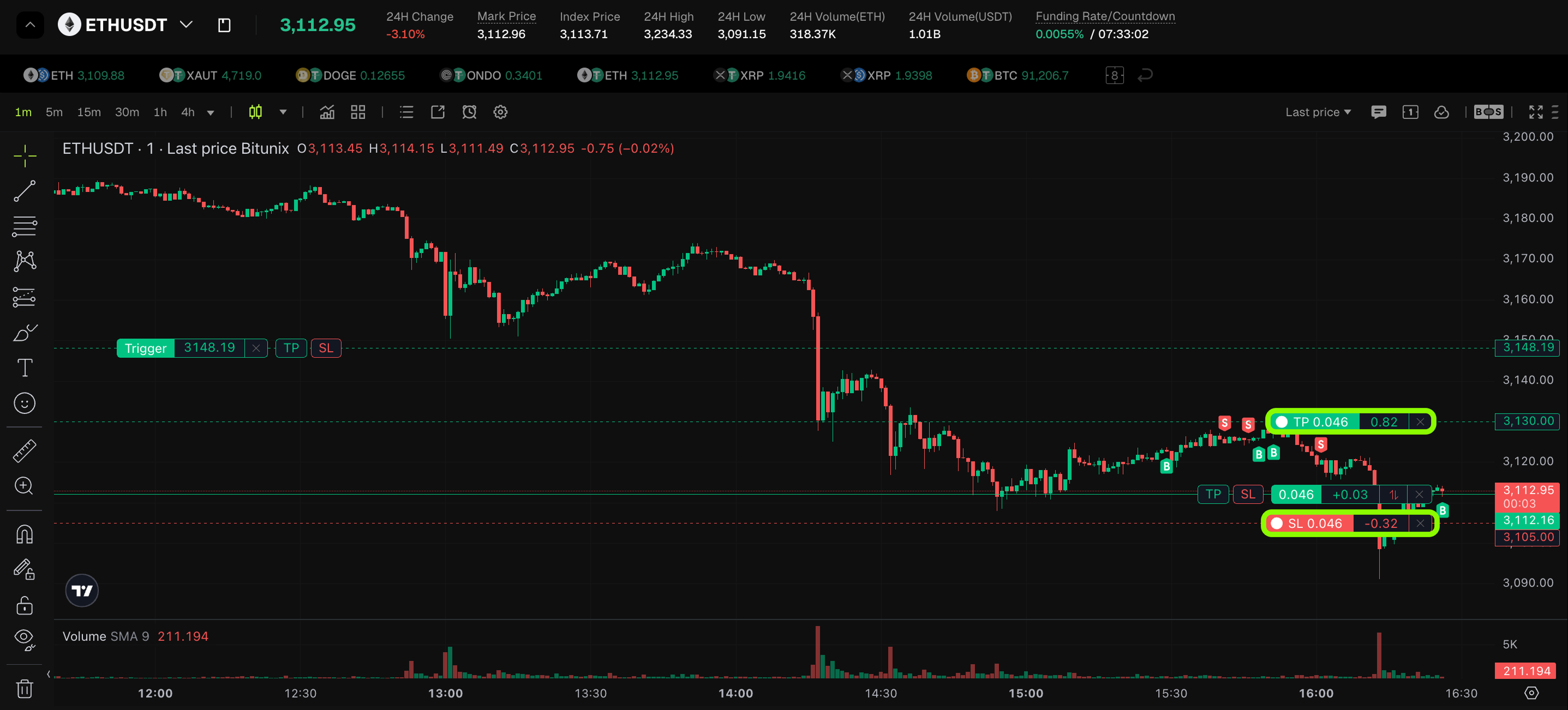
After the order is placed, your TP/SL settings are no longer just numbers. They appear directly on the chart as visual markers.
- Real Time Adjustments: If market conditions change, you can drag the TP or SL marker on the chart to modify the price levels instantly, without reopening menus.
6. Share Your Trading Results: Futures Position Sharing
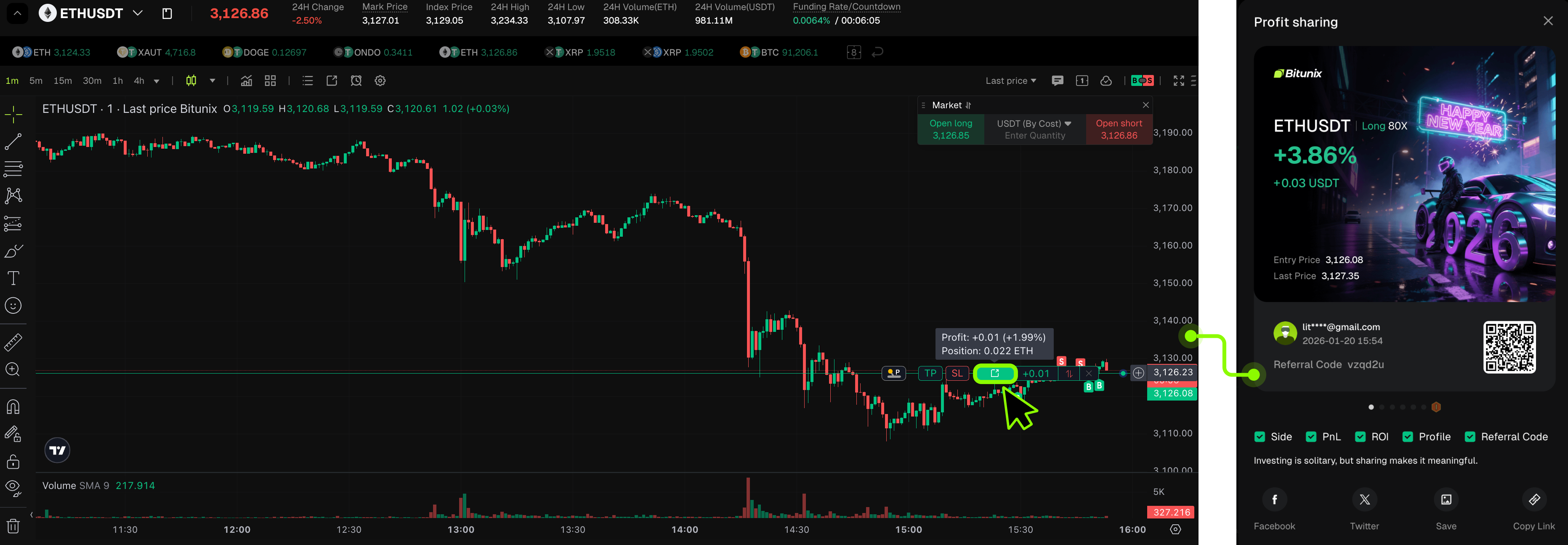
Want to showcase a strong trade? Hover over the status bar and a Share button will appear. Click it to generate a personalized poster and share it on major social platforms to highlight your Bitunix trading performance.
Disclaimer
This article is not intended to provide:
(i) investment advice or recommendations;
(ii) an offer or solicitation to buy, sell, or hold digital assets; or
(iii) financial, accounting, legal, or tax advice.
Digital assets, including stablecoins and NFTs, are highly volatile and involve significant risk. Please carefully consider your financial situation and risk tolerance before trading or holding digital assets.
Consult your independent legal, tax, or investment professional to ensure that your actions comply with applicable local laws and regulations.