

What Is a Futures Grid?
A Futures Grid is an automated grid trading strategy on Bitunix that places buy and sell orders within a predefined price range for a selected perpetual futures trading pair. You set key parameters such as the price range, number of grids, and leverage, and the bot executes the strategy by placing a series of limit orders at calculated price levels.
In simple terms, the bot aims to buy at lower grid levels and sell at higher grid levels as price moves within the range. Futures grids can also be configured for long or short direction, depending on market bias and your settings.
A futures grid does not guarantee profits. Performance depends on market conditions, and using leverage increases both potential gains and potential losses, including liquidation risk.
Advantages of a Futures Grid
- 24/7 automated execution: The bot runs continuously and executes trades based on your selected grid parameters, helping reduce manual monitoring.
- Two-way trading flexibility: You can run a long or short grid based on your directional setting, allowing the strategy to be adapted to different market trends.
- Capital efficiency with leverage: Leverage can increase capital efficiency and amplify results, but it also increases downside risk. Higher leverage can bring the liquidation price closer, so it should be used cautiously.
- Profitable in Sideways Markets, Built for All Conditions: Automatically buy low and sell high within a range to accumulate gains. It captures consistent profits even in trendless markets, making it adaptable to most market environments.
- Risk Isolation & Protection: Operates with an independent capital pool isolated from your other contract positions. This prevents cross-position losses from triggering strategy interruptions or liquidations.
How to Trade with Futures Grid
1. Funds
Before starting Futures Grid, make sure you have enough USDT in your Spot Account.
Note: Futures Grid uses Spot Account funds as collateral, and the funds allocated to each grid strategy are independent. Even if you run multiple grid strategies at the same time, each strategy runs independently and does not affect the liquidation price of other strategies.
Steps (App):
- Log in to the Bitunix App and tap Assets (bottom-right).
- Set the transfer direction from Futures Account to Spot Account.
- Enter the amount and tap Confirm Transfer.


2. Enter Futures Grid
- Tap Futures in the bottom navigation bar.
- In the top tab bar, switch to Grid.

3. Set Strategy Parameters (Manual Creation Only)
Currently, only Manual Create is supported. Set parameters based on your market view:
- Select Trading Pair: Tap the trading pair name in the top-left (for example, BTC/USDT), then choose the futures pair you want from the list.
- Select Long/Short: Tap Long or Short.
- Set Price Range:Min Price is the lower bound where the grid runs.Max Price is the upper bound where the grid runs.
- Set Number of Grids: Enter 2 to 200 grids. More grids mean lower profit per grid but more frequent trades.
- Set Leverage: Tap the leverage area (for example, 5x), then drag the slider or enter a value.
- Set Margin Amount: Enter the margin you want to allocate. The system calculates the Minimum Investment required under the current parameters, and your margin must be greater than that minimum.
- Advanced Settings: Enable Take Profit/Stop Loss (TP/SL) and set trigger prices to help protect your principal.

4. Start the Strategy
- After confirming all parameters, tap Create.
- In the confirmation window, review the details again and tap Confirm.
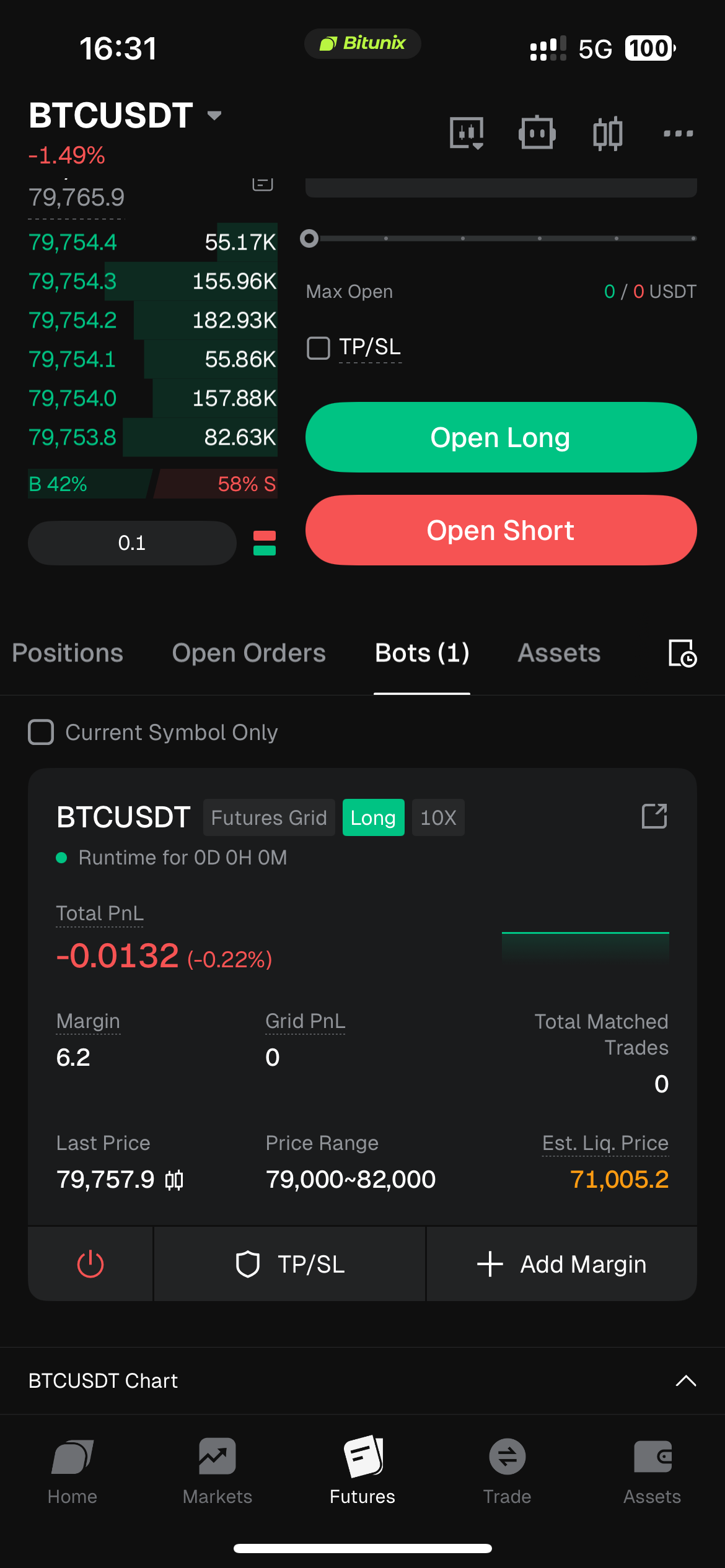
- After creation, tap View Orders to enter the bot details page.
5. View and Manage
You can access running bots in two ways:
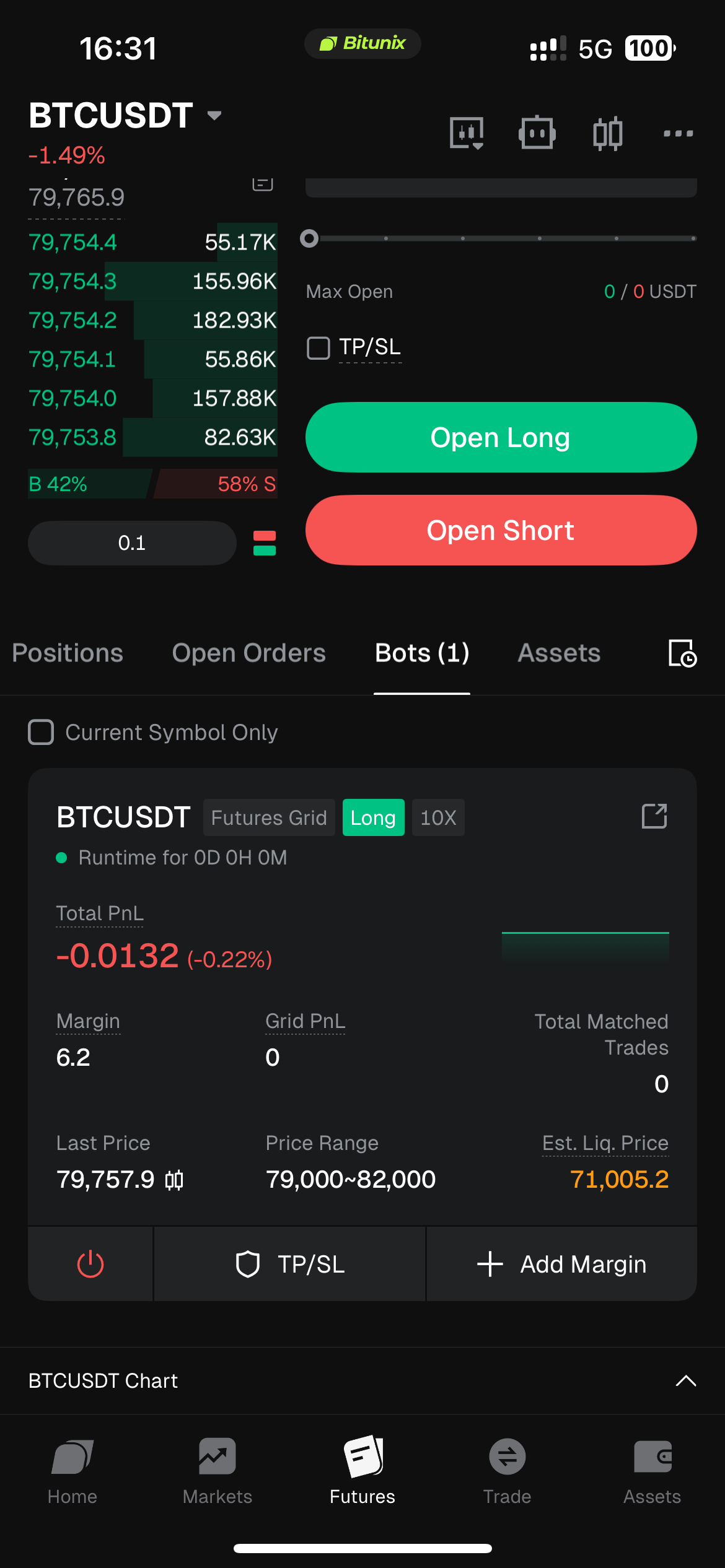
- Entry 1: On the Futures trading page, in the order area, tap the Bot tab to view running bots.
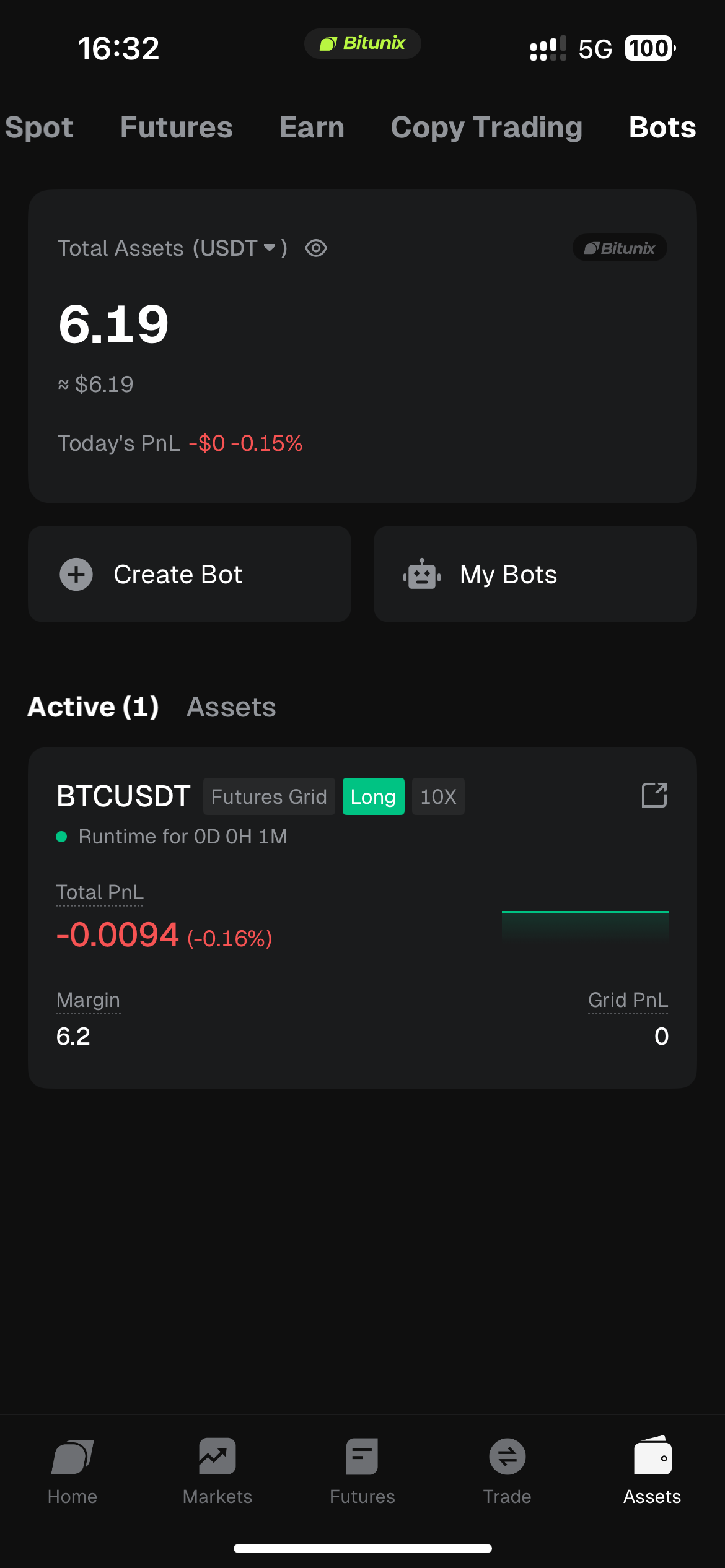
- Entry 2: Tap Assets (bottom-right), then open the Bot tab to view bot information. Tap My Bots to view all bots, including Active and History.
6. Futures Grid Bot Sharing
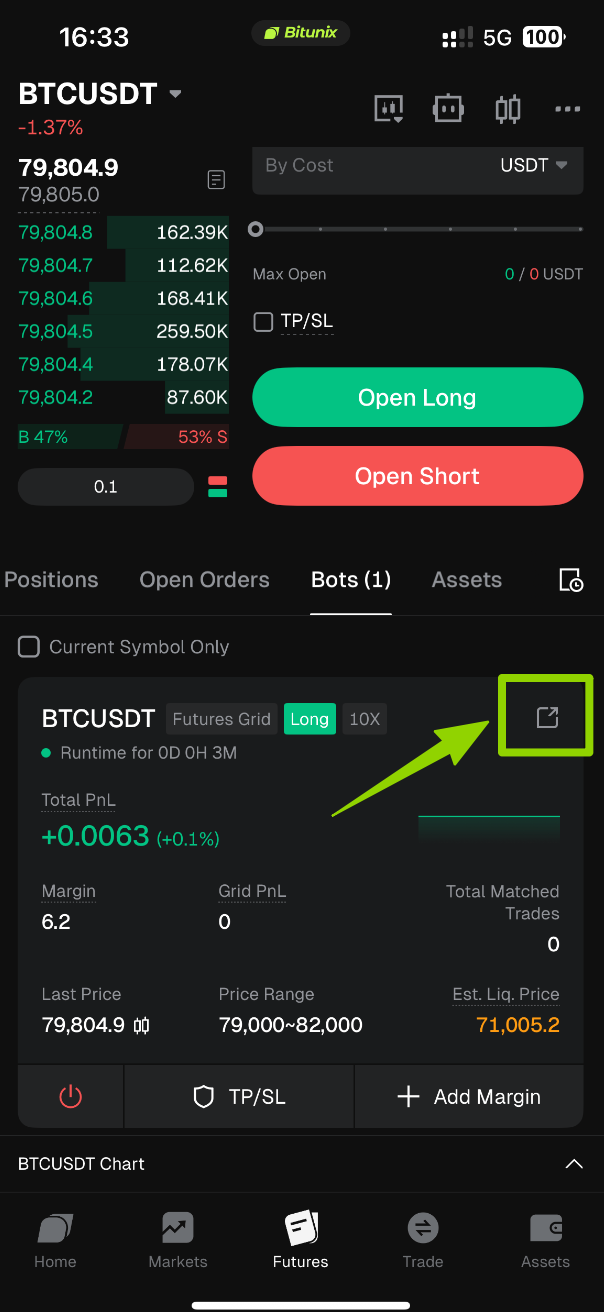
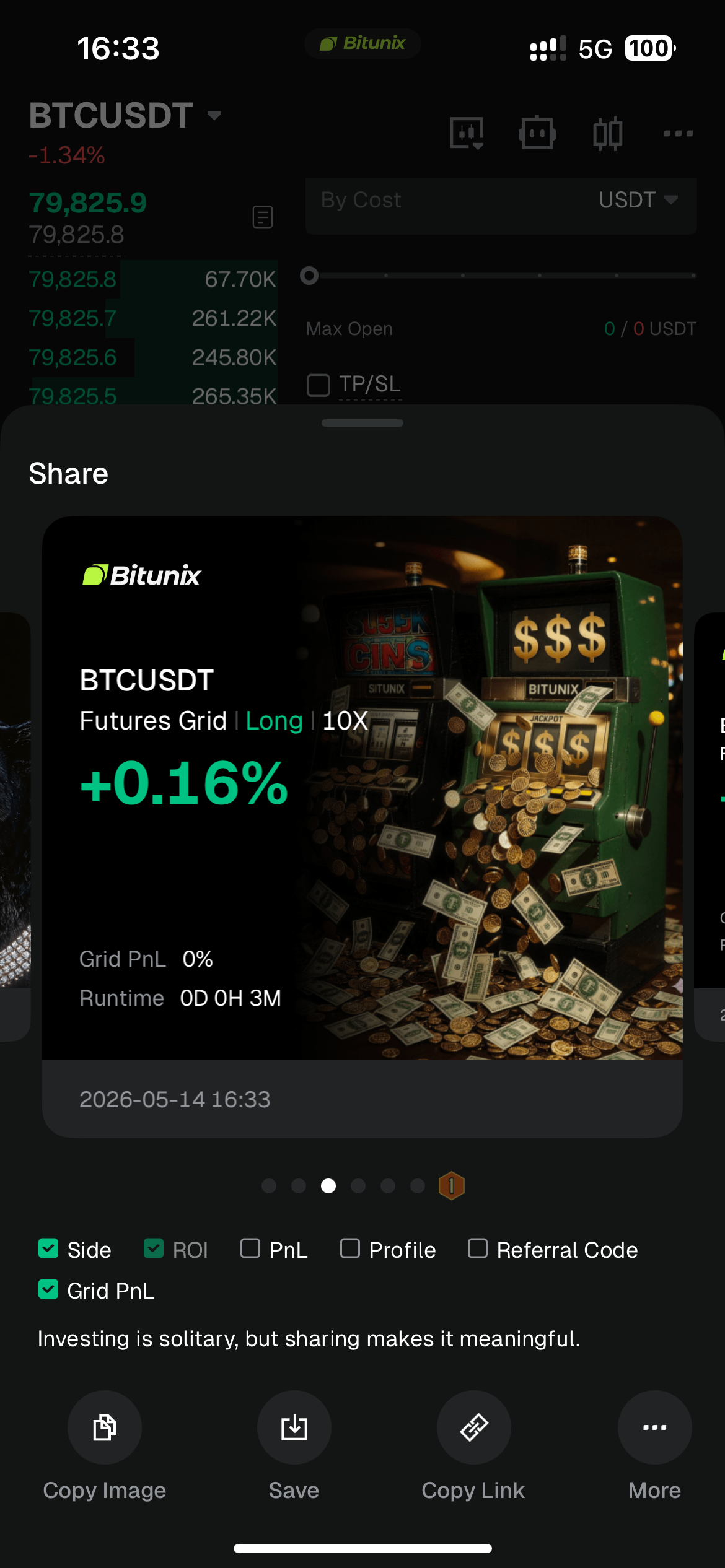
Want to show off your trading highlights? Hover your mouse over the status bar area, and a Share button will instantly appear. Click it to generate a personalized poster with one tap and share it directly on major social media platforms—show your friends your trading performance on Bitunix.
7. Stop the Strategy
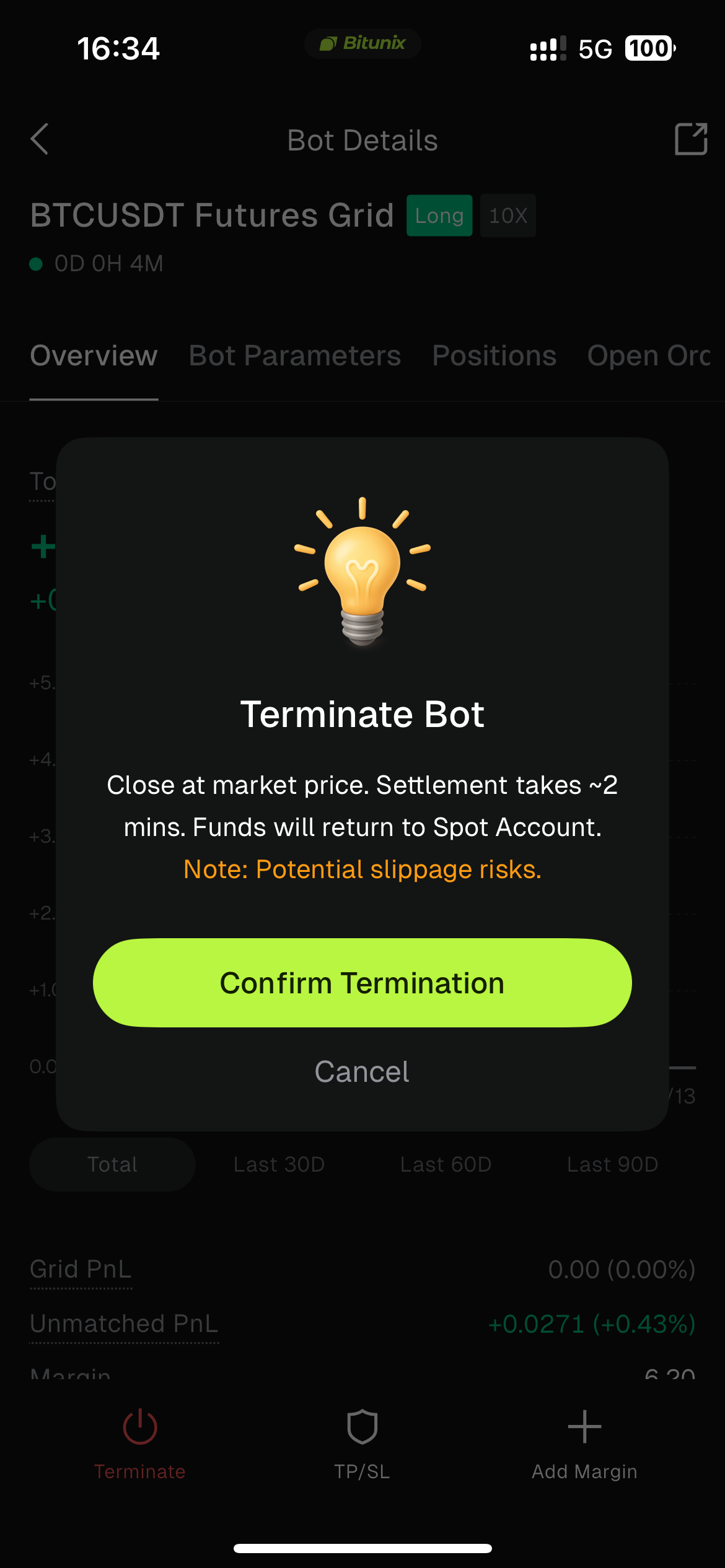
Special Note: After closing a position, the system will take approximately 2 minutes for settlement, and funds will be automatically credited to your spot account.
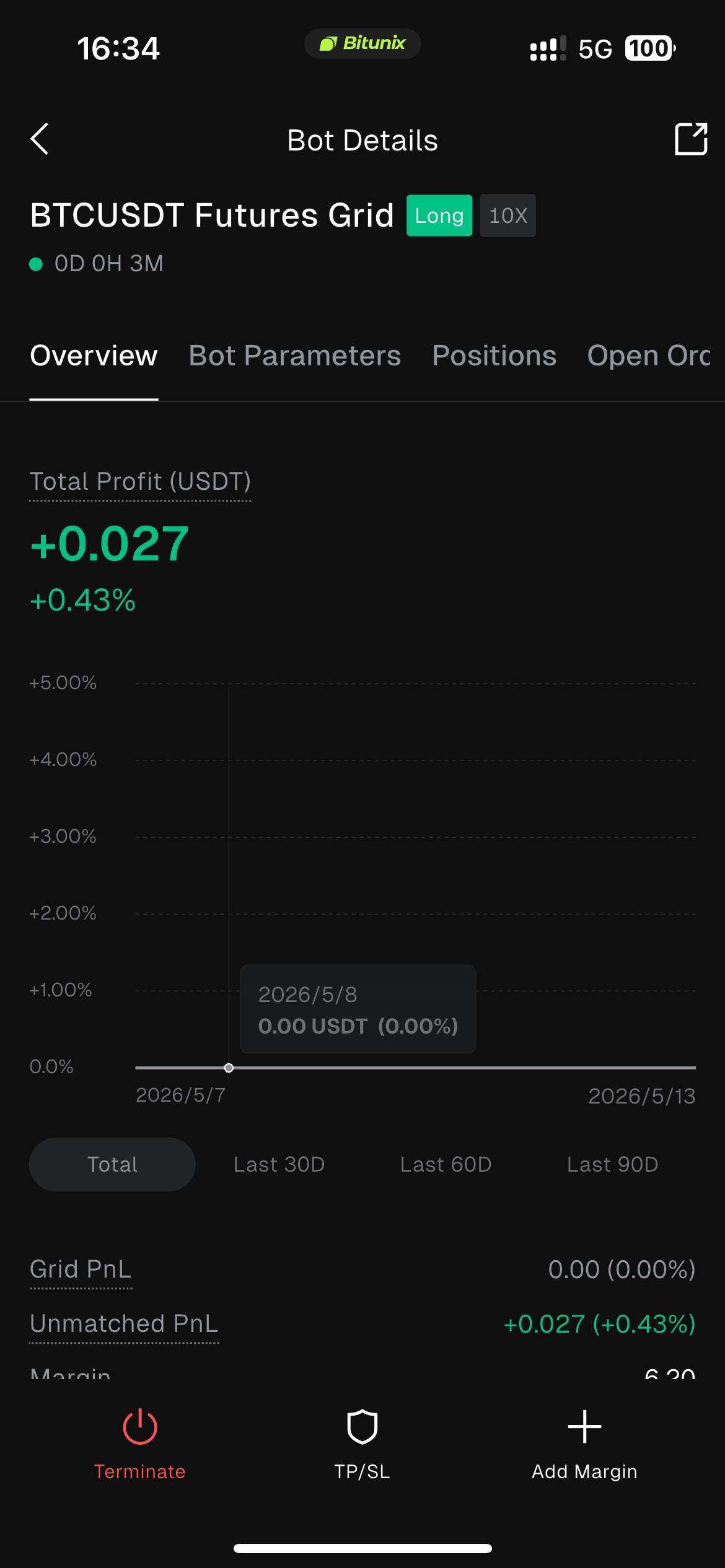
On the bot details page, tap the red Stop button at the top to stop the strategy. After confirmation, the system will trigger automatic position-closing logic to complete position closing and PnL settlement. Once the strategy stops, all funds (principal + profit) are automatically transferred back to your Spot Account. Additionally, when a futures grid bot moves out of its preset range, you can click the red Terminate button to stop any unexecuted futures grid trading strategies.
Frequently Asked Questions (FAQ)
1. Why do I need to use Spot Account funds to start a Futures Grid?
This is designed to maximize your fund security and ensure the stability of your trading strategy.
Funds in your Futures Account are primarily used as margin for your existing positions. If the Grid Bot used those same funds, a sudden market swing could cause the bot’s capital to be affected by the PnL (Profit and Loss) of your other trades. This could lead to the strategy being forced to stop or even trigger liquidation.
Bitunix utilizes a Risk Isolation Mechanism: by transferring a specific, independent amount from your Spot Account to the Grid Bot, we essentially create a "Safety Isolation Vault" for your strategy. No matter how much your futures positions fluctuate, your Grid strategy remains unaffected. The two systems operate independently for a safer, more stable experience.
2. Why can’t I create a bot? If you cannot create a Futures Grid bot, check the following:
- Whether your account has enough Available Balance
- Whether you have reached the maximum number of running bots (each account can run up to 20 grid strategies)
- Whether your parameters meet system rules (for example, whether the price range and number of grids are reasonable) If any requirement is not met, the system cannot create the bot.
3. Where did the funds go after creation?
After the bot is created successfully, the system automatically transfers the corresponding funds into a dedicated Bot Account used for grid trading. This helps the bot run independently and stably. You can view your funds and returns in Assets → Bot at any time.
4. Why is the bot “Paused”?
If the bot shows Paused, it is usually because the market price has moved outside the price range you set, or the futures trading pair is under maintenance. Futures Grid only trades within the specified price range. When price leaves the range, the bot pauses to avoid trading at unfavorable prices. When price returns to the range, the bot resumes automatically.
5. Why is my Total PnL negative, but Grid Profit positive?
This can be normal. Grid Profit reflects realized profit the bot has already earned from repeated “buy low, sell high” trades. Unrealized PnL reflects unrealized profit or loss from the current open position and changes with market price. If price temporarily moves against your position direction (for example, price falls while you are Long), unrealized loss may exceed grid profit in the short term, making Total PnL temporarily negative.
6. What happens when I manually stop the bot?
If you manually stop the bot, the system first cancels all open orders and then closes the current position at the market price at that time. Because market orders can be affected by order book depth and liquidity, the final execution price may differ from expectations, which may result in small slippage. This is a normal market behavior.
Disclaimer
This article is not intended to provide
(I) investment advice or investment recommendations;
(Ii) an offer or solicitation to buy, sell or hold digital assets;
(Iii) Financial, accounting, legal or tax advice. Digital assets held (including stablecoins and NFTs) involve high risk and may fluctuate significantly. You should carefully consider whether trading or holding digital assets is right for you based on your financial situation. Please consult your legal/tax/investment professional for your specific situation. Please be responsible for understanding and complying with all applicable local laws and regulations.