

What Is Futures Multi-Trade?
Multi-Trade is a futures position management mode. Once enabled, you can create multiple independent positions under the same trading pair and in the same direction. The margin, take-profit and stop-loss settings, and liquidation calculations for each position are handled separately and do not affect one another.
Key Differences
• Non-Multi-Trade (Default): Multiple positions opened in the same direction under the same trading pair are automatically merged into a single position.
• Multi-Trade: Each order opened in the same direction under the same trading pair is created as an independent position and is not merged with others.
Multi-Trade User Guide for Futures (Web)
1. Select a Trading Pair
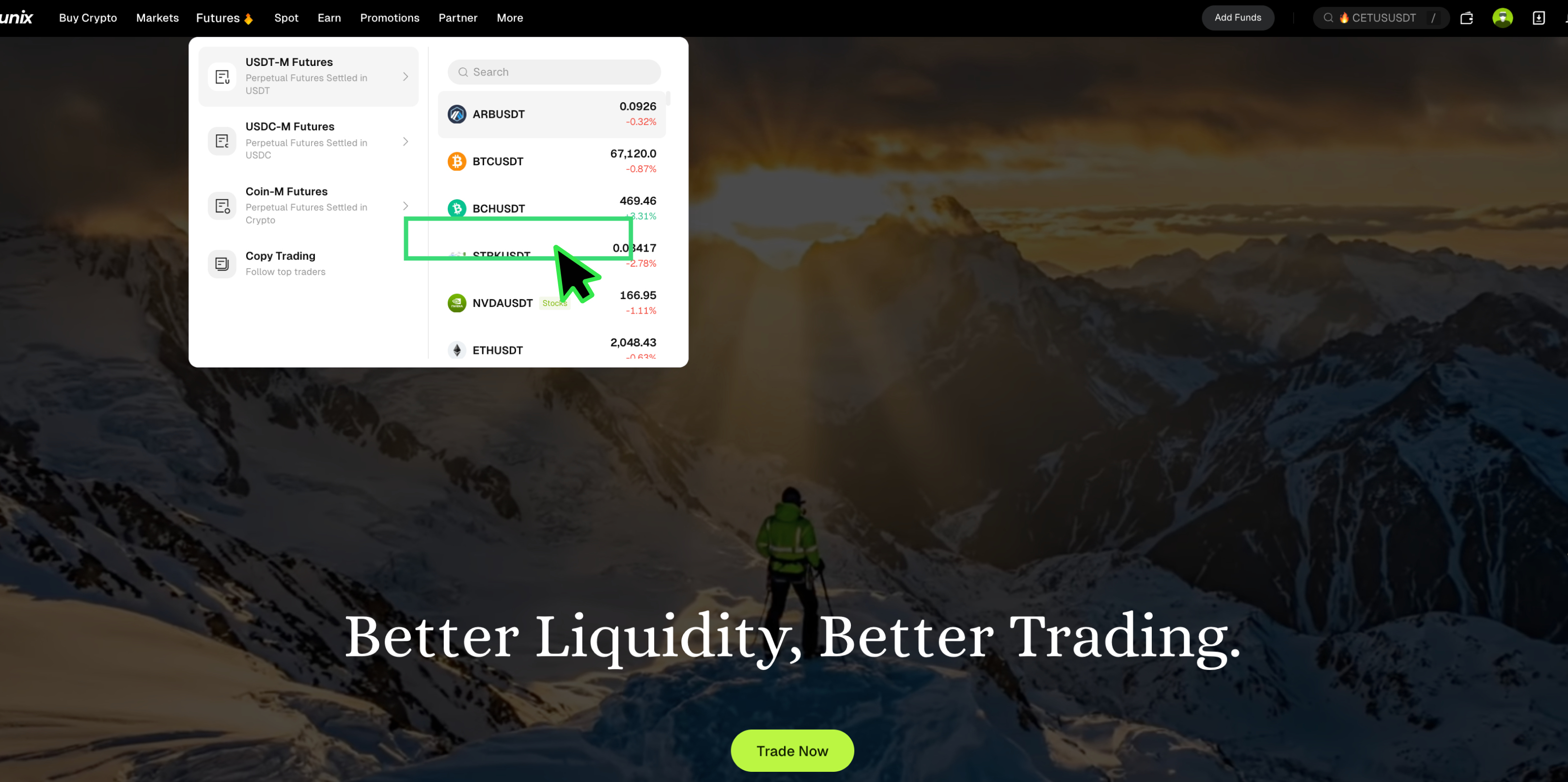
First, go to the Bitunix official website, click the Futures trading button, and select the trading pair you want from the drop-down menu. Click the pair to enter the futures trading page.
2. Enable Multi-Trade
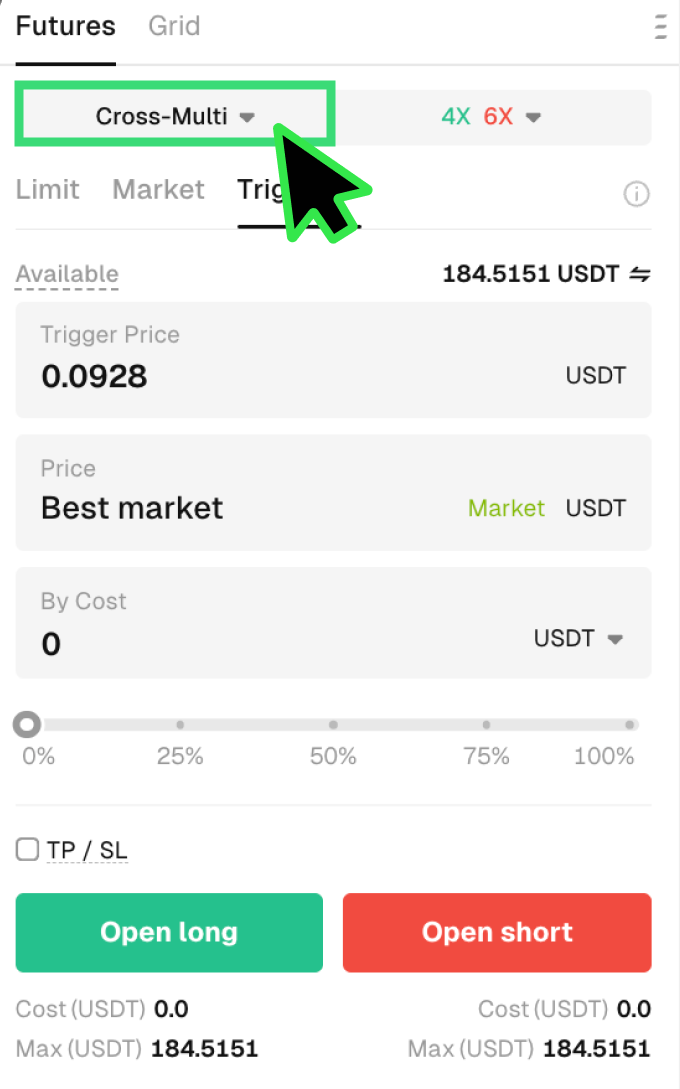
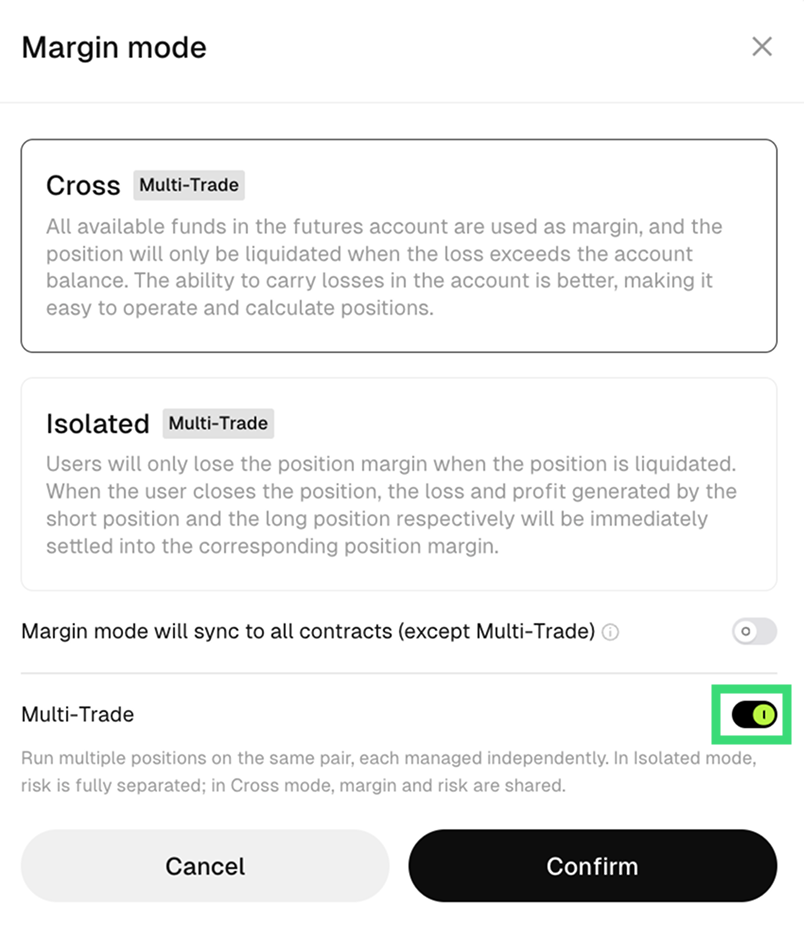
After entering the trading page, click the Cross/Isolated button in the panel on the right. The page will automatically open the Margin Mode menu. Click the Multi-Trade option at the bottom of the menu to enable Multi-Trade mode. In this mode, you can open multiple independent positions under the same trading pair. Each position can have its own take-profit and stop-loss settings, and the risk of each position is fully separated.
Please note that Isolated Multi-Trade and Cross Multi-Trade are different:
• Isolated Multi-Trade: The risk of each position is fully isolated and does not affect other positions.
• Cross Multi-Trade: Although each position can still be managed independently, different positions continue to share the same margin account.
3. Close a Futures Position
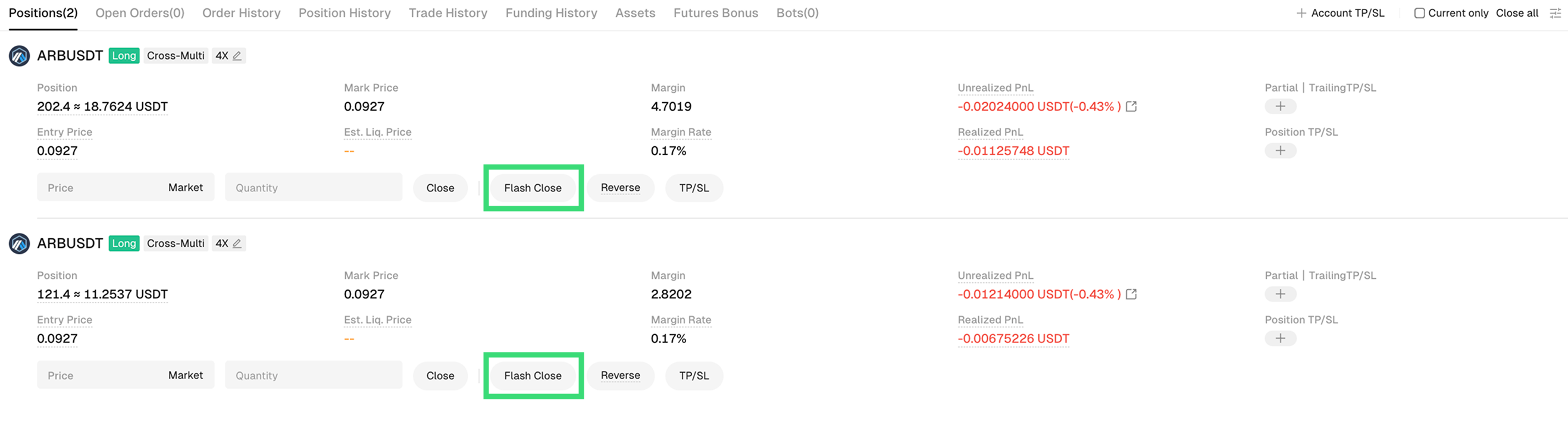
In Multi-Trade mode, each trade is independent. You can choose to close one futures position while keeping another position open. Click Close or Market Close All to close the selected futures position.
4. Important Restrictions and Rules
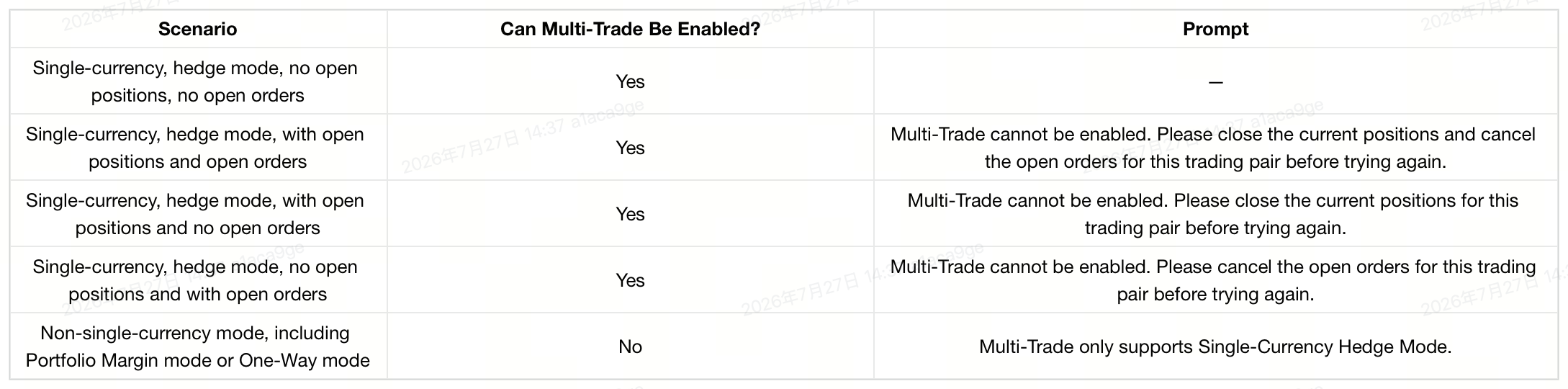
Conditions for Enabling Multi-Trade
Supported Order Types
In Multi-Trade mode, the order panel supports opening positions only and does not support closing positions. The Open/Close tab switch is hidden, and the panel defaults to Open Position mode.
Supported order types:
- Limit Order
• Market Order
• Trigger Order
• Trailing Order
• Stop-Loss-Based Position Sizing
Frequently Asked Questions (FAQ)
Does Multi-Trade mode support adding to a position?
No. Adding to an existing position is not supported in Multi-Trade mode. The system will display a message stating that Multi-Trade mode does not support the add-position function.
How are take-profit and stop-loss calculated in Multi-Trade mode?
The number of take-profit and stop-loss orders is limited by the size of the current position, and each position is calculated independently. Take-profit and stop-loss settings are not merged across positions.
How is realized PnL calculated in Multi-Trade mode?
Realized PnL is calculated separately for each position. It is not aggregated across positions, and each position’s profit and loss remains independent.
How is the liquidation price calculated in Multi-Trade mode?
Multi-Trade mode uses two different calculation methods:
• Isolated Multi-Trade: The liquidation price of each position is calculated independently and does not affect other positions.
• Cross Multi-Trade: The liquidation price is calculated based on the combined margin usage of all positions in the account, so it may differ from the merged-position mode.
Does the order panel support closing positions in Multi-Trade mode?
No. In Multi-Trade mode, the order panel only supports opening positions. The entry point for switching to the close-position tab is hidden, and the panel defaults to open-position mode.
What order types are supported in Multi-Trade mode?
The following order types are supported:
- Limit Order
• Market Order
• Trigger Order
• Trailing Order
• Stop-Loss-Based Position Sizing
What should I do if position data appears abnormal or positions are not visible in an older version of the app after enabling Multi-Trade?
This is usually caused by version compatibility issues and is considered normal behavior. Older versions of the app do not fully support the Multi-Trade feature, which may result in abnormal position data display or the inability to view positions. It is recommended that you update the app to the latest version. After upgrading, you will be able to view and manage all Multi-Trade positions normally.
What should I do if I cannot close a position in an older version of the app?
When you try to close a Multi-Trade position in an older version of the app, the system may block the action and prompt you to upgrade. Some versions will display an upgrade notice, while older versions may only show a generic error message. It is recommended that you update to the latest version before proceeding, or use the web version to close the position.
Disclaimer
This material is not intended to provide:
(i) investment advice or investment recommendations;
(ii) an offer or solicitation to buy, sell, or hold digital assets; or
(iii) financial, accounting, legal, or tax advice.
Holding digital assets, including stablecoins and NFTs, involves high risk and may fluctuate significantly. You should carefully consider whether trading or holding digital assets is suitable for you based on your financial situation. For your specific circumstances, please consult your legal, tax, or investment professional. You are solely responsible for understanding and complying with all applicable local laws and regulations.