

To help users complete crypto asset tax reporting more efficiently, Bitunix now supports importing transaction records via API through the third-party tax platform CoinTracking.
Users can access our tax product page (https://www.bitunix.com/taxes-api) or visit the service provider’s official website to import their transaction records.
Below are the detailed steps:
Step 1: Generate API Information on Bitunix
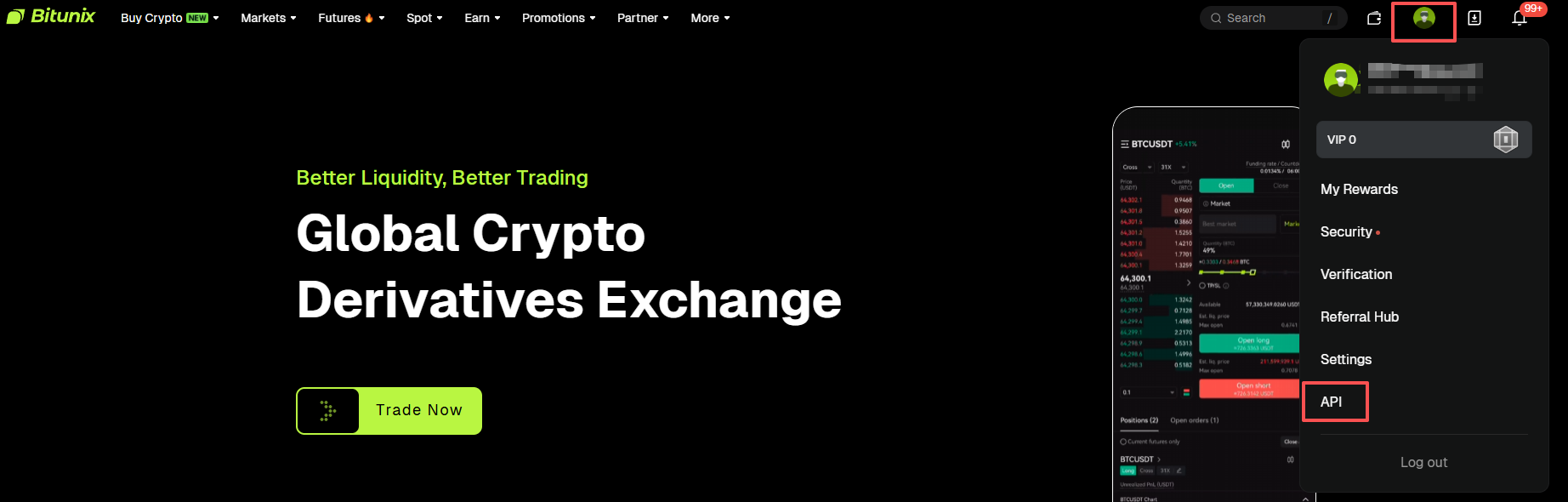
1、Log in to your Bitunix account, click your profile icon in the top right corner, and select "API Management" to enter the API management page.
2、Click the "Create API" button on the right.
3、On the "API Management" page, fill in the following information;And complete the security verification
- Note: It is recommended to input a name such as “CoinTracking”.
- Purpose: Choose "Bind Third-Party App".
- Permissions: Automatically select "Read-only".
4、 After completion, your API Key and Secret Key will be displayed. It is strongly recommended to copy and back them up in advance.
Step 2: Connect to CoinTracking
1、Log in to your CoinTracking account.
2、In the top menu, select "Enter Coins" > "Exchange Imports".
3、In the search box, type "Bitunix", or click on the link (https://cointracking.info/import/bitunix_api/) to go directly to the Bitunix API import page.
4、Fill in the following information:
- API Key: Copy the API Key generated in Step 1.
- API Secret: Copy the API Secret generated in Step 1.
- Select the type and filtering range, then click save.
5、After saving, CoinTracking will automatically import your transaction records from Bitunix. If the import does not occur automatically, you can click "Check Now" on the right to manually import the data.
6、Once the import is complete, click on "Tax Report" in the top menu to access the tax report page.
7、On the page below, select "Create a New Tax Report" Here, users can choose the tax reporting country, method, time range, and other relevant settings.
8、Click the "Generate Report" button at the bottom of the page and wait for the system to generate the report. Once the report is generated, you can view your tax report.
New to CoinTracking?
If you have not yet registered with CoinTracking, you can do so through Bitunix’s exclusive referral link (https://cointracking.info/?ref=BITUNIX) or by entering the referral code BITUNIX during registration. Upon successful registration, you will automatically receive a 10% discount on your first paid subscription, applicable to any of CoinTracking’s premium plans.
Risk Disclaimer:
Please note that cryptocurrency investments and transactions are subject to market risks, and tax laws may vary depending on your location. Bitunix recommends that you consult with a professional tax advisor to ensure compliance with your local regulations and to obtain personalized advice regarding your tax situation. Bitunix is not responsible for any errors or omissions related to tax filings or other financial decisions made based on the information provided.
Disclaimer
This article is not intended to provide:
(i) investment advice or recommendations;
(ii) an offer or solicitation to buy, sell, or hold digital assets; or
(iii) financial, accounting, legal, or tax advice.
Digital assets, including stablecoins and NFTs, are highly volatile and involve significant risk. Please carefully consider your financial situation and risk tolerance before trading or holding digital assets.
Consult your independent legal, tax, or investment professional to ensure that your actions comply with applicable local laws and regulations.