

How to Replace Google Authenticator on Bitunix App
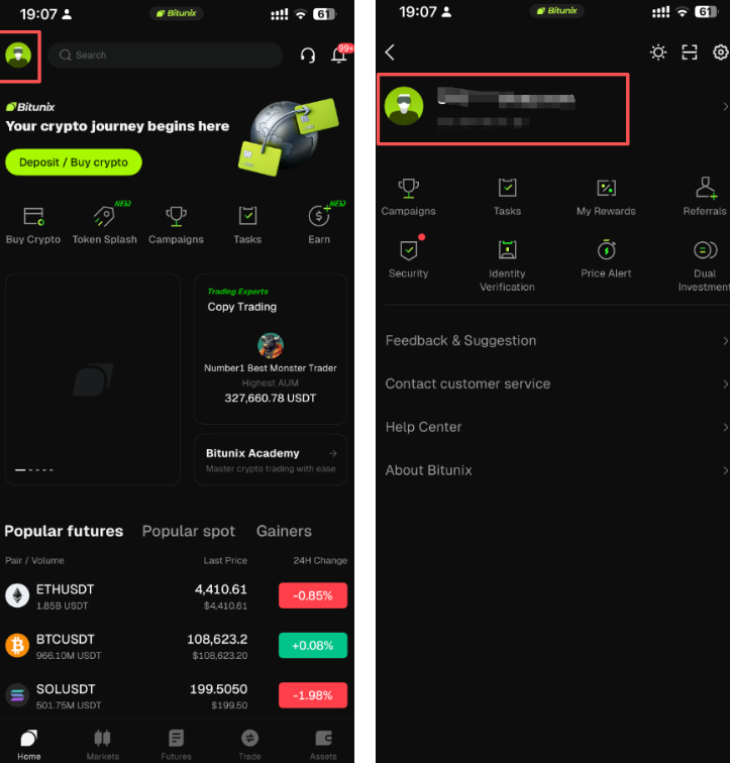
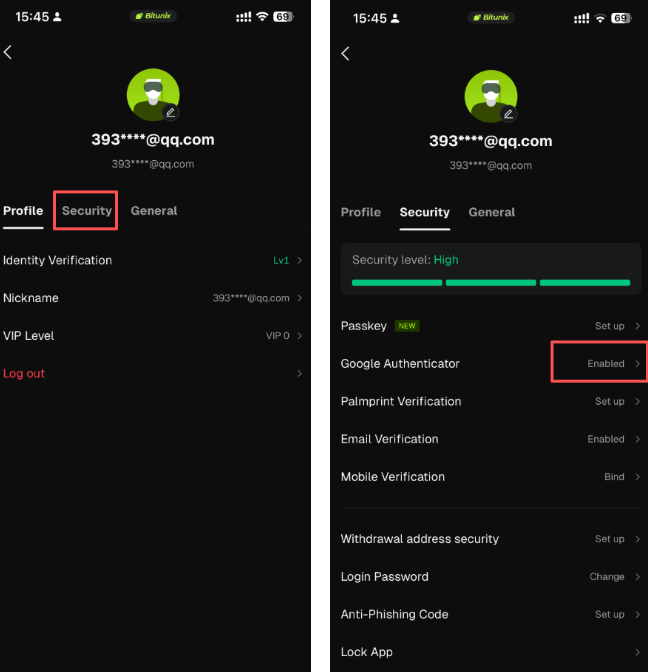
1、After logging in to the Bitunix App, tap [avatar] in the upper left corner, select [security], then tap [enabled] under Google Authenticator to open the verification page.
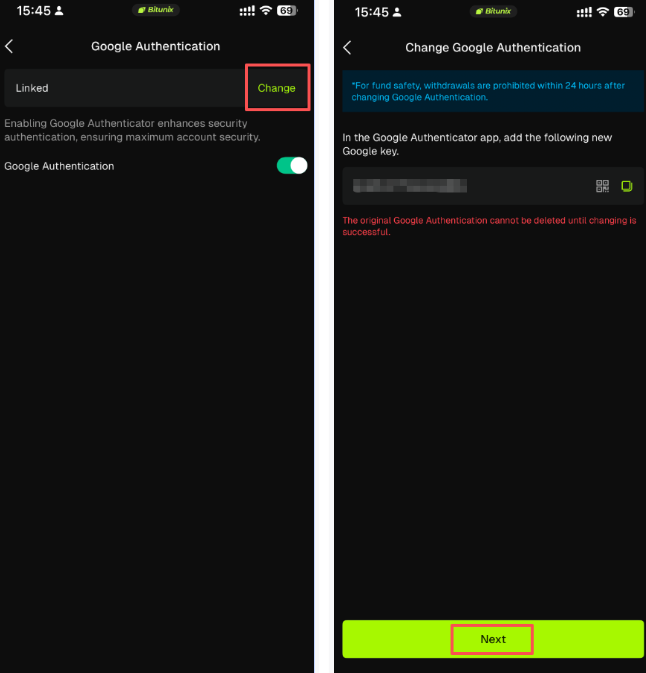
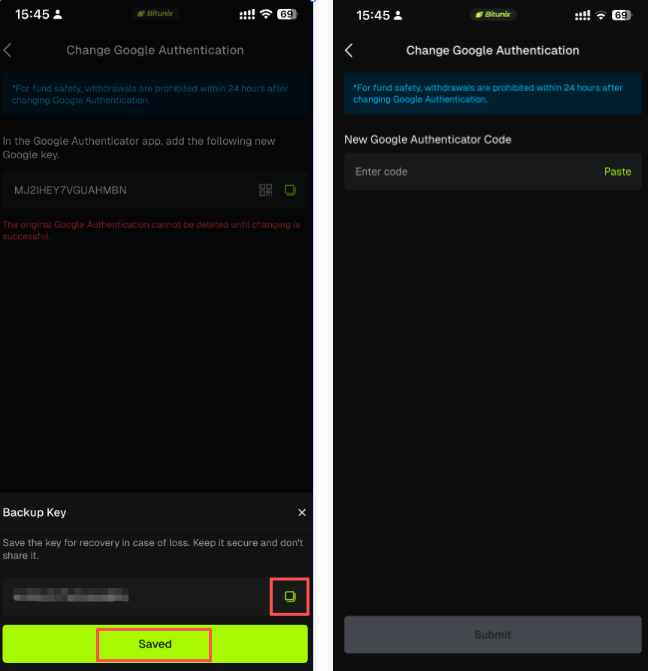
2、After entering the Google verification page, click [Change], then [Next], copy your key, and finally click [Saved] to complete binding with the new Google Authenticator.
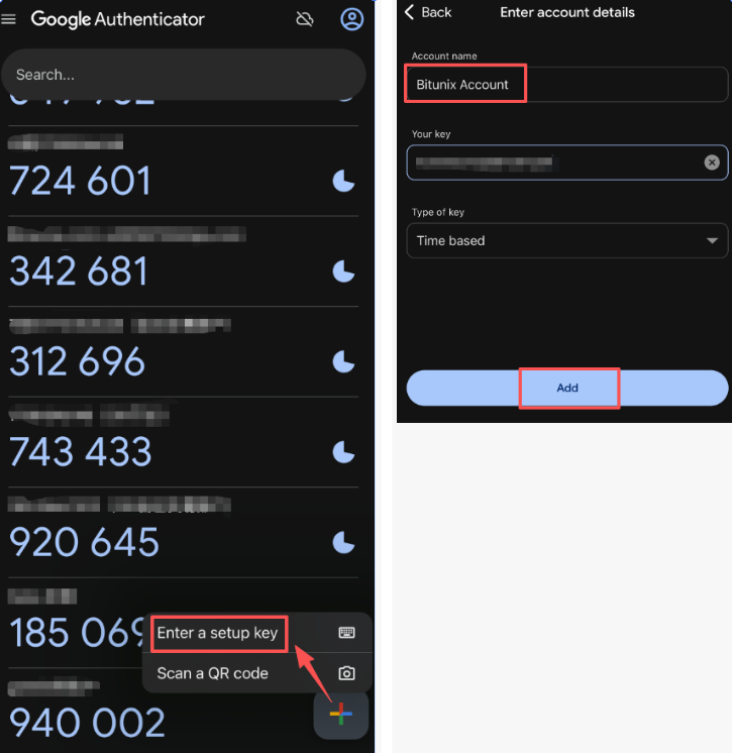
3、Open the Google Authenticator app
- Tap the "+" icon in the lower right corner of the screen.
- In the pop-up menu, select "Enter a setup key".
- In the "Account Name" field, enter a recognizable name (e.g., Bitunix Account).
- Paste the key you previously copied from the Bitunix platform into the "Your key" input field.
- After verifying the details, click Add to successfully bind the new Google verification.
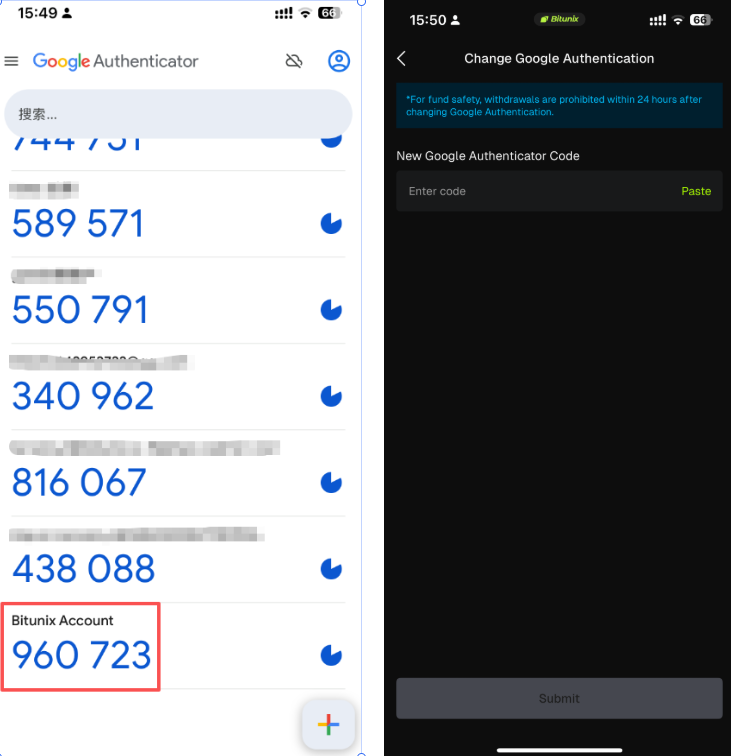
4、Return to the Bitunix App, enter the current valid 6-digit Google Authenticator code in the text box, then click [Submit] to complete the security verification and bind the new Google Authenticator.
How to Disable Google Authenticator on Bitunix App
1、After logging in to the Bitunix App, tap [avatar] in the upper left corner, select [security], then tap [enabled] under Google Authenticator to open the verification page.
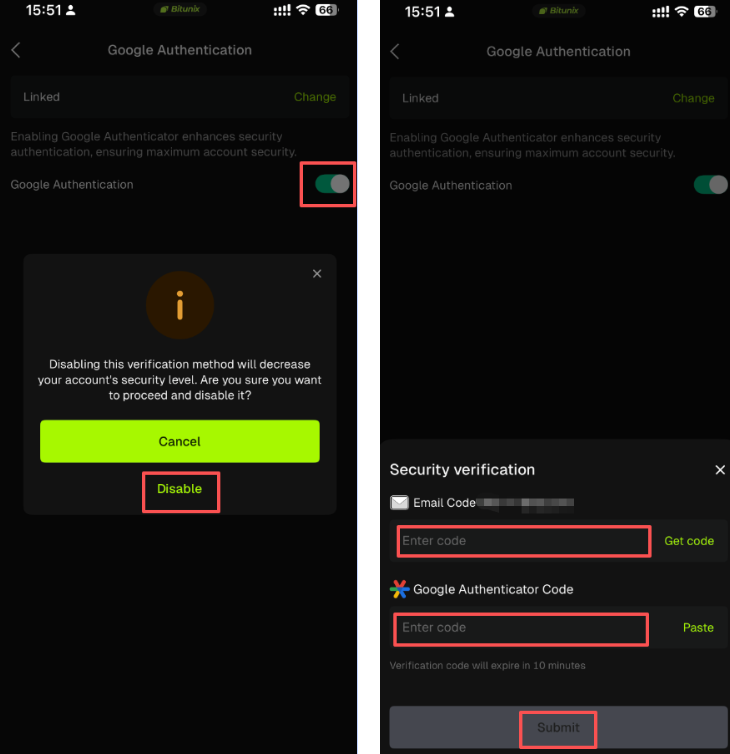
2、On the Google verification page, toggle the switch, click [Disable], then enter both the [Email verification code] and the [Google Authenticator code] before clicking [Submit] to complete the process.
Note:
If you remove the Google Authenticator app from your Bitunix account without enabling another verification method, you will not be able to operate your account. The Google Authenticator is required for login, withdrawals, password changes, and security settings. If you cannot frequently receive text messages or email verification codes, it is strongly recommended to keep Google Authenticator bound. If you receive repeated prompts that the Google verification code is incorrect, please check and adjust your phone’s time settings. Your account must always have at least one active security verification method enabled, such as email, mobile phone, or Google Authenticator.
Disclaimer
This article is not intended to provide:
(i) investment advice or investment recommendations;
(ii) an offer or solicitation to buy, sell, or hold digital assets; or
(iii) financial, accounting, legal, or tax advice.
Digital assets (including stablecoins and NFTs) involve high risk and may be highly volatile. You should carefully consider whether trading or holding digital assets is suitable for you based on your financial situation. For your specific circumstances, consult your legal, tax, or investment professionals. You are responsible for understanding and complying with all applicable local laws and regulations.