

1. Quick Overview
| Dimension | Standard Trading Page | PC Ultra (Chart Mode) |
|---|---|---|
| Primary Focus | Charts and the order book share the main decision-making area. | The candlestick chart takes up the main decision-making area, with greater emphasis on market analysis. |
| Order Entry | Located to the right of the chart. | Fixed on the right side of the page, displayed alongside the chart. |
| Order Book / Depth | Permanently visible in the main decision-making area. | Secondary view that can be opened when needed. |
| Frequently Used Tools | Distributed across the main interface. | Consolidated in the right-side toolbar and available through an expandable panel. |
| Fees & Execution | — | No additional trading fees. Execution, settlement, and risk management follow the same logic as the Standard Trading Page. |
| Positions / Open Orders | — | Switching layouts does not affect existing positions or open orders. |
| Activation | — | The layout and interface can be switched instantly, while the Standard Trading Page remains available. |
| Platform Relationship | Standard Web layout. | Part of the same chart-based trading experience as the App's K-Line Ultra. The layout and interactions are subject to the version available on each platform. |
| Official Access | Bitunix Official Website | — |
2. Product Definition
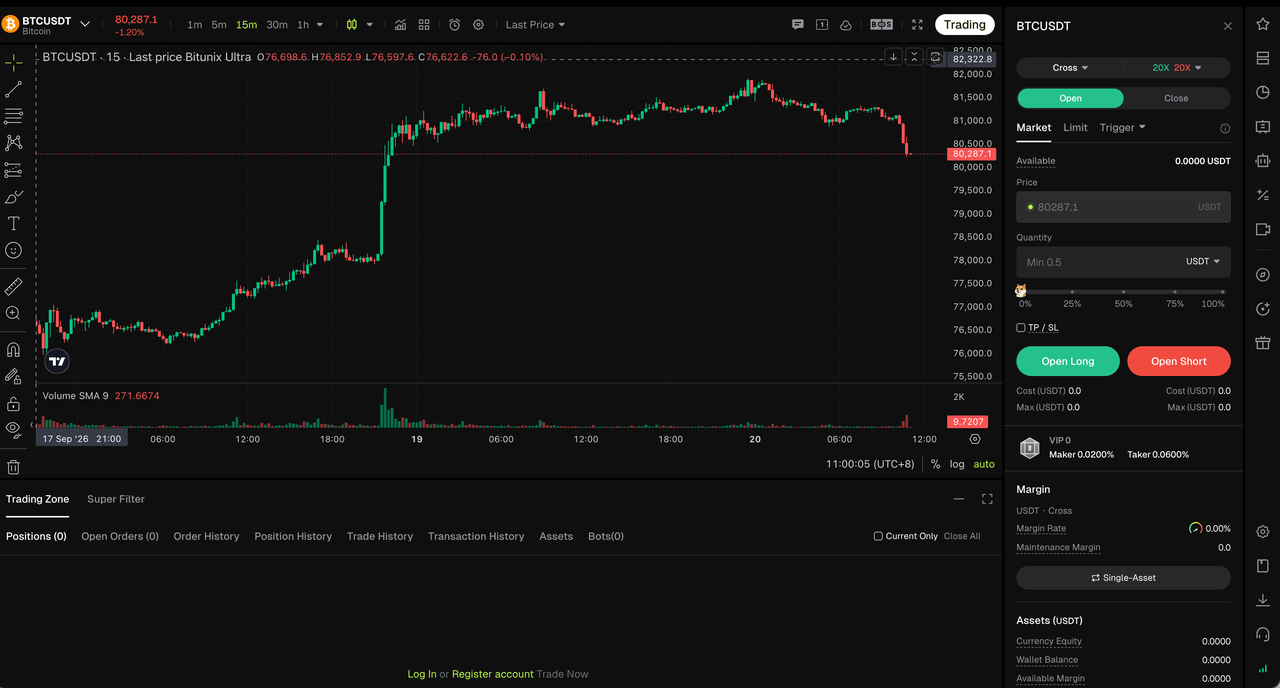
PC Ultra, also known as Ultra Chart Mode, is a chart-first trading layout introduced by Bitunix for the Web platform. It puts the candlestick chart at the center of the trading interface and brings market analysis, order placement, position management, and take-profit/stop-loss displays together on a single trading page. The main chart occupies the primary decision-making area, while the order entry panel remains fixed on the right. The order book, market depth, and other tools can be expanded when needed, reducing the need to switch between pages while retaining the full range of trading capabilities.
This upgrade only changes the page layout and interactions and does not affect the underlying execution, settlement, or risk management logic. The existing Standard Trading Page remains available, allowing users to choose between the Standard Trading Page and PC Ultra based on their preferred trading setup.
Core Capabilities Overview
| Feature | Description |
|---|---|
| Chart-First Layout | Prices, indicators, orders, positions, and take-profit/stop-loss levels can be displayed directly on the chart, making it easier to incorporate market conditions into trading decisions. |
| Chart and Order Entry on One Screen | Monitor the market and place orders from the right-side panel without repeatedly switching between the chart and order entry pages. |
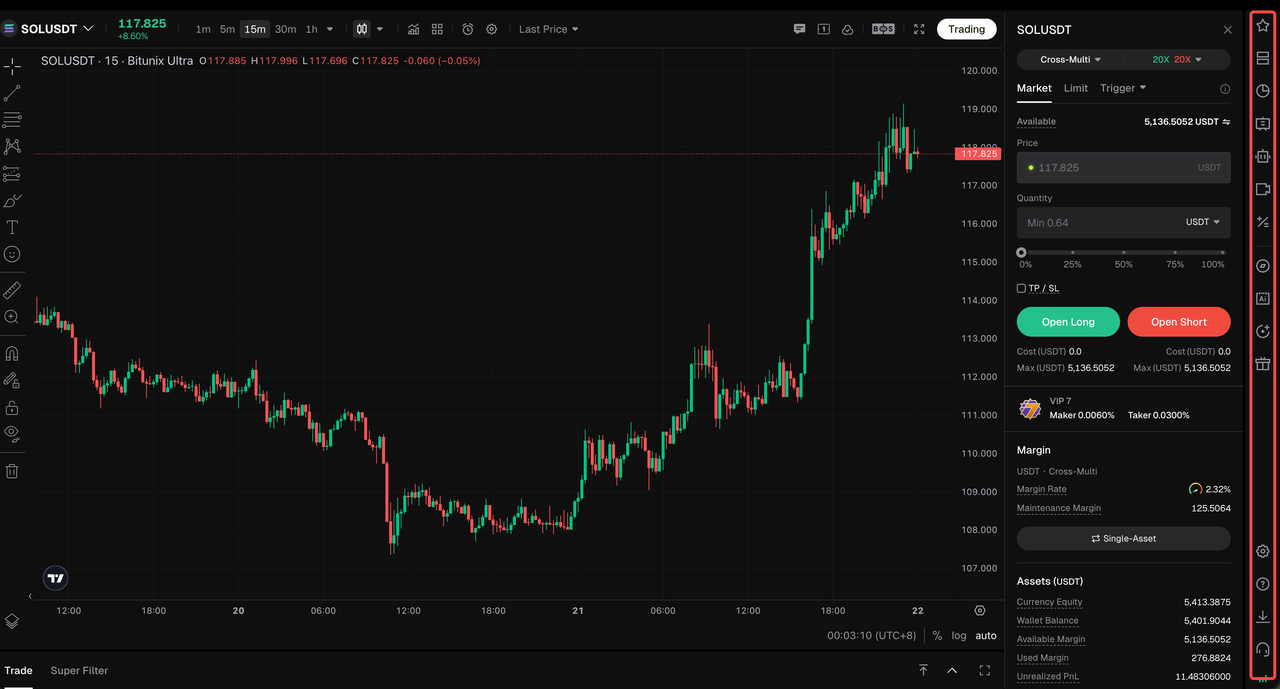
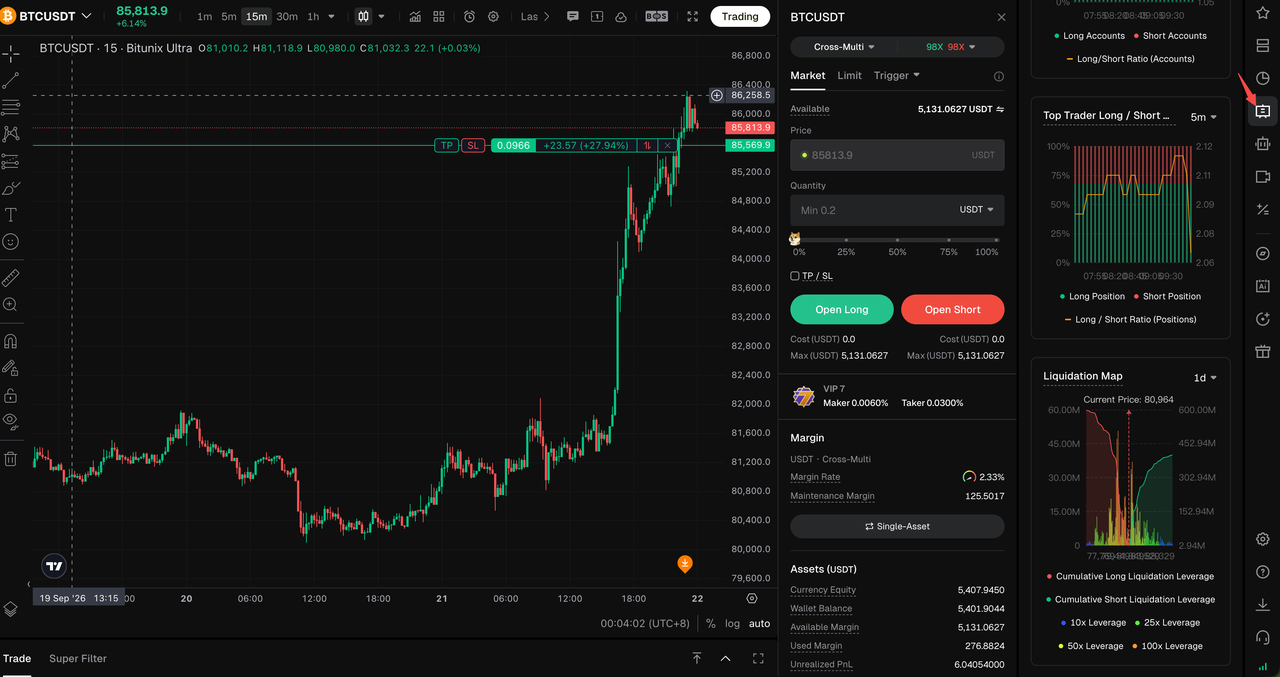
| Right-Side Toolbar | Frequently used functions such as Favorites, Layout, Timeframe, Custom Panels, and Settings are organized vertically. Only icons are displayed by default, with additional options available in an expandable drawer. |
| Favorites List | Displays favorited trading pairs in the sidebar, allowing users to switch between pairs without leaving the current chart. This list uses a separate data source from the Watchlist and is linked to favorites saved through Super Filter. |
| Live Streaming / Content Components | Custom Panels support live streams, image cards, and video cards, allowing content to be displayed alongside the market chart. |
Typical Use Cases
| Use Case | Benefit |
|---|---|
| In-Depth Chart Analysis | With multiple indicators, drawing tools, and multiple timeframes, the larger chart area makes it easier to analyze market structure and identify key levels. |
| Quick Order Entry from the Chart | Place an order on the same page after confirming an entry, while viewing orders, positions, and take-profit/stop-loss levels directly on the chart. |
| Monitoring Multiple Trading Pairs | Switch between favorited trading pairs from the sidebar to monitor multiple markets more efficiently. |
| Market Data and Content on One Screen | Place live streams, image content, and video content alongside the chart to reduce the need to switch between multiple windows. |
3. How to Use PC Ultra
3.1 Access PC Ultra and Explore the Layout
| Area | Standard Trading Page | PC Ultra |
|---|---|---|
| Main Chart | Shares part of the main decision-making area with the order book and market depth. | Occupies the primary decision-making area, with greater emphasis on market analysis. |
| Order Entry | Located to the right of the chart. | Fixed on the right side of the page and displayed alongside the chart. |
| Order Book / Market Depth | Located in the main decision-making area. | Moved to a secondary area and can be opened when needed. |
| Frequently Used Tools | Distributed across the main interface. | Consolidated in the right-side toolbar. |
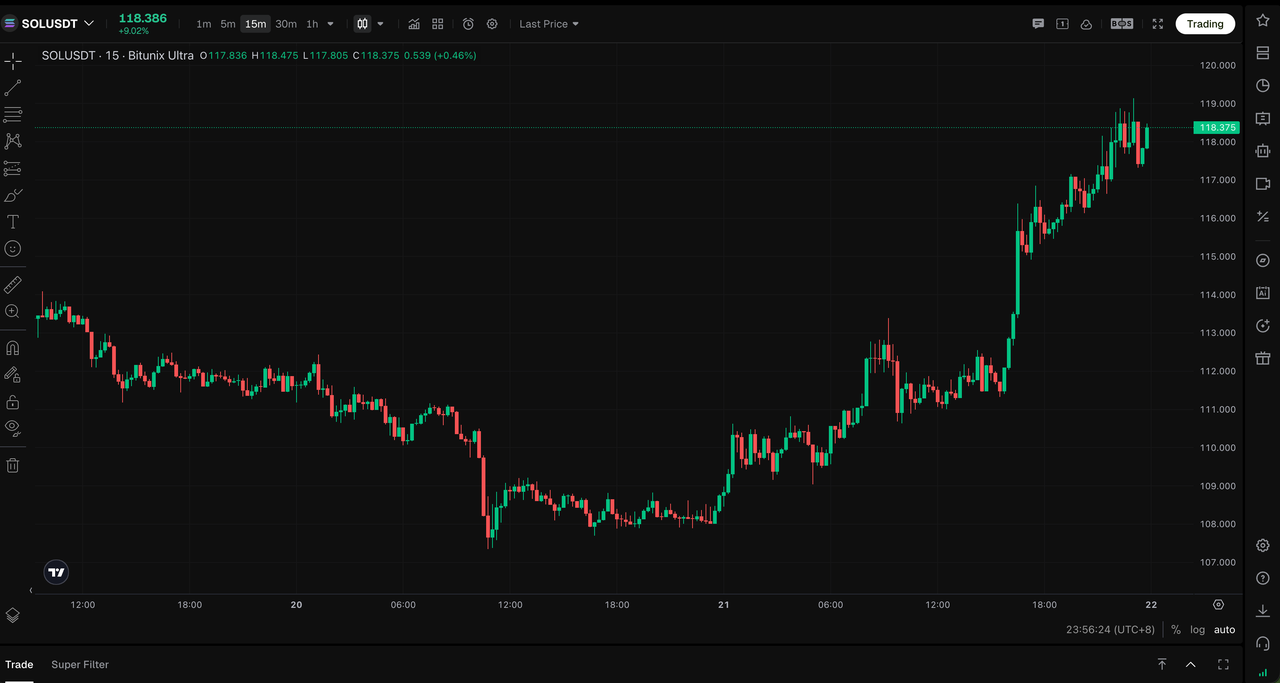
PC Ultra centers the trading interface around the chart while retaining order entry and position management capabilities. Additional tools can be expanded from the right-side toolbar when needed and collapsed when no longer in use.
Standard Trading Layout
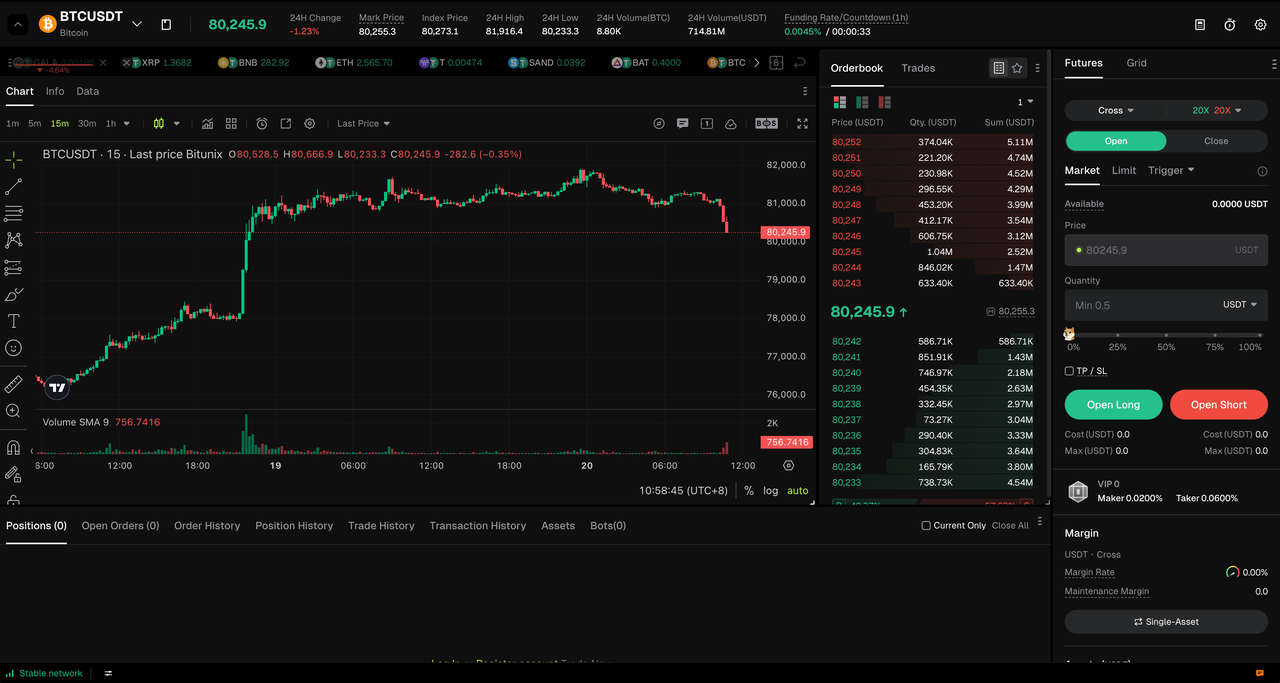
PC Ultra Layout
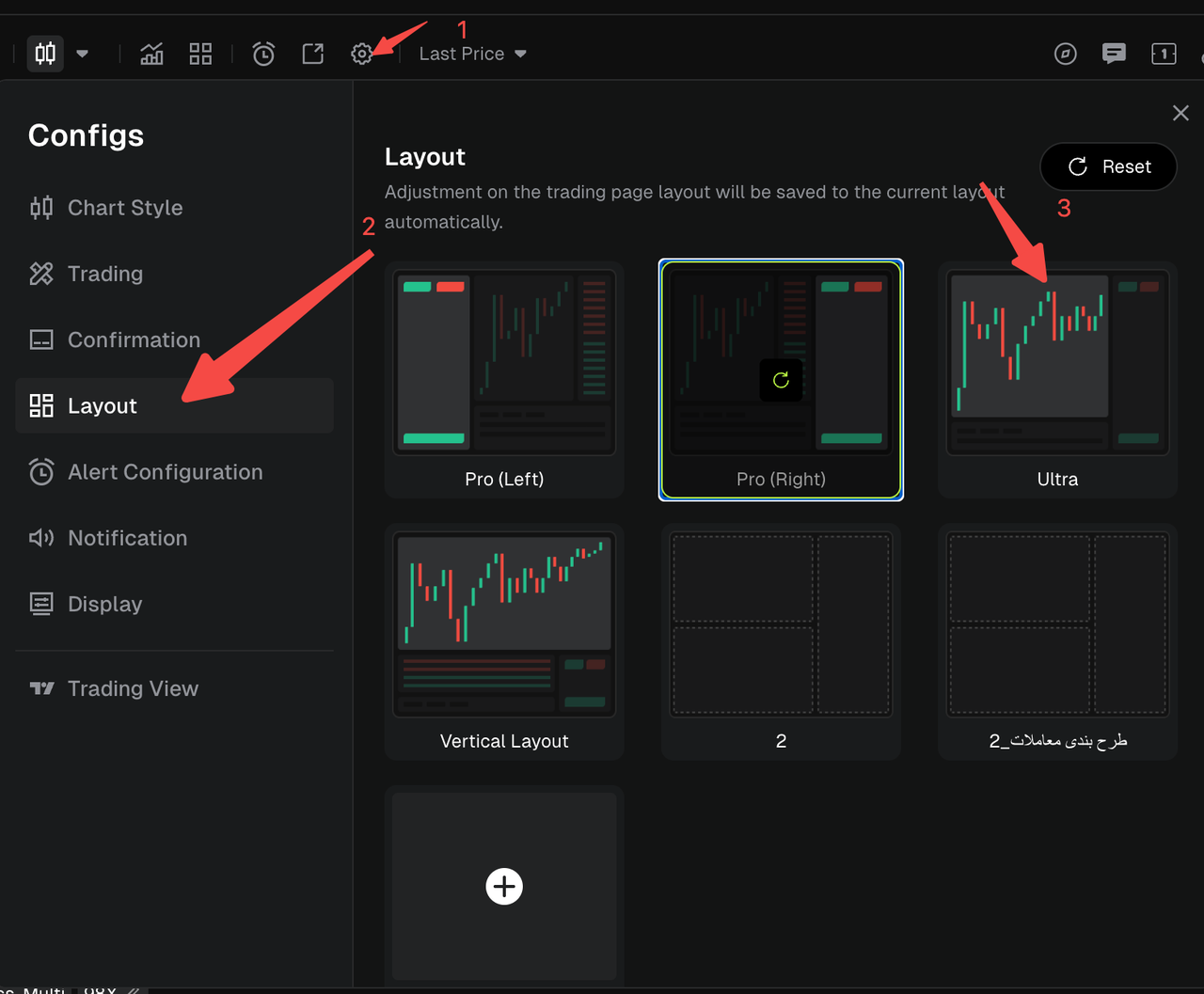
3.2 Chart and Order Entry (Trading on the Same Screen)
- In Trading Settings, go to Layout Settings and select PC Ultra.
- Once enabled:
The main area displays the candlestick chart.
The order entry panel remains fixed on the right.
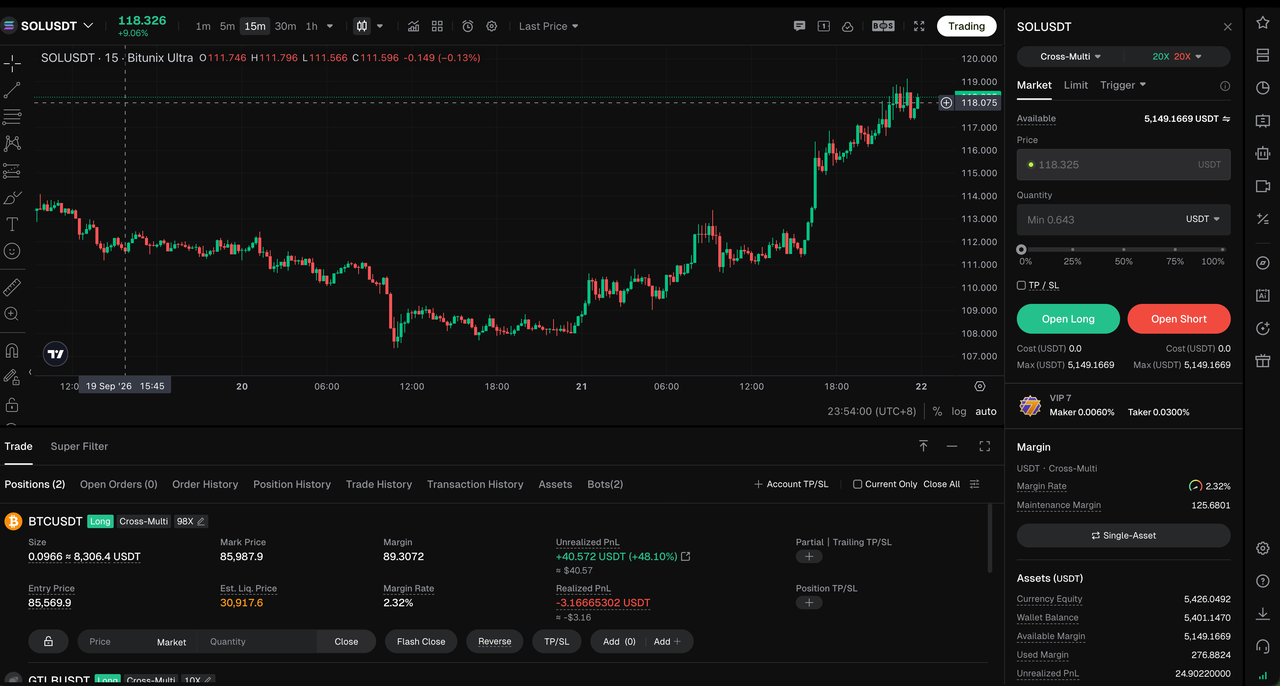
- Use the main chart to analyze timeframes, indicators, and other market data.
- Use the right-side order entry panel to configure the order type, quantity, leverage, and other order parameters. Trading capabilities are consistent with the Standard Trading Page, subject to the features available in the live version.
- View orders, positions, and take-profit/stop-loss information directly on the chart when the corresponding features are enabled.
3.3 Keyboard Shortcuts
| Shortcut | Function |
|---|---|
| Esc | Enter Immersive Chart Mode |
| Space | Open or close the Trading Panel |
| ↑ / ↓ | Move the Order List up or down |
3.4 Right-Side Toolbar
1.Locate the vertical toolbar on the right side of the page. By default, only the icons are displayed.
2.Click the desired icon to open the corresponding panel in an expandable drawer (such as the Data panel).
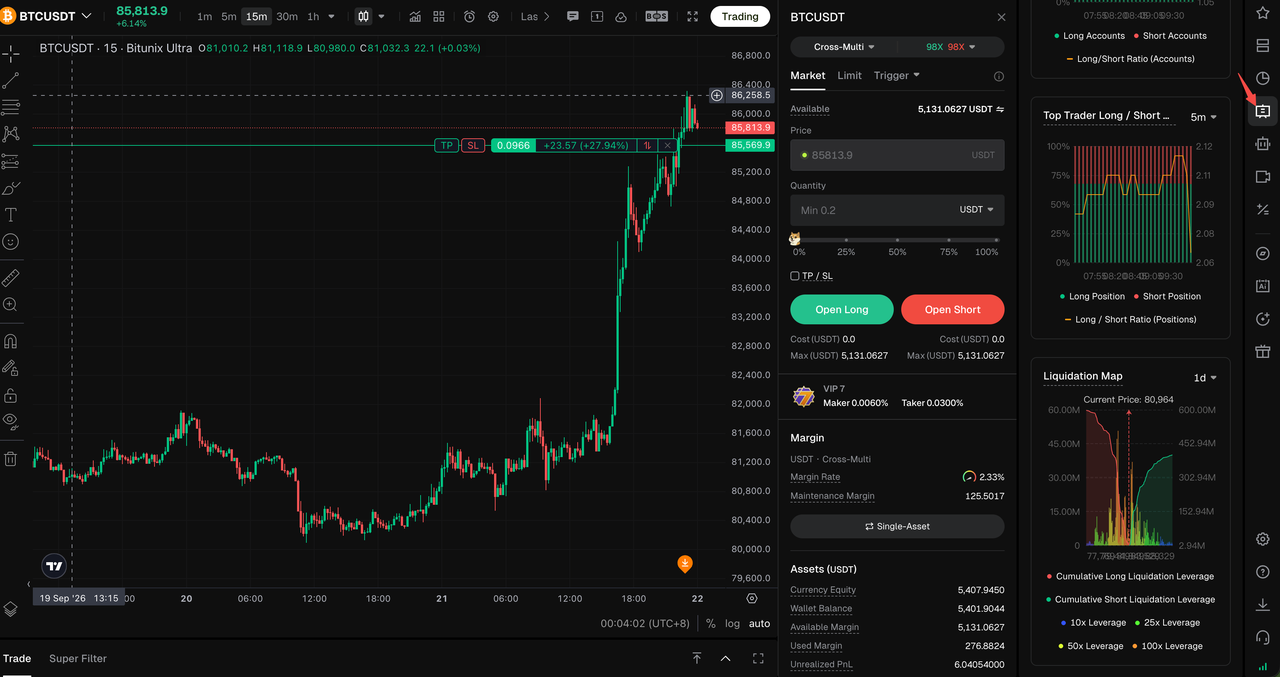
3.Collapse the panel when finished to restore more space for the chart.
3.5 Favorites List (Quickly Switch Between Trading Pairs)
1.Click the Favorites icon in the toolbar.
Note: The list displays favorites saved through Super Filter and is separate from the Watchlist.
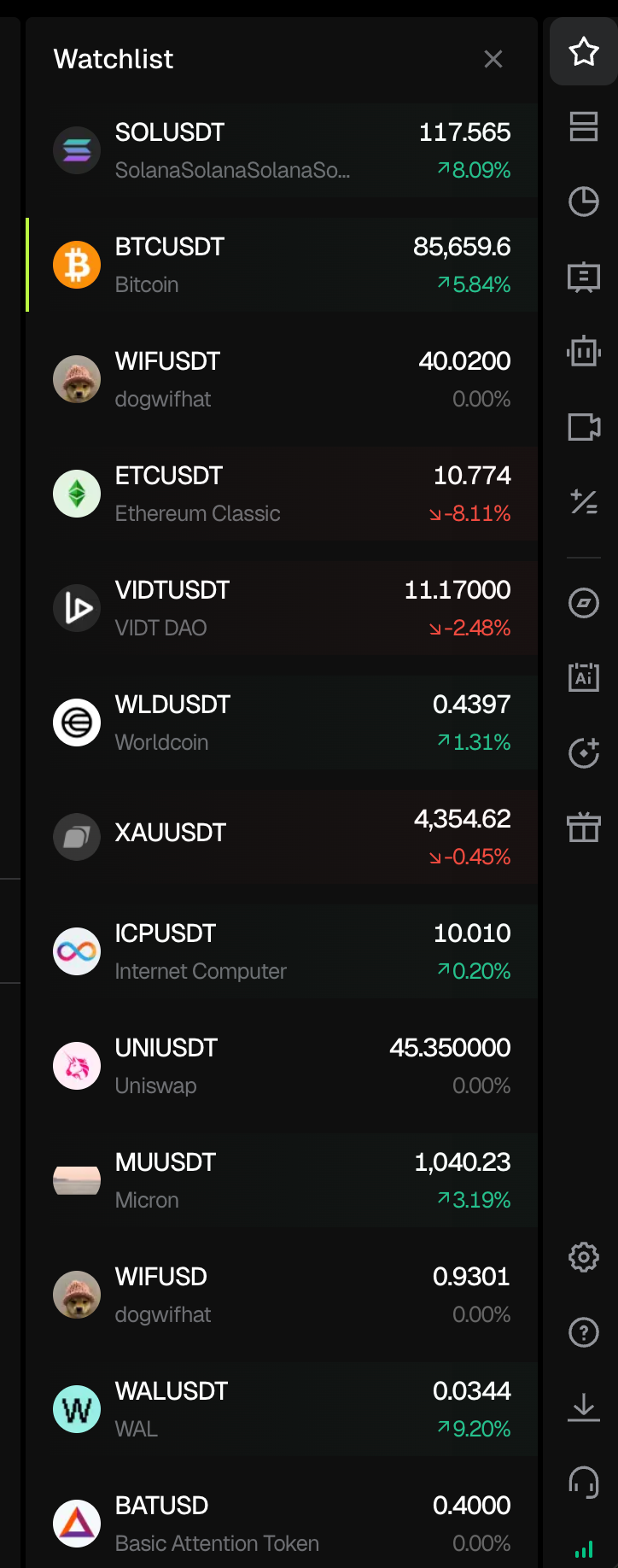
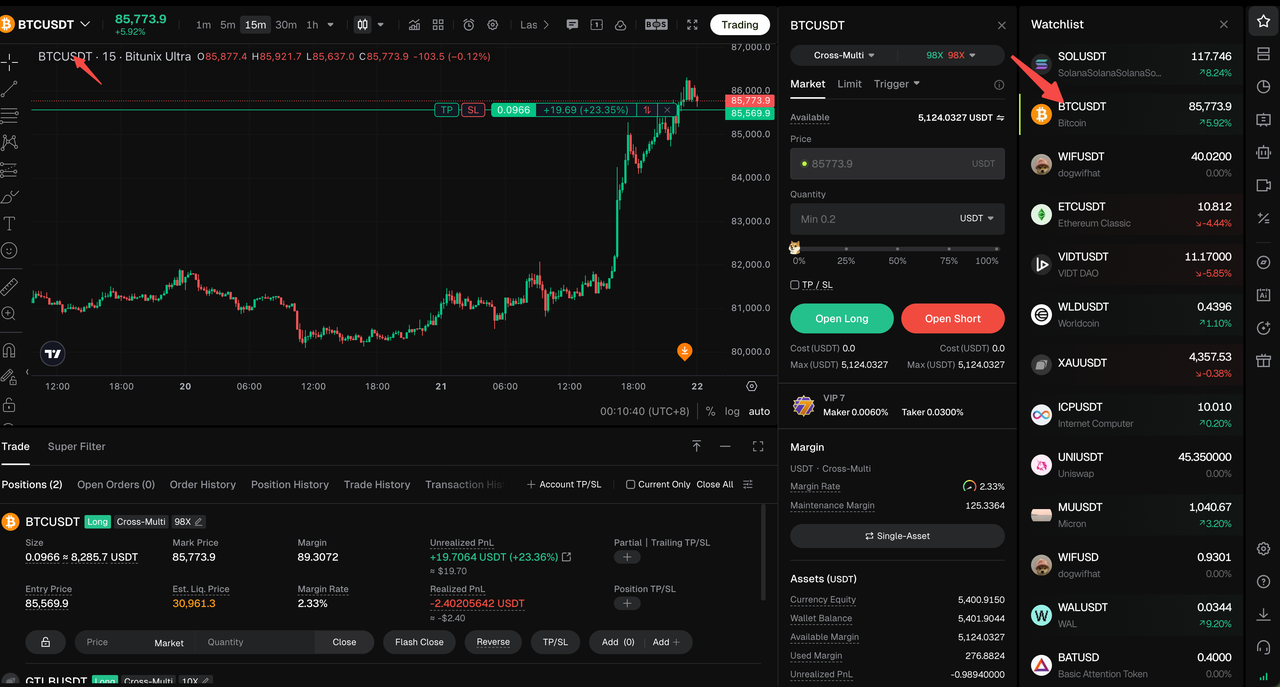
2.Click the desired trading pair in the sidebar next to the chart to instantly switch the market displayed on the main chart.
After switching, continue analyzing the market and placing orders on the same page, without navigating to the market list.
3.6 Custom Panels and Live Streaming Components
Step 1: Click the Custom Panels entry in the right-side toolbar.
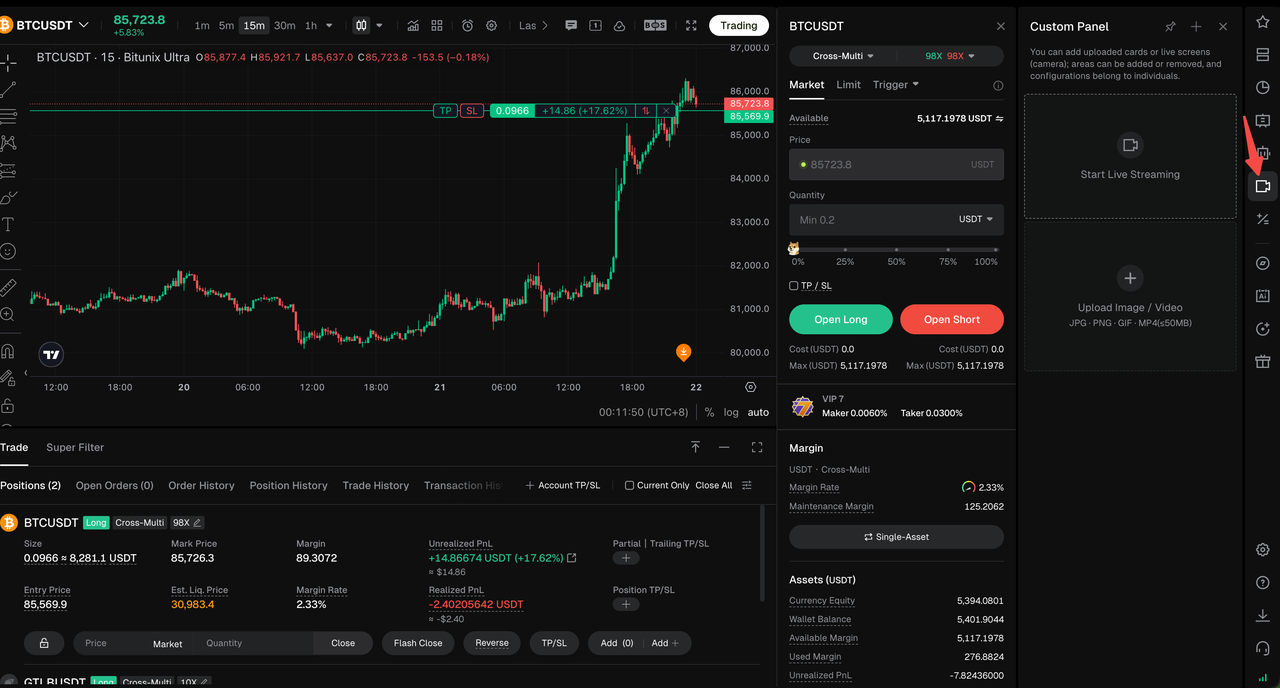
Step 2: Add content areas as needed. The following content types are currently supported:
| Item | Description |
|---|---|
| Supported Content | Live streams, image cards, and video cards |
| Area Configuration | Content areas can be added or removed. You can configure up to one live stream and two image cards for display. |
| Configuration Scope | Saved at the account level |
| Display Position | Displayed alongside the main chart without covering the chart area |
Step 3: Add or remove content areas as needed.
Step 4: After saving the configuration, the content is displayed alongside the main chart without covering the candlestick chart area.
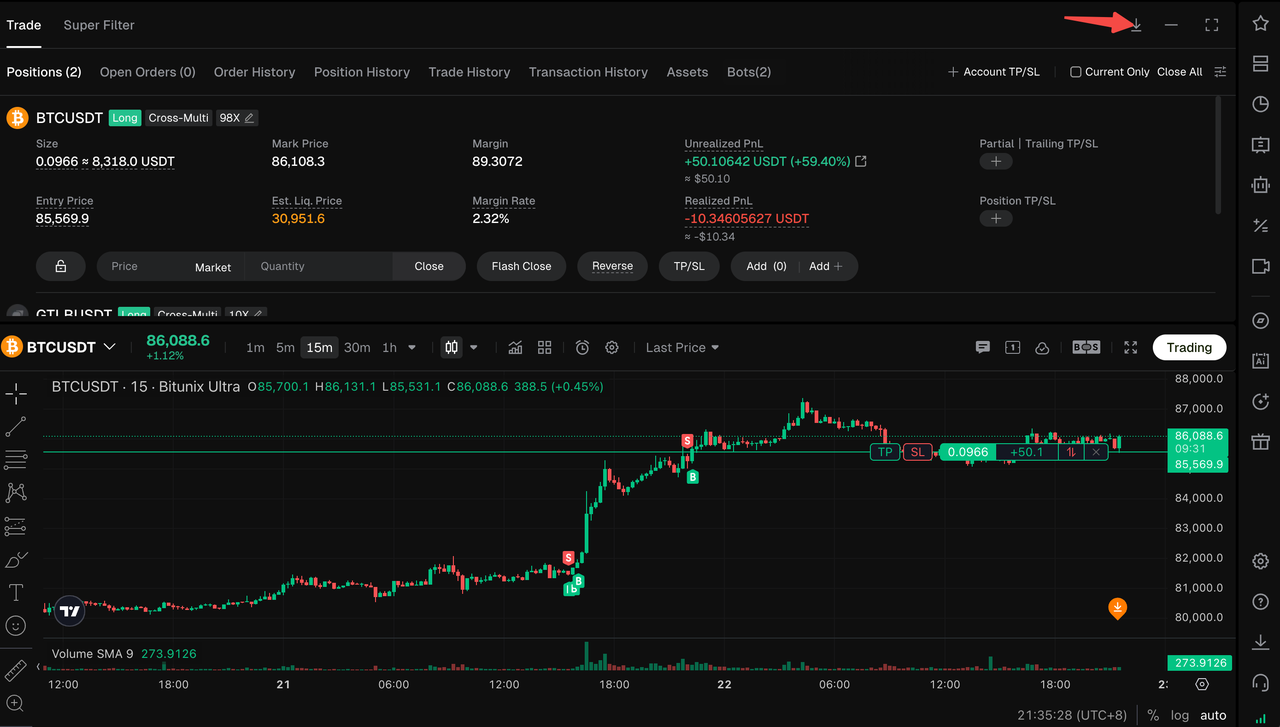
3.7 Position List Placement
Step 1: Click the Up button to move the Position List above the candlestick chart area.
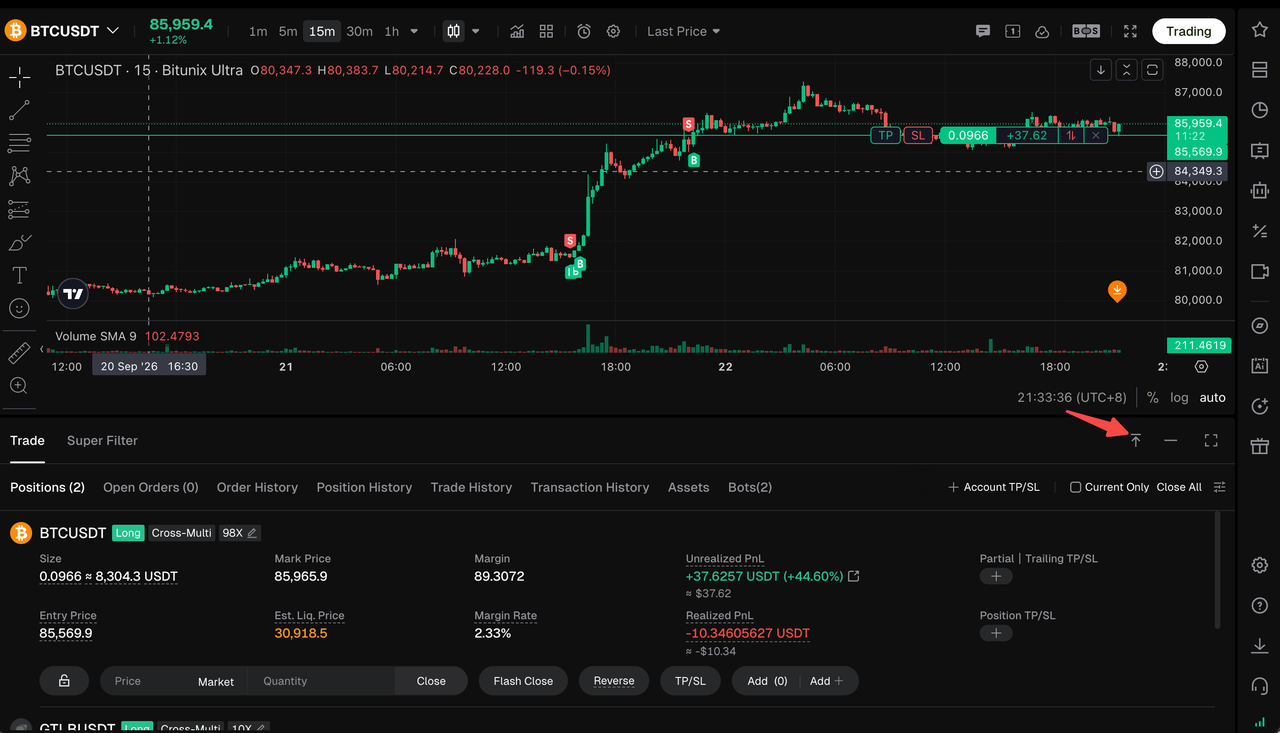
Step 2: After switching, the Position List will be displayed above the chart.
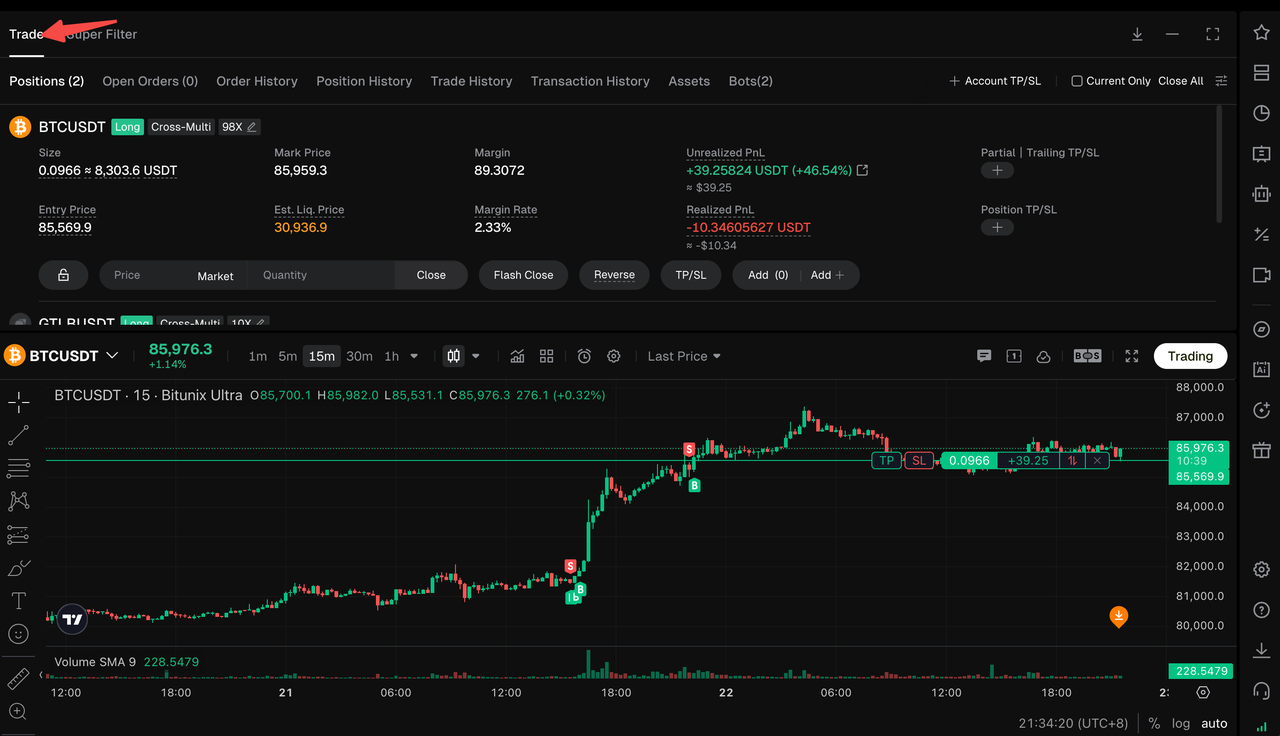
Step 3: To return the Position List to its original position, click the corresponding button again to restore the previous layout.
4. PC Ultra Video Walkthrough
FAQ
Q1: What is the difference between PC Ultra and the Standard Trading Page?
A: The main difference is the page layout. PC Ultra centers the interface around the candlestick chart, keeps the order entry panel fixed on the right, and moves the order book, market depth, and frequently used tools to on-demand panels.
Q2: Will switching to PC Ultra affect my existing positions or open orders?
A: No. PC Ultra only changes the page layout and interaction experience. It does not change the underlying logic for orders, positions, execution, or risk management.
Q3: Why can't I see the order book and market depth on the default page?
A: The order book and market depth have been moved to secondary areas and can be opened when needed, preventing them from continuously taking up space in the main chart area.
Q4: How can I quickly switch between different trading pairs?
A: Open the Favorites List from the right-side toolbar and click a favorited trading pair to switch the market displayed on the main chart.
Q5: Will the live streaming components cover the candlestick chart?
A: No. Live streams, image cards, and video cards are displayed alongside the main chart and do not cover the candlestick chart area.
Q6: Are PC Ultra and App K-Line Ultra the same?
A: They are different terminal implementations within Bitunix's chart-based trading system. PC Ultra is available on the Web platform, while K-Line Ultra is available on the App. The specific layout and features are subject to the version available on each platform.
Disclaimer
This article is not intended to provide:
(i) investment advice or recommendations;
(ii) an offer or solicitation to buy, sell, or hold digital assets; or
(iii) financial, accounting, legal, or tax advice.
Digital assets, including stablecoins and NFTs, are highly volatile and involve significant risk. Please carefully consider your financial situation and risk tolerance before trading or holding digital assets.
Consult your independent legal, tax, or investment professional to ensure that your actions comply with applicable local laws and regulations.