

Why Is Identity Verification Required?
Bitunix aligns its compliance framework with international standards established by the Financial Action Task Force (FATF) and applicable Anti-Money Laundering and Counter-Terrorist Financing (AML/CFT) requirements. To meet these standards, Bitunix implements Know Your Customer (KYC) and Customer Due Diligence (CDD) procedures to verify customer identities and mitigate financial crime risks.
As part of its risk-based compliance framework, Bitunix conducts ongoing monitoring of customer transactions and periodic reviews of customer information, where appropriate.
Accordingly, users are required to complete identity verification, respond to additional information requests, and undergo further Customer Due Diligence (CDD) or Enhanced Due Diligence (EDD) procedures when necessary.
Without identity verification, an account is usually restricted from full access to features on Bitunix. Completing identity verification unlocks:
- Deposits and Withdrawals: Unlock access to deposit and withdrawal services.
- Fiat and Payment Services: Access Fiat, P2P, credit/debit card purchases, and other payment services.
- Advanced Features: Unlock additional Bitunix products, services, and platform features.
What to prepare before KYC
- A valid original ID: driver’s license, ID card, residence permit, or passport
- Clear front and back photos (JPG, PNG, HEIC, or WEBP, max 20 MB each)
- A camera (computer or phone) for the liveness check
- Good lighting; face in the frame; no hat, glasses, or mask
Step-by-Step Guide: Complete Basic KYC Verification
Step 1 — Open Verification
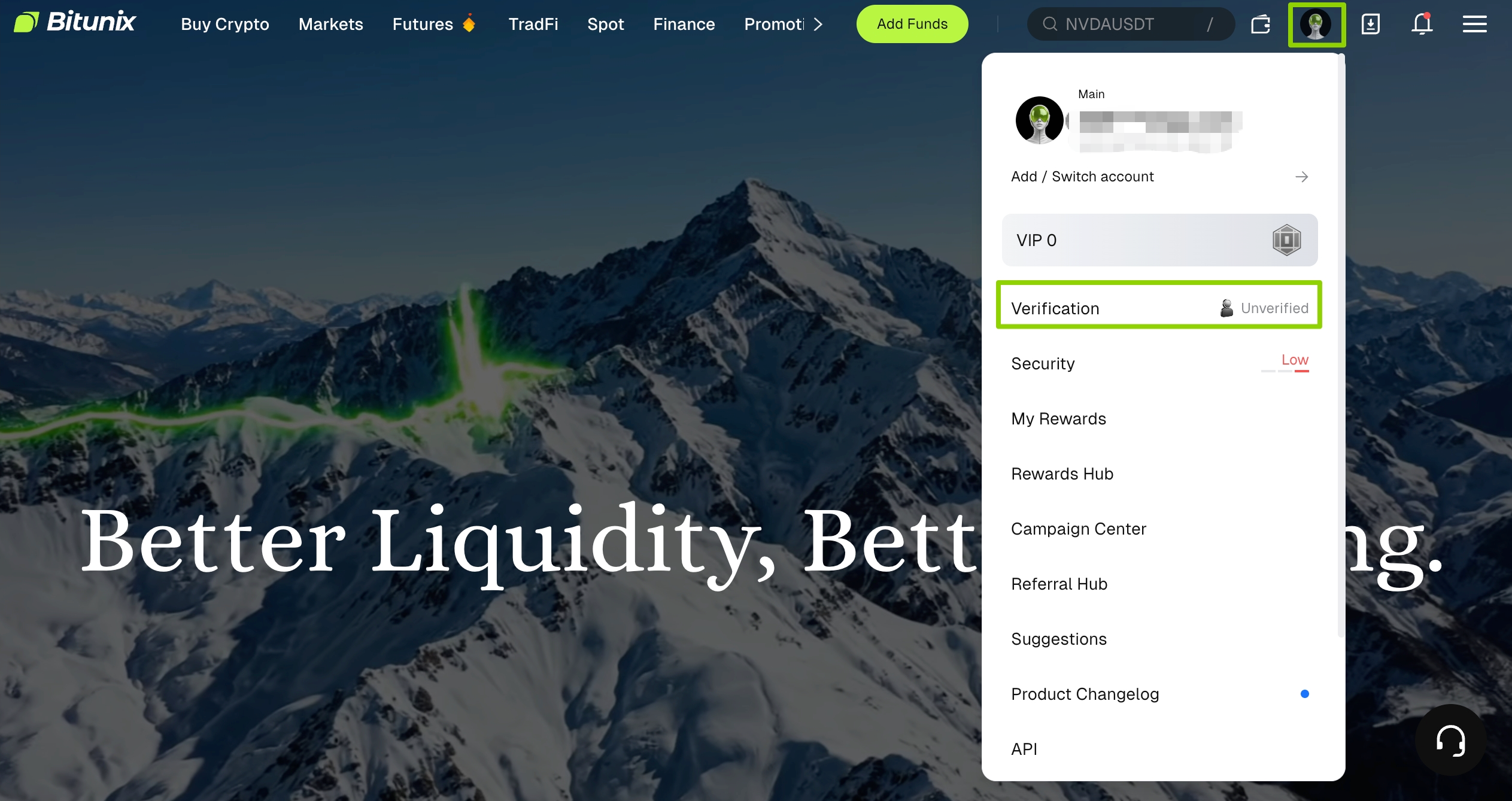
Log in at Bitunix. Click the profile icon at the top right, then click Verification (status: Unverified).
Step 2 — Start verification
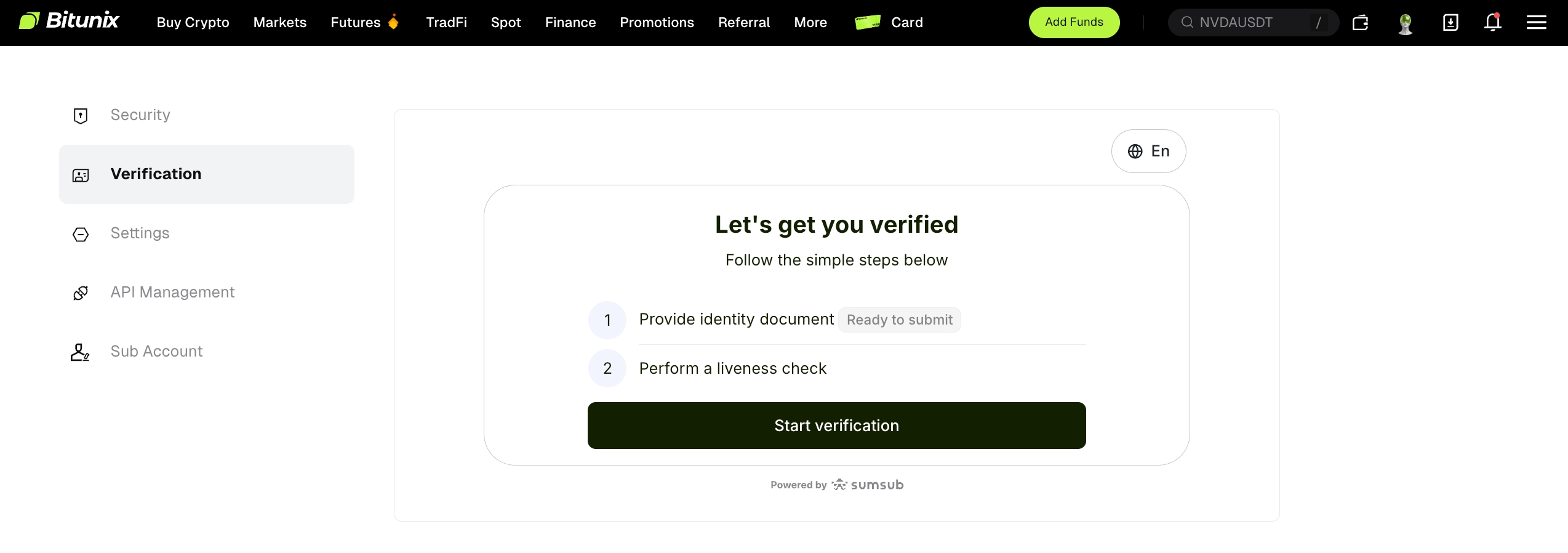
On Identity Verification,Click Start verification.
Step 3 — Select country and document type
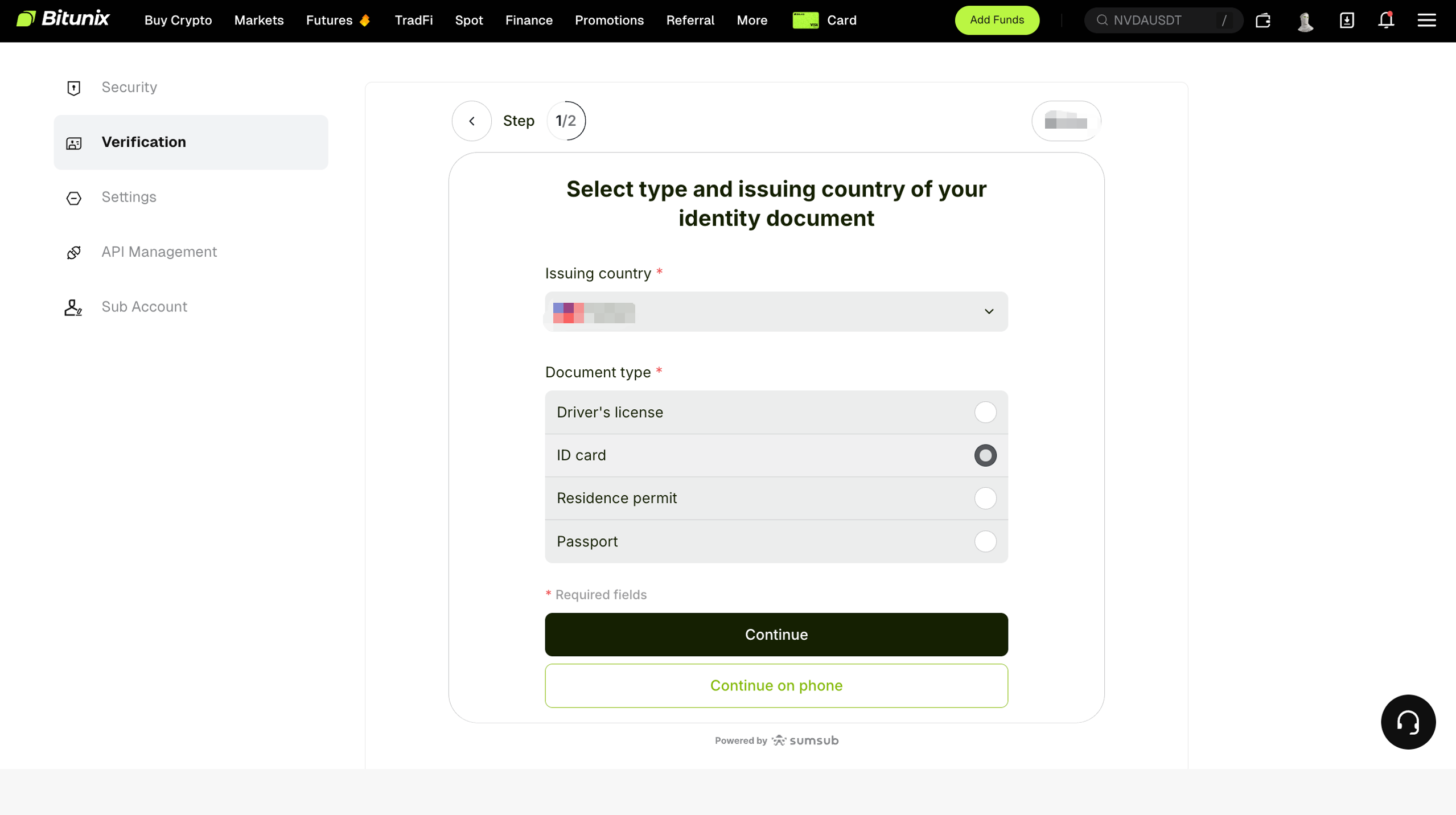
Choose Issuing country and Document type (driver’s license / ID card / residence permit / passport). Click Continue.
Step 4 — Upload your document
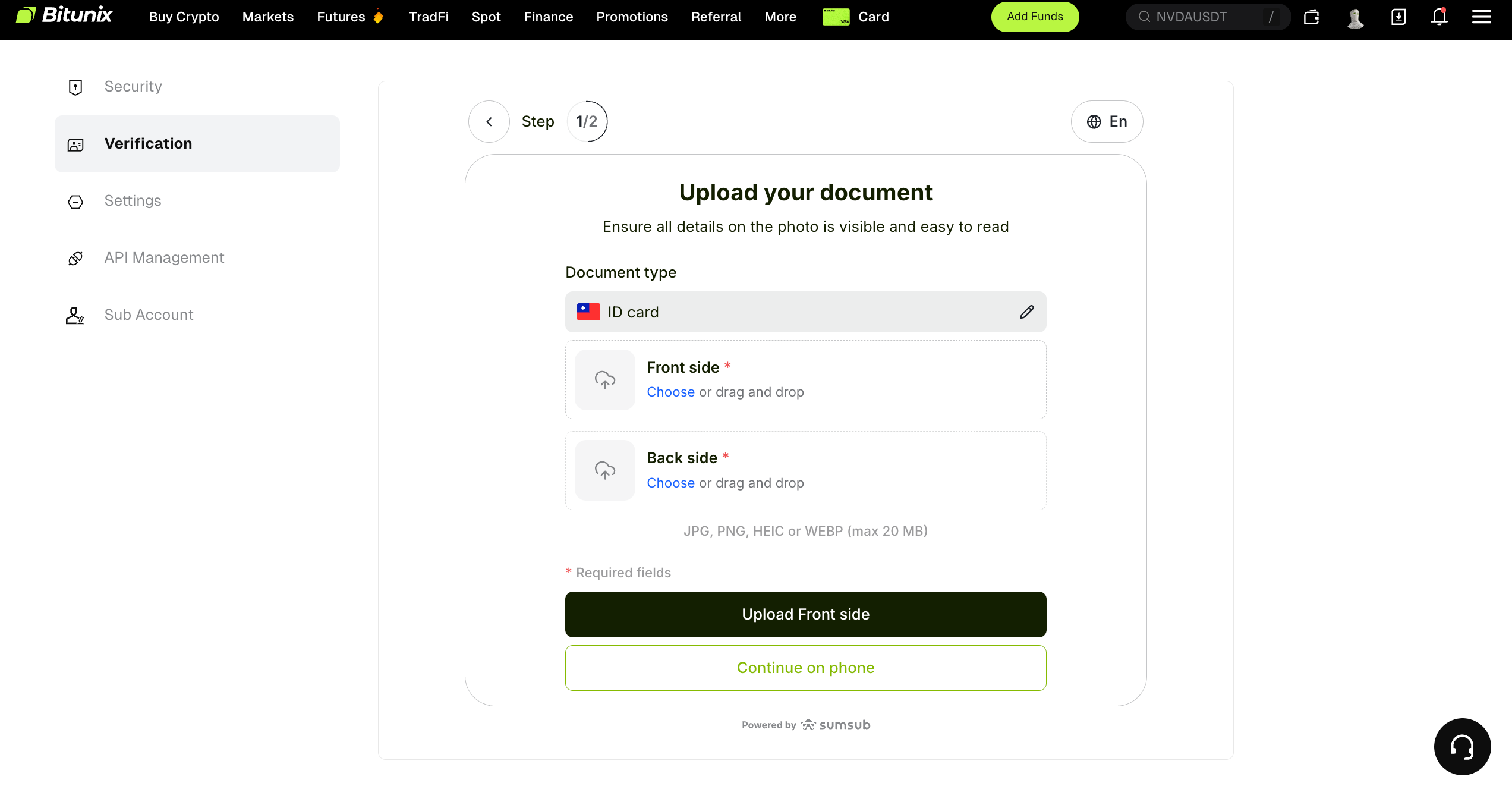
Upload the front side and back side. Make sure all details are clear, then continue.
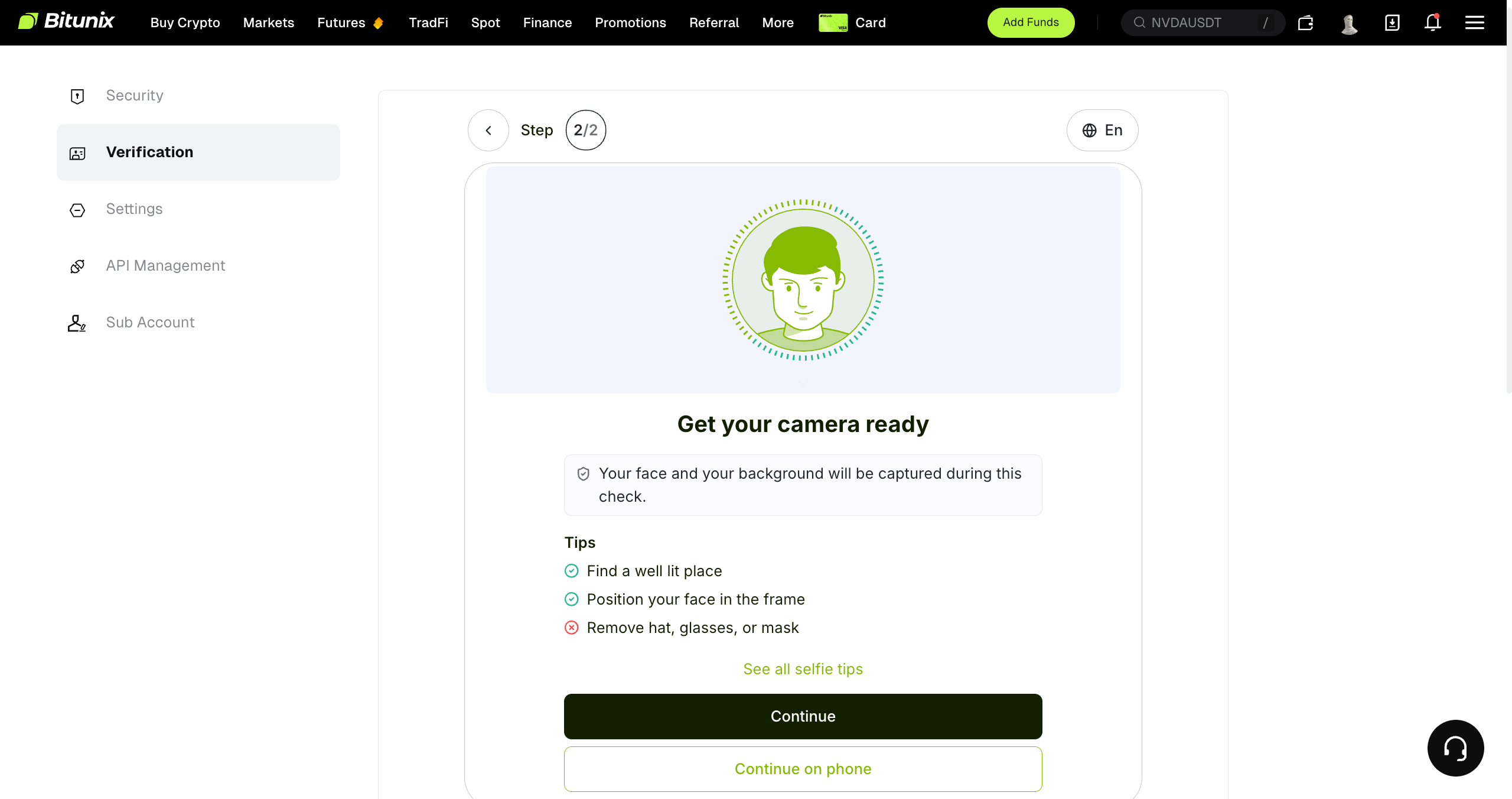
Step 5 — Complete the live face check
On Get your camera ready, complete the liveness check, then submit. Wait for Bitunix to review. When approved, basic KYC is complete.
🔒 Important Security & Submission Reminders
⚠️ Please review the following to ensure a smooth approval:Information accuracy: The name and ID number you enter must match your submitted document exactly. Any mismatch will result in rejection.Photo authenticity: Do not use photos edited with Photoshop or any other software. Edited documents will lead to permanent rejection.Privacy protection: Bitunix encrypts all personal information submitted by users and never shares it with third parties. Never send your ID photos to anyone outside of official Bitunix channels.Handwritten note validity: The handwritten note in your selfie photo must show today's date or yesterday's date.
FAQ
Q1: What should I do if my verification keeps getting rejected?
If your application has been rejected, follow these troubleshooting steps:
- Check that your ID photos are clear, complete, and unedited.
- Confirm that the name and ID number you entered match your document exactly.
- Make sure your selfie meets all requirements (facial features clearly visible, both arms shown, handwritten note content correct).
- Retake your photos or try video verification, then resubmit.
If you've tried multiple times without success, please contact the Bitunix Support team for assistance.
Q2: Why can't I access the page or upload my documents?
Possible causes include:
- Unstable internet connection: Switch to a stable Wi-Fi or mobile network and try again.
- Outdated app version: Update the Bitunix App to the latest version.
- Device compatibility: The camera on some older devices may not function properly. Try a different device or contact support.
If the issue persists, please submit a support ticket with a screenshot of the error, and our technical team will resolve it as quickly as possible.
Q3: Can I correct my information if I made a mistake?
If your application is still under review, you typically cannot make changes yourself. Please wait for the review result:
- If your application is rejected, you can correct the information when you resubmit.
- If your application is approved but you notice an error, please contact support immediately and our team will assist you.
Disclaimer
This article is not intended to provide:
(i) investment advice or investment recommendations;
(ii) an offer or solicitation to buy, sell, or hold digital assets; or
(iii) financial, accounting, legal, or tax advice.
Digital assets (including stablecoins and NFTs) involve high risk and may be highly volatile. You should carefully consider whether trading or holding digital assets is suitable for you based on your financial situation. For your specific circumstances, consult your legal, tax, or investment professionals. You are responsible for understanding and complying with all applicable local laws and regulations.