

1.Quick Overview
This section provides an overview of the key information regarding Palm-Print Verification, including key configurations, supported channels, fee policies, and system requirements. It helps users quickly review essential details and better understand the verification process.
| Key Item | Details |
|---|---|
| Supported Channels | Available exclusively through the Bitunix official mobile app. Palm-Print Verification is currently unavailable on the web version. Users must update the app to the latest official version to use this feature. |
| Service Fees | Palm-Print registration and daily Palm-Print security verification are completely free. No additional feature subscription fees or verification service fees apply. |
| Supported Mobile Systems | Supported on mobile devices running Android 10 or above and iOS 13 or above. |
| Biometric Technology | Powered by the HumanCode right-hand Palm-Print biometric recognition system. Currently, only right-hand Palm-Print collection and verification are supported. |
| Core Benefits | Enhances account login and transaction security protection, helps prevent unauthorized account access, money laundering, fraud, and extortion activities, and aligns with global Anti-Money Laundering (AML) compliance requirements for the digital asset industry. |
2.Product Definition
Bitunix Palm-Print Verification is a biometric security protection feature available on the official Bitunix app, powered by HumanCode's professional Palm-Print recognition technology.
Bitunix introduced this feature to enhance users' account and asset security by helping protect against risks such as unauthorized account access and abnormal transfers. At the same time, it supports global Anti-Money Laundering (AML) and anti-fraud compliance requirements by helping prevent illegal activities in the digital asset industry, including money laundering, online fraud, and extortion, contributing to secure and compliant platform operations.
After binding their Palm-Print information, users can use it as an advanced account security verification method to strengthen account protection. It is a free value-added security tool provided by Bitunix for individual users.
3.Step-by-Step Setup Guide
How to do Palmprint Verification,At present, only palm print verification settings are supported through the App. Please make sure you have updated to the latest version. Bitunix website is not supported for the time being.
1. Open Bitunix app and log in to your account.
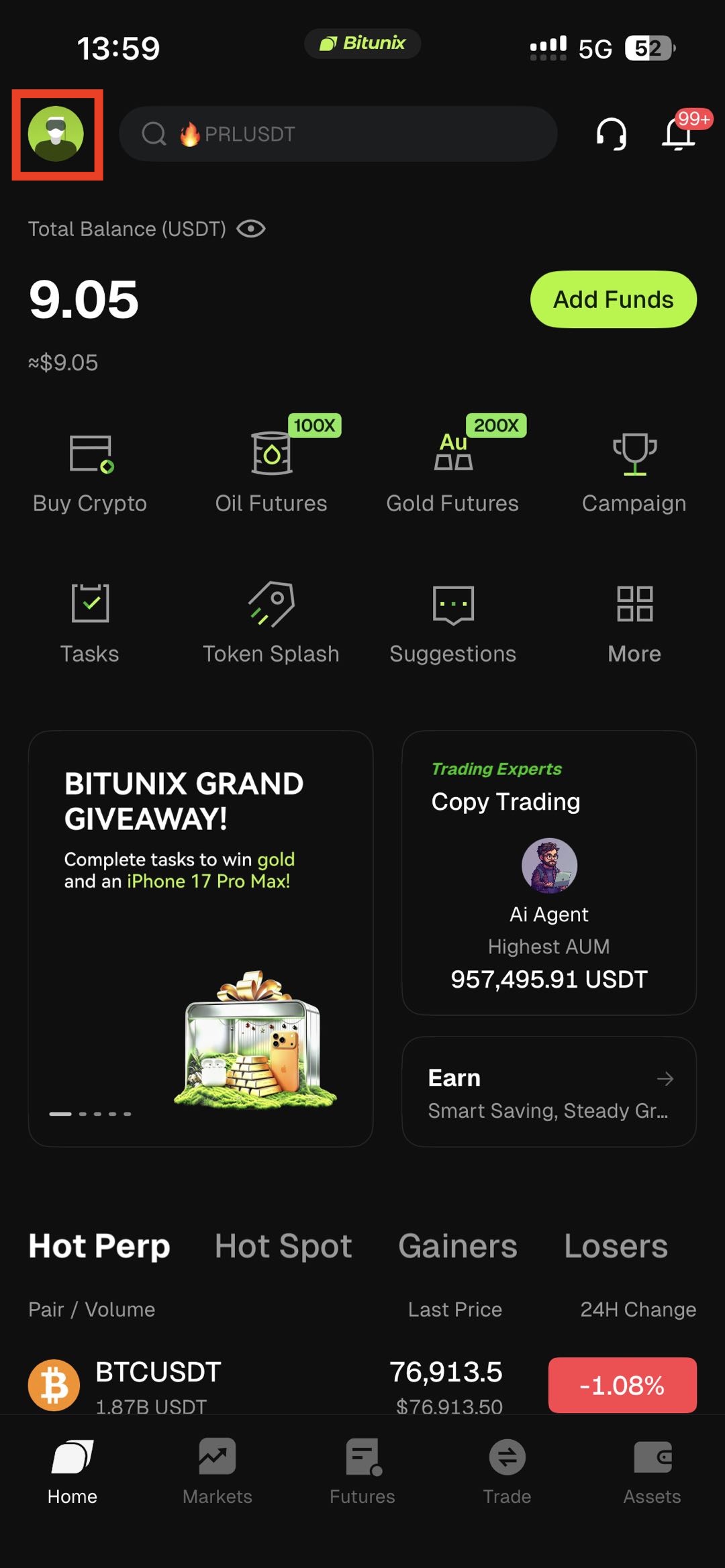
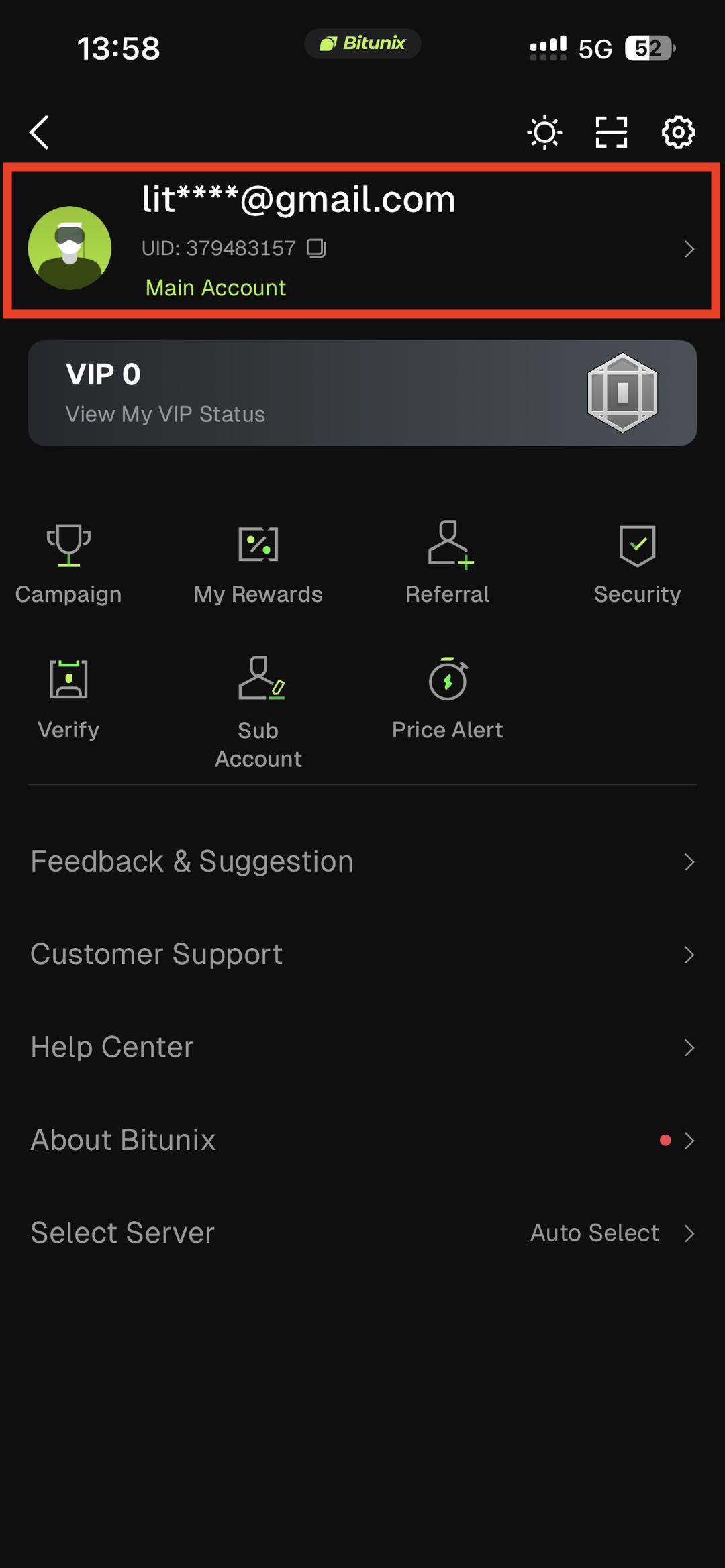
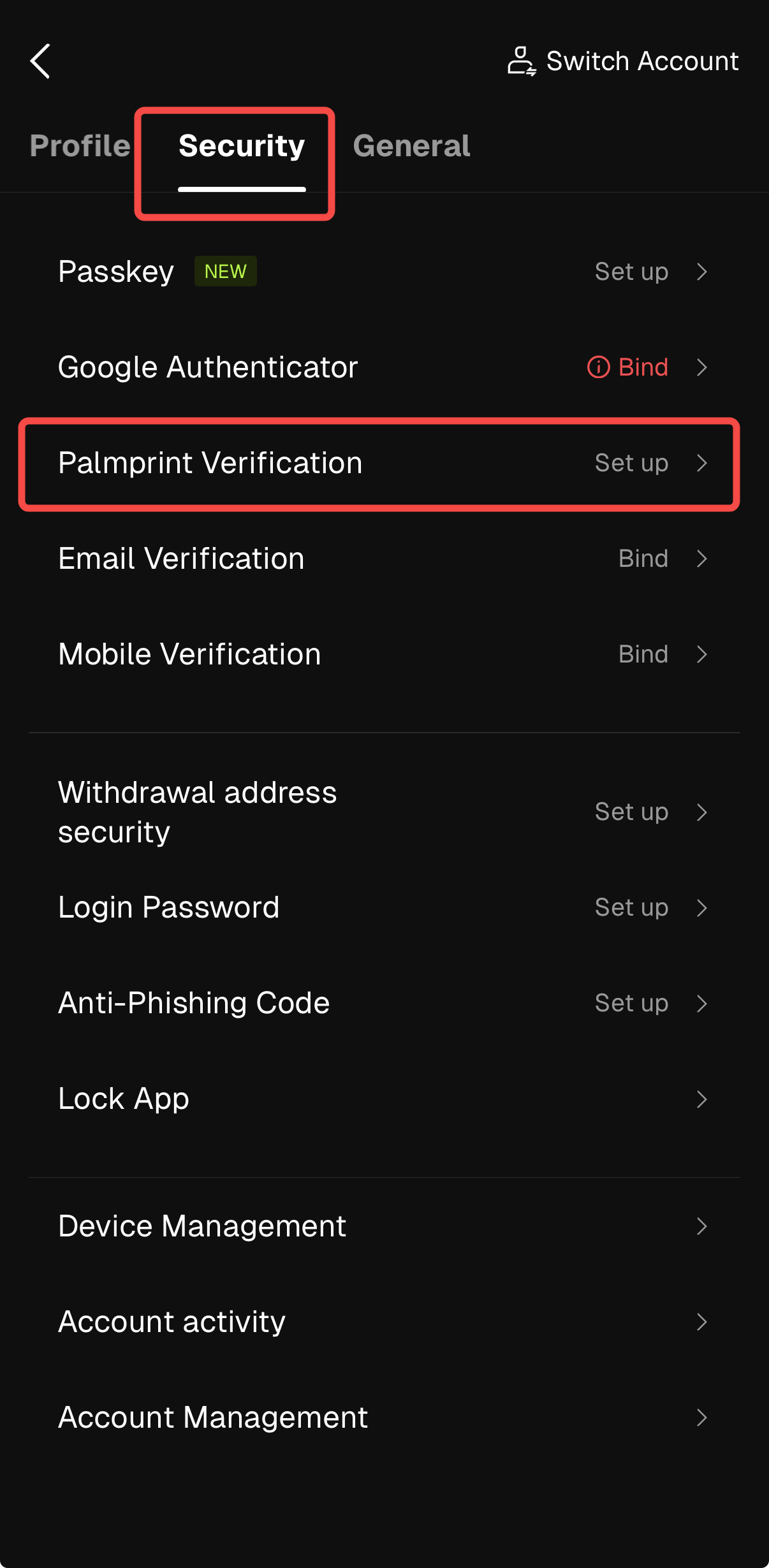
2. Tap on the user avatar on the homepage -> security -> navigate to Palmprint Verification -> tap on Set up.
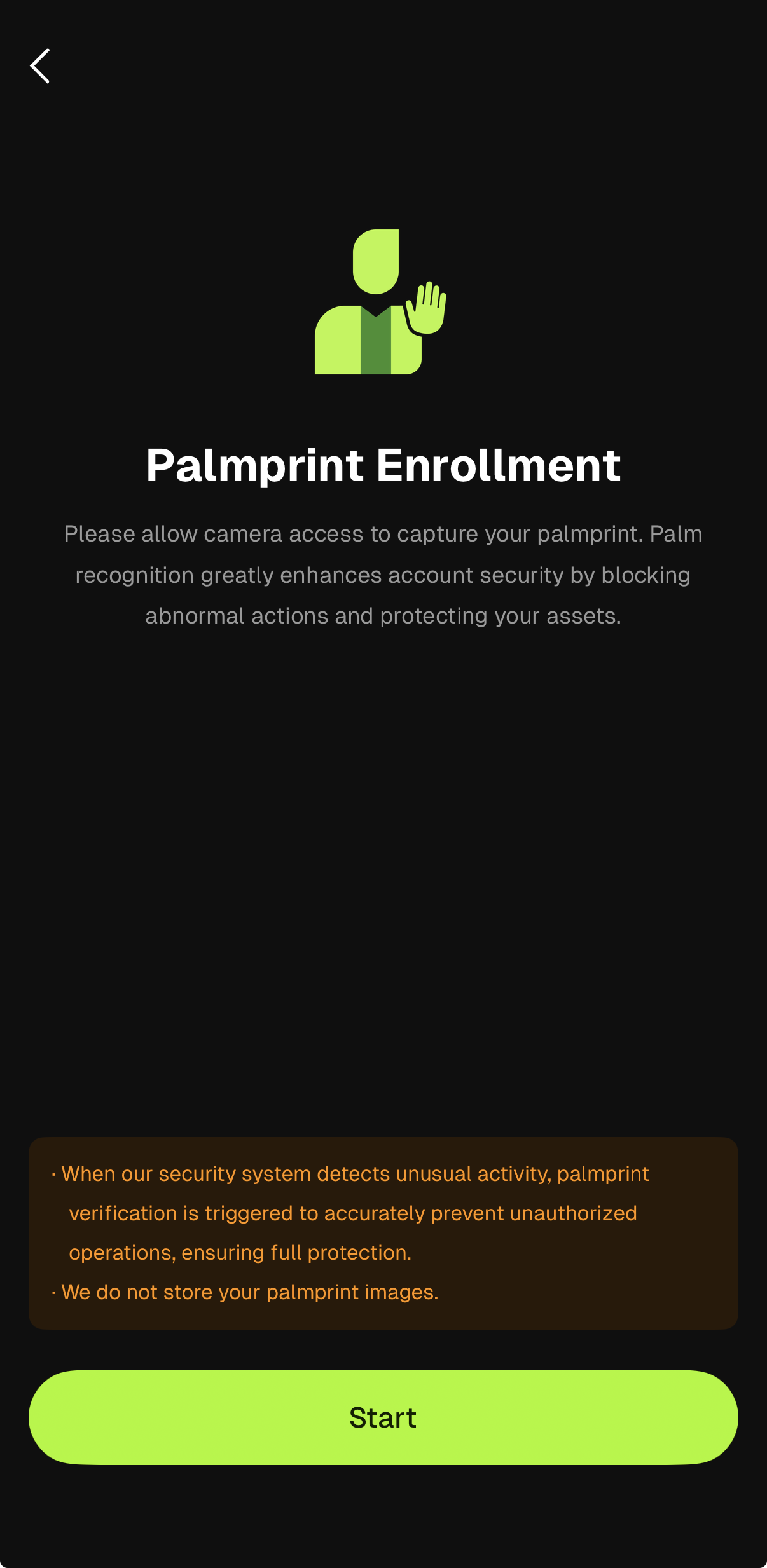
3. Check camera access on your device, then click Start.
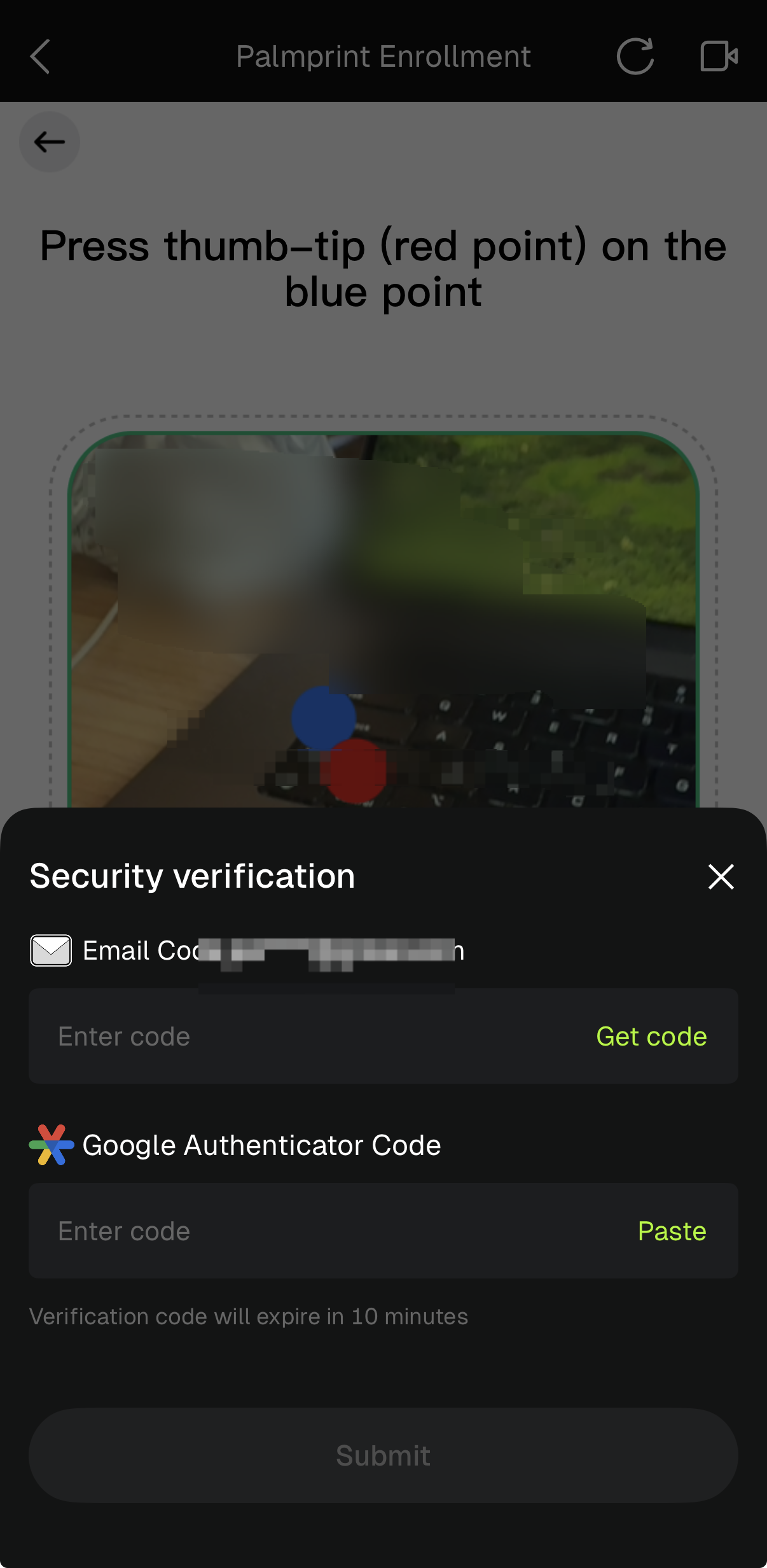
4. Follow the guide on the page to complete the palmprint information and security verification. Palmprint is added successfully.
4.Risk Control and Important Notes
- Security and Anti-Fraud Reminder: Please enable Palm-Print Verification only through the official Bitunix app. Do not use unknown links, third-party imitation apps, or privately distributed installation packages for binding. This helps prevent personal biometric information leakage and account phishing risks.
- Authenticity Requirements: Palm-Print binding can only be completed using the user's own right-hand Palm-Print. Using another person's Palm-Print for verification is strictly prohibited. Future security verification will be compared against the registered Palm-Print information, and unauthorized verification attempts may result in verification failure.
- Operating Environment Requirements: During Palm-Print collection, please ensure you are in an indoor environment with balanced lighting. Direct strong light, backlighting, or insufficient lighting may cause collection failure. Multiple consecutive verification failures may temporarily trigger system security restrictions.
- Device and Condition Requirements: A dirty camera lens, wet or oily palms, or accessories such as rings that obstruct palm patterns may affect recognition accuracy. Before verification, please clean the camera lens, dry your palm, and remove hand accessories.
- Account Security Restrictions: As an advanced security verification method, Palm-Print Verification may restrict high-risk operations such as withdrawals and large-value transfers if the system detects a mismatch between the Palm-Print information and stored verification data. Users must complete identity verification using their own registered information to restore access.
- System Version Requirements: Palm-Print Verification cannot be enabled on devices running systems below Android 10 or iOS 13. Attempting to use the feature without updating the system may result in service errors or permission authorization issues.
5.FAQ
Q1: Why must I use my right hand for palmprint verification?
Currently, HumanCode only supports right-hand palmprint recognition. The system is not capable of recognizing left-hand or other palm data. Support for more options may be available in future updates, and we will notify users accordingly.
Q2: What should I pay attention to when placing my palm?
To ensure accurate identification, follow these recommendations: fully cover the scanned area with your palms to avoid missing edges; open your fingers naturally to avoid excessive bending or overstretching; keep your palms parallel to the camera at a distance of about 10-15 cm; correct posture and good lighting can help improve the recognition success rate.
Q3: Does lighting affect verification?
Yes, light has a great impact on recognition: strong direct light may produce reflection, which affects image capture; insufficient light may cause blurred palmprint; it is recommended to operate in a uniform natural light environment to avoid backlight or shadows blocking the palm.
Q4: How should the device be maintained to improve recognition accuracy?
Please use soft fabric to clean the device lens regularly to avoid fingerprints or dust affecting the identification. At the same time, ensure that the palm is dry and clean, and avoid stains or accessories that obscure the palm print characteristics. Clean equipment and palms are the key to smooth verification.
Q5: What should I do if it says “No palm detected”?
Possible reasons are as follows: using the wrong palm (such as the left hand) → please try again with the right hand; the palm is not centered → adjust to the center of the scanning area; the camera is blocked or dirty → try again after cleaning; usually retry 2-3 times to solve the problem.
Q6: What if I keep failing the verification?
Common reasons include: palm condition problems: wet, dirty or wearing a ring → please clean and dry your palms, remove the accessories and try again; the initial palm print data is not clear → delete and re-enter the clear palm print; poor light → replace it with a well-lit environment; if it still cannot be completed, please contact customer service for assistance.
Q7: What if the system shows a “Service Error”?
Usually a system or network problem, please check: whether the network connection is stable (Wi-Fi or mobile data); whether the device meets the version requirements (Android 10 +/iOS 13 +); restart the app or device and try again; if the problem persists, please provide screenshots and UID to contact customer service.
Q8: Is it normal for the verification to be slow?
HumanCode may be slow to respond on older devices or in poor lighting. Recommendations: Turn off other apps that use the camera; make sure the lens is clean and in focus; use newer devices to improve performance; please note: for security, biometric verification may take seconds to complete.
Disclaimer
This article is not intended to provide:
(i) investment advice or investment recommendations;
(ii) an offer or solicitation to buy, sell, or hold digital assets; or
(iii) financial, accounting, legal, or tax advice.
Digital assets (including stablecoins and NFTs) involve high risk and may be highly volatile. You should carefully consider whether trading or holding digital assets is suitable for you based on your financial situation. For your specific circumstances, consult your legal, tax, or investment professionals. You are responsible for understanding and complying with all applicable local laws and regulations.