

1. Quick Overview
| Item | Details |
|---|---|
| Feature | Chart Trading 3.0 · Linked TP/SL in Multiple Batches (Multi-Level TP / Multi-Level SL in P Mode) |
| Supported Scope | Web Futures: USDT-Margined, Coin-Margined, USDC-Margined contracts, and Copy Trading (subject to the actual entry point available on the trading page) |
| Key Difference from 2.0 | 2.0: Multiple levels must be confirmed one by one. 3.0: Up to 5 levels in the same direction can be configured in a single panel, with the percentages automatically totaling 100%. Click once to save and place all orders. |
| How Are the "5 Levels" Counted? | TP and SL levels are counted separately. Up to 5 linked TP levels and 5 linked SL levels can be configured, independently of each other. |
| Up to 5 Levels vs. the 6th Level | Up to 5 levels: Use Detailed Partial Settings to modify and save multiple levels together. If any level fails, none of the orders will be placed in that submission. From the 6th level onward: Use Individual Partial Settings to modify only that level. The percentage is not automatically redistributed. If the first 5 levels already account for 100%, the new level defaults to 0%, and part of the existing allocation must be released before it can be saved. |
| Can E and P Coexist? | Yes. The same position can have both Entire-Position TP/SL (E) and Partial-Position TP/SL (P) orders at the same time. |
| Changing Price vs. Changing Position Size | To change the trigger price: Drag the line on the K-line chart and release it to apply the change directly, without opening a pop-up window. To change the closing percentage: Click the line or Modify in the list to open the pop-up window, then save the changes. |
| Fees / Settlement | TP/SL are conditional closing orders. Once executed, the applicable trading fee rate for the contract is charged. Settlement is the same as for a regular closing order and is subject to the executed order and account transaction records. Funding fees and other position-related rules remain unchanged. |
| Recommended Entry | Chart Trading Introduction → Web Futures K-line chart → Click P on the left side of the Positions bar → Partial TP/SL tab at the bottom |
One-Line Takeaway: To quickly set a plan such as "close 50% at A, another 30% at B, and leave 20% remaining for C," use P Mode + Detailed Partial Settings with up to 5 levels + automatic percentage adjustment. When there are more levels or the first 5 linked levels are already fully allocated, manage each additional level individually using Individual Settings starting from the 6th level.
2. Product Definition
With Bitunix Chart Trading, you can split the exit of a single position into multiple orders, with different trigger prices and only part of the position closed at each level.
The key upgrade in Chart Trading 3.0 is not whether partial TP/SL is supported—2.0 already supports it—but making it faster to configure, easier to manage, and more convenient to modify:
- No need to manually calculate whether the percentages across all levels add up to 100%.
- For up to 5 levels, adjusting one level can automatically distribute the remaining percentage evenly across the other levels.
- Multiple levels can be saved in a single action, reducing repetitive confirmations.
If you are familiar with quick order placement, you can first check the Chart Trading 2.0 Quick Panel. This article focuses on Partial TP/SL in P Mode and its linking rules.
E Mode vs. P Mode
| Mode | Meaning | Typical Use |
|---|---|---|
| E (Entire Position) | TP/SL is handled based on the full-position logic once triggered. | Exit the entire position at once |
| P (Partial Position) | Supports multiple TP and SL levels, with each level corresponding to a partial closing percentage. | Staged TP and partial SL |
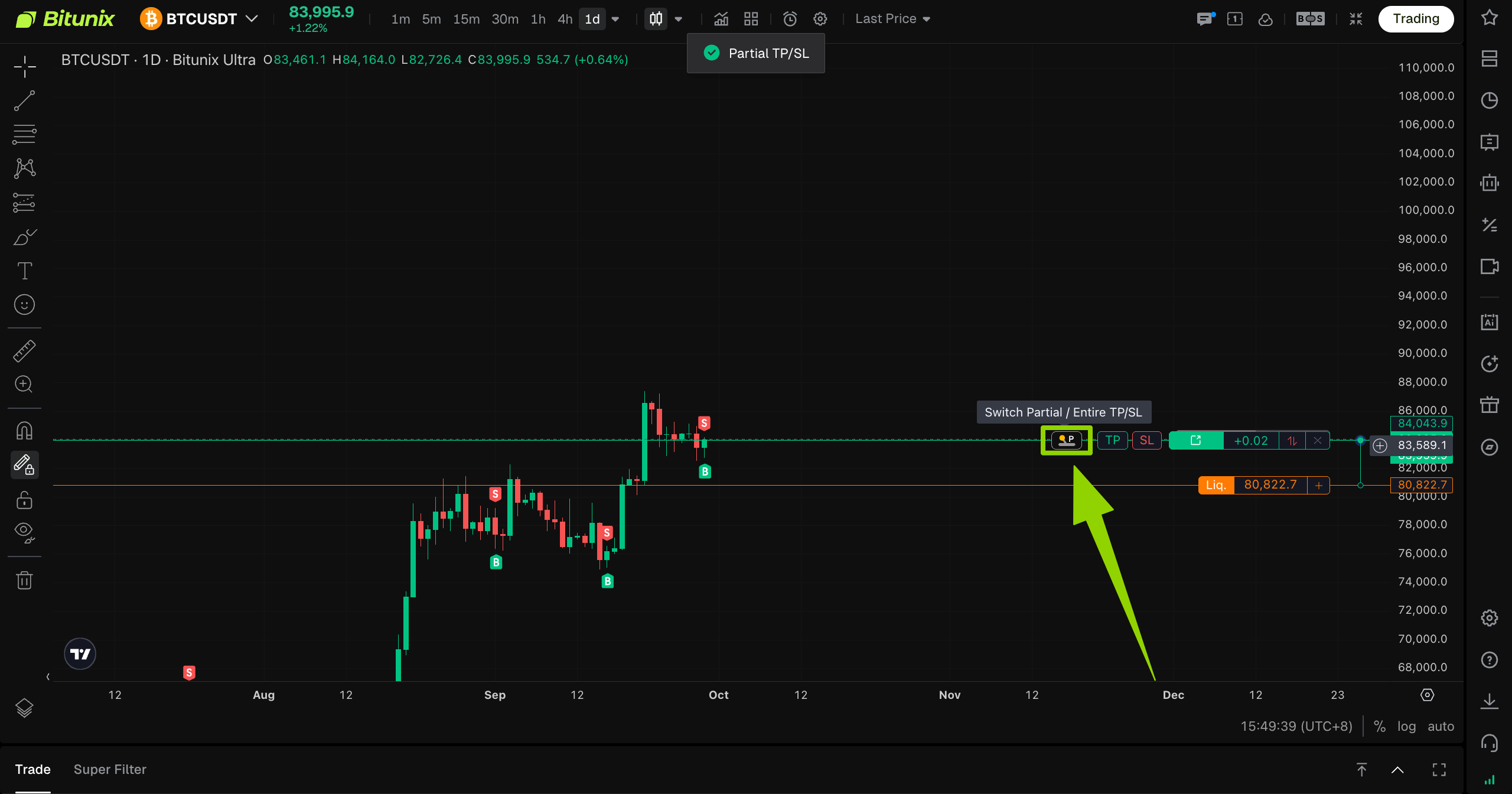
On the K-line chart, click P on the far left of the Positions bar to confirm that P Mode is active rather than E Mode.
Chart Trading 2.0 vs. Chart Trading 3.0 (Partial TP/SL)
| Scenario | Chart Trading 2.0 | Chart Trading 3.0 (This Article) |
|---|---|---|
| Set Up Multiple Levels | Confirm each level one by one | Up to 5 levels: Configure them in the same panel and save them at once |
| Percentage Allocation | Calculate and verify manually | Automatically adjusted by default, with the total tending toward 100% |
| Adjust Closing Percentage | Same workflow | Drag the line to change the price; click the line or Modify in the list to open the pop-up and adjust the percentage |
Typical Use Cases
| Your Need | Recommended Approach |
|---|---|
| Close 50% at A, another 30% at B, and wait to close the remaining 20% at C | Detailed Settings for up to 5 levels + preset percentages or automatic adjustment |
| Avoid manually calculating the percentage for each level | Keep Automatic Percentage Adjustment enabled |
| More than 5 levels in the same direction | Use Detailed Settings for the first 5 levels, then Individual Settings starting from the 6th level |
| Use full-position protection together with staged TP | E Mode and P Mode can be configured at the same time, but make sure you understand how their trigger logic works |
3. Step-by-Step Guide
Step 1: Switch to P Mode
- Log in to the Bitunix official website and open the Web Futures chart page.
- Select the K-line chart with an open position and the corresponding position.
- Click P on the far left of the Positions bar and confirm that P Mode is active rather than E Mode (Entire Position).
Step 2: Add Partial TP/SL (Fewer Than 5 Levels in the Same Direction)
Entry (choose either):
- Drag the TP line or SL line on the Positions bar to the target price and release it; or
- Click Add More in the Partial TP/SL tab at the bottom.
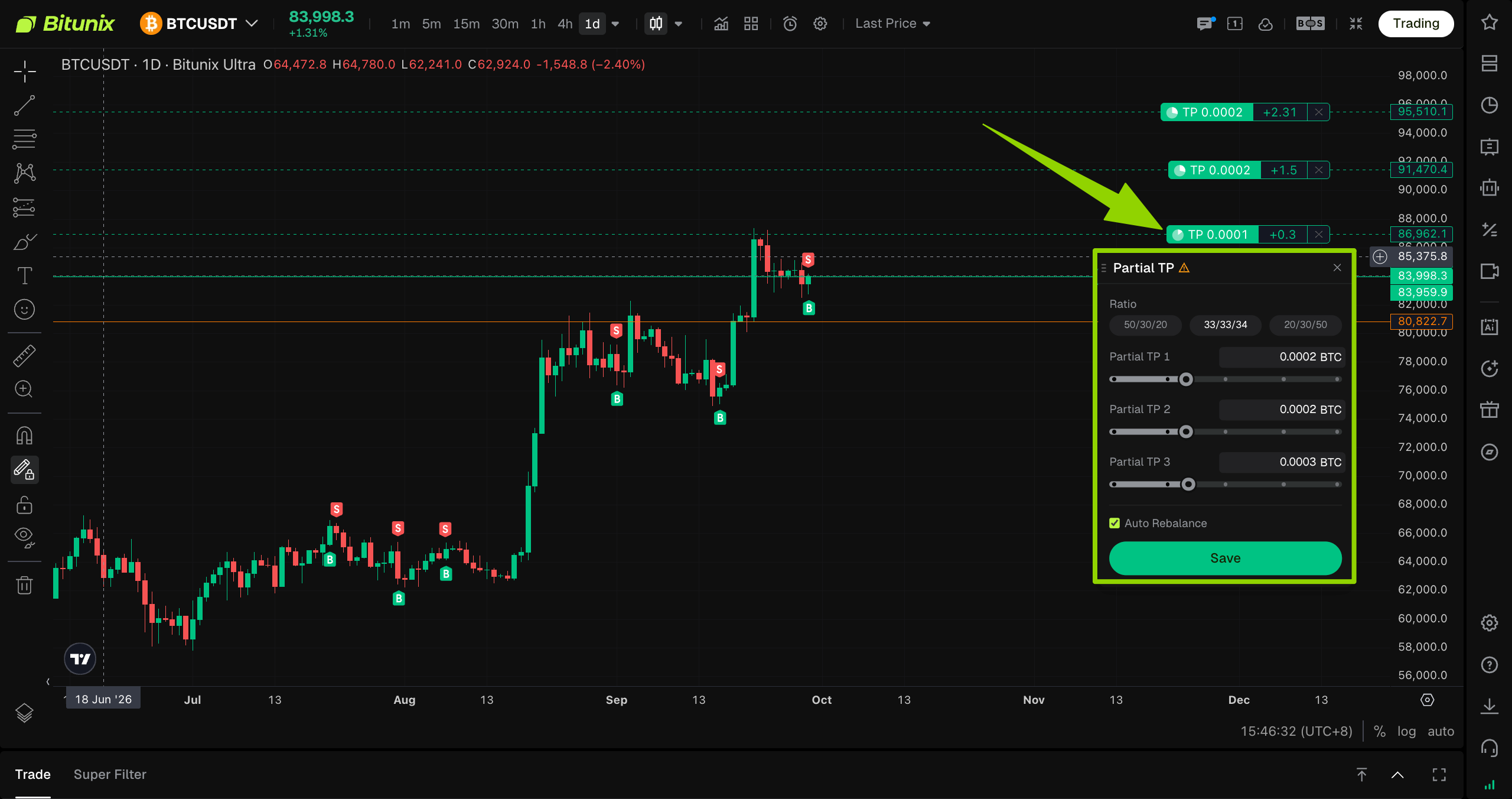
- The Batch Detailed Settings window will then appear. Up to 5 levels can be added in the same direction. Configure the following:
1.Closing Percentage
Select a preset percentage using the quick options, or manually enter the percentage for each level.
2.Automatic Percentage Adjustment (Enabled by Default)
- Enabled: After you modify the percentage of one level, the remaining percentage is automatically distributed evenly across the other levels, helping bring the total for that direction to 100%.
- Disabled: The system no longer automatically adjusts the allocation. You must check the total percentage for all levels yourself. If the total exceeds 100%, the Save button will be disabled and the settings cannot be submitted.
3.Preset Percentages (Apply in One Click)
Common templates include 50 / 30 / 20, 33 / 33 / 34, and 20 / 30 / 50. Select a template to quickly fill in the percentages, then fine-tune them as needed.
Important: Save Rules
After clicking Save, all levels in the detailed settings are submitted together as a single order submission. If any level fails, none of the orders from that submission will be placed. Follow the prompt to make the necessary adjustments and save again.
Video Demo:
Step 3: Add the 6th Level (When 5 Levels Already Exist in the Same Direction)
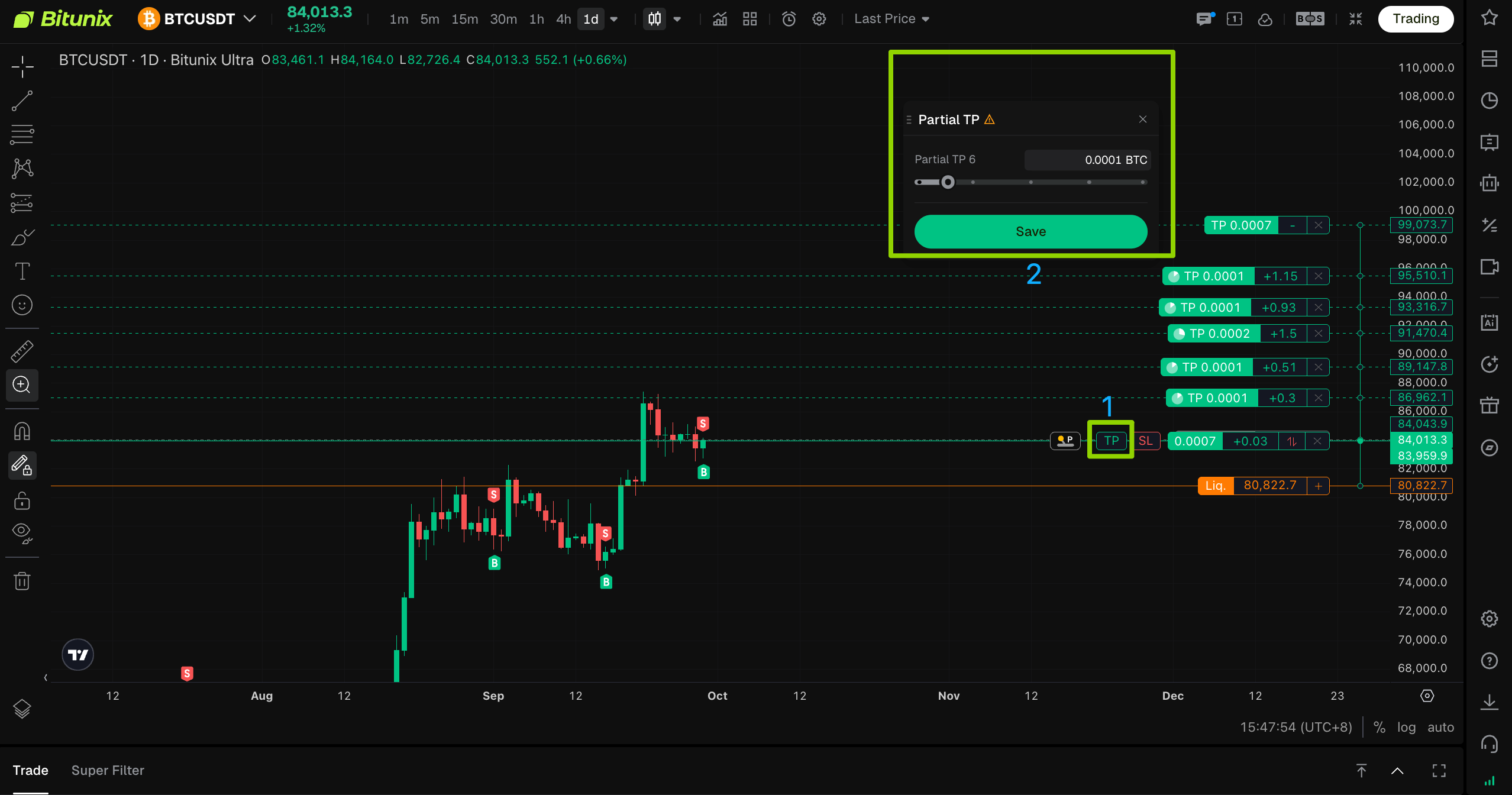
When 5 levels already exist in the same direction (TP or SL only), dragging the line again or clicking Add More will open Individual Partial Settings:
- After saving, only this level will take effect.
- If the combined percentage of the first 5 levels is already 100%, the new level defaults to 0%. You must first free up some percentage in the detailed settings or from the existing levels, then enter a valid percentage for this level before saving.
Video Demo:
Step 4: Modify Existing TP/SL Levels
1.To change only the TP/SL trigger price: Drag the partial line on the K-line chart to the new price and release it. The change takes effect immediately without opening a pop-up window.
2.To change the TP/SL closing percentage: Click the partial line, or click Modify in the Partial TP/SL list.
For up to 5 levels in the same direction, Detailed Partial Settings will open. For more than 5 levels, Individual Partial Settings will open. After making your changes, click Save. Detailed Partial Settings saves multiple levels in the current submission, while Individual Partial Settings saves only the selected level.
Step 5: Cancel
Cancel a Single Level
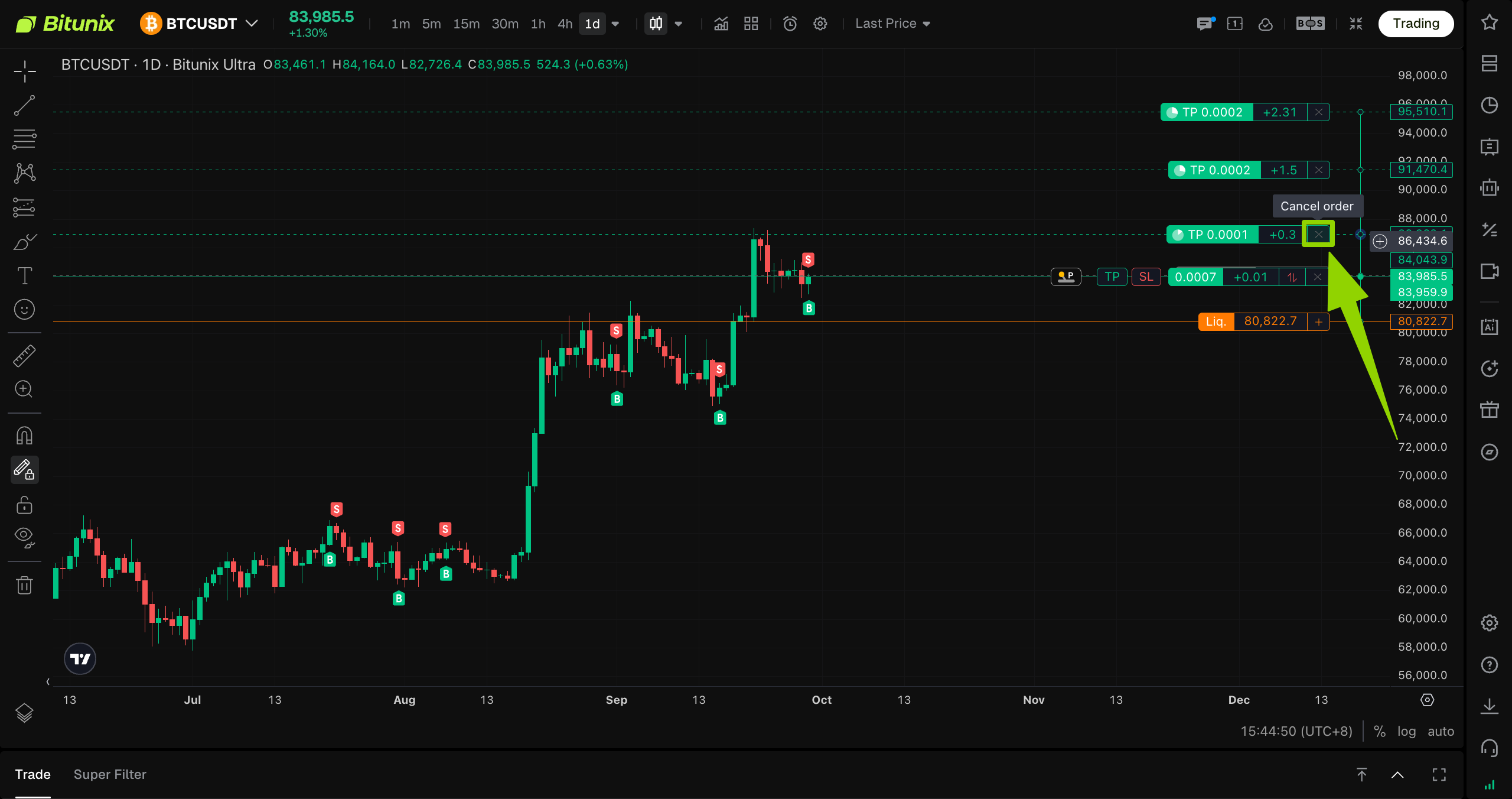
- Find the label next to the corresponding level line on the K-line chart. The label shows the TP/SL, quantity, estimated PnL, and other details.
- Click「×」on the right side of the label to cancel only this level. All other levels will remain unchanged.
Cancel All Partial Orders in the Same Direction
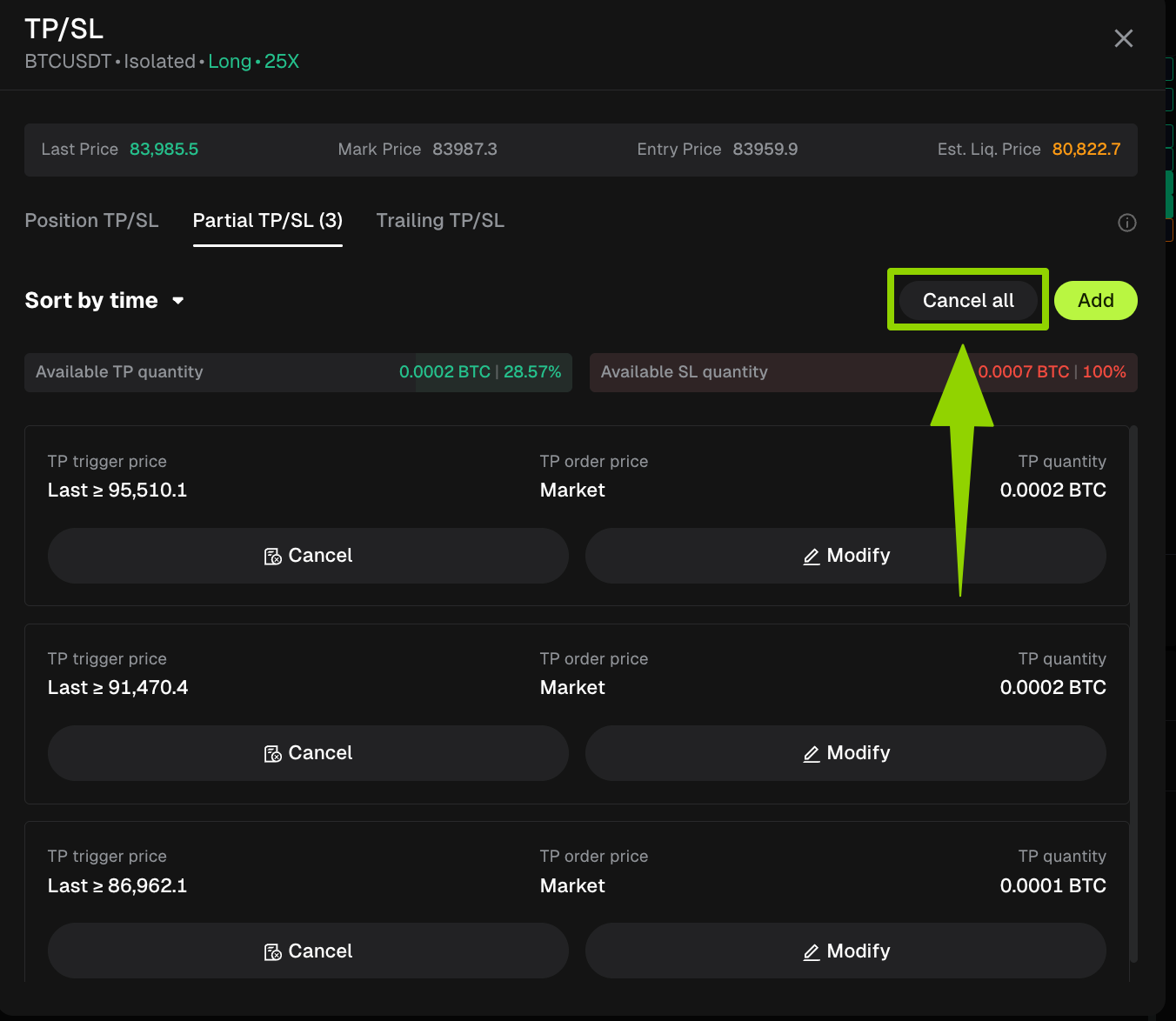
- Open the Partial TP/SL tab at the bottom.
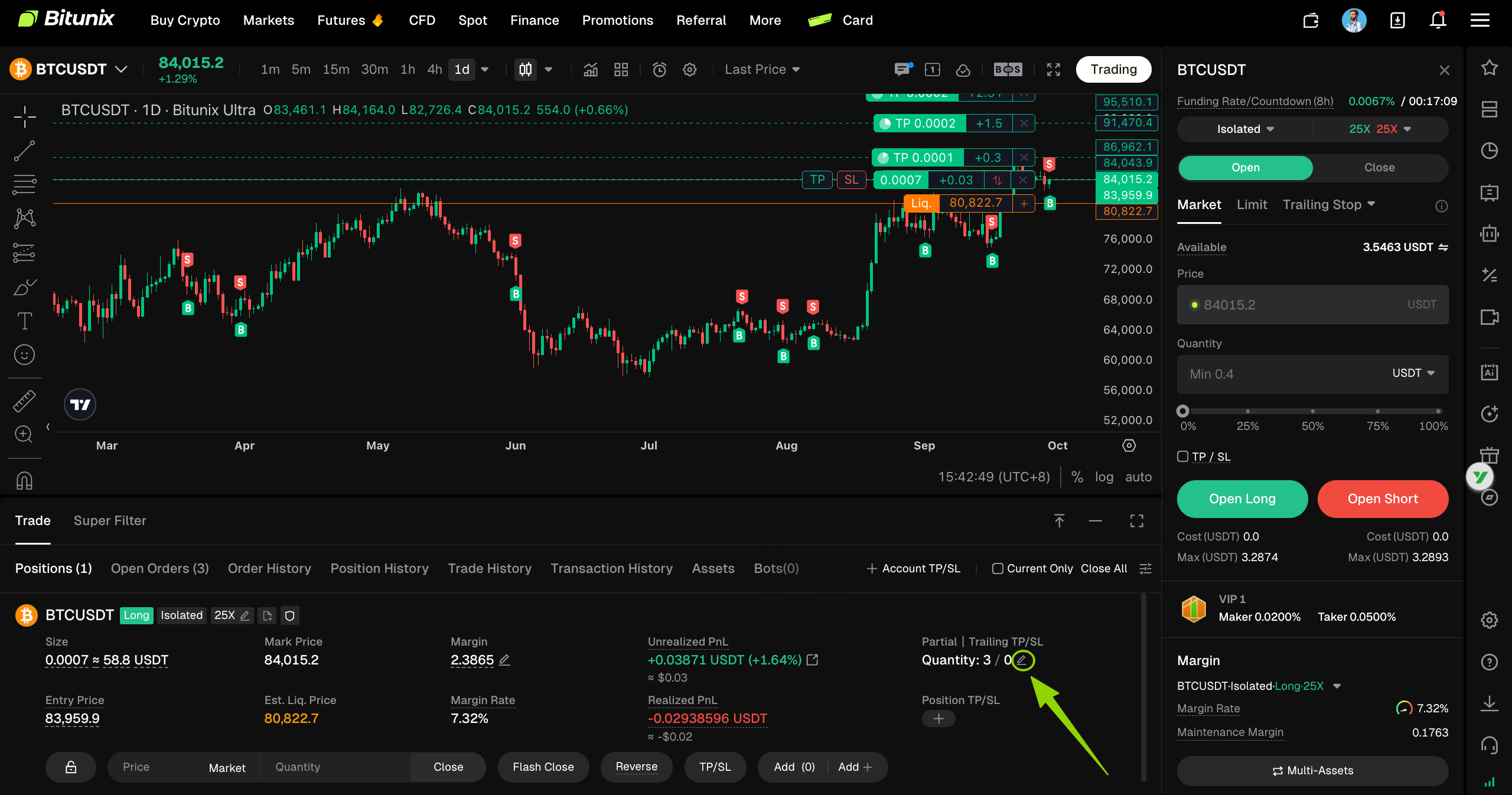
2.Click Cancel All to cancel all partial orders in the same direction listed in the tab. The direction is determined by the page, either TP or SL.
4. Risk Management and Important Notes
- Leverage and Liquidation
Partial TP/SL only changes how you exit a position; it does not change the risk of the position itself. If the market moves against your position, liquidation or insufficient margin may still occur. Manage your risk based on your position size, leverage, and applicable contract rules.
- Trigger Price vs. Execution Price
TP/SL orders are conditional orders. During highly volatile market conditions, slippage, partial fills, or failure to fully execute at the expected price may occur after an order is triggered. The actual execution price and fill are subject to the executed order.
- If the Entire Submission Fails, None of the Orders Will Be Placed
For Detailed Partial Settings with up to 5 levels, all levels are submitted together. If validation or order placement fails for any level, none of the levels in that submission will take effect. After saving, check the K-line chart and the bottom list to confirm that all levels are displayed.
- 100% Limit After Automatic Adjustment Is Disabled
If the manually entered percentages exceed 100%, the settings cannot be saved. If the total is below 100%, this may mean that part of the position is not planned to be closed and will remain open. Confirm that this matches your strategy.
- E Mode and P Mode Used Together
E Mode (Entire Position) and P Mode (Partial Position) may trigger at the same time or result in a closing sequence you did not expect. Before configuring them, make sure you understand which prices are assigned to entire-position TP/SL and which are assigned to partial TP/SL.
- Copy Trading
In Copy Trading scenarios, partial order rules may be displayed slightly differently from those in regular accounts. Refer to the Copy Trading page and the actual prompts on the chart for the applicable rules.
- Web Futures Only
The functionality described in this article applies to the Web Futures chart. If there are differences on the App or other terminals, refer to the instructions provided for the corresponding terminal.
FAQ
Q1: Are TP and SL limited to 5 levels in total?
A: No. Up to 5 TP levels can be linked, with the option to add a 6th level and beyond individually. SL has a separate set of levels. The two directions are counted independently and do not share the same level limit.
Q2: Why did other levels change when I adjusted one percentage?
A: In Detailed Partial Settings, Automatic Percentage Adjustmentis enabled by default. The system distributes the remaining position percentage evenly across the other levels. If you want full manual control, disable Automatic Percentage Adjustment and make sure the total does not exceed 100%.
Q3: What is the difference between changing the price by dragging the line and changing the percentage by clicking Modify?
A:Dragging the line only updates the trigger price and takes effect when you release it. To change the percentage, you must open the pop-up by clicking the line or Modify in the list. The change takes effect after you click Save, whether you are updating a single level or multiple levels in the current submission.
Q4: What should I do if saving fails and I am not sure which level caused the issue?
A: Detailed settings are submitted as an entire submission. Check whether each level has a valid price, whether the percentages add up correctly, whether the closing quantity exceeds the available position, and whether the direction already has 5 levels while Detailed Partial Settings is being used. After making the necessary corrections, click Save again.
Q5: Why can't I save the 6th level when its default percentage is 0%?
A: If the first 5 levels already account for 100%, there is no remaining percentage to allocate. Go back to the first 5 levels (or modify them from the list), reduce the percentage of one or more levels, and then allocate a percentage to the 6th level.
Q6: Compared with Chart Trading 2.0, do I still need to confirm each level one by one?
A:No for linked configurations with up to 5 levels. You can save them all at once. Any levels beyond the first 5 must still be configured using Individual Partial Settings and saved separately.
Q7: Can I use E Mode and P Mode at the same time?
A: Yes. Plan the trigger logic carefully to avoid duplicate closing orders or conflicts between your configurations.
Q8: Which contract types are supported?
A: The scope covered in this article includes USDT-Margined, Coin-Margined, and USDC-Margined contracts, as well as Copy Trading, on the Web Futures chart. The availability of Partial TP/SL depends on whether the corresponding entry is displayed for the trading pair on the page.
Disclaimer
This article is not intended to provide:
(i) investment advice or recommendations;
(ii) an offer or solicitation to buy, sell, or hold digital assets; or
(iii) financial, accounting, legal, or tax advice.
Digital assets, including stablecoins and NFTs, are highly volatile and involve significant risk. Please carefully consider your financial situation and risk tolerance before trading or holding digital assets.
Consult your independent legal, tax, or investment professional to ensure that your actions comply with applicable local laws and regulations.